ワークフロー feature

Autopilot Mode Mode Mode: ロイヤルティ スキャンning Without Slowing the Queue

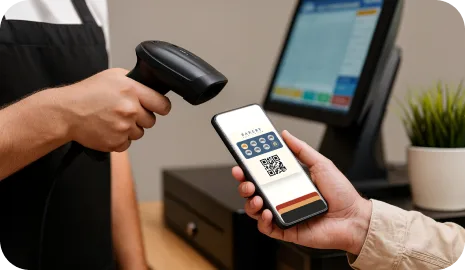
Autopilot Mode Mode Mode adds Stamp in the background when 顧客 スキャン their カード with an external scanner. The queue keeps moving and the 顧客 can check 特典 progress later on their phone.

This ワークフロー is built for businesses where speed matters more than a long ロイヤルティ interaction at the counter. The 顧客 still uses the same Apple Wallet or Google Wallet カード, but the Stamp moment becomes a fast background step instead of a kiosk session or スタッフ conversation.

Background Stamp validation External scanner at the counter 最適な業種 rush-hour queues 顧客 checks progress on the phone
最終更新

Equipment and counter 設定 checklist

Autopilot Mode Mode Mode works best when the スキャン moment is already part of the counter rhythm. The goal is not to build a second kiosk, but to add ロイヤルティ to the existing high-speed ワークフロー.

01

External scanner at the active counter

Use a scanner that already fits the counter 設定 so スタッフ do not need to switch devices or move away from the order and 支払い flow.

02

Clearly visible Wallet カード スキャン point

顧客 should immediately 理解する where to present the Apple Wallet or Google Wallet カード for the fastest possible スキャン.

03

Reliable browser or station connection

Autopilot Mode Mode depends on a steady connection so the Stamp can be processed in the background without forcing a manual retry in the middle of a queue.

04

シンプル 特典 expectation for スタッフ

The team should know whether the 特典 is simply tracked on the カード, revealed later, or handed off through a separate Smart Voucher or Redeem Code flow.

05

Fallback assisted option

Keep a backup path for 最初-time 顧客 or unusual cases so a missed スキャン does not become a stressful counter moment.

How Autopilot Mode Mode Mode works in a busy queue

The ideal Autopilot Mode Mode flow is short, predictable, and almost invisible to the rest of the line. 顧客 get ロイヤルティ credit without turning checkout into a long extra step.

  1. ステップ 1 01

    The 顧客 joins once and saves the カード

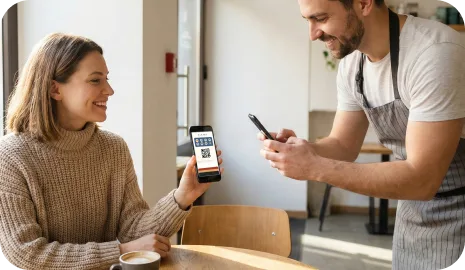
    On the 最初 visit, the 顧客 scans a QR code and saves the ロイヤルティ カード to Apple Wallet or Google Wallet for future use.

    The 顧客 joins once and saves the カード
  2. ステップ 2 02

    At the 次 visit, the 顧客 opens the Wallet カード

    The saved カード is ready on the phone before or during checkout, so the 顧客 does not need to 検索 for a separate App or login.

    At the 次 visit, the 顧客 opens the Wallet カード
  3. ステップ 3 03

    The カード is scanned with the external scanner

    The スキャン happens at the active counter while the スタッフ continues the service flow. The ロイヤルティ moment stays short and does not depend on a shared kiosk screen.

    The カード is scanned with the external scanner
  4. ステップ 4 04

    7stamp adds the Stamp in the background

    Autopilot Mode Mode Mode records the visit in the background so the queue can keep moving instead of waiting for a long on-screen 特典 interaction.

    7stamp adds the Stamp in the background
  5. Step 5 05

    The 顧客 checks progress or 特典 status on the phone

    After the スキャン, the 顧客 can see 更新済み progress and any 特典 outcome on the Wallet カード without interrupting the 次 order in line.

    The 顧客 checks progress or 特典 status on the phone

Best industries for Autopilot Mode Mode Mode

Autopilot Mode Mode Mode is strongest where speed, repeat traffic, and short transactions matter more than a guided ロイヤルティ experience at the counter.

01

Coffee shops and morning rush counters

A すばやい スキャン is easier to fit into a coffee queue than a longer kiosk step, especially when many regulars arrive in a short time window.

02

Bakeries and takeaway counters

The ワークフロー fits businesses with fast-moving orders, frequent repeat 顧客, and limited room for a second interaction surface near checkout.

03

Food halls, pickup windows, and express service points

Autopilot Mode Mode helps when the team should stay focused on order handoff and speed while ロイヤルティ quietly runs in parallel.

04

Busy retail counters with short transactions

Useful for shops that want repeat-visit 特典 but do not want スタッフ to stop and explain a self-service tablet to each 顧客.

Autopilot Mode Mode Mode vs Self-Service Self-Service Self-Service Kiosk

Both ワークフロー reduce スタッフ involvement compared with a fully スタッフ-led ロイヤルティ process, but they solve different counter realities. Autopilot Mode Mode is built for the fastest possible スキャン moment, while kiosk mode gives the 顧客 a more visible self-service interaction.

01

Primary goal

Autopilot Mode Mode Mode
Keep the live queue moving by making ロイヤルティ a background スキャン step
Self-Service Self-Service Self-Service Kiosk
Let 顧客 handle the ロイヤルティ interaction on a shared screen near checkout
02

Main hardware

Autopilot Mode Mode Mode
External scanner at the active counter or service station
Self-Service Self-Service Self-Service Kiosk
顧客-facing tablet or browser screen positioned near checkout
03

顧客 action length

Autopilot Mode Mode Mode
Very short: present the Wallet カード and continue the order flow
Self-Service Self-Service Self-Service Kiosk
Longer: スキャン on the kiosk and follow the on-screen self-service step
04

特典 visibility moment

Autopilot Mode Mode Mode
The 顧客 checks 更新済み progress or 特典 status later on the phone
Self-Service Self-Service Self-Service Kiosk
The kiosk can show progress and the 次 特典 action immediately on screen
05

Best environment

Autopilot Mode Mode Mode
Rush-hour counters, tight spaces, short transactions, fast pickup
Self-Service Self-Service Self-Service Kiosk
Locations with a natural pause, extra space, or a self-service-friendly layout
06

Counter coaching needed

Autopilot Mode Mode Mode
Very little once 顧客 理解する where to スキャン
Self-Service Self-Service Self-Service Kiosk
Low after adoption, but 最初-time users may still need orientation to the kiosk

Autopilot Mode Mode Mode FAQ

What is Autopilot Mode Mode Mode?

Autopilot Mode Mode Mode is a high-speed ロイヤルティ ワークフロー for busy counters. 顧客 スキャン their Wallet カード with an external scanner, and 7stamp adds the Stamp in the background so the queue keeps moving.

What businesses get the best results from Autopilot Mode Mode Mode?

Autopilot Mode Mode Mode works best for coffee shops, bakeries, takeaway counters, food pickup points, busy retail, and other high-traffic businesses where ロイヤルティ should not slow the line.

What equipment does Autopilot Mode Mode Mode need?

At minimum, you need the normal 7stamp Wallet カード flow plus an external scanner at the active counter and a stable connection for the background Stamp event.

How is Autopilot Mode Mode Mode different from Self-Service Self-Service Self-Service Kiosk?

Autopilot Mode Mode Mode is optimized for the shortest possible スキャン moment at a live counter. Self-Service Self-Service Self-Service Kiosk is better when 顧客 can spend a few extra seconds interacting with a shared tablet or browser screen near checkout.

Can 顧客 still see their 特典 progress in Autopilot Mode Mode Mode?

対応. The Stamp is added in the background, and the 顧客 can check 更新済み progress or 特典 status on the Wallet カード after the スキャン instead of holding up the queue.

次へ step

Turn rush-hour ロイヤルティ into one fast background step

If your team already operates in a high-speed counter environment, Autopilot Mode Mode Mode helps you keep the familiar Stamp-カード habit without turning checkout into a longer conversation.