
External scanner at the active counter
Use a scanner that already fits the counter setup so staff do not need to switch devices or move away from the order and payment flow.
Workflow feature
Autopilot Mode adds stamps in the background when customers scan their card with an external scanner. The queue keeps moving and progress shows on the phone.
This workflow is built for businesses where speed matters more than a long loyalty interaction at the counter. The customer still uses the same Apple Wallet or Google Wallet card, but the stamp moment becomes a fast background step instead of a kiosk session or staff conversation.
Autopilot Mode works best when the scan moment is already part of the counter rhythm. The goal is not to build a second kiosk, but to add loyalty to the existing high-speed workflow.
Use a scanner that already fits the counter setup so staff do not need to switch devices or move away from the order and payment flow.
Customers should immediately understand where to present the Apple Wallet or Google Wallet card for the fastest possible scan.
Autopilot depends on a steady connection so the stamp can be processed in the background without forcing a manual retry in the middle of a queue.
The team should know whether the reward is simply tracked on the card, revealed later, or handed off through a separate Smart Voucher or Redeem Code flow.
Keep a backup path for first-time customers or unusual cases so a missed scan does not become a stressful counter moment.
The ideal Autopilot flow is short, predictable, and almost invisible to the rest of the line. Customers get loyalty credit without turning checkout into a long extra step.
On the first visit, the customer scans a QR code and saves the loyalty card to Apple Wallet or Google Wallet for future use.
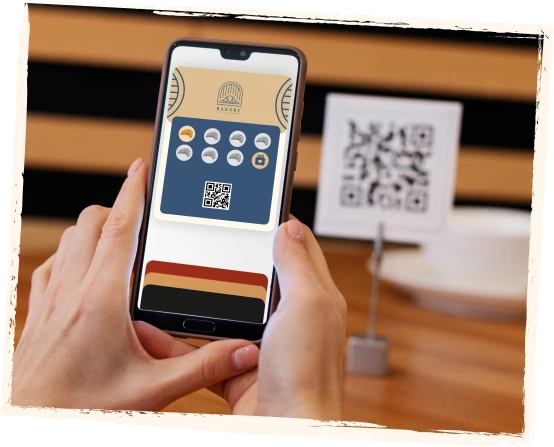
The saved card is ready on the phone before or during checkout, so the customer does not need to search for a separate app or login.
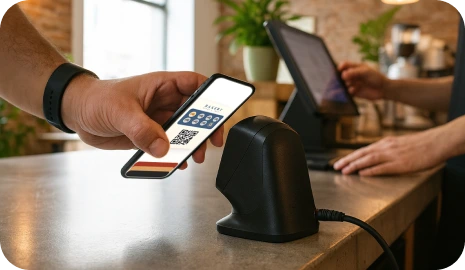
The scan happens at the active counter while the staff continues the service flow. The loyalty moment stays short and does not depend on a shared kiosk screen.
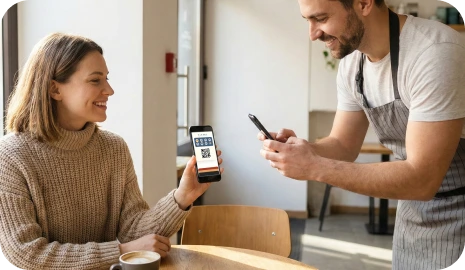
Autopilot Mode records the visit in the background so the queue can keep moving instead of waiting for a long on-screen reward interaction.
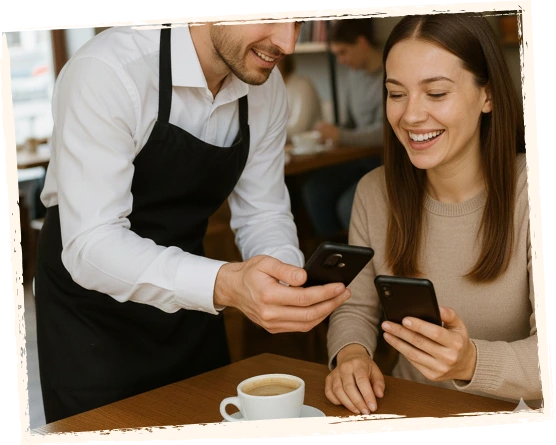
After the scan, the customer can see updated progress and any reward outcome on the wallet card without interrupting the next order in line.

Autopilot Mode is strongest where speed, repeat traffic, and short transactions matter more than a guided loyalty experience at the counter.
A quick scan is easier to fit into a coffee queue than a longer kiosk step, especially when many regulars arrive in a short time window.
The workflow fits businesses with fast-moving orders, frequent repeat customers, and limited room for a second interaction surface near checkout.
Autopilot helps when the team should stay focused on order handoff and speed while loyalty quietly runs in parallel.
Useful for shops that want repeat-visit rewards but do not want staff to stop and explain a self-service tablet to each customer.
Both workflows reduce staff involvement compared with a fully staff-led loyalty process, but they solve different counter realities. Autopilot is built for the fastest possible scan moment, while kiosk mode gives the customer a more visible self-service interaction.
Autopilot Mode is a high-speed loyalty workflow for busy counters. Customers scan their wallet card with an external scanner, and 7Stamp adds the stamp in the background so the queue keeps moving.
Autopilot Mode works best for coffee shops, bakeries, takeaway counters, food pickup points, busy retail, and other high-traffic businesses where loyalty should not slow the line.
At minimum, you need the normal 7Stamp wallet card flow plus an external scanner at the active counter and a stable connection for the background stamp event.
Autopilot Mode is optimized for the shortest possible scan moment at a live counter. Self-Service Kiosk is better when customers can spend a few extra seconds interacting with a shared tablet or browser screen near checkout.
Yes. The stamp is added in the background, and the customer can check updated progress or reward status on the wallet card after the scan instead of holding up the queue.
Next step
If your team already operates in a high-speed counter environment, Autopilot Mode helps you keep the familiar stamp-card habit without turning checkout into a longer conversation.