
Tablet or customer-facing screen
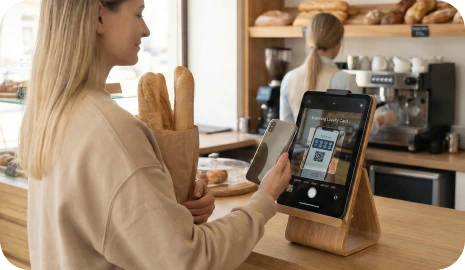
Use a tablet or browser-based screen near checkout so customers can easily scan without handing their phone to staff.
Workflow feature
A Self-Service Kiosk lets customers scan their own wallet stamp card on a tablet near checkout, collect stamps, and redeem rewards without staff.
With 7Stamp, the customer keeps the loyalty card in Apple Wallet or Google Wallet and uses a customer-facing tablet or browser screen to interact with the program. That means the business can keep the queue moving without giving up a simple repeat-visit reward flow.
A kiosk setup does not need to be complicated. Start with a clean customer-facing device, a stable placement, and one clear action for the customer to complete.
Use a tablet or browser-based screen near checkout so customers can easily scan without handing their phone to staff.
Place the kiosk where the customer naturally pauses after payment or before pickup, and keep the screen easy to reach and see.
Keep the device charged or plugged in and make sure the browser flow can stay available throughout the service day.
Use one clear message such as “Scan your wallet card here” so the kiosk does not become a second training task for staff.
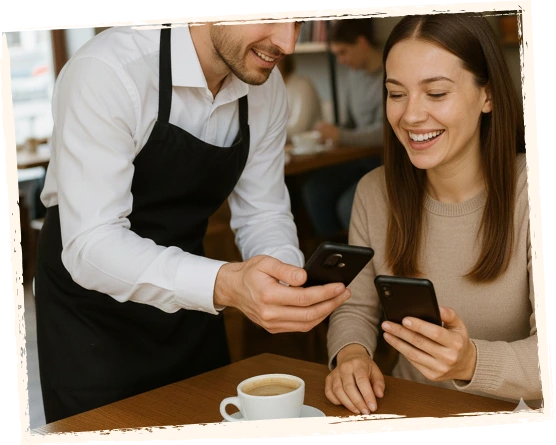
Keep a simple staff-assisted option available for customers who need help the first time or when the kiosk is temporarily unavailable.
A good kiosk experience feels natural and fast. The customer should understand the next step immediately, see stamp progress clearly, and move on without slowing the line.
A customer joins by QR code the first time, then opens the same loyalty card from Apple Wallet or Google Wallet on future visits.
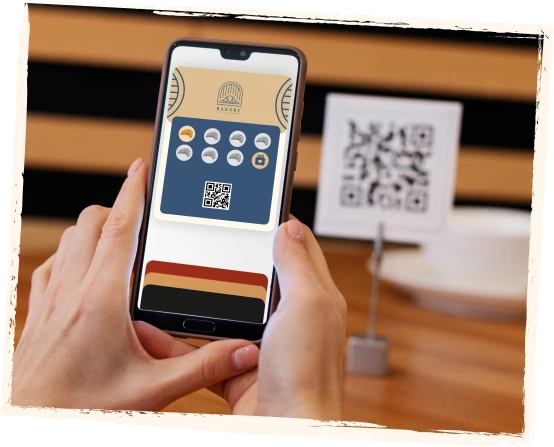
The customer scans the wallet card on the tablet or customer-facing browser screen without handing the phone to staff.
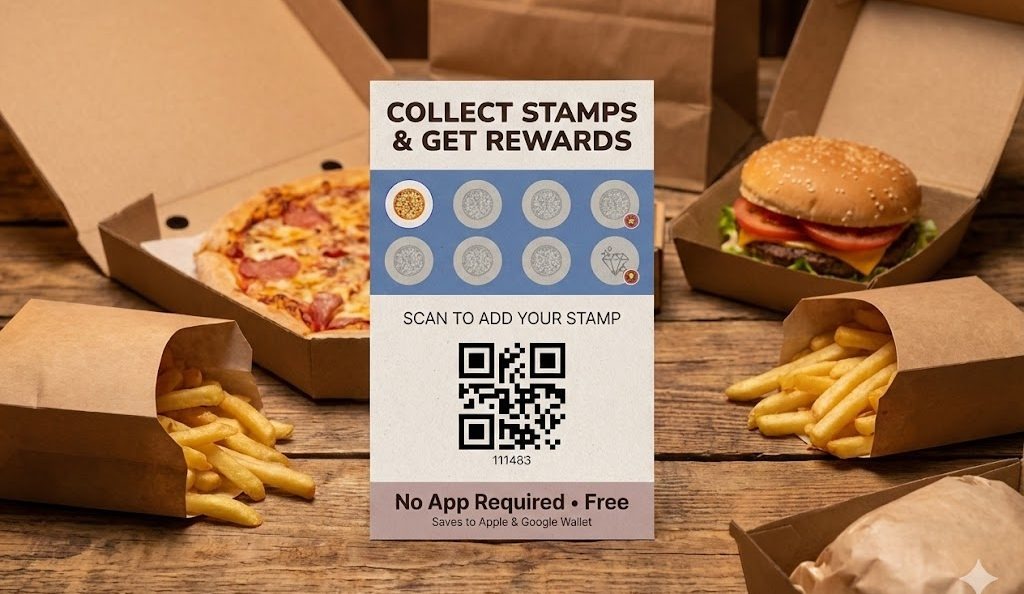
7Stamp adds the stamp and shows updated progress so the customer can immediately see movement toward the reward.
If the customer completes the goal, the kiosk flow can reveal a simple reward, a Smart Voucher, or the next reward action.
The same wallet card stays available for the next visit, and 7Stamp can later support reminders, birthday rewards, or repeat-visit campaigns.
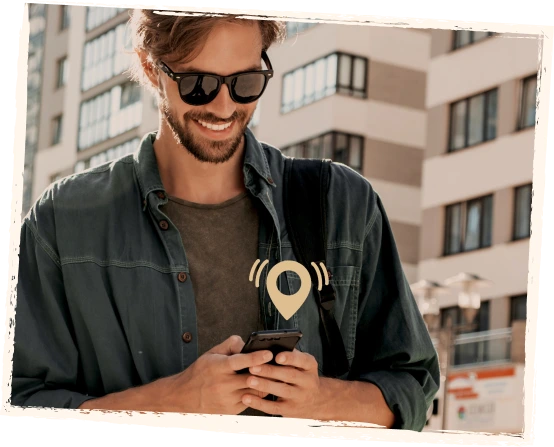
Self-service kiosk mode works best where speed matters, the reward logic is simple, and the business wants customers to handle most of the loyalty interaction themselves.
Ideal for fast-moving counters where customers already wait briefly after ordering and can scan without staff slowing the queue.
Great for quick transactions and regular customers who can collect stamps while the team keeps serving the next person.
Useful where customers can scan before or after service and the business wants a visible replacement for paper wash cards.
Works well when the staff should stay focused on payment, pickup, and stock flow while loyalty happens in parallel.
Both workflows can work with the same digital stamp card. The right choice depends on whether the business wants customer self-service or staff-led control at the moment of validation.
A self-service loyalty kiosk is a customer-facing tablet or browser-based station near checkout where customers scan their own wallet loyalty card, collect stamps, and interact with rewards with little or no staff involvement.
Kiosk mode works best for cafes, bakeries, takeaway counters, car washes, busy retail, and other high-traffic businesses where loyalty should not slow down the line.
No dedicated customer app is required for the loyalty card itself. The customer uses Apple Wallet or Google Wallet, while the business can present the kiosk flow through a customer-facing device or browser-based setup.
In kiosk mode, the customer scans their own wallet card on a shared screen near checkout. In Staff Scanner mode, a team member scans the card from a phone or tablet during the service interaction.
Yes. Kiosk mode can be used to show updated stamp progress and reveal the next reward step, including simple rewards or Smart Voucher flows depending on the business setup.
Next step
You do not need a complicated rollout to test kiosk loyalty. Begin with a simple wallet card, place one customer-facing device near checkout, and let regulars learn the scan flow naturally.