
How 7Stamp works
You design a Stamp card in the admin panel. Customers get it by scanning its QR and keep it in Apple Wallet or Google Wallet; every Stamp card is offered in both. Customers install nothing: the card is handed out on a web page or in a messenger they already use.
Staff give stamps in 7Stamp Scanner — an app for iOS and Android, or the Online scanner in any browser. They sign in with a Staff Login, a login and password that names a place of work, such as a counter or a device.
You sign in to the admin panel with your own account. A Staff Login cannot sign in to the admin, and 7Stamp Scanner has no screens for Stamp cards, Customers or billing.
Do my Customers need to install an app?
No. The card is handed out on a web page or in a messenger they already use, and it goes into the phone’s own wallet.
Is my card in Apple Wallet or Google Wallet?
Both. Every Stamp card is offered in Apple Wallet and Google Wallet; there is no setting to offer only one.
Can my staff use the admin panel with their Staff Login?
No. A Staff Login signs in to 7Stamp Scanner only. The admin panel is used with a personal account.
What do my staff need to give stamps?
7Stamp Scanner — the app for iOS or Android, or the Online scanner in a browser — and a Staff Login’s login and password.
Create your account
You can start without an account: make your first Stamp card in the wizard on the public get-stamps page. Saving it creates your account, a Business and the card together. Your first Business is named after you, not after the card.
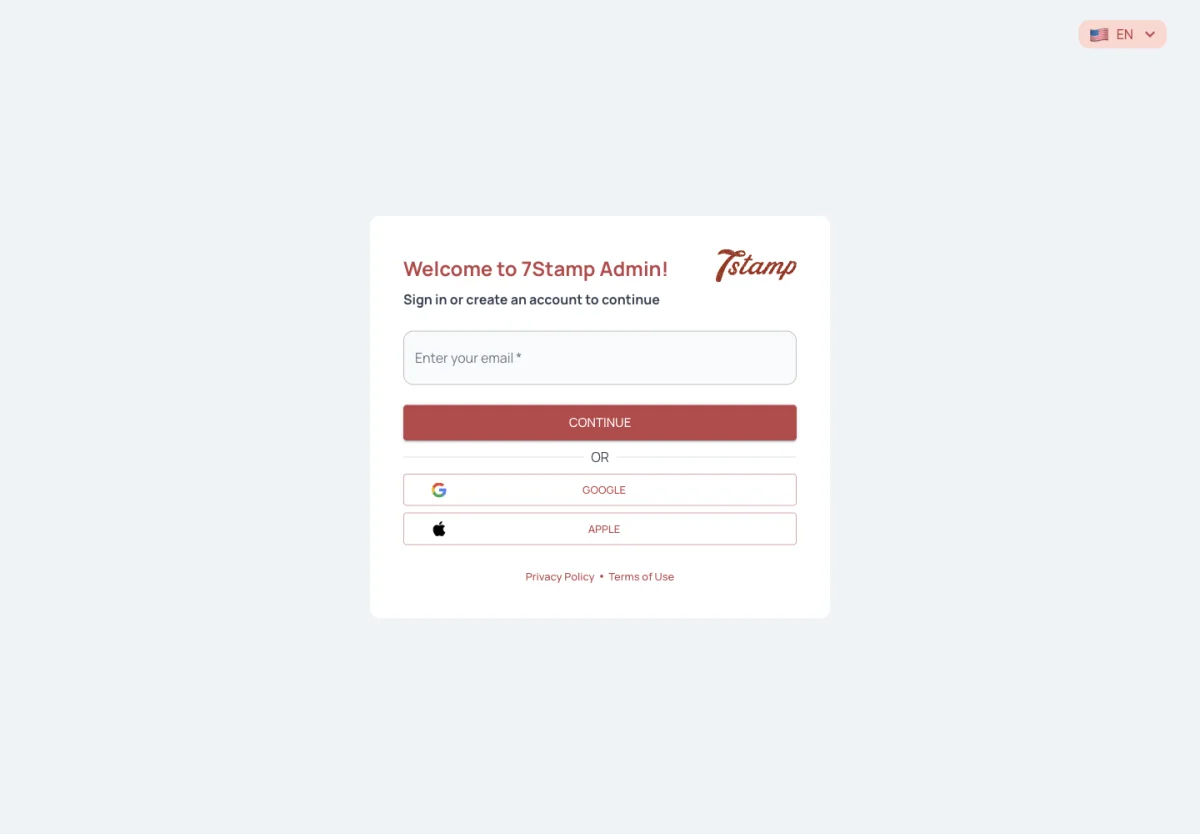
You can also sign up on the admin’s sign-in page. Type your email first: an email that already has an account goes on to the password, a new one goes on to Create an account.
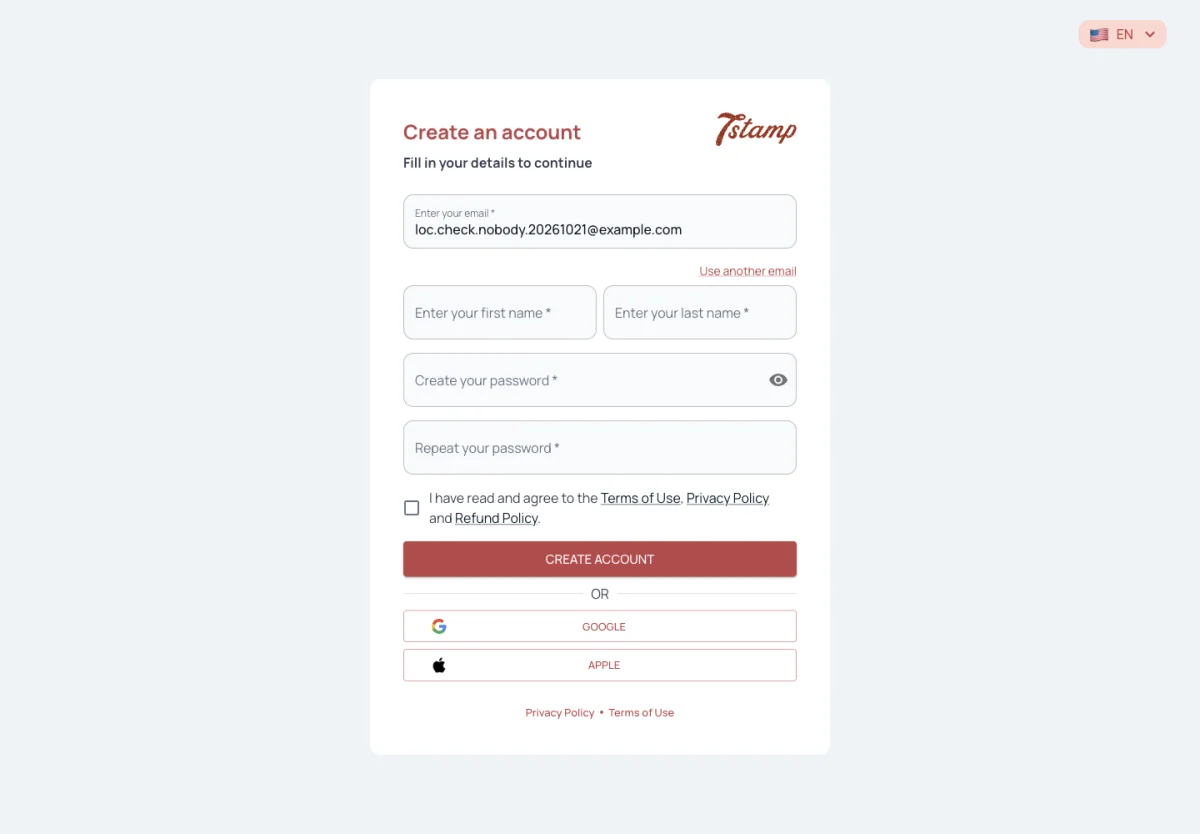
Create an account asks for your first and last name, a password of at least eight characters typed twice, and your agreement to the Terms of Use, Privacy Policy and Refund Policy. Google and Apple work on every step; signing up with them asks only that you accept the Terms of Use. A new account with no Business goes straight to the Stamp card wizard, and saving the card creates the Business.
A Business that signs up this way also gets its first Staff Login at once, set to stamp the new card. Its login and password are shown on Staff access and in How to stamp.
You become the Business’s owner, with the Admin role. You sign in to the admin with email and password, Google or Apple. One account can run several Businesses: Add Business, at the top of the sidebar, starts the Stamp card wizard for a new one. The plans are described in Plans and billing.
How do I sign up for 7Stamp?
Make your first Stamp card on the get-stamps page. Saving it creates your account, a Business and the card together.
How do I sign in to the admin panel?
With your own account — email and password, Google or Apple.
Where do I find my first Staff Login?
It is created at sign-up, set to stamp your new card. Its login and password are on Staff access and in How to stamp.
Can I run two Businesses from one account?
Yes. Use Add Business at the top of the sidebar; it starts the Stamp card wizard for the new Business. Choose a Business switches between them.
I typed my email and got Create an account instead of the password. Why?
No account has that email yet. An email that already has an account goes on to the password step.
What do I need to create an account with email?
Your first and last name, a password of at least eight characters typed twice, and a tick agreeing to the Terms of Use, Privacy Policy and Refund Policy.
I signed up but have no Business yet. What now?
The admin takes you to the Stamp card wizard. Saving your first Stamp card creates the Business.
The first questions the admin asks
Once your first Stamp card is saved, the admin asks a few things, one at a time: Choose a plan, how 7Stamp should keep in touch, your card in your own wallet (Step 4) and How to stamp (Step 5).
Until the Business has a plan, Choose a plan covers every page for its Admin and cannot be closed. Above the plans, Country sets the currency they are priced in, and Default language for Customers is the language Customers get when their own is not known; changing the Country sets that country’s language. Both are saved as soon as you pick them. “I have a promo code” takes a Promo code, and Free Forever asks you to confirm. The plans are described in Plans and billing.
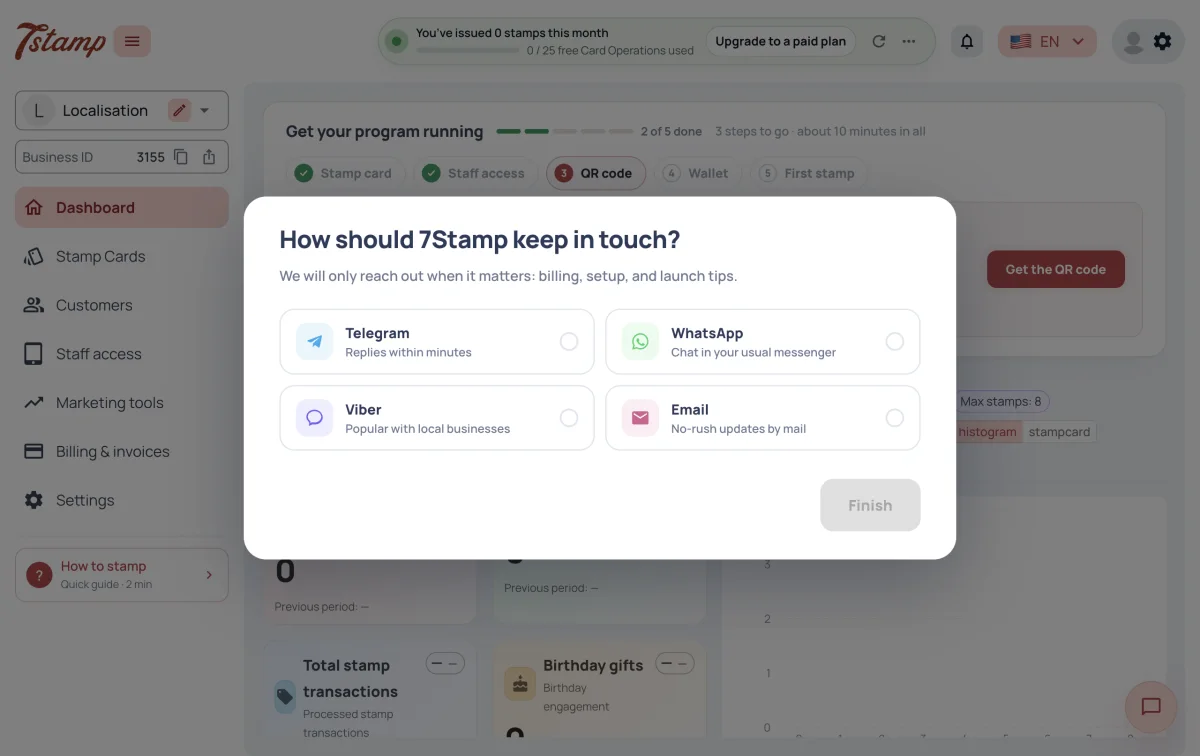
“How should 7Stamp keep in touch?” is how 7Stamp reaches you about billing, setup and launch tips: Telegram, WhatsApp or Viber by your phone number, or Email — your account’s email or another address. It has no close button: Finish saves your answer and it is not asked again. It is not a channel for your Customers.
Can I close Choose a plan and decide later?
No. Until the Business has a plan, the dialog covers every page for its Admin and cannot be closed.
What does Default language for Customers do?
It is the language Customers get when their own language is not known. Changing the Country sets it to that country’s language; you can pick another.
Where do I enter a promo code?
In Choose a plan, under “I have a promo code”. A Promo code may be limited to some countries or not apply to annual plans; the dialog then says so.
I chose Viber to keep in touch. Can my Customers use a Viber bot?
No. That question is only how 7Stamp reaches you. A Chatbot for Customers runs in Telegram or WhatsApp.
Will the admin ask how to keep in touch again?
No. The question has no close button; Finish saves your answer, and it is not asked again for that Business.
Your setup checklist
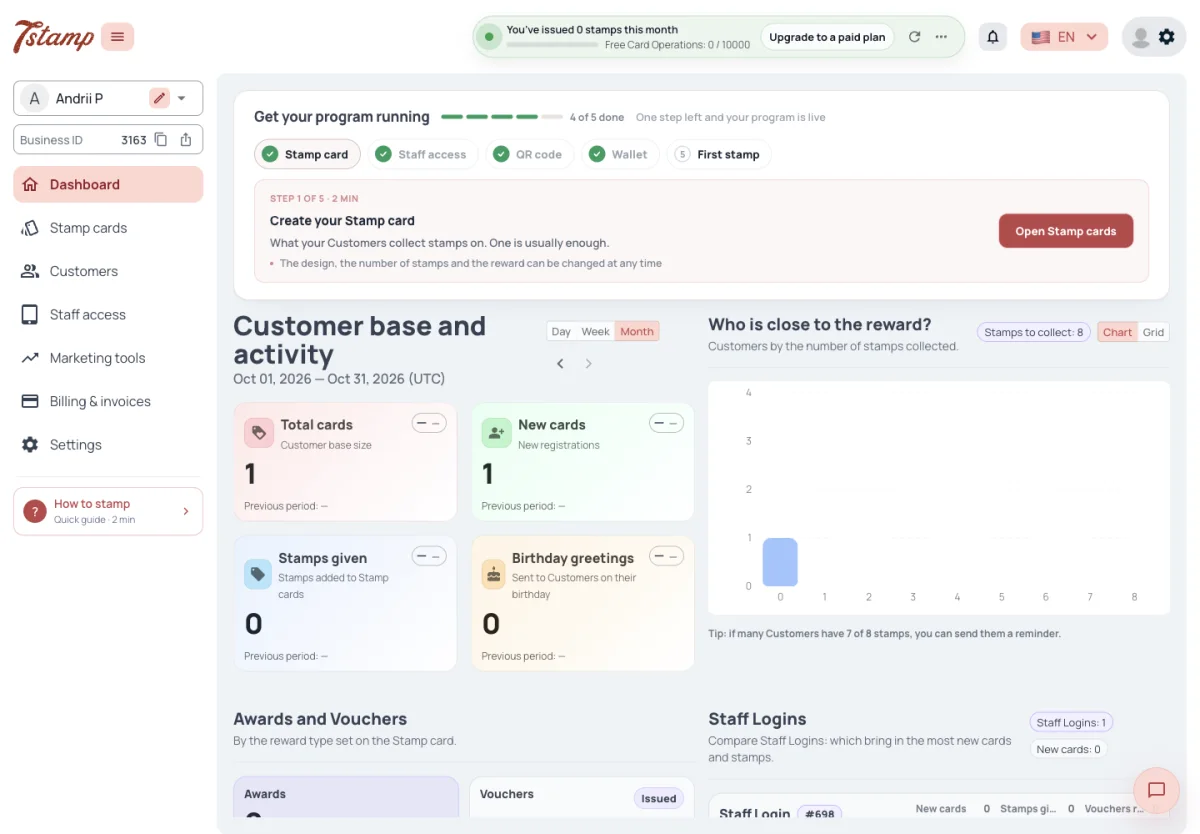
The five steps below live on your Dashboard, in “Get your program running”: Stamp card, Staff access, QR code, Wallet and First stamp. The step to do next is written out with its time and a button that takes you there.
Each step ticks itself from what your Business has done; there is nothing to tick or close. A Business made through the Stamp card wizard already has its card and Staff Login, so it starts at the QR code. When all five are done, the checklist is gone. What closes each step is in Dashboard.
Where do I see what is left to set up?
On the Dashboard, in “Get your program running”. It shows the five steps with how many are done, and the next one with its button.
Can I tick a step off myself or hide the checklist?
No. Each step is read from what your Business has done, and the checklist disappears once all five are done.
Why does my checklist start at the QR code?
A Business made through the Stamp card wizard already has its Stamp card and its first Staff Login, so the first two steps are done.
Step 1. Make your Stamp card
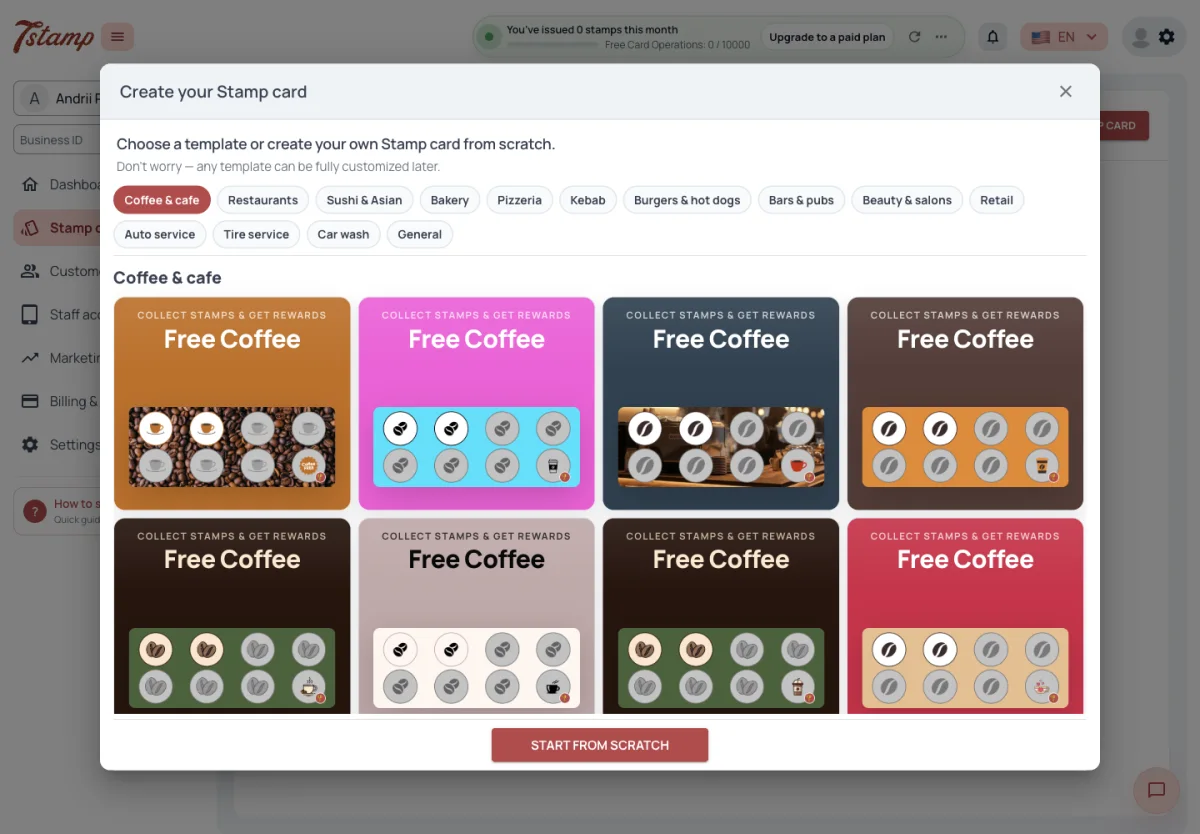
On Stamp cards, NEW STAMP CARD opens a gallery of ready-made cards grouped by trade, with START FROM SCRATCH under it. A ready-made card only fills in the wizard: you can change every field before saving.
The wizard has five steps, with a live preview beside them: Personalize your style, Add visuals, Build your journey, Additional settings and Result. The Card name is the only required field. The card is saved from Result.
Every field, the reward and how stamps are earned are explained in Create a Stamp card and Rewards.
Do I have to design the card from scratch?
No. Pick a ready-made card from the gallery; it fills in the wizard and you can change every field before saving.
What is the minimum I must fill in?
The Card name. The wizard does not move on without it.
How many Stamp cards can I have?
Any number, on any plan.
Step 2. Create a Staff Login
A Staff Login is what staff sign in to 7Stamp Scanner with. It names a place of work, not a person: Counter 1, Bar POS.
If you signed up through the Stamp card wizard, your first Staff Login is already there. A new one is created on Staff access with a Staff Login name, a login and a password; the form fills in a login and a password for you.
Staff Logins, their seats and sign-ins are covered in Staff access.
Do I need a Staff Login for each employee?
No. A Staff Login names a place of work — a counter, a shared device, a POS device — not a person.
I signed up through the wizard. Do I still have to create a Staff Login?
No. You got your first Staff Login at sign-up, set to stamp your new card. Its login and password are on Staff access.
What does creating a Staff Login ask for?
A Staff Login name, a login and a password. Choosing a Stamp card for Automatic stamping is optional.
Step 3. Print the QR or share the link
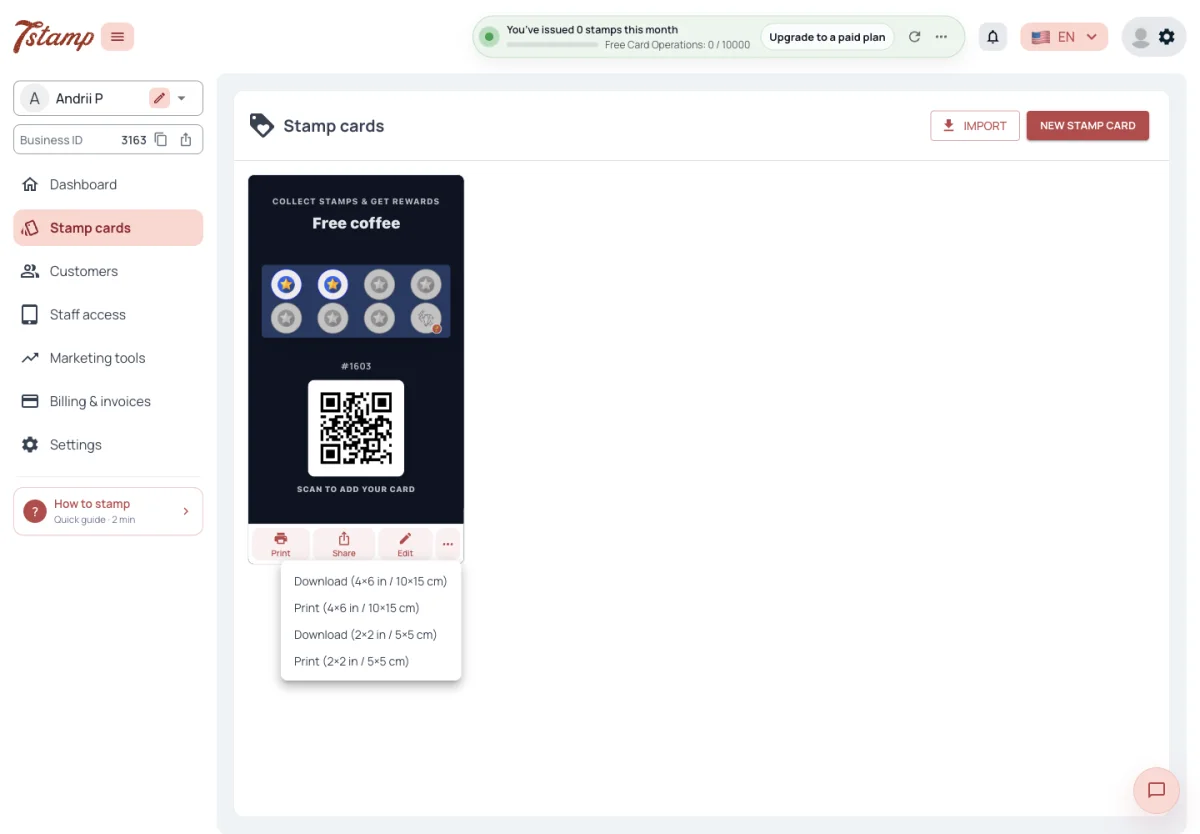
Each card on Stamp cards shows its join QR with Print, Share and Edit under it. Print gives a sticker with the card and its QR: a large one for a window and a small one for a counter. Share copies the join link or opens it as a Customer would. The QR and the link lead to the same place.
The card’s ”…” menu also gives the staff QR page, which staff save to their own phone to show the QR at the counter.
What a Customer sees after scanning is in What your Customers see.
Where do I get the QR for my counter?
On Stamp cards, under the card, Print downloads or prints a sticker with the card and its join QR, in a window size and a counter size.
Can I send the card as a link instead of a QR?
Yes. Share copies the card’s join link; it leads to the same place as the QR.
Can staff show the QR on their phone?
Yes. The card’s ”…” menu opens or copies its staff QR page, which staff save to their own phone.
Step 4. Put your own card in your wallet
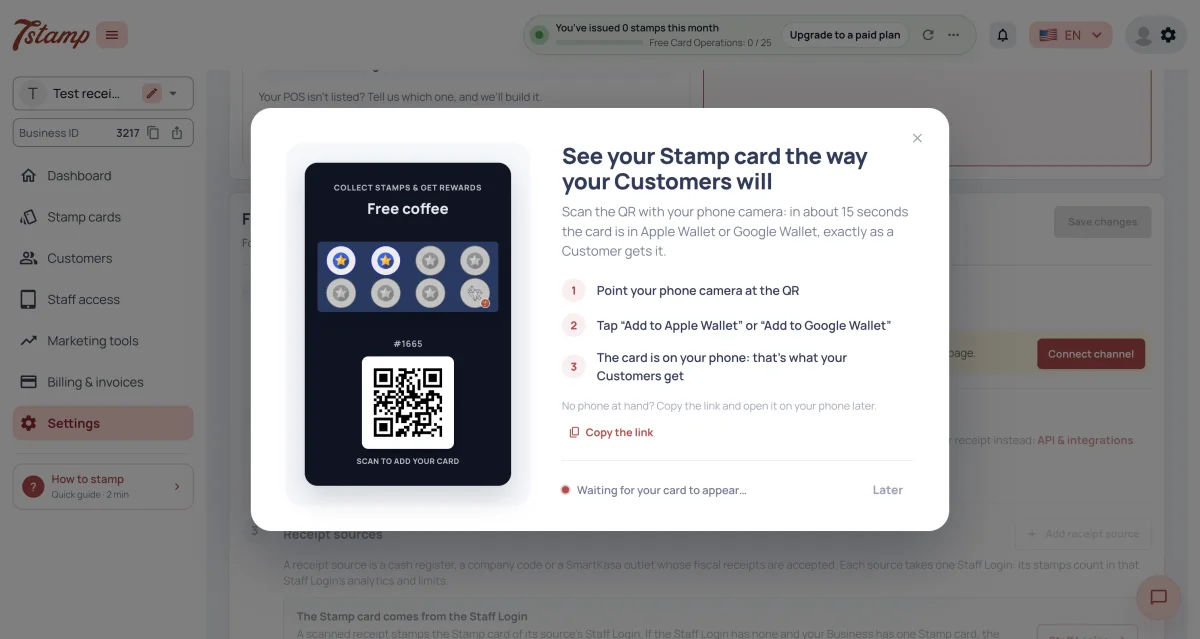
Until your Business gives its first stamp, the admin offers “See your Stamp card the way your Customers will” once a session, with your newest Stamp card; Later puts it off. Open my card, in the setup checklist’s Wallet step, opens it too.
On a computer it shows the card’s QR: scan it with your phone camera, as a Customer would, and in about fifteen seconds the Stamp card is in Apple Wallet or Google Wallet. No phone at hand? Copy the link and open it on your phone later. On a phone the modal shows the button of its own wallet instead.
The modal waits (“Waiting for your card to appear…”) until the card is added to a wallet; a card that only reached the join page does not end it. Then it offers Give a test stamp, so you can watch the pass update. Test stamps are not Card Operations, do not count on the Dashboard and show in the Event log as Test stamp.
How long does it take for the card to reach the wallet?
About fifteen seconds from scanning the QR.
Do test stamps use my Card Operations?
No. Test stamps are not Card Operations and do not count on the Dashboard.
Where do test stamps show?
In the Event log, as Test stamp.
The modal still says “Waiting for your card to appear”. What is missing?
The card has to be added to Apple Wallet or Google Wallet on the phone. Opening the join page alone does not end the wait.
Why are there no wallet buttons when I open it on my computer?
On a computer the modal shows the card’s QR to scan with your phone, and Copy the link. The wallet buttons show on a phone, each phone its own wallet.
Step 5. Give your first stamp
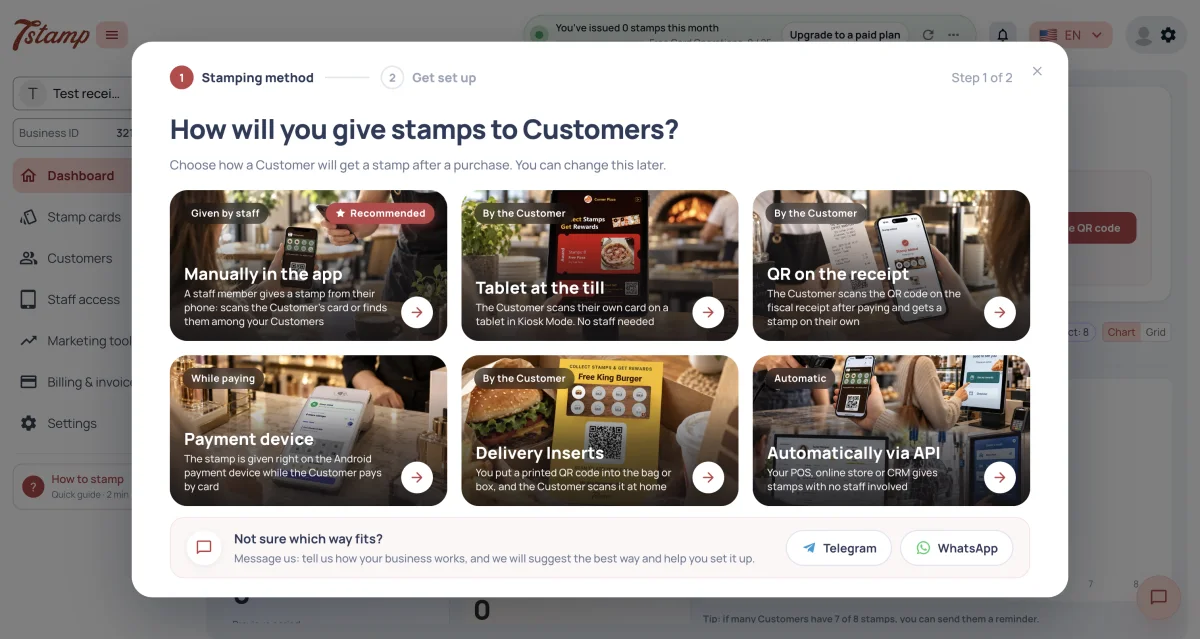
Until your Business gives its first real stamp, How to stamp opens by itself once a session; test stamps do not count. How to stamp in the sidebar opens it any time. It asks “How will you give stamps to Customers?” with six pictures — Manually in the app, Tablet at the till, QR on the receipt, Payment device, Delivery Inserts and Automatically via API — then shows how to get set up. Not sure which fits? It opens a chat with us in Telegram or WhatsApp.
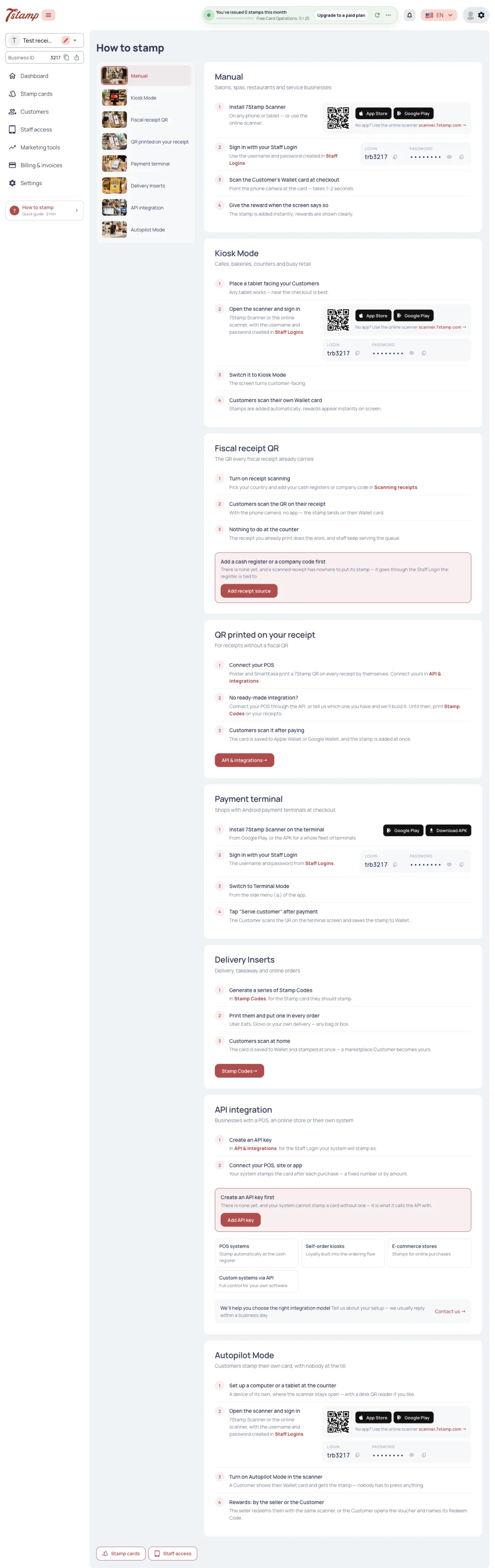
Open 7Stamp Scanner and sign in with the Staff Login’s login and password. In Manual, scan the card’s QR with the camera or type its card number, then add stamps with the stepper.
That is one of eight ways to stamp. How to stamp, in the admin, shows each with its steps, where it is set up and the Staff Login to sign in with. Read Ways to give a stamp to pick yours, and 7Stamp Scanner for the scanner’s modes.
How do staff find a Customer’s card?
By scanning the card’s QR with the camera or a QR reader, by typing the card number, or with Find Customer by name, email, phone or card number.
Is there a password reset in the scanner?
No. The Staff Login’s password is changed in the admin.
Is the scanner the only way to give stamps?
No. How to stamp lists eight ways, including Kiosk Mode, receipt QRs, Terminal Mode, Delivery Inserts and the API.
How to stamp keeps opening when I sign in. Why?
It opens once a session until your Business gives its first real stamp. Test stamps do not count. After the first stamp it opens only from How to stamp in the sidebar.
Words used in this guide
- Business — your account on 7Stamp; Stamp cards, Staff Logins and Customers belong to it.
- Stamp card — the card you design. A Customer’s card is one copy of it held by one Customer, with its own card number.
- Card number — the six-digit number in the QR of a Customer’s card. Typing it finds the same card as scanning the QR.
- Staff Login — the login and password of a place of work, used in 7Stamp Scanner.
- Stamp Code — a single-use code of one Stamp card that gives stamps.
A Customer’s card can be carried in Apple Wallet, in Google Wallet, on the web card page or in a Chatbot chat. These are ways of carrying one card with one card number, not different cards. Rewards and Vouchers are explained in Rewards; Card Operations in Plans and billing.
Is the card in Apple Wallet a different card from the one in the chat?
No. Apple Wallet, Google Wallet, the web card page and the Chatbot chat are ways of carrying one card with one card number.
What is the number on a Customer’s card?
The card number, six digits. It is also what the card’s QR holds.
Why does one Customer appear twice in my Customers list?
The list shows Customers’ Stamp cards, one row per card. A Customer who holds two of your Stamp cards appears twice.