Where a Customer keeps the card
Your Customers install nothing. The card is handed out on a web page or in a messenger they already use, and the pass goes into the phone’s own wallet.
One Customer’s card can be carried in Apple Wallet, in Google Wallet, on the web card page and, when your Business has a Chatbot, in its Telegram or WhatsApp chat. These are ways of carrying one card with one card number, not different cards. The web card page works on its own: a Customer without a wallet still collects stamps and rewards.
Will the program work in a country where people hardly add bank cards to Apple Wallet or Google Wallet?
Yes. Stamp cards in Apple Wallet and Google Wallet do not depend on whether people add bank cards to their wallets or pay by phone.
Do the cards work without Apple Wallet and Google Wallet?
Yes. The web card page works as the card on its own, and with a Chatbot in Telegram or WhatsApp the card lives in the chat.
Do my Customers need to download an app?
No. The card is handed out on a web page or in a messenger they already use, and the pass goes into the phone’s own wallet.
Can I offer only Apple Wallet?
No. A Customer’s card gets one pass with an Apple Wallet download and a Google Wallet save link; the wallets are not switched on or off one by one.
The join QR and link
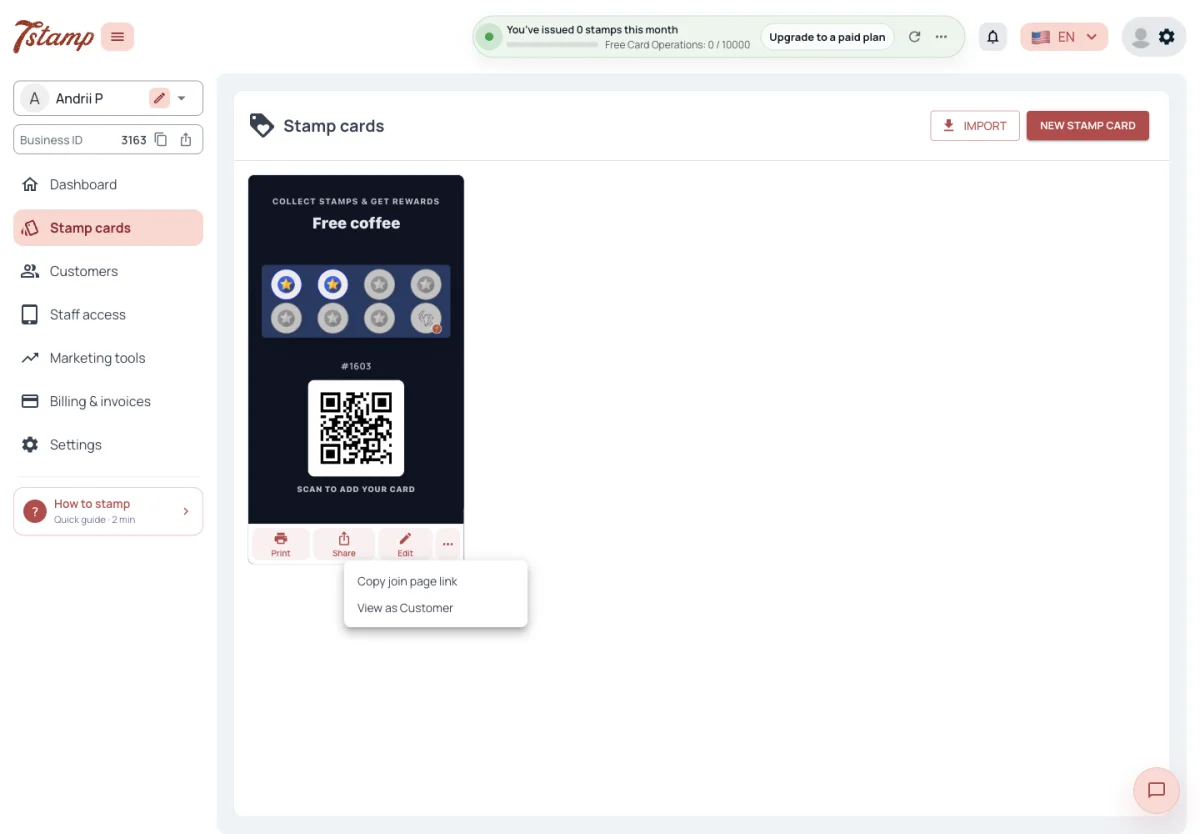
Customers join by scanning the Stamp card’s join QR or opening its join link. Both are on Stamp cards, under the card: Print gives a sticker with the QR in a window size and a counter size, and Share copies the link or opens it as a Customer would.
The QR and the link lead to the same place. Without a Chatbot that is the web join page. While your Chatbot is On, they open the bot instead, and the Share menu says so (“Copy Telegram link”, “Open in Telegram”).
Is the QR on the sticker the same as the link from Share?
Yes. Both hold the same join link.
Which sizes can I print the QR sticker in?
Two — a large one for a window and a small one for a counter: ten by fifteen and five by five centimetres, or four by six and two by two inches in the US.
Why does my join link open Telegram?
Your Business’s Chatbot is On. While it is, join QRs and links open the bot instead of the web join page.
The staff QR pass
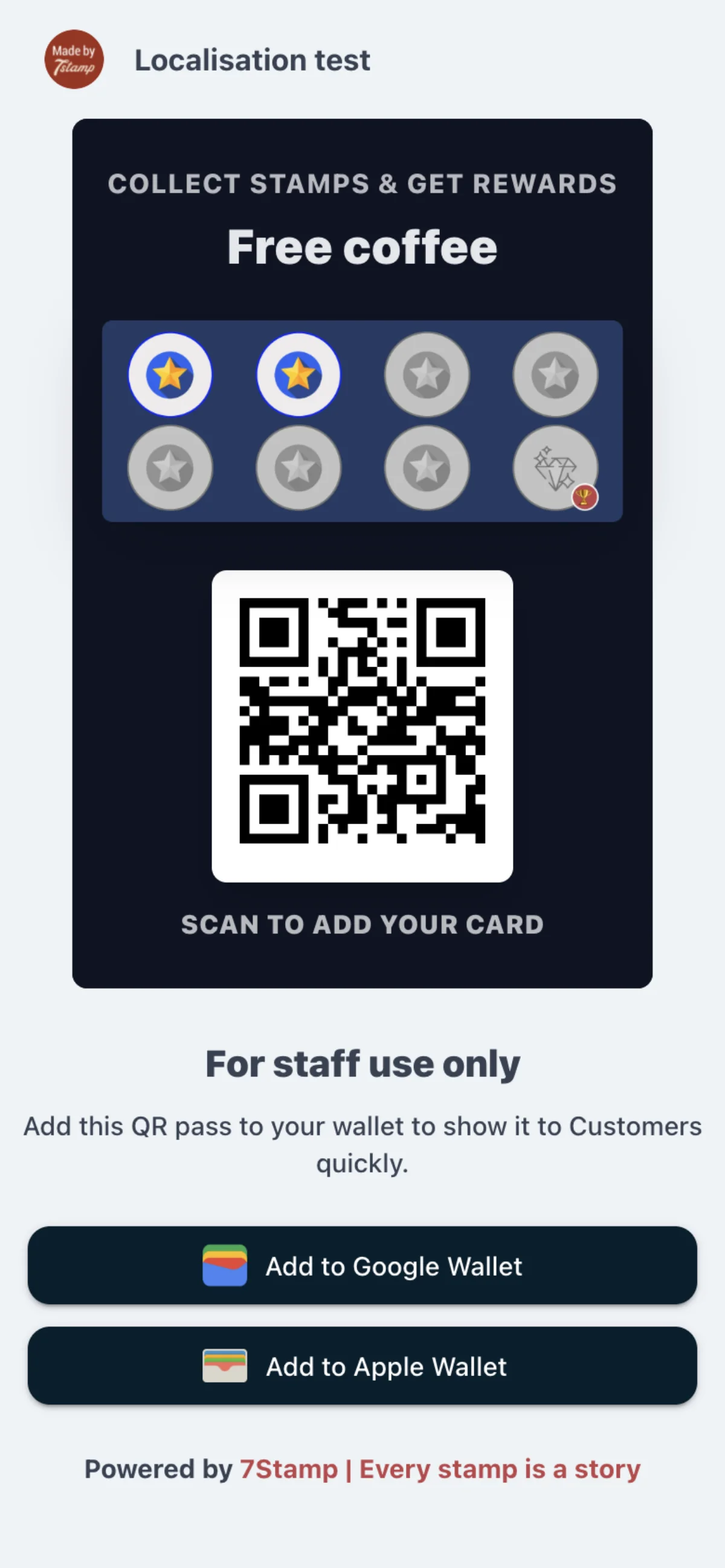
Each Stamp card has a page “For staff use only” with its join QR. Staff save it to their own phone’s wallet and show it at the counter for Customers to scan. The link to the page is in the card’s ”…” menu on Stamp cards, to open or copy.
How can staff show the join QR without a printed sticker?
They save the card’s staff QR page to their own phone’s wallet and show it at the counter.
Where do I find the staff QR page?
In the card’s ”…” menu on Stamp cards; it opens or copies the page’s link.
Is the staff QR pass a Customer’s card?
No. It is a page for staff use only that shows the card’s join QR for Customers to scan.
Joining on the web
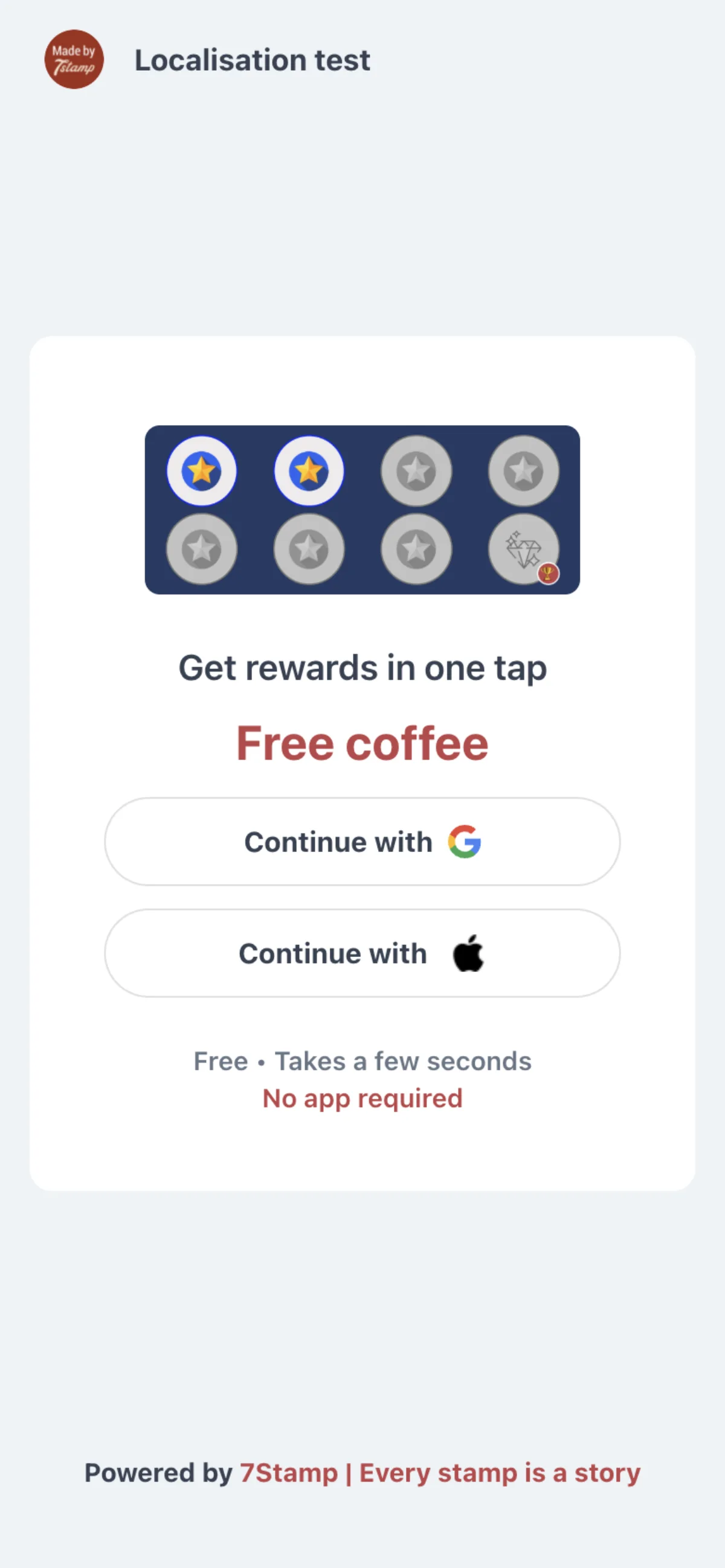
The Customer scans the QR or opens the link, signs in with Google or Apple, accepts the terms and gets the card. Email and password are not offered on the web.
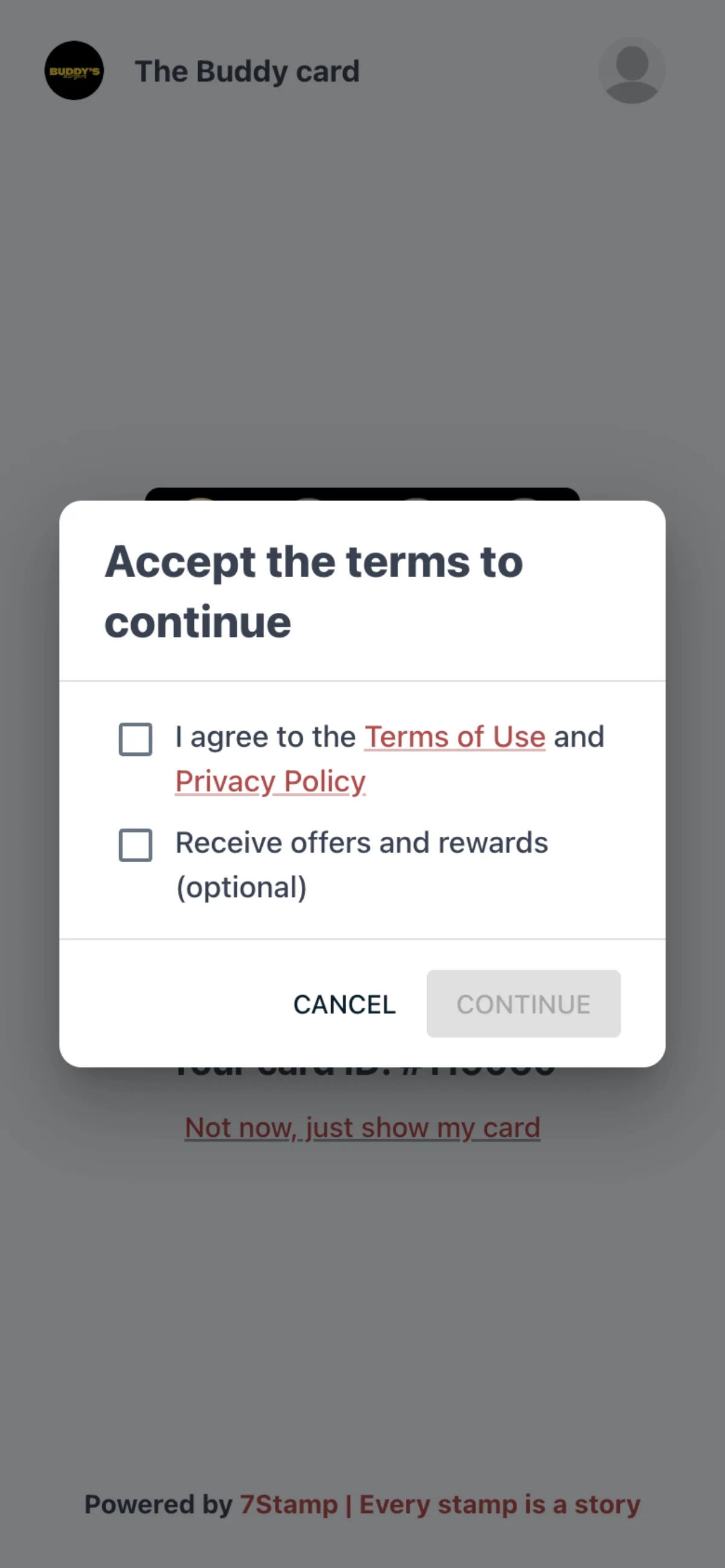
“I agree to the Terms of Use and Privacy Policy” is required. “Receive offers and rewards” is optional and starts unticked. The date of birth is asked only when the Stamp card has its birthday greeting on, and the Customer may close the question. Nothing else is asked, not even a phone number.
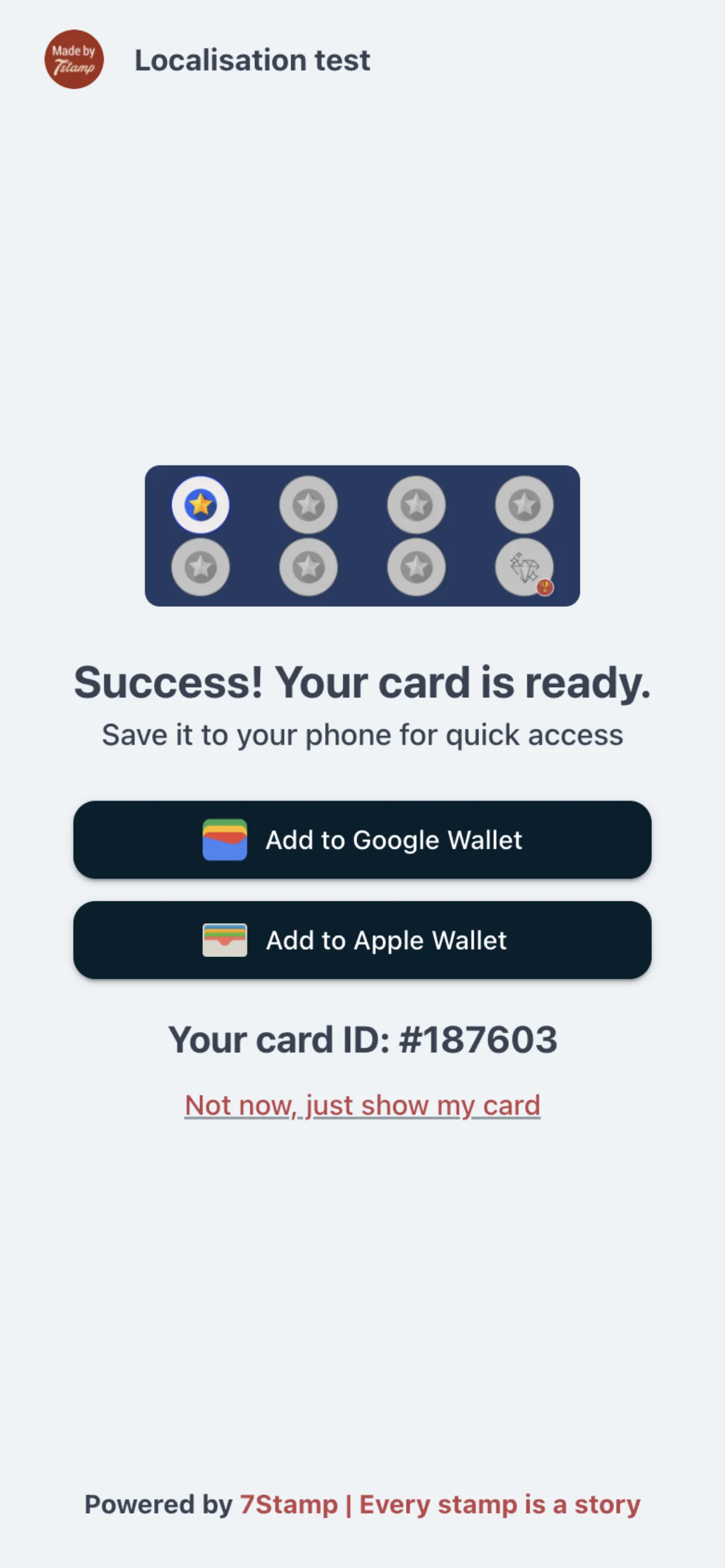
The card-ready page offers Add to Apple Wallet on an iPhone, Add to Google Wallet on Android, both on a computer. On a phone the wallet opens with the pass by itself. “Not now, just show my card” opens the web card page instead. From the scan to the card in a wallet takes about fifteen seconds.
Will my Customers be asked for their date of birth?
Only when the Stamp card has its birthday greeting on, and they may close the question without answering.
How is consent collected?
In two separate ticks — “I agree to the Terms of Use and Privacy Policy”, which is required, and “Receive offers and rewards”, which is optional and starts unticked.
Can a Customer join with email and password on the web?
No. The web join page offers sign-in with Google and Apple only.
Do Customers have to give a phone number?
No. Getting a card on the web asks for none; a phone number is known only for Customers who came through a WhatsApp Chatbot.
Joining in the Chatbot
With a Chatbot in Telegram or WhatsApp switched On, the join QR and link open the bot. The Customer accepts the terms there, and the card is issued right in the chat: a message with the stamps picture and the card’s name, a button that shows the card’s QR and a button that opens the web card page.
While the Chatbot is On, a new Customer’s card lives in the chat and on the web card page; Apple Wallet and Google Wallet are not offered. Cards already in a wallet stay there and keep updating. Setting up the bot is in Channels.
Can I use a Viber bot?
No. The Chatbot runs in Telegram or WhatsApp.
What happens to cards already in Apple Wallet when I turn the Chatbot on?
Nothing changes for them. They keep updating and keep getting Wallet push.
How does a Customer accept the terms in the bot?
Before using it. The quick button accepts the terms and receiving offers together; the other button lets the Customer continue with or without offers.
The pass in Apple Wallet and Google Wallet
The pass shows the card’s name, logo and colours, a picture of the stamps collected, the latest update and the card’s QR with its card number. It links to the latest update and to the web card page, with the number of active Vouchers. In Apple Wallet the details and links are on the back; in Google Wallet the latest update is the line under the name. It also carries up to ten of the card’s Locations.
The pass is updated, with a Wallet push, when stamps are added, a reward or Voucher is unlocked, a Voucher is issued from the admin or redeemed, and for birthday greetings and Campaigns. It speaks the language the Customer got the card in. A change you save to the Stamp card’s design reaches each pass with its next update.
How fast does the pass update after a stamp?
7Stamp Scanner confirms the stamp at once; the pass is updated right after, in the background.
I changed my card’s design. Why do Customers still see the old one?
Changes are not pushed to passes at once. Each pass takes the new design with its next update for that Customer — a stamp, a Voucher or a message.
In which language is the pass?
In the language the Customer got the card in, whoever triggers an update.
The web card page
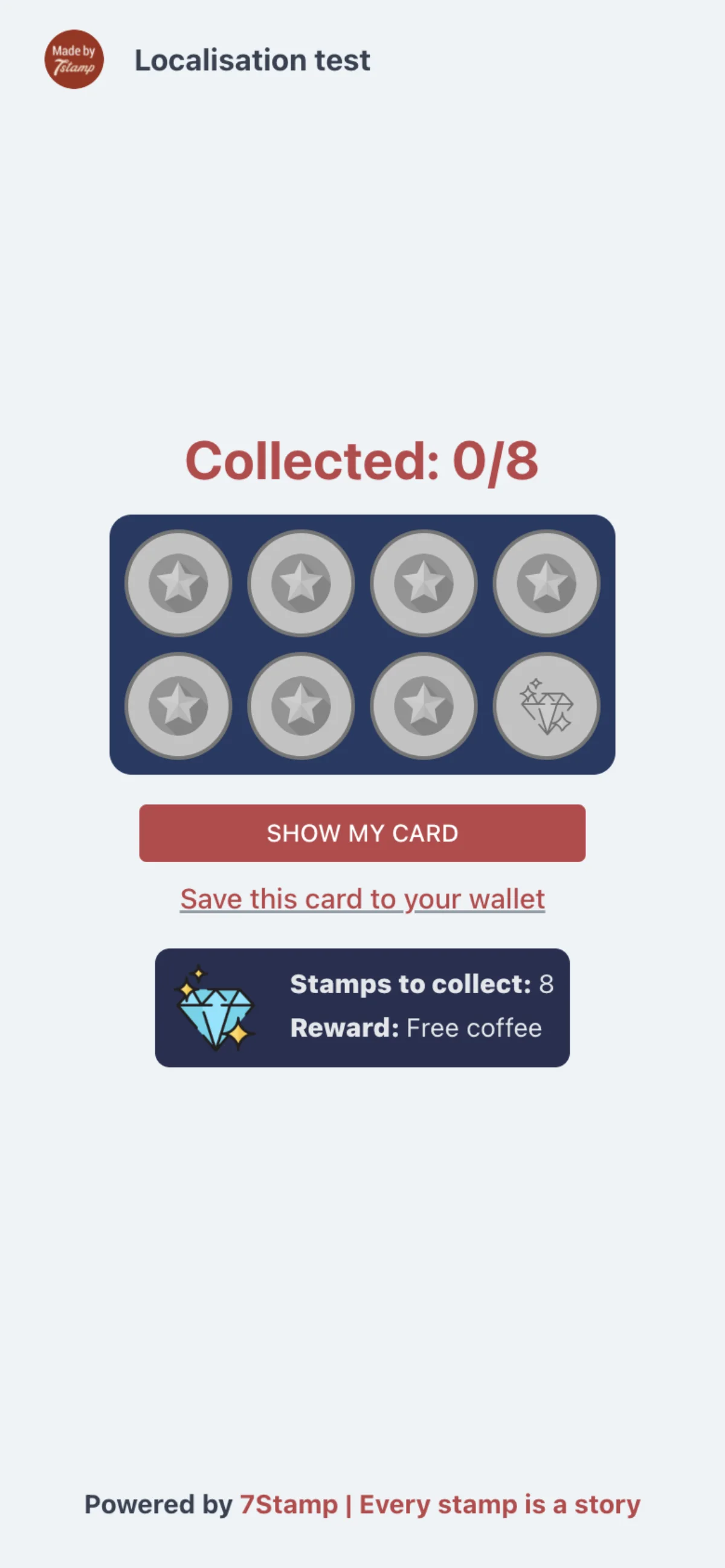
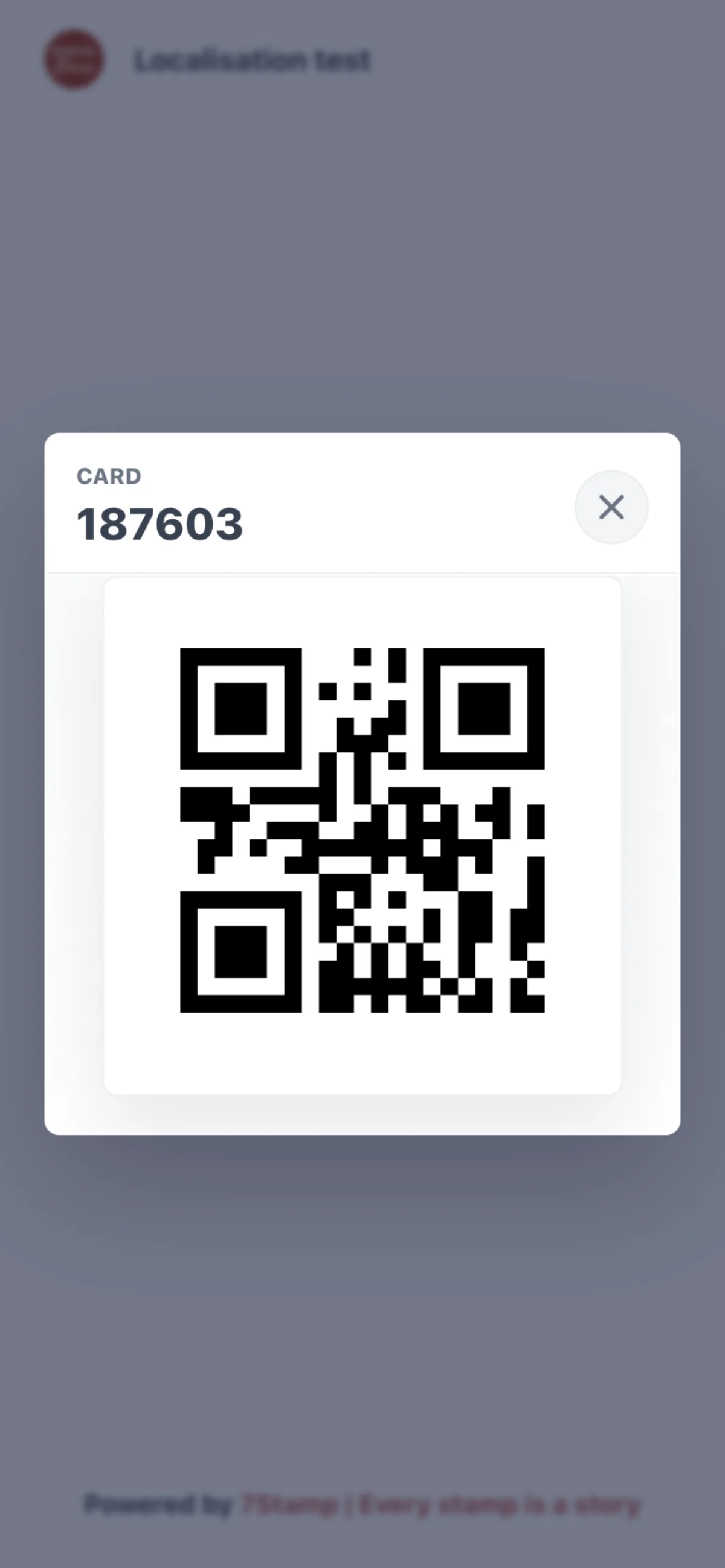
The web card page works as the card on its own: Show my card opens the card’s QR for staff to scan. The QR holds the card number, six digits, and typing the number finds the same card.
The page reads the Stamp card’s design each time it opens, so a change you save shows there on the Customer’s next visit.
My Customer has no wallet on their phone. Can they still collect stamps?
Yes. On the web card page, Show my card opens the card’s QR for staff to scan.
The QR won’t scan. What else can staff do?
Type the card number, the six-digit number the QR holds. It finds the same card.
When does a design change show on the web card page?
On the Customer’s next visit: the page reads the design each time it opens.
After a stamp
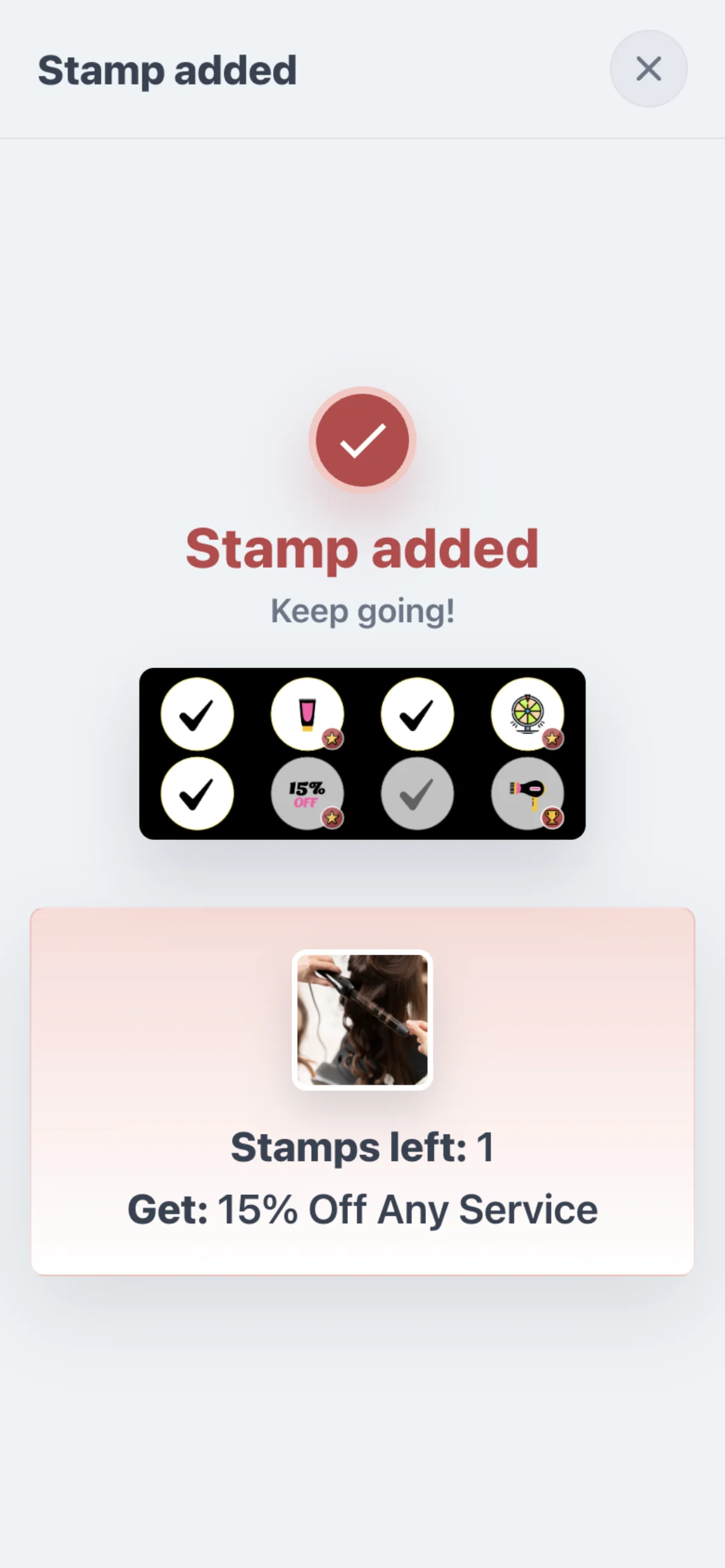
When the Customer opens their card on a new stamp — from the QR a payment device shows in Terminal Mode, from Delivery Inserts or from a Chatbot message about the stamp — the web card page says “Stamp added” and “Keep going!”. It shows the card’s stamps and, under them, “Stamps left” and “Get:” with the next reward and its picture.
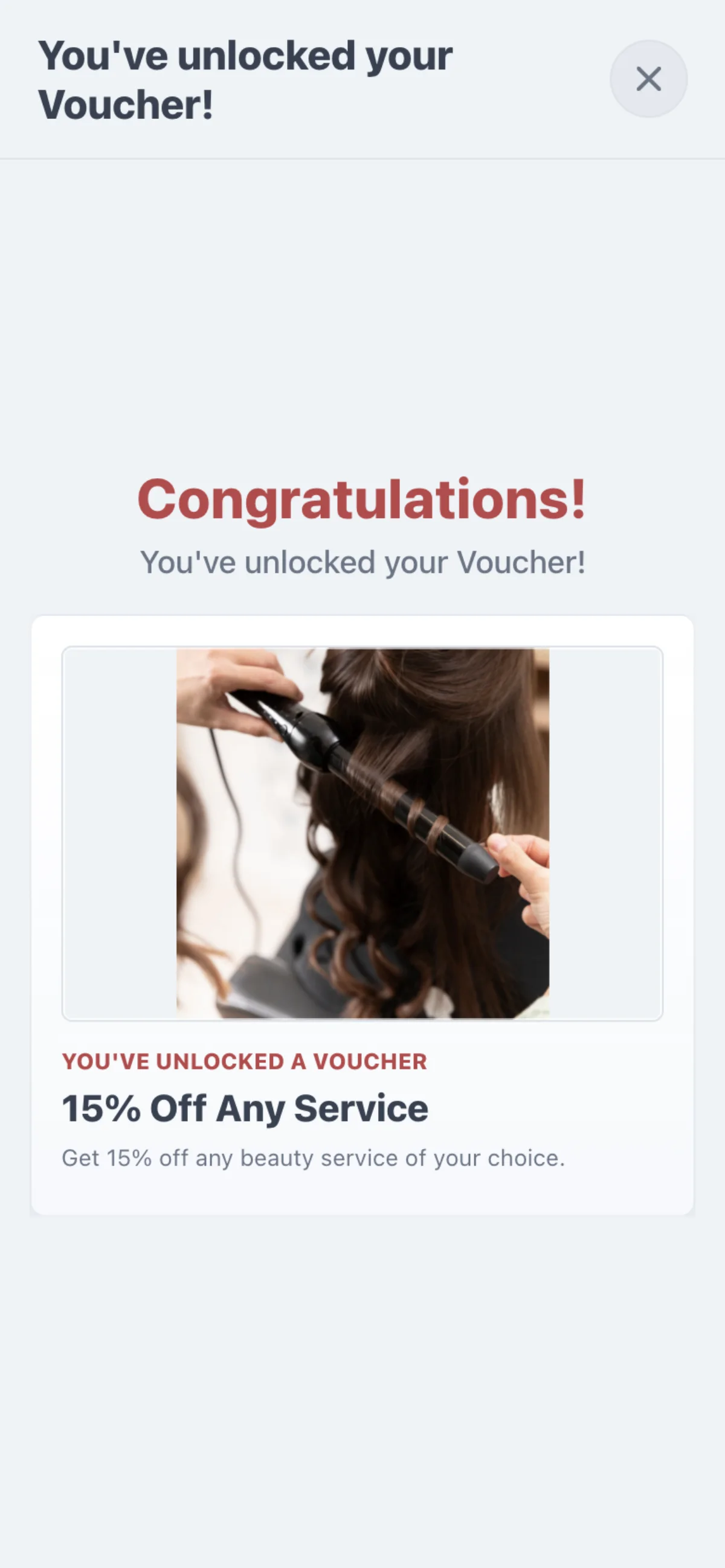
When that stamp unlocks a reward, the page says “Congratulations!” with “You’ve unlocked your Voucher!” or “You’ve unlocked your reward!”, and shows the reward’s picture, name and text.
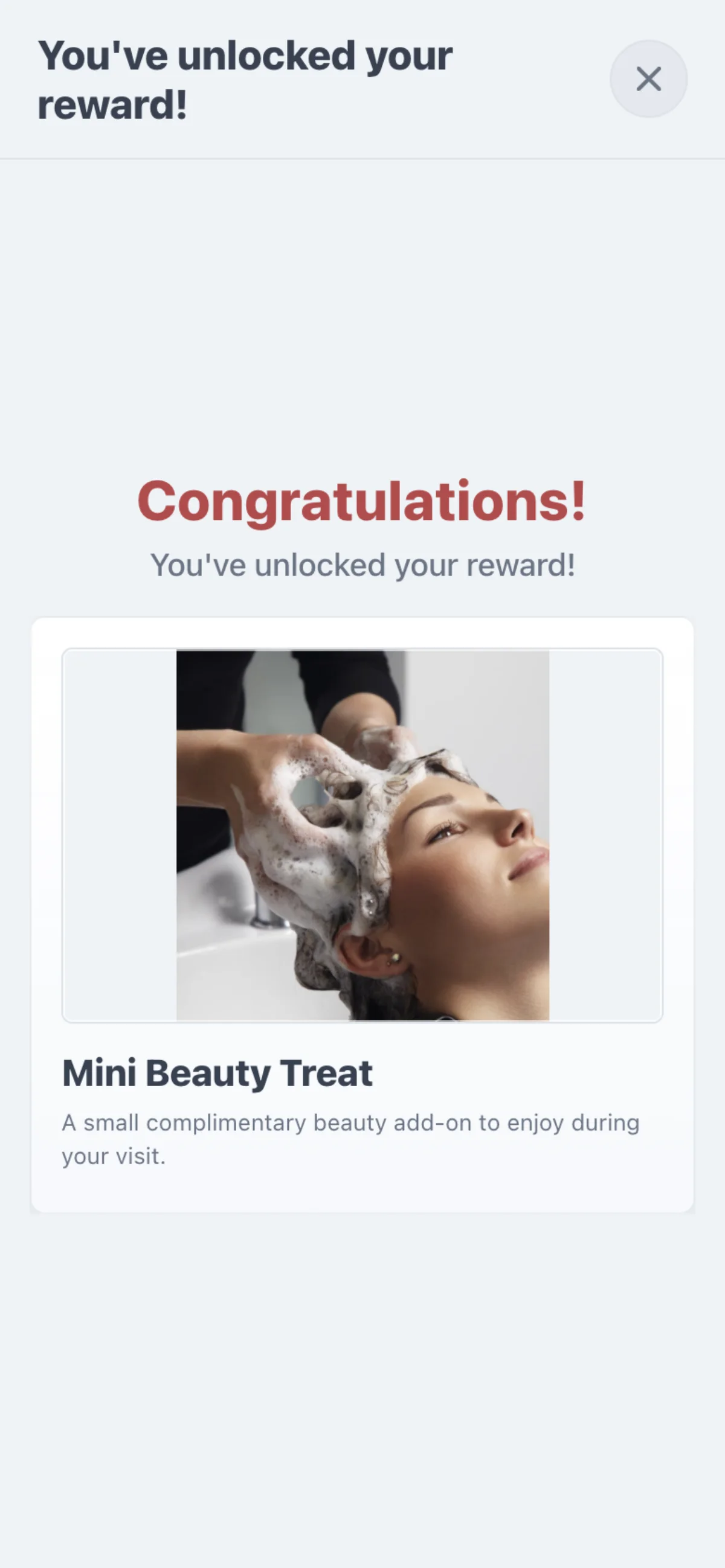
When a stamp reaches an Award, the Customer and the staff see it on screen and staff hand it over at once.
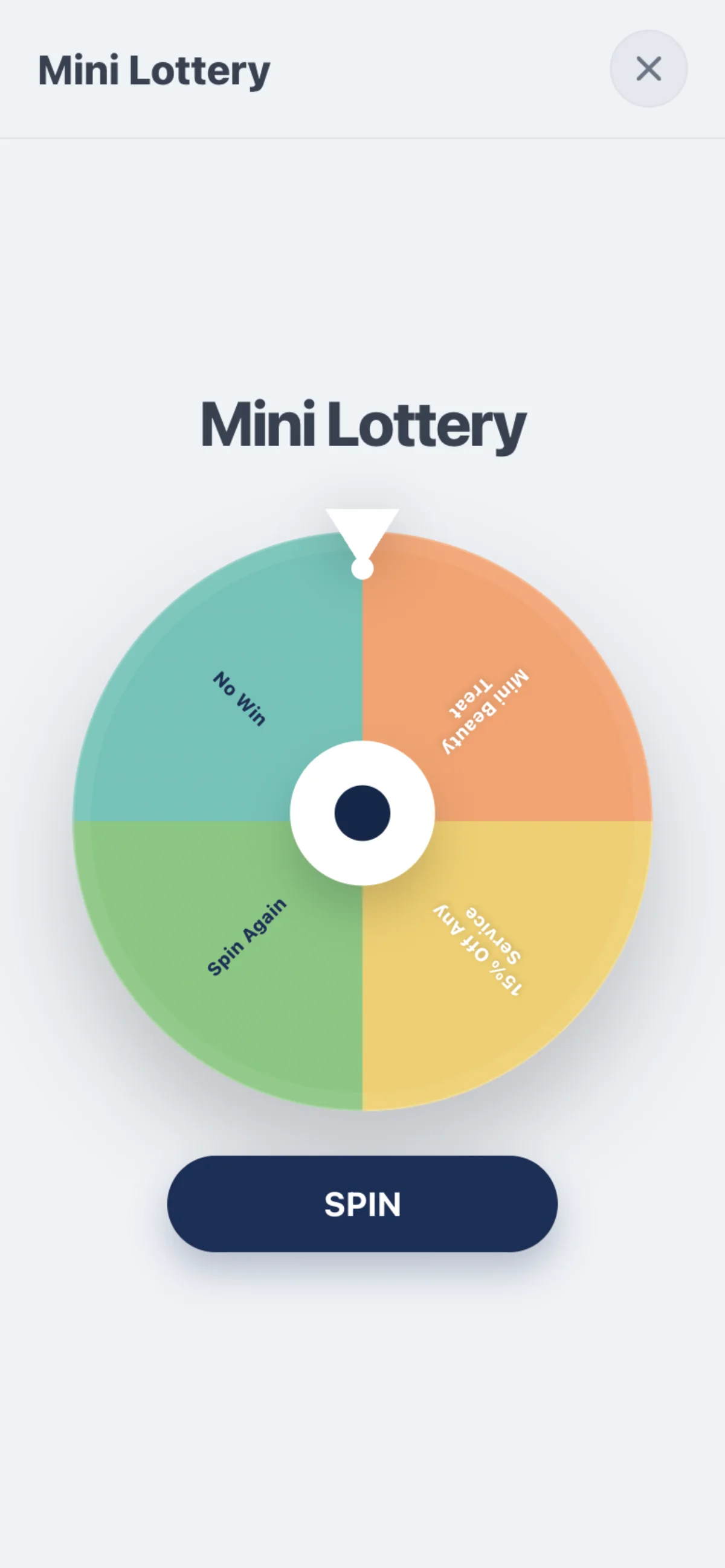
A Lottery reached by a stamp waits to be spun: in 7Stamp Scanner or Kiosk Mode, or by the Customer on their card page. A wheel nobody spins is not lost — the Customer is invited to spin it later.
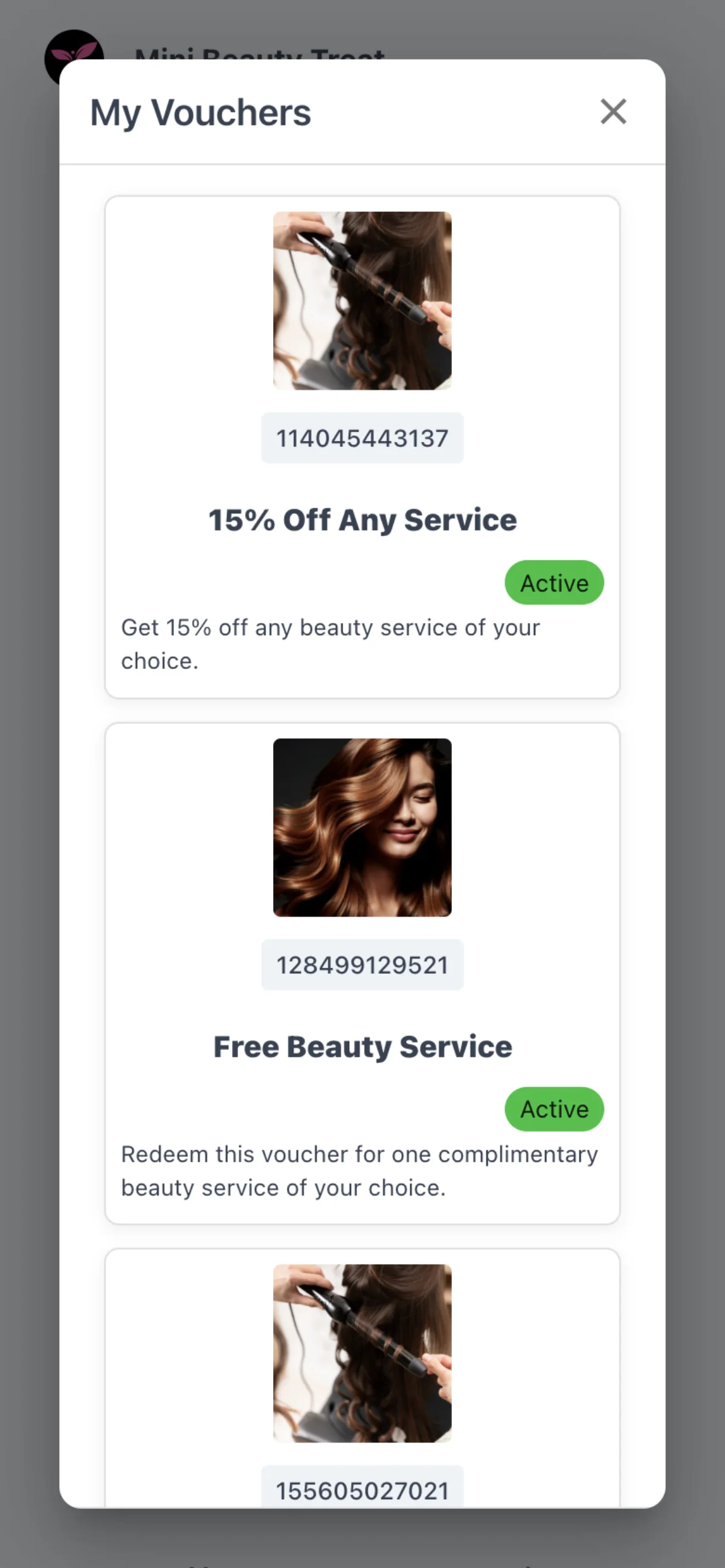
Every Voucher gets its own Voucher Code, which the Customer sees in My Vouchers. A Customer with a chat in your Chatbot also gets each card event there. Rewards are set up as described in Rewards.
Can a Customer spin the Lottery themselves?
Yes, on their card page. Staff can also spin it in 7Stamp Scanner or Kiosk Mode.
What if nobody spins the Lottery wheel?
It is not lost. The Customer is invited to spin it later.
Where does a Customer find their Vouchers?
In My Vouchers, each with its own Voucher Code.
What does a Customer see after a stamp from a payment device or Delivery Inserts?
Their web card page with “Stamp added”, the card’s stamps, how many stamps are left and the next reward.
How does a Customer know a stamp unlocked a Voucher?
The page says “Congratulations!” and “You’ve unlocked your Voucher!”, with the Voucher’s picture, name and text.
My Stamp cards and the profile
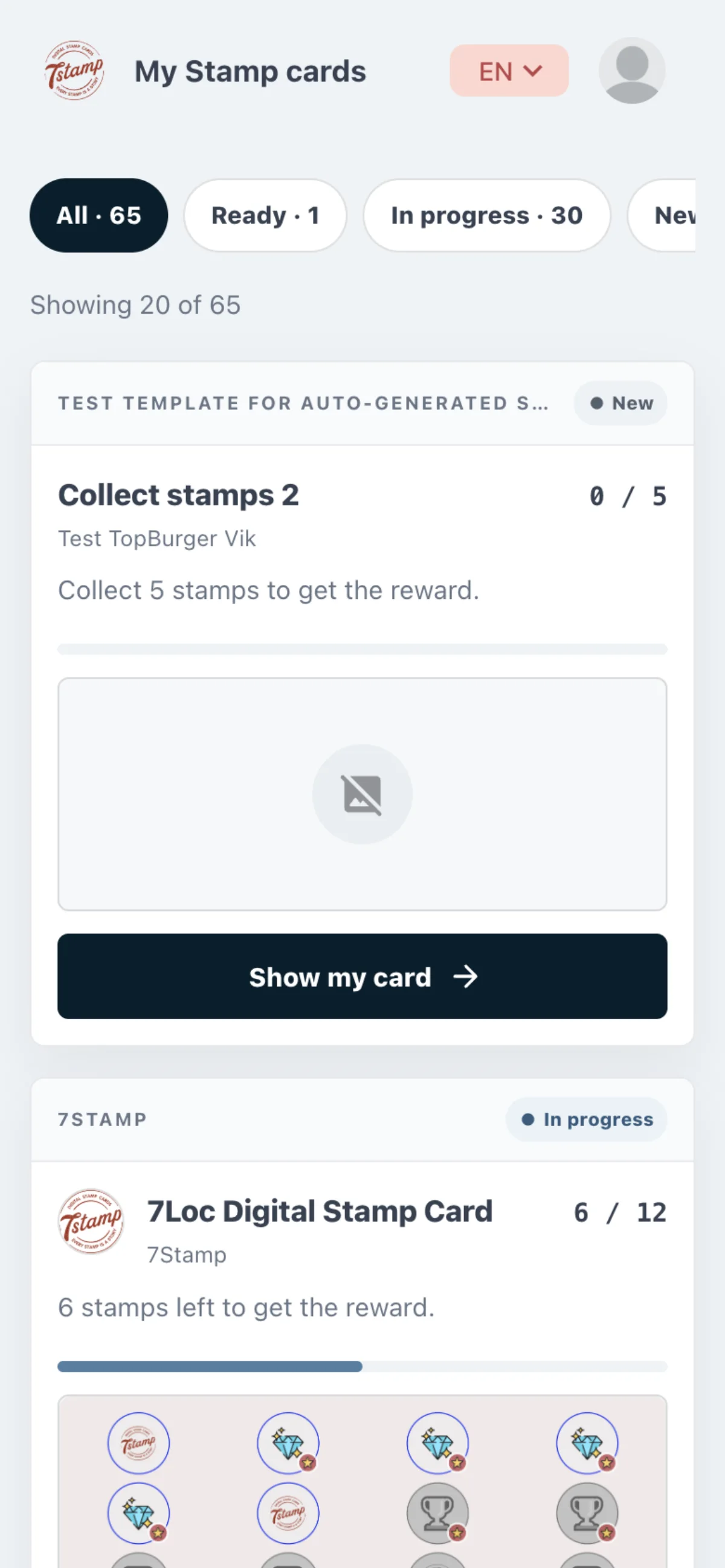
Signed in on my.7stamp.com, a Customer sees all their Stamp cards in one list, filtered by All, Ready, In progress and New.
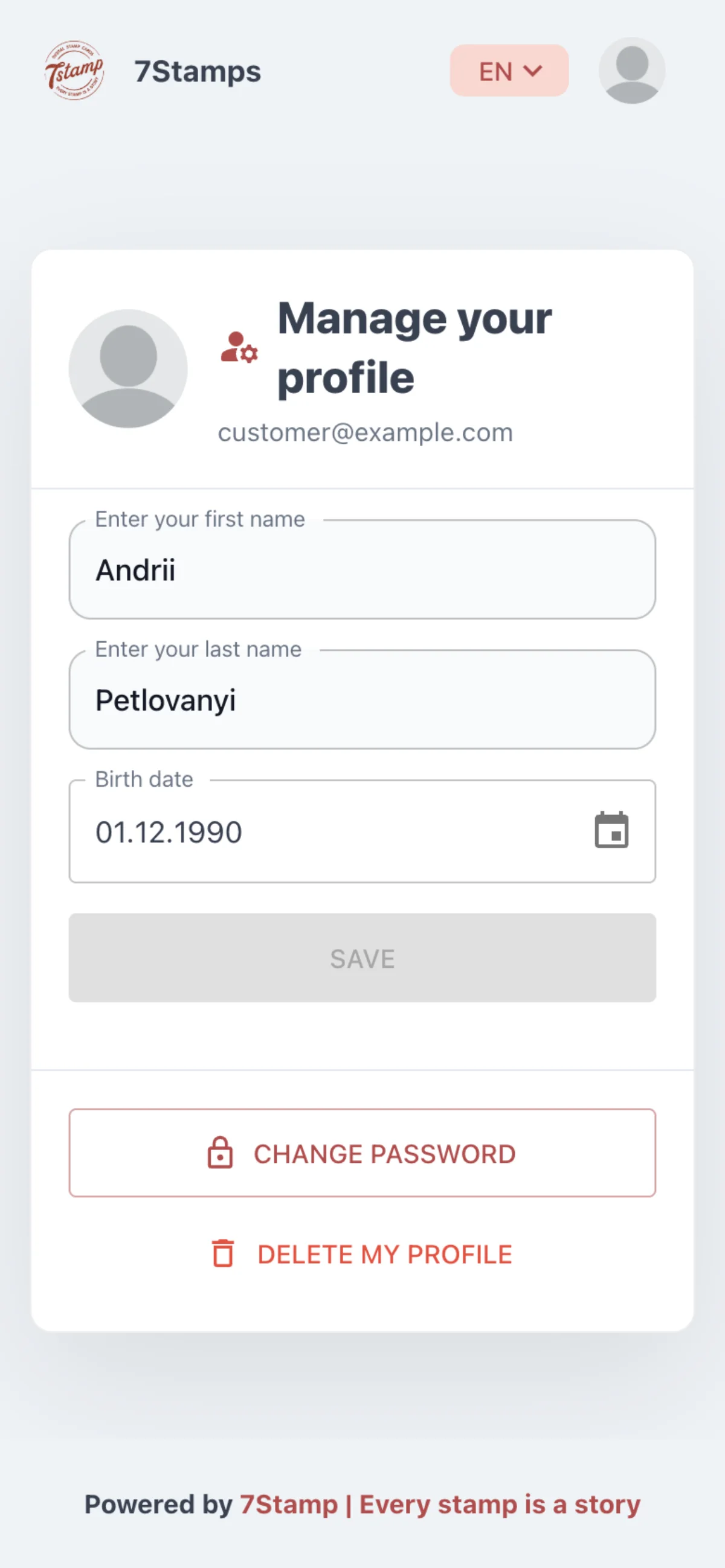
In the profile the Customer edits their first name, last name and date of birth. A saved date of birth can be changed but not cleared.
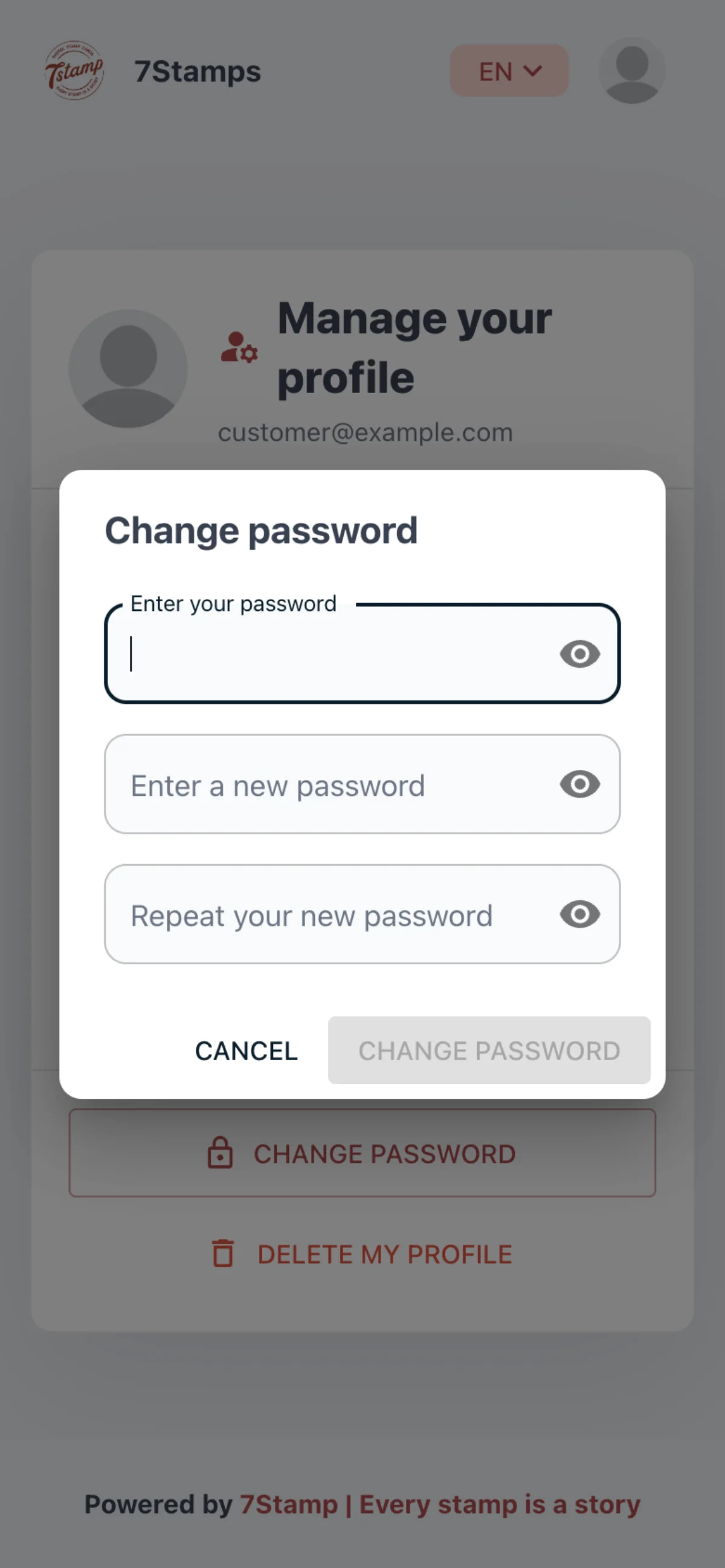
Change password asks for the current password, a new one of at least eight characters and the new one again. An account without a password sets one there instead, with no current password asked.
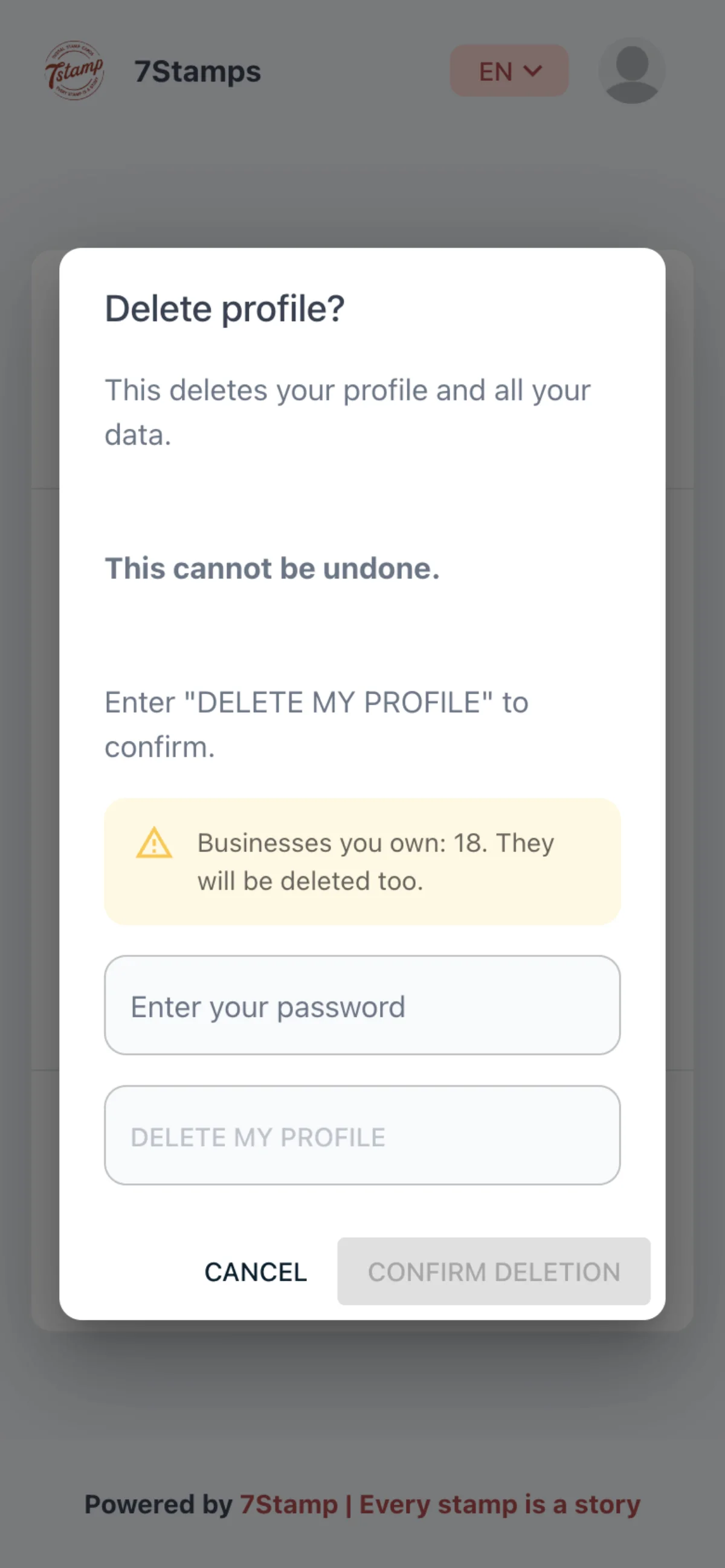
Delete my profile asks to type DELETE MY PROFILE, and the password only when the account has one. The name, email and sign-in are erased, and the passes are voided: Apple Wallet greys them out, Google Wallet marks them expired.
Where can a Customer see all their Stamp cards?
On my.7stamp.com, signed in, in one list filtered by All, Ready, In progress and New.
Can a Customer remove their date of birth?
No. Once saved, it can be changed but not cleared.
What happens to the pass when a Customer deletes their profile?
It is voided — Apple Wallet greys it out and Google Wallet marks it expired — and gets no more updates.
How does a Customer change their password?
In the profile, Change password asks for the current password, a new one of at least eight characters and the new one again. An account without a password sets one with no current password asked.
See the card as your Customer does
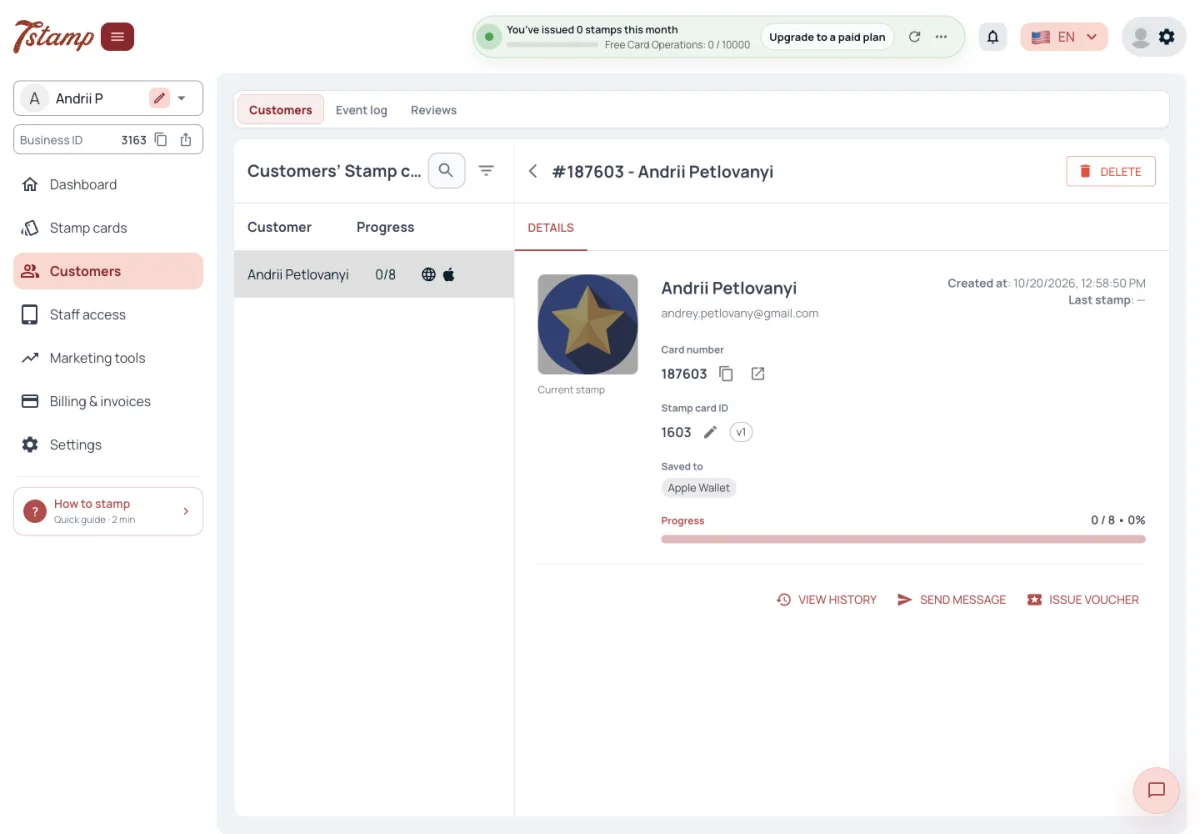
In Customers, open a Customer’s card: the button next to the card number opens the web card page as the Customer sees it. In the Event log, each event can open the card exactly as the Customer saw it at that moment. Both are covered in Customers and history.
How do I see what a Customer sees?
Open the Customer’s card in Customers and use the button next to the card number. It opens the web card page as the Customer sees it.
Can I see the card as it was at a past event?
Yes. Each event in the Event log can open the card exactly as the Customer saw it at that moment.
Where is the Event log?
In the Customers item of the admin menu, in its own tab next to Customers and Reviews.