Start a new Stamp card
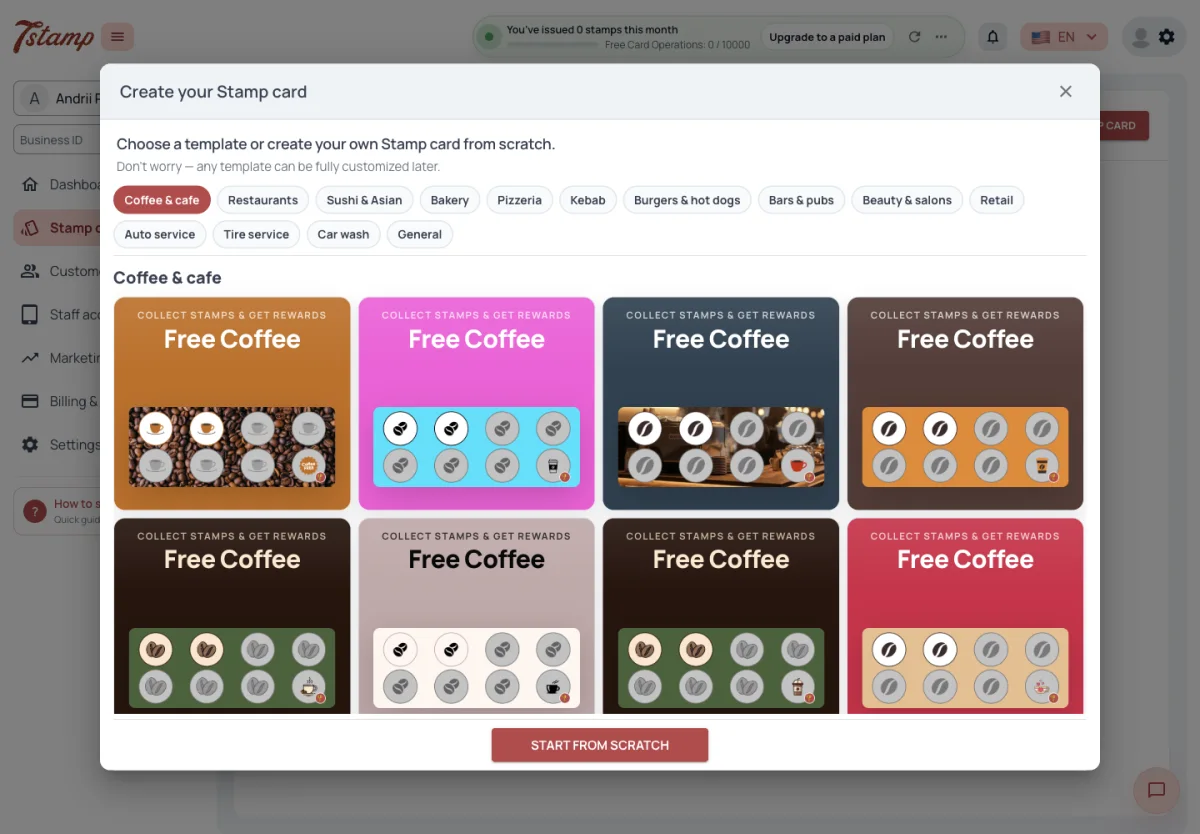
Go to Stamp cards and press NEW STAMP CARD. A gallery of ready-made Stamp cards opens, grouped by trade. Pick one, or press START FROM SCRATCH under it. A ready-made card only fills in the wizard: you can change every field of it before you save. From scratch the card starts with eight stamps, the System font and Smart contrast colors off.
The wizard has five steps, with a live preview of the card beside them: Personalize your style, Add visuals, Build your journey, Additional settings and Result. The card is saved from Result.
A Business can have any number of Stamp cards, on any plan. Someone without an account can make a first Stamp card in the same wizard on the public get-stamps page: saving it creates the account, a Business and the card together, and then the Card name needs at least three characters.
Do I have to start from a ready-made card?
No. Press START FROM SCRATCH under the gallery. A ready-made card only fills in the wizard, and every field of it can be changed before you save.
How many Stamp cards can my Business have?
Any number. Neither the admin nor the server limits how many, on any plan.
How many steps does the Stamp card wizard have?
Five — Personalize your style, Add visuals, Build your journey, Additional settings and Result. The card is saved from Result.
Can I make a Stamp card before I have an account?
Yes, on the public get-stamps page. Saving the card there creates your account, a Business and the card together.
Step 1: Personalize your style
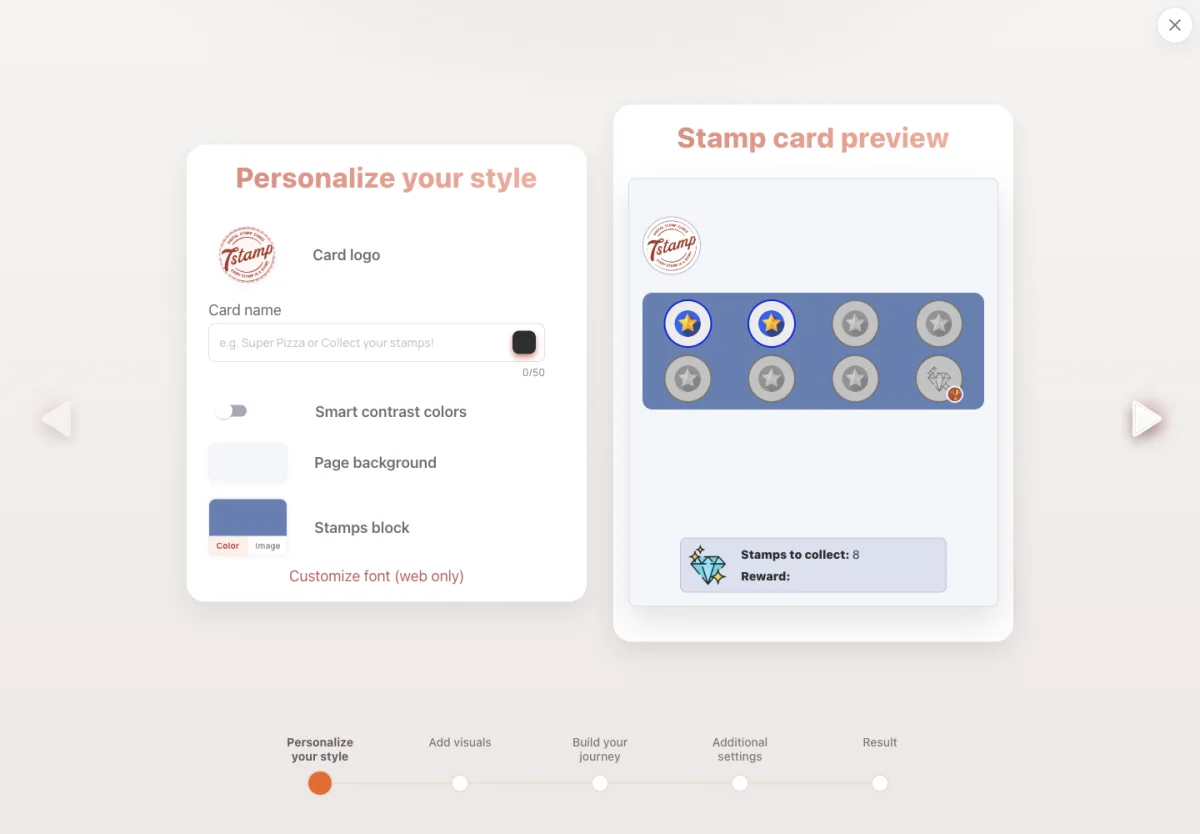
The first step sets the Card logo, the Card name and its colour, Smart contrast colors, the Page background colour, the Stamps block (a colour or an image) and the font.
- Card logo. An uploaded logo is cropped square and then round. A card without a logo of its own takes the Business logo, and without that the 7Stamp logo. Under White Label there is no platform logo: a card with neither logo shows none.
- Card name. Up to fifty characters, because it is also the text beside the logo on the Wallet pass. Its colour is the pass’s text colour.
- Page background. The colour is also the background of the Wallet pass.
- Smart contrast colors. On, a Card name colour picked too close to the Page background, or the other way round, puts a ready light or dark colour set on the card, so the name stays readable. Off, the colours stay as picked.
- Customize font (web only). One of twelve fonts for the web card page. Apple Wallet and Google Wallet write the pass in their own font.
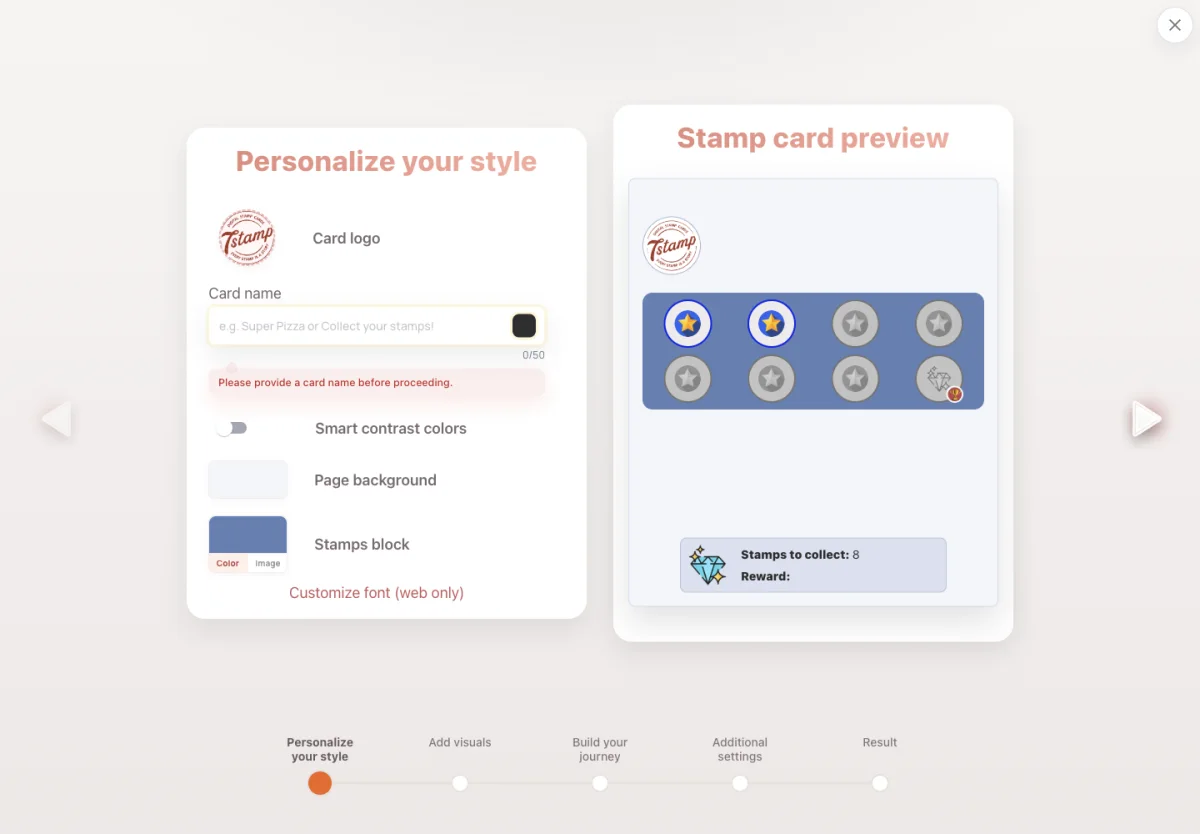
The Card name is the only required field of this step. Without it the wizard does not move on and says “Please provide a card name before proceeding.”; a later save stops and opens this step too.
Why can’t I go to the next step?
The Card name is empty. It is the only required field of Personalize your style, and the wizard does not move on without it.
How long can the Card name be?
Up to fifty characters, because it is also the text beside the logo on the Wallet pass.
My card has no logo. What do Customers see?
The Business logo, and without that the 7Stamp logo. Under White Label there is no platform logo, so a card with neither logo shows none.
Why does the Wallet pass not use the font I chose?
Customize font (web only) is for the web card page. Apple Wallet and Google Wallet write the pass in their own font.
Step 2: Add visuals
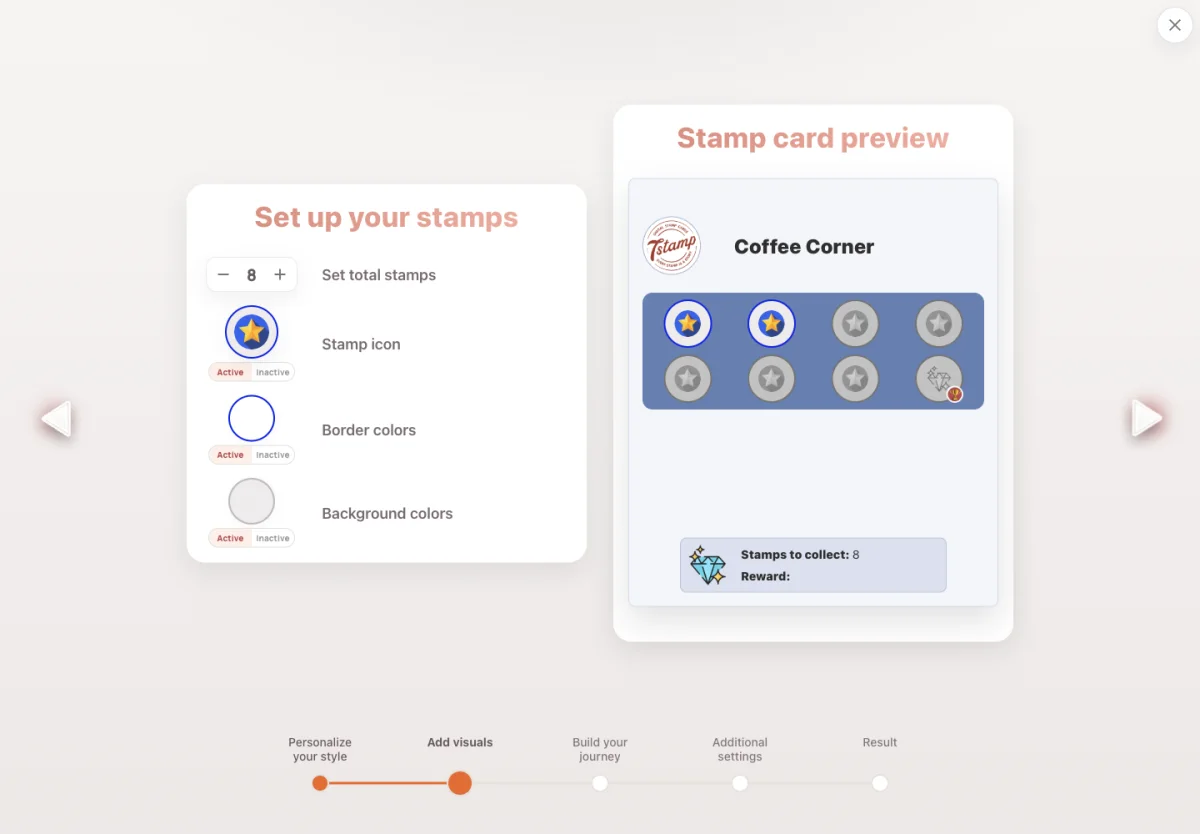
Set total stamps runs from four to thirty-two stamps per card.
Stamp icon, Border colors and Background colors each have an Active look, for a collected stamp, and an Inactive one. A stamp without an inactive icon of its own shows its active icon in grey; picking a new active icon resets the inactive one to that grey look.
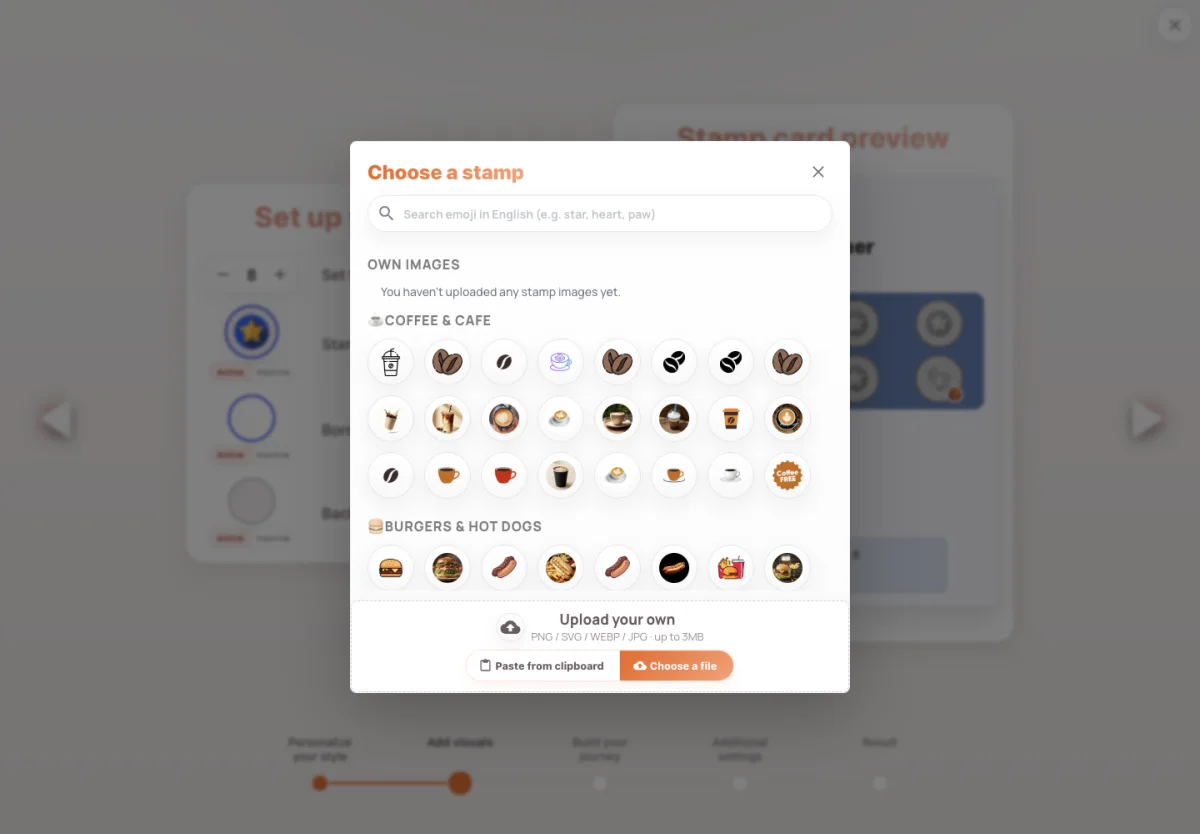
The stamp picker offers an emoji library grouped by trade, searched in English, and your own images: PNG, SVG, WEBP or JPG up to three megabytes, from a file or the clipboard. Own images also lists the images already used on your Business’s Stamp cards.
How many stamps can a card have?
From four to thirty-two. Set it with Set total stamps.
Can I use my own stamp image?
Yes. Upload a PNG, SVG, WEBP or JPG up to three megabytes, from a file or the clipboard.
Why is my uncollected stamp grey?
The stamp has no inactive icon of its own, so its active icon is shown in grey. Picking a new active icon resets the inactive one to that grey look.
Step 3: Build your journey
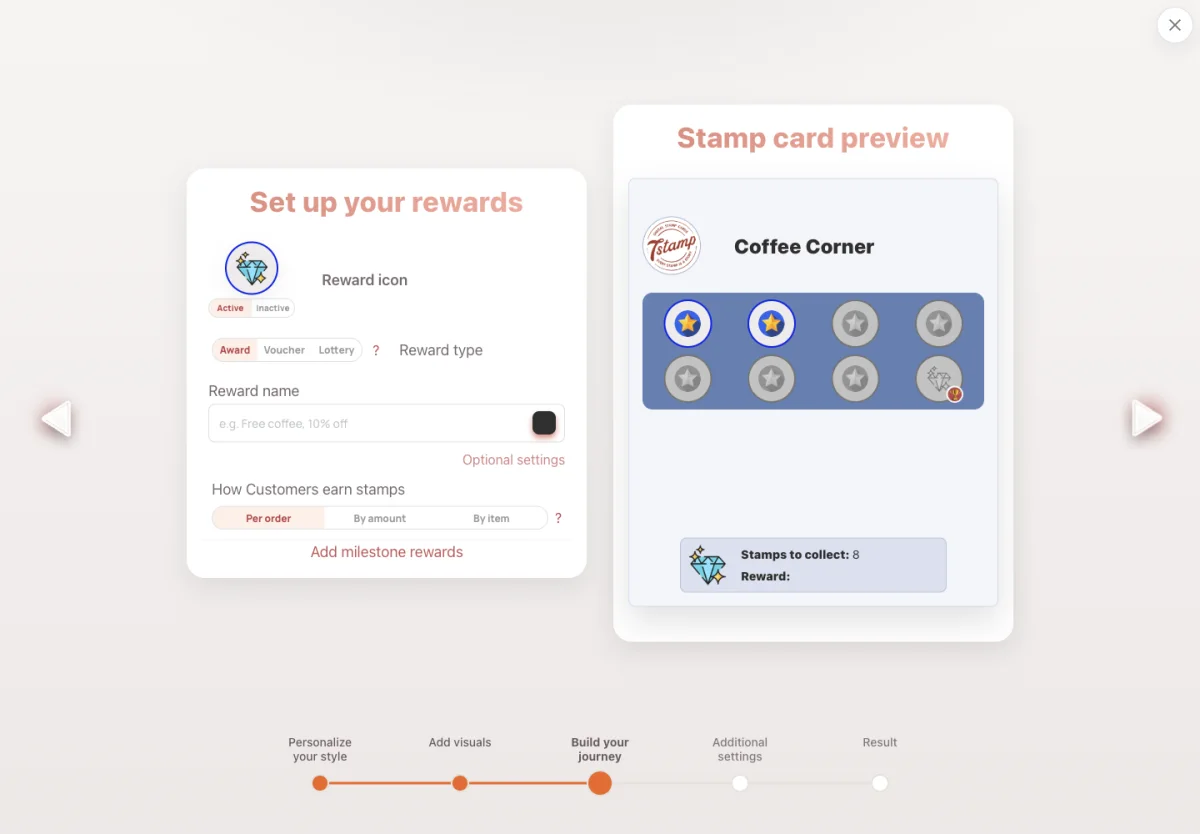
This step sets the Reward on the last stamp — its icon, Reward type, Reward name and Optional settings — how Customers earn stamps, and the milestone rewards on earlier stamps.
Reward icon is the icon of the reward stamp. Like the stamps, it has an Active look, once the stamp is collected, and an Inactive one, and it is picked in the same stamp picker. Until you pick one, the reward stamp shows the regular stamp’s icons. A reward stamp with an active icon of its own but no inactive one shows that icon in grey, and picking a new active icon resets the inactive one to that grey look.
- Reward type is Award, Voucher or Lottery. What each does is in the Rewards article.
- Reward name is required for every Reward, and a Lottery needs a Lottery name, before the card can be saved.
- How Customers earn stamps is the card’s one earning rule: Per order, By amount or By item. The Ways to give a stamp article explains them.
- Add milestone rewards puts Rewards on stamps before the last one, any type, one per stamp.
Which Reward types can I choose?
Award, Voucher or Lottery.
Why does the wizard ask for a Reward name?
Every Reward needs a Reward name before the Stamp card can be saved; a Lottery needs a Lottery name.
Can a card have rewards before the last stamp?
Yes. Add milestone rewards puts Rewards on earlier stamps, any type, one per stamp.
Where do I choose whether stamps are given per order or by amount?
Under How Customers earn stamps in Build your journey — Per order, By amount or By item. Each Stamp card has one earning rule.
What do Active and Inactive mean under the Reward icon?
Active is how the reward stamp looks once it is collected, Inactive how it looks before. Without an inactive icon of its own, the reward stamp shows its active icon in grey.
Can the reward stamp look different from the other stamps?
Yes. Pick a Reward icon in Build your journey from the same stamp picker. Until you do, the reward stamp shows the regular stamp’s icons.
Step 4: Additional settings
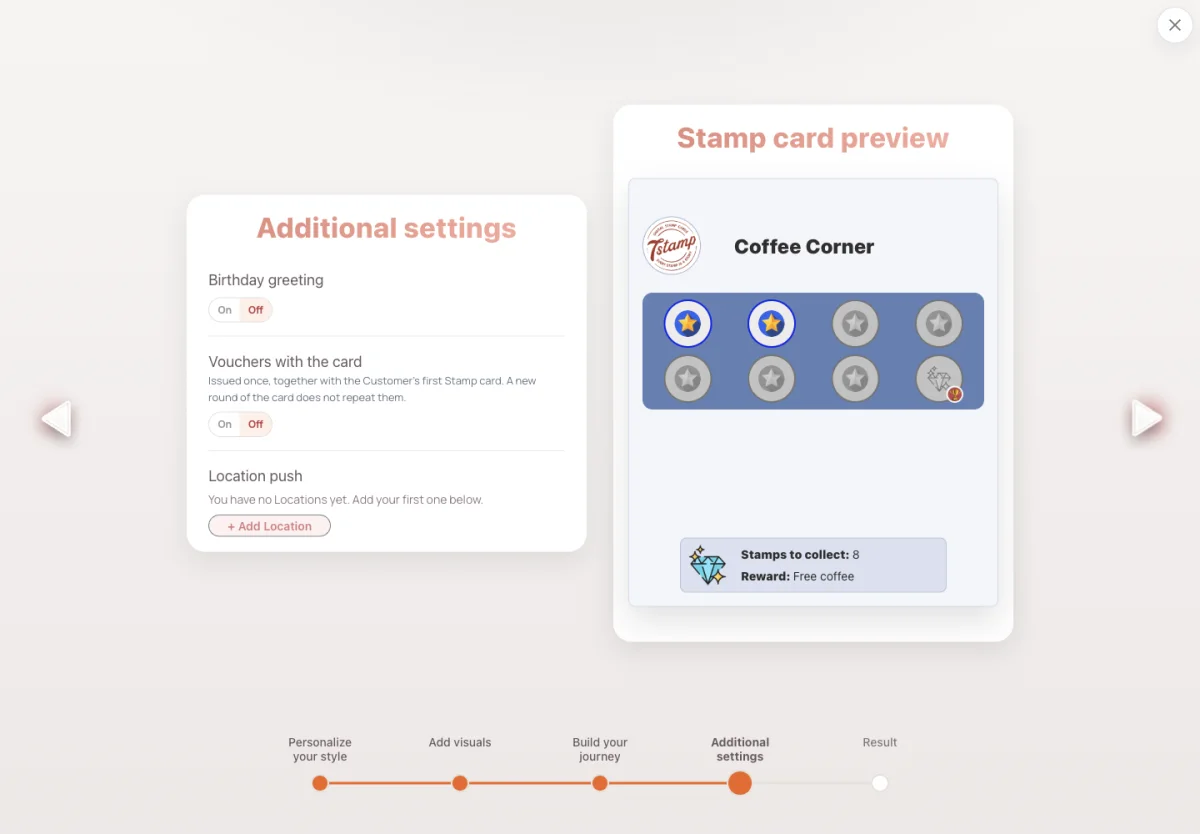
Additional settings has three blocks: Birthday greeting, Vouchers with the card and Location push. There is nothing else on this step: no end date for the card, no terms of the card’s own, and nothing to ask Customers besides the date of birth.
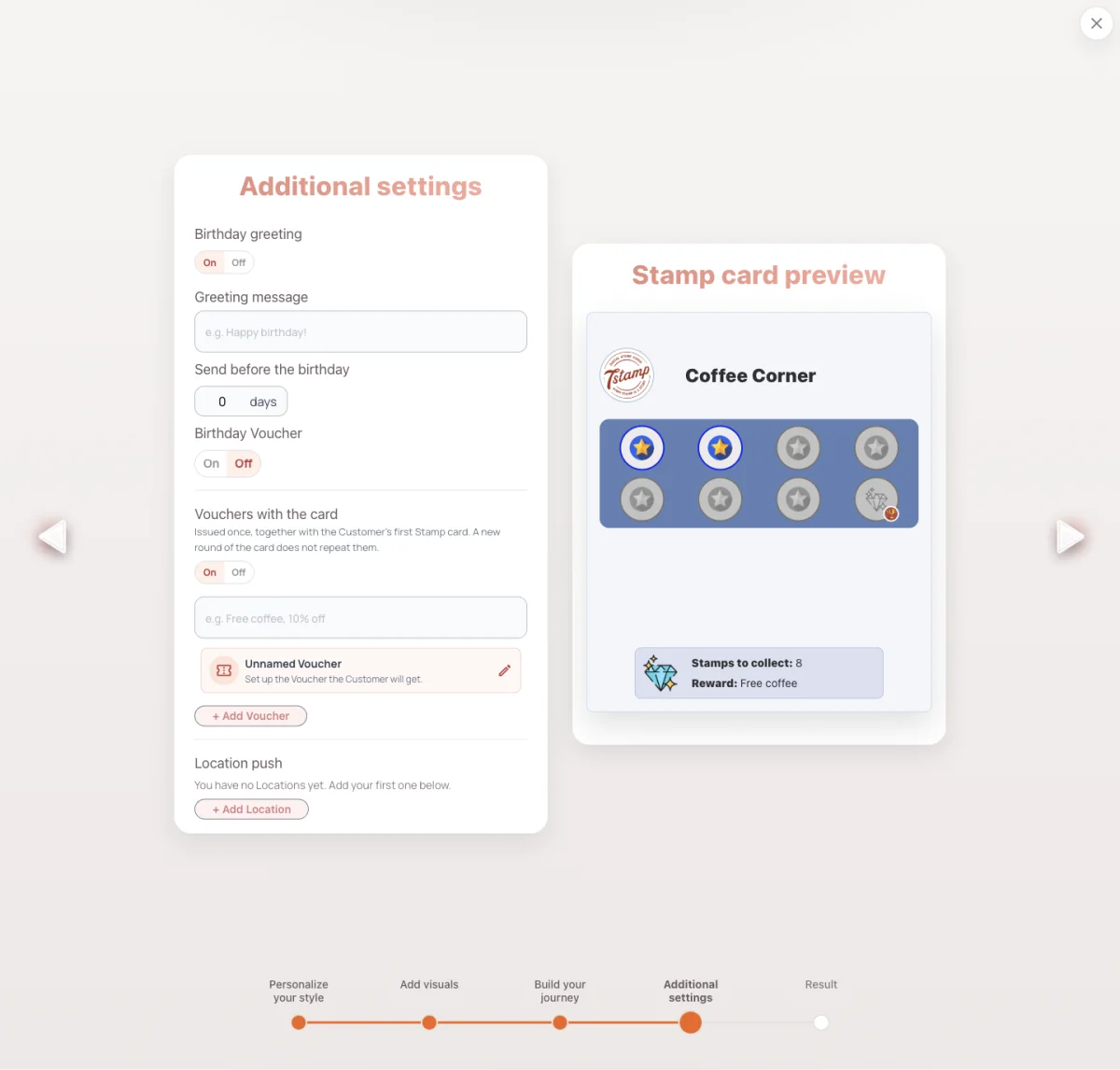
- Birthday greeting. On, it shows a Greeting message, Send before the birthday (a number of days) and Birthday Voucher. The Greeting message is required, and a Birthday Voucher that is switched on needs a name. The Birthday Voucher is issued with the greeting, on the birthday or the set number of days before it, to Customers who have given their date of birth.
- Vouchers with the card. Issued once, together with the Customer’s card. A new round of the card does not repeat them, and switching them on later gives nothing to Customers who already hold the card.
- Location push. Up to ten Locations per Stamp card. Each is an address picked on a Google map with a Message, which is required: the pass shows it near the Location.
Can I congratulate Customers on their birthday?
Yes. Switch Birthday greeting On, write the Greeting message and, if you like, switch on a Birthday Voucher. It goes to Customers who have given their date of birth.
Can a Customer get some Vouchers right when they get the card?
Yes. Vouchers with the card are issued once, together with the Customer’s card. A new round of the card does not repeat them.
How many Locations can one Stamp card have?
Up to ten. Each needs an address on the map and a Message.
Can I set an end date for the Stamp card?
No. Additional settings has no end date for the card. Only a Voucher can have an end date.
Step 5: Result and saving
The card is saved from Result. Result shows the Stamp card preview and one button: Generate Stamp card for a new card, Regenerate Stamp card for one that already exists; the right arrow does the same. There is no summary of the settings: to check them, go back to the earlier steps. Before saving, the wizard checks those steps again and, if something is missing, returns you to that step.
On save the admin draws the pass’s stamps image for every stamp count, for Apple Wallet and Google Wallet, and uploads them before the card is written. The page shows the progress and asks you not to close it.
A Stamp card is saved whole or not at all: if any part of it is refused, nothing of the card is saved or changed. Every Stamp card is offered in both Apple Wallet and Google Wallet; there is no setting to offer only one.
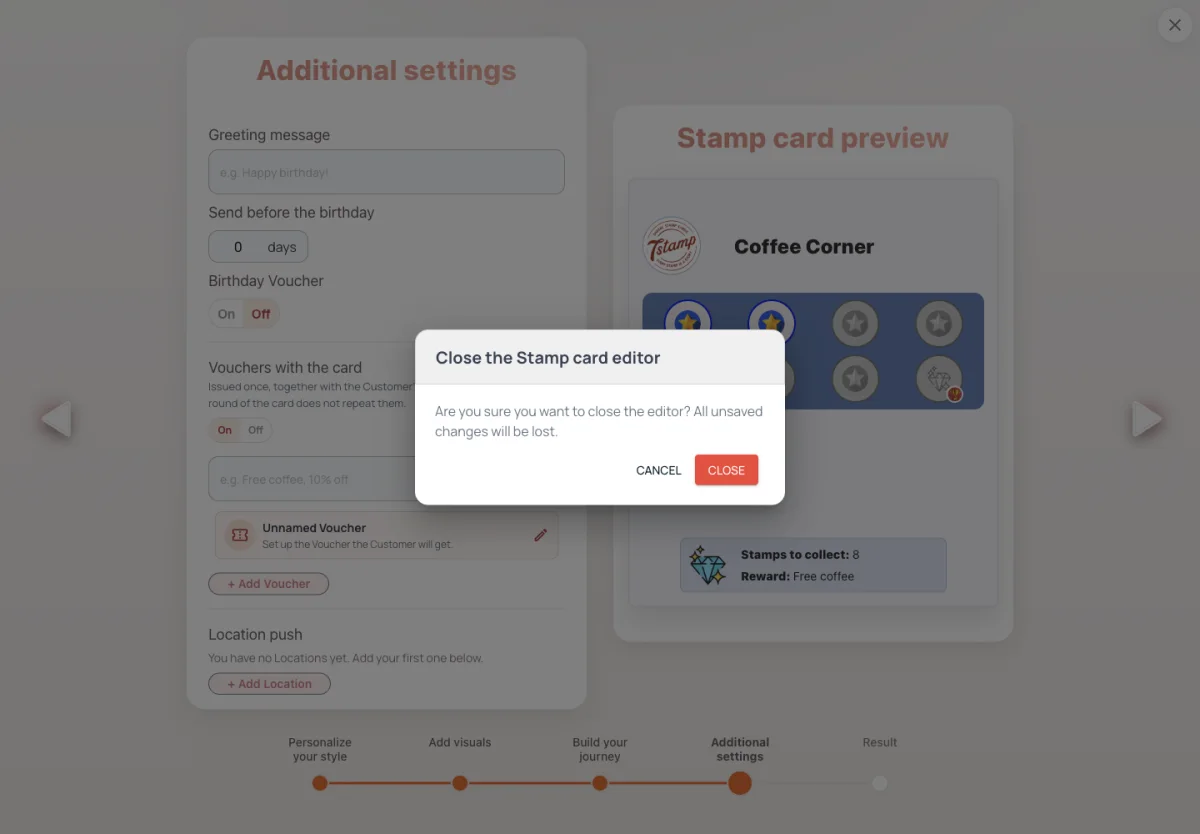
Closing a new card’s wizard after a change asks to confirm, because all unsaved changes will be lost. Closing the wizard of an existing card always asks.
Why does saving a card take a while?
The admin draws the pass’s stamps image for every stamp count, for Apple Wallet and Google Wallet, and uploads them before the card is written. Keep the page open until it finishes.
Part of my card was refused on save. Is the rest saved?
No. A Stamp card is saved whole or not at all, so nothing of it is saved or changed.
Can I offer my card only in Apple Wallet?
No. Every Stamp card is offered in both Apple Wallet and Google Wallet.
What does the Result step show?
The Stamp card preview and one button, Generate Stamp card for a new card or Regenerate Stamp card for an existing one. It shows no summary of the settings.
I pressed Generate Stamp card and the wizard jumped back to an earlier step. Why?
Something required is missing there, such as a Reward name. The wizard checks every step again before saving and returns you to the first one with a problem.
The Stamp cards page
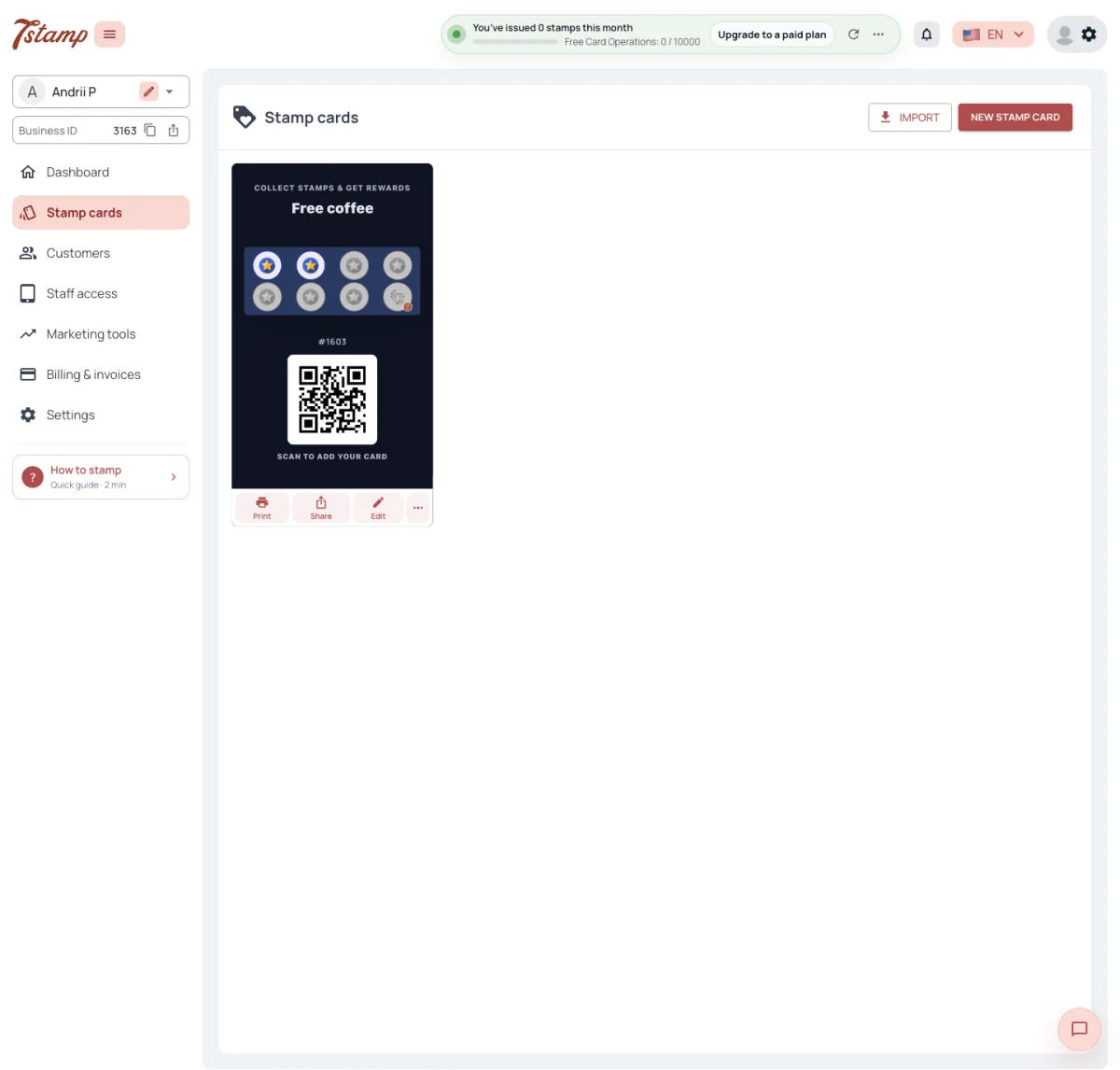
The Stamp cards page shows each card the way Customers see it, with the Stamp card’s number (such as #1603), its join QR and “SCAN TO ADD YOUR CARD”. Under it are Print, Share, Edit and a ”…” menu.
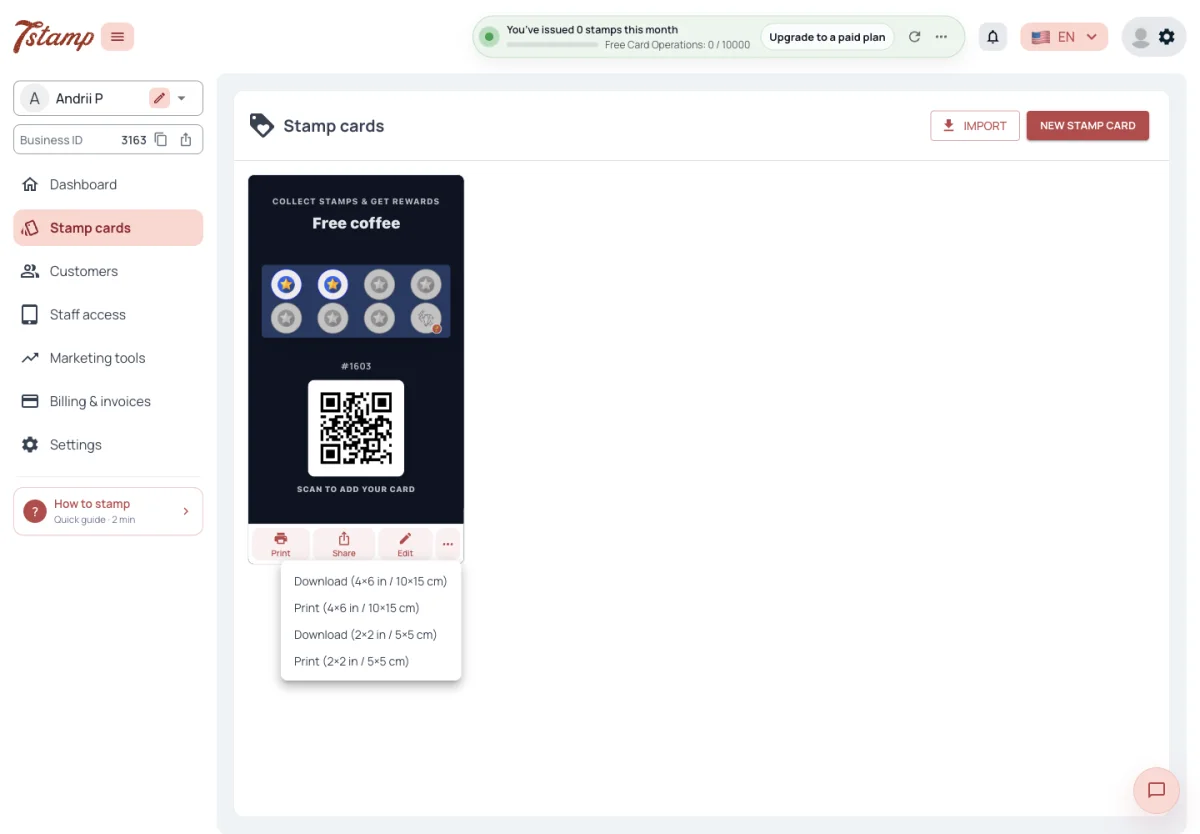
Print downloads as PDF or prints a sticker with the card and its join QR, in two sizes: a large one for a window and a small one for a counter. They are ten by fifteen and five by five centimetres, or four by six and two by two inches when the browser’s region is the US.
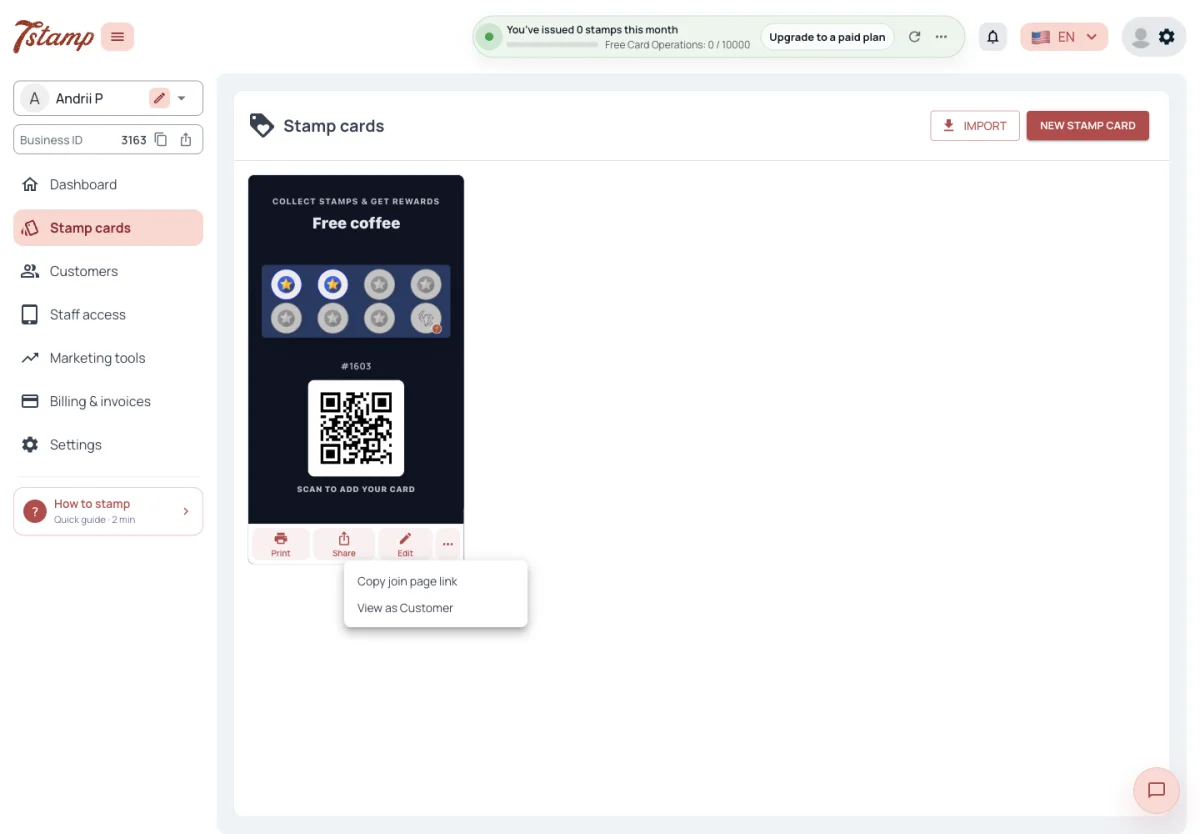
Share copies the card’s join link or opens it as a Customer would. When the Business has a Chatbot the link is the bot’s and the menu says so (“Copy Telegram link”, “Open in Telegram”); without one it is the web join page. The QR on the tile and on the printed sticker holds the same link.
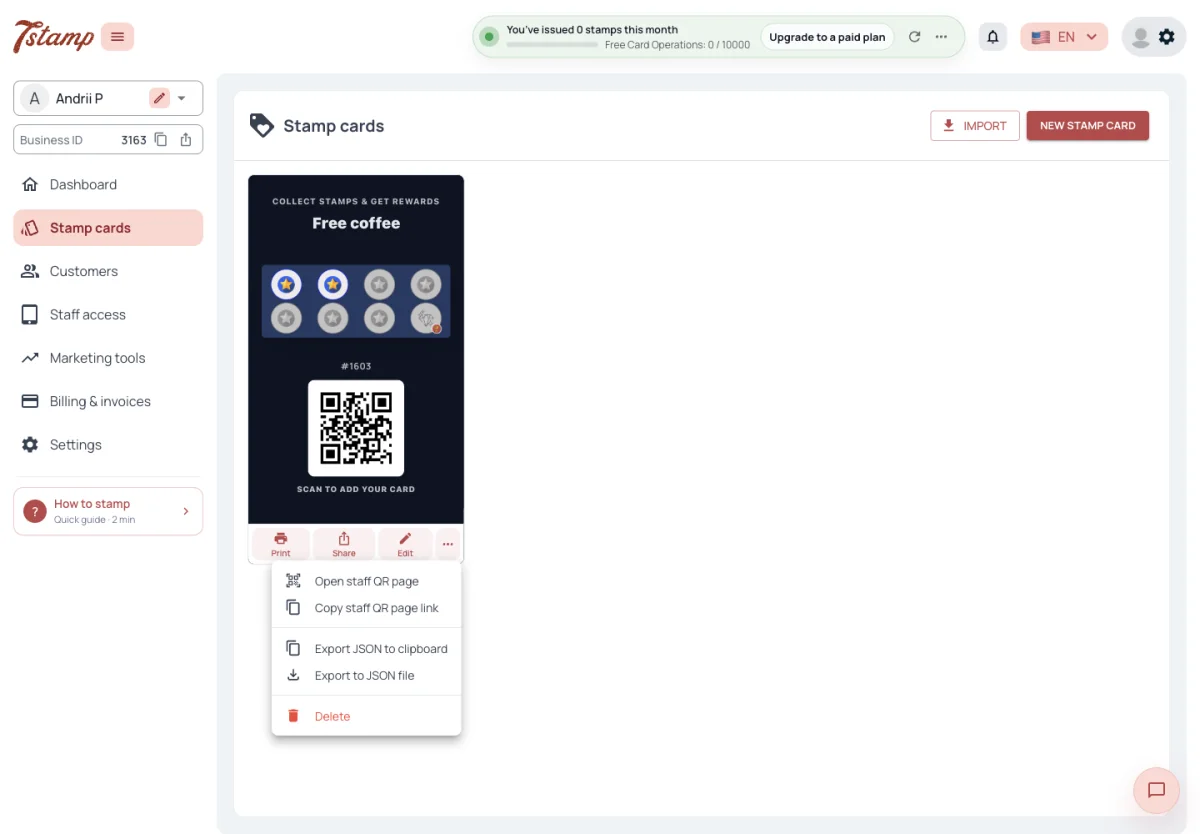
The ”…” menu opens or copies the link of the card’s staff QR page: staff save it to their own phone to show the join QR at the counter.
What sizes can I print the card’s sticker in?
Two — a large one for a window and a small one for a counter. Ten by fifteen and five by five centimetres, or four by six and two by two inches when the browser’s region is the US.
Where does the QR on the sticker lead?
To the same join link as Share. With a Chatbot it opens the bot, otherwise the web join page.
How can staff show the join QR from their own phone?
Open the card’s ”…” menu and open or copy the link of its staff QR page. Staff save that page on their phone.
Edit a card Customers already hold
A Stamp card stays editable after Customers hold it: Edit reopens the same wizard with every field. The admin gives no warning that the card is in use.
The web card page reads the card’s design each time it opens, so a saved change shows there on the Customer’s next visit. Passes are not updated at once: each pass takes the new name, logo, colours and stamps image with its next update for that Customer — a stamp, a Voucher or a message. Every save raises the card’s version, and the Customer’s card in the admin shows, beside the Stamp card’s number, the version its pass was last fully updated to: v1, v2 and so on.
Awards already earned keep the name, text and image they had when the Customer earned them. If you lower the total stamps, a Customer who already has as many stamps as the new total or more shows a full card; the next stamp starts a new round from the first stamp, and stamps above the new total are not carried over.
A Stamp card has no Active / Inactive switch: every save keeps it active. The only way to take a card out of use is to delete it.
I changed my card’s colours. Why do Customers’ passes still show the old ones?
Passes are not updated at once. Each pass takes the new design with its next update for that Customer — a stamp, a Voucher or a message. The web card page shows the change on the next visit.
Can I edit a card that Customers already hold?
Yes. Edit reopens the same wizard with every field. The admin gives no warning that the card is in use.
Does editing an Award change the ones Customers already earned?
No. An earned Award keeps the name, text and image it had when the Customer earned it.
How do I pause a Stamp card?
You can’t. A Stamp card has no Active / Inactive switch; the only way to take it out of use is to delete it.
Copy a card: export and import
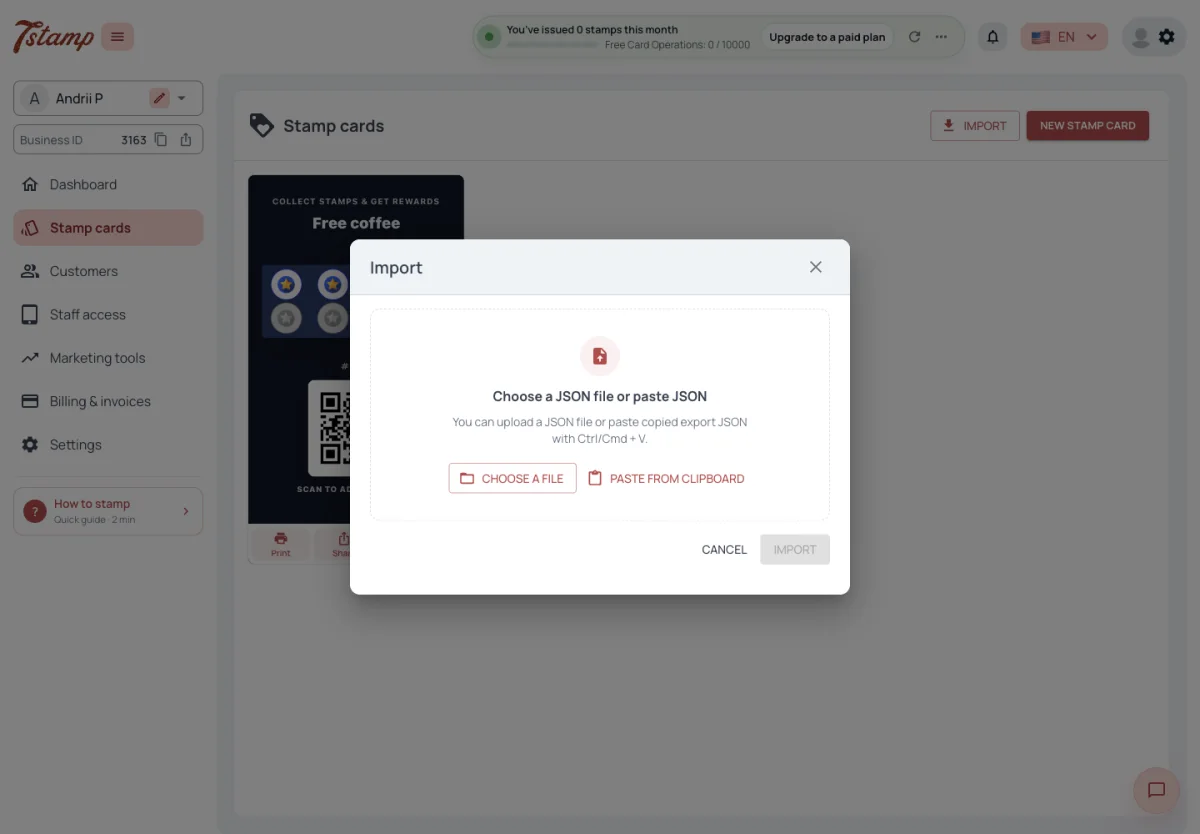
There is no Duplicate action. To copy a card, inside one Business or into another, export it from the ”…” menu — Export JSON to clipboard or Export to JSON file — and press IMPORT on the Stamp cards page where the copy is wanted.
Import makes a new Stamp card in the open Business with the design, stamps, rewards, Additional settings and Locations of the exported one. None of its Customers come with it.
How do I duplicate a Stamp card?
Export it to JSON from the card’s ”…” menu, then press IMPORT on the Stamp cards page and paste or upload the JSON. There is no Duplicate action.
Can I copy a card to another Business?
Yes. Export it, open the other Business and import the JSON there.
Does an imported card bring its Customers?
No. It brings the design, stamps, rewards, Additional settings and Locations, and none of the Customers.
Delete a card
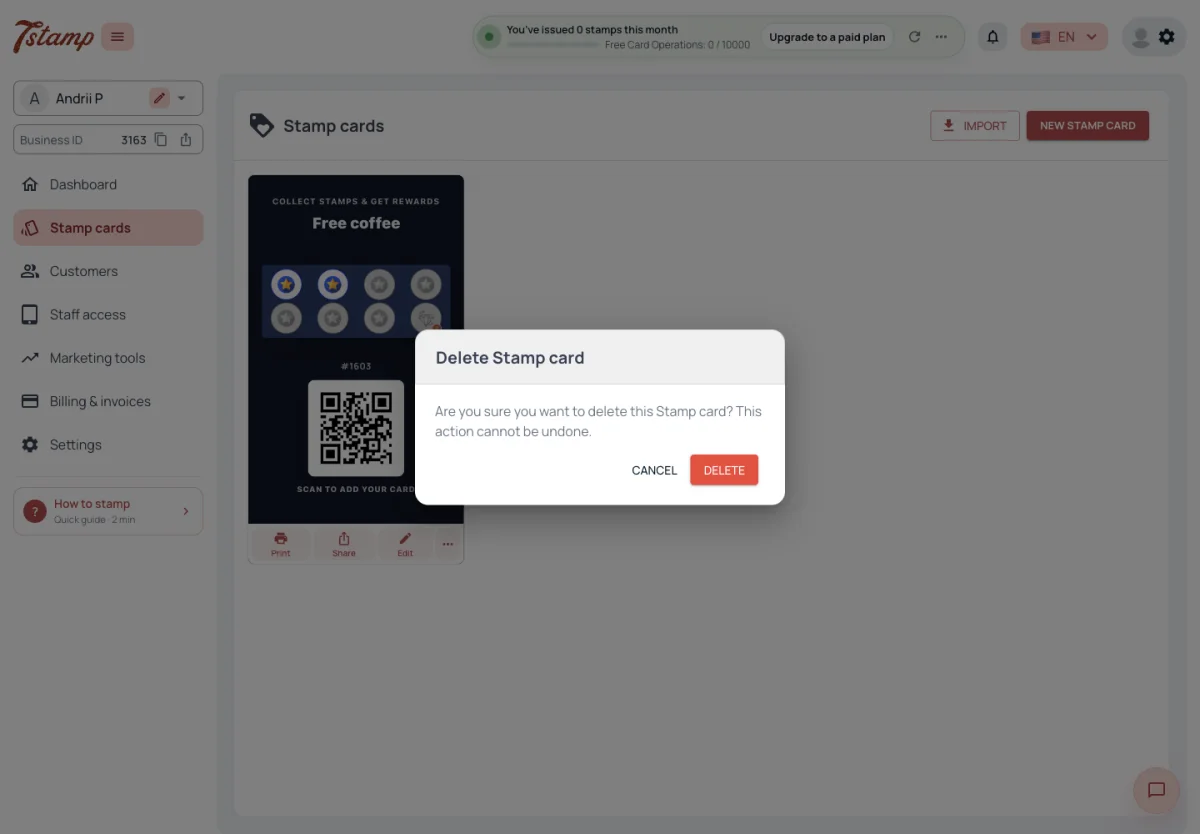
Delete is in the card’s ”…” menu. It asks to confirm and cannot be undone. It removes the Stamp card from the Stamp cards page together with its design, stamps, rewards, Locations, Birthday Voucher and Vouchers with the card.
Customers’ cards are not deleted and their passes are not voided: the passes stay on the phones. The cards leave the Customers list and My Stamp cards, and the card is no longer handed out — not by its web join link, the Chatbot, a Stamp Code or Kiosk Mode. 7Stamp Scanner and the Integration API refuse such a card as not found: no stamp, and no Card Operation counted. Vouchers already issued from the card can still be redeemed by staff until they expire.
Can I restore a deleted Stamp card?
No. Delete asks to confirm and cannot be undone.
What happens to Customers’ passes when I delete a card?
They stay on the phones; they are not voided. The card can no longer be scanned or handed out, and its cards leave the Customers list.
Can Customers still use their Vouchers after I delete the card?
Yes. Staff can redeem Vouchers already issued from it until they expire.