
Marketing tools
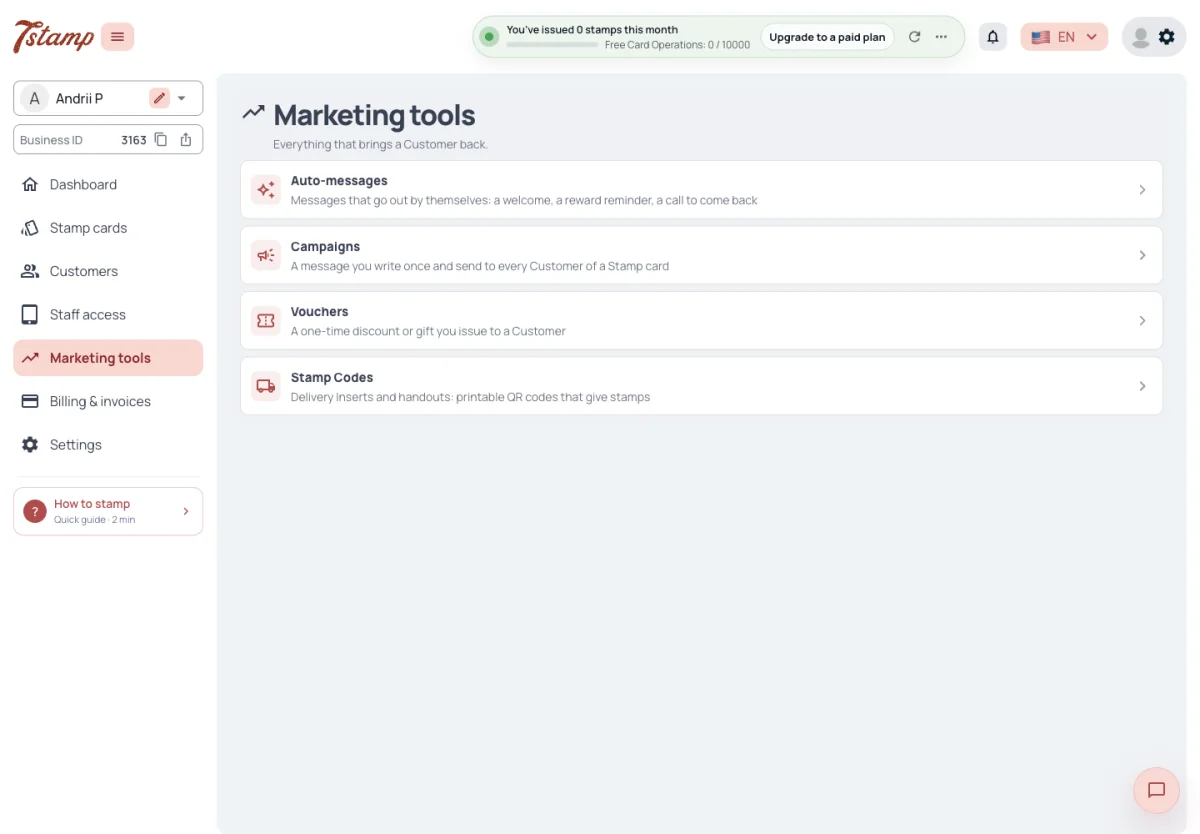
Marketing tools is a page of four entries: Auto-messages, Campaigns, Vouchers (Issue Voucher) and Stamp Codes. Stamp Codes, for inserts and handouts, are described in Ways to give a stamp; the other three are below.
Campaigns and Auto-messages are on every plan, Free Forever included, and need no add-on. Their Wallet push and Chatbot messages are free; only their emails are counted. How emails are counted is in Plans and billing, under Emails and messages.
Do I need a paid plan for Campaigns and Auto-messages?
No. They are on every plan, Free Forever included, and need no add-on.
Do Campaigns and Auto-messages use up my plan’s allowance?
Only their emails are counted. Their Wallet push and Chatbot messages are free. How emails are counted is in Plans and billing.
Where do I issue a Voucher by hand?
In Marketing tools → Vouchers, which opens Issue Voucher.
Campaigns
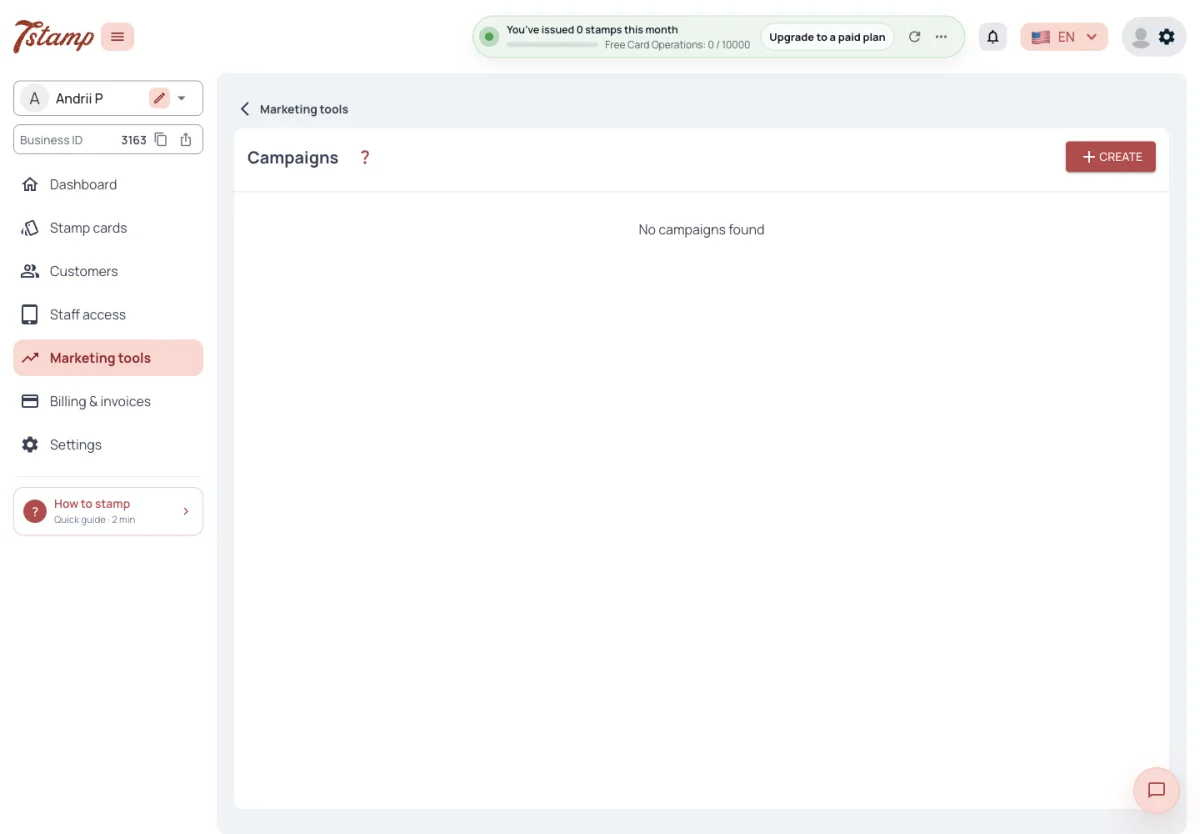
A Campaign is a message you write once and send to the Customers of one Stamp card: everyone who holds an active card of it, however many there are. There is no other audience filter — not by stamps, activity, date of joining or Location.
A Campaign is sent when it is created. It can’t be put off to a later time, and the sending window and weekly cap of Auto-messages don’t hold it back.
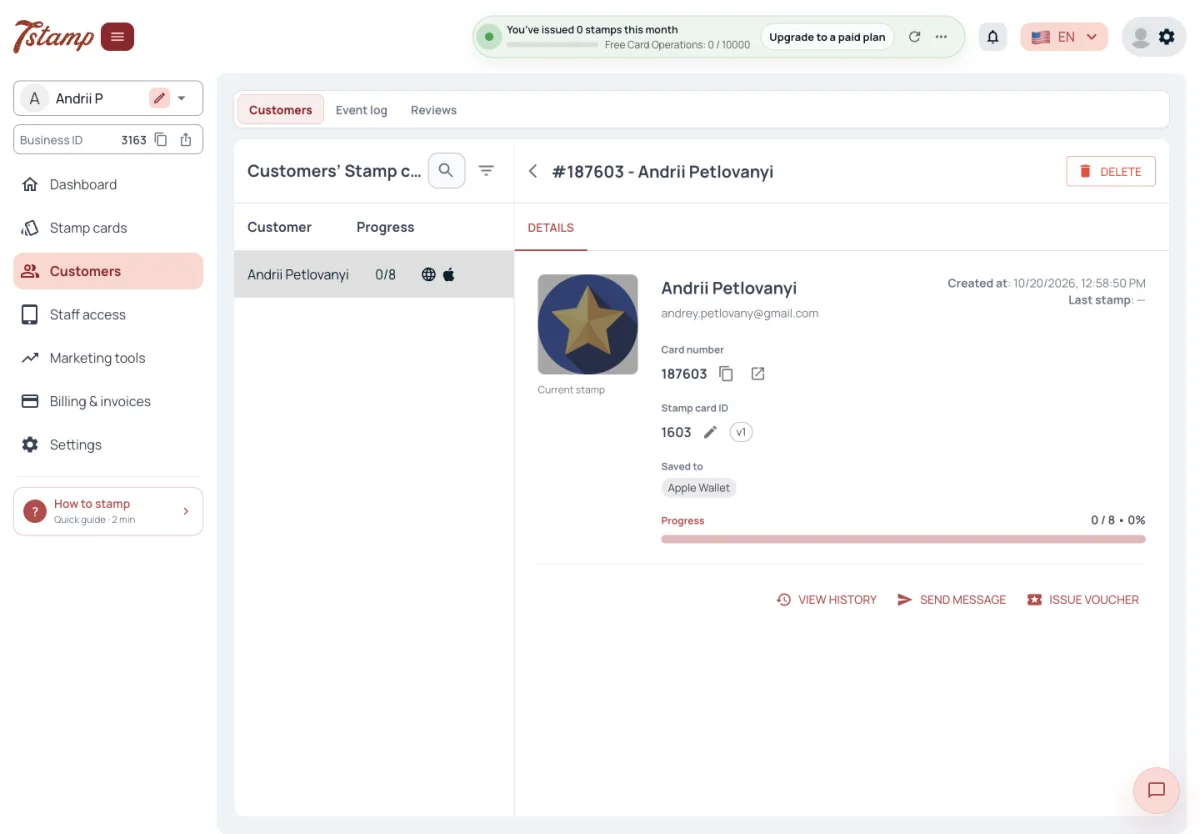
To write to one Customer, open Customers, choose the Customer’s Stamp card and press Send message, next to View history and Issue Voucher. It opens the same Create campaign form for that one Customer and that Stamp card.
Can we send to a segment or schedule Campaigns?
No. A Campaign goes to everyone who holds an active card of the Stamp card chosen in it, and it is sent as soon as it is created.
Is there a limit on how many Customers a Campaign reaches?
No. It reaches every holder of its Stamp card, however many there are.
Can I send a message to just one Customer?
Yes. In Customers, open the Customer’s Stamp card and press Send message. It opens the Campaign form for that one Customer and that Stamp card.
Does the weekly cap of Auto-messages hold back a Campaign?
No. Neither the weekly cap nor the sending window of Auto-messages applies to Campaigns.
Writing a Campaign
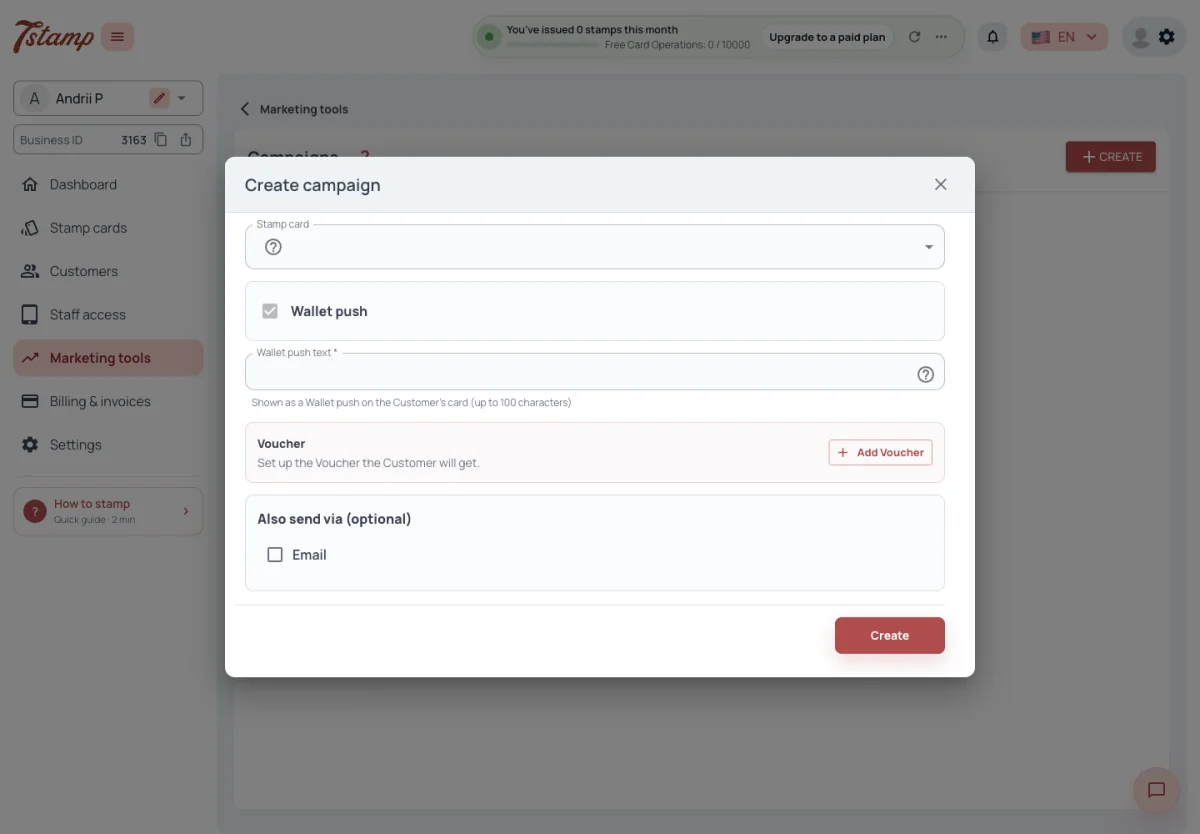
Choose the Stamp card and write the Wallet push text. It is required, from five to one hundred characters, and it is what the Customer sees on the pass and in the Wallet push. Wallet push is always part of a Campaign.
Email and Chatbot are added under Also send via. The form offers Email only while the Business’s emails are not switched off, and Chatbot only while the Business has a bot connected.
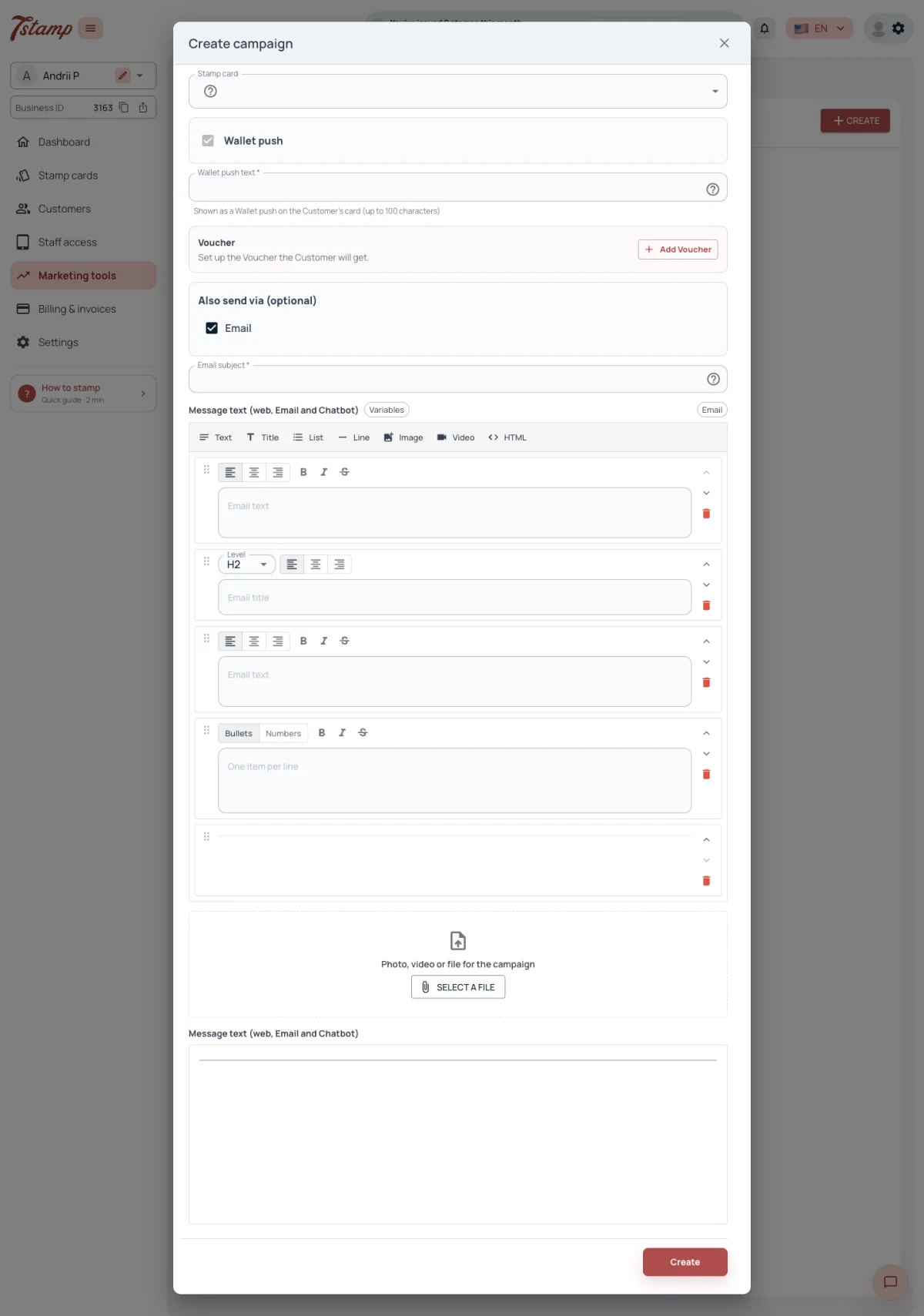
With Email or a Telegram Chatbot added, the Campaign also needs a message text, built from blocks: text, title, list, line, image, video and HTML. The same message goes to Email and to the Telegram Chatbot. An email needs a subject of at least seven characters and may carry one attached file: a photo, a video or a document.
With a WhatsApp bot, the Chatbot message goes out only as the approved WhatsApp template chosen in the form, with every template variable filled in. It is never sent as free text: a WhatsApp message without a template is marked Failed.
Texts take the Customer’s variables: {fullname}, with a fallback such as
{fullname?Friend}, {birthday}, and custom fields as {var:field_name}. They
are filled in for each Customer when the message goes out.
Before you send, the form shows how many Customers each channel reaches: Wallet push counts every holder of the Stamp card, Email those with an email address who agreed to receive offers, Chatbot those who have a chat with the Business’s bot.
How long can the Wallet push text be?
From five to one hundred characters. It is required in every Campaign.
Why can’t I add Email or Chatbot to my Campaign?
The form offers Email only while the Business’s emails are not switched off, and Chatbot only while the Business has a bot connected.
Can a Campaign send plain text to Customers in WhatsApp?
No. With a WhatsApp bot the Chatbot message goes out only as the approved template chosen in the Campaign form, with every variable filled in. A WhatsApp message without a template is marked Failed.
Why does Email reach fewer Customers than Wallet push?
Email counts only the Customers who have an email address and agreed to receive offers. Wallet push counts every holder of the Stamp card.
How do I put the Customer’s name in a Campaign?
Use {fullname}, with a fallback such as {fullname?Friend}. It is filled in for each Customer when the message goes out.
A Voucher in a Campaign
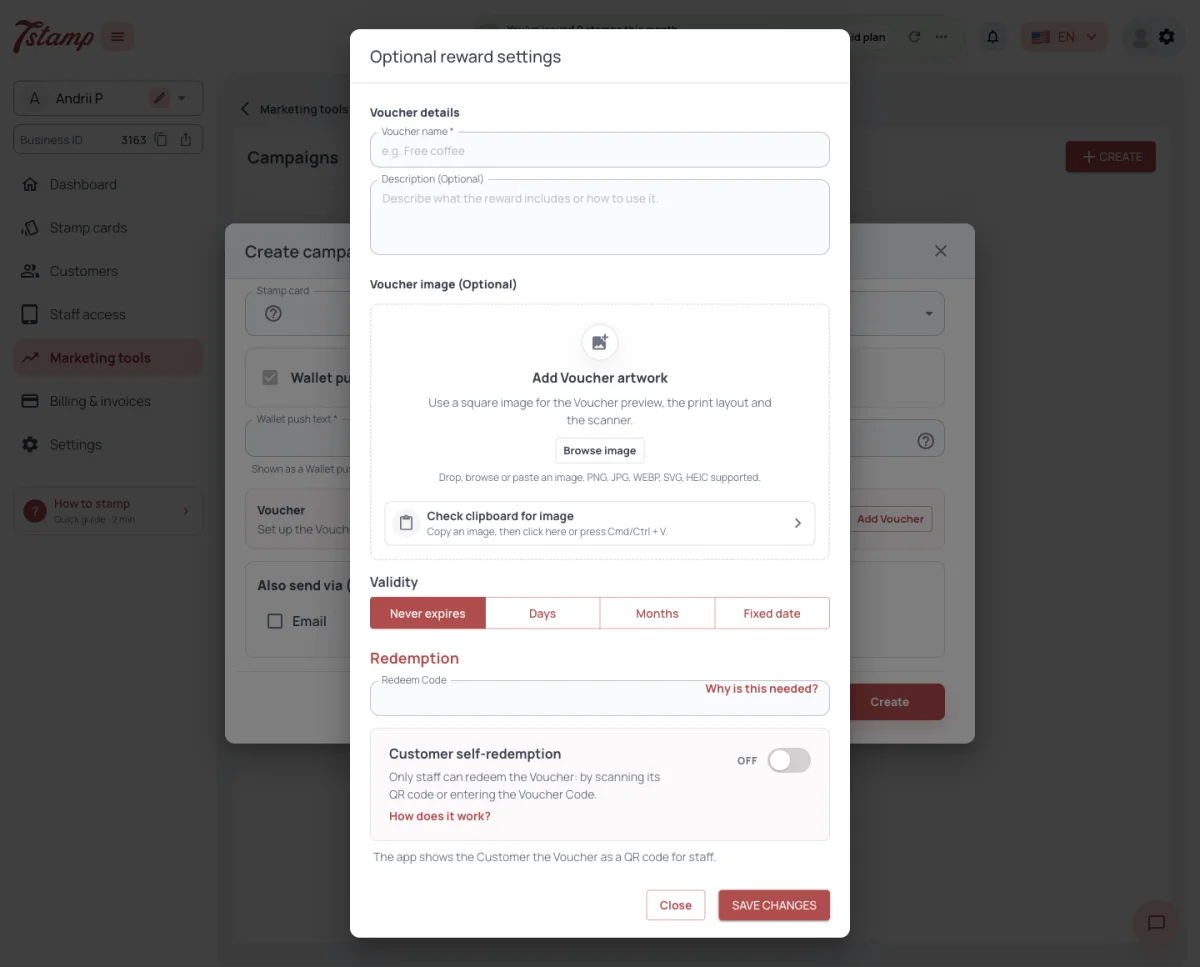
A Campaign may carry one Voucher, set up in the Campaign itself with Add Voucher. Every card the Campaign goes to gets it, including cards that are in no wallet.
Add Voucher opens Optional reward settings: a Voucher name, which is required, an optional description and image, a Validity, a Redeem Code and Customer self-redemption. Validity starts at Never expires, the Redeem Code empty and Customer self-redemption Off, so only staff can redeem the Voucher until you switch it on.
A Campaign can’t be edited after it is created, so add the Voucher before you send.
Does every Customer of the Campaign get its Voucher?
Yes. Every card the Campaign goes to gets it, including cards that are in no wallet.
Do I have to create the Voucher in the Stamp card first?
No. The Voucher is set up in the Campaign itself.
Can I add a Voucher to a Campaign I’ve already sent?
No. A Campaign can’t be edited or sent again; create a new one with the Voucher.
How long is a Campaign’s Voucher valid?
Never expires, unless you pick a number of days, a number of months or a fixed date in its Validity.
Can Customers redeem a Campaign’s Voucher on their own?
Only if you switch on Customer self-redemption in the Voucher’s settings. It is Off by default, so only staff can redeem it.
Can one Campaign carry two Vouchers?
No. A Campaign carries at most one Voucher.
Emails allowance in a Campaign
With Email added, the Campaign form tells you how your Emails allowance stands:
- how many Emails are left;
- that only part of the emails will be sent, when the Campaign has more email recipients than are left;
- that the overage is billed, on a plan with overage;
- Email limit reached, once the allowance is used up on a plan without overage, such as Free Forever.
The warning never stops the Campaign. Its Wallet push and Chatbot messages go out, and only the emails over the allowance are held back. On Free Forever, counted Emails over the allowance are paused, not sent; on Growth and Growth Annual each Email over the allowance costs $0.01.
My emails are used up. Will my Campaign still go out?
Yes. Its Wallet push and Chatbot messages go out; only the emails over the allowance are held back.
What does “Emails that will be sent” in the Campaign form mean?
The Campaign has more email recipients than you have Emails left, so only that many emails will be sent.
Will Customers get the held-back emails later?
No. On Free Forever, emails over the allowance are paused, not sent.
I’m on Growth. Does the Campaign stop at my allowance?
No. The form says the overage is billed, and each Email over the allowance costs $0.01.
Test send
A test send is offered only when the Campaign includes the Chatbot. It goes to one admin or manager of the Business you choose, who holds a card of the Stamp card, on all the Campaign’s channels. A test is not listed among the Campaigns.
A Campaign with Wallet push and Email only has no test send.
Why is there no test send in my Campaign?
A test send is offered only when the Campaign includes the Chatbot.
Who gets the test?
One admin or manager of the Business you choose, who holds a card of the Stamp card. It goes on all the Campaign’s channels.
Does a test show up in the list of Campaigns?
No. A test send is not listed among the Campaigns.
After a Campaign is sent
A Campaign is Created, then Pending while its messages go out, then Completed when every message has an outcome. A Campaign stopped by the admin is Canceled.
A Campaign can’t be edited or sent again. Until it is Completed it can be canceled, and the messages not yet sent then don’t go out.
A Campaign’s page shows, for each channel, the messages in total, sent and failed, and the emails paused by the Emails limit. There is no count of messages delivered or opened.
Can I see how many Customers opened my Campaign?
No. The Campaign’s page shows the messages in total, sent and failed for each channel, and the emails paused by the Emails limit — not deliveries or opens.
I made a mistake in a Campaign. Can I edit it?
No. A Campaign can’t be edited or sent again. Until it is Completed you can cancel it, and the messages not yet sent don’t go out.
What does Pending mean?
The Campaign’s messages are going out. It becomes Completed when every message has an outcome.
Auto-messages
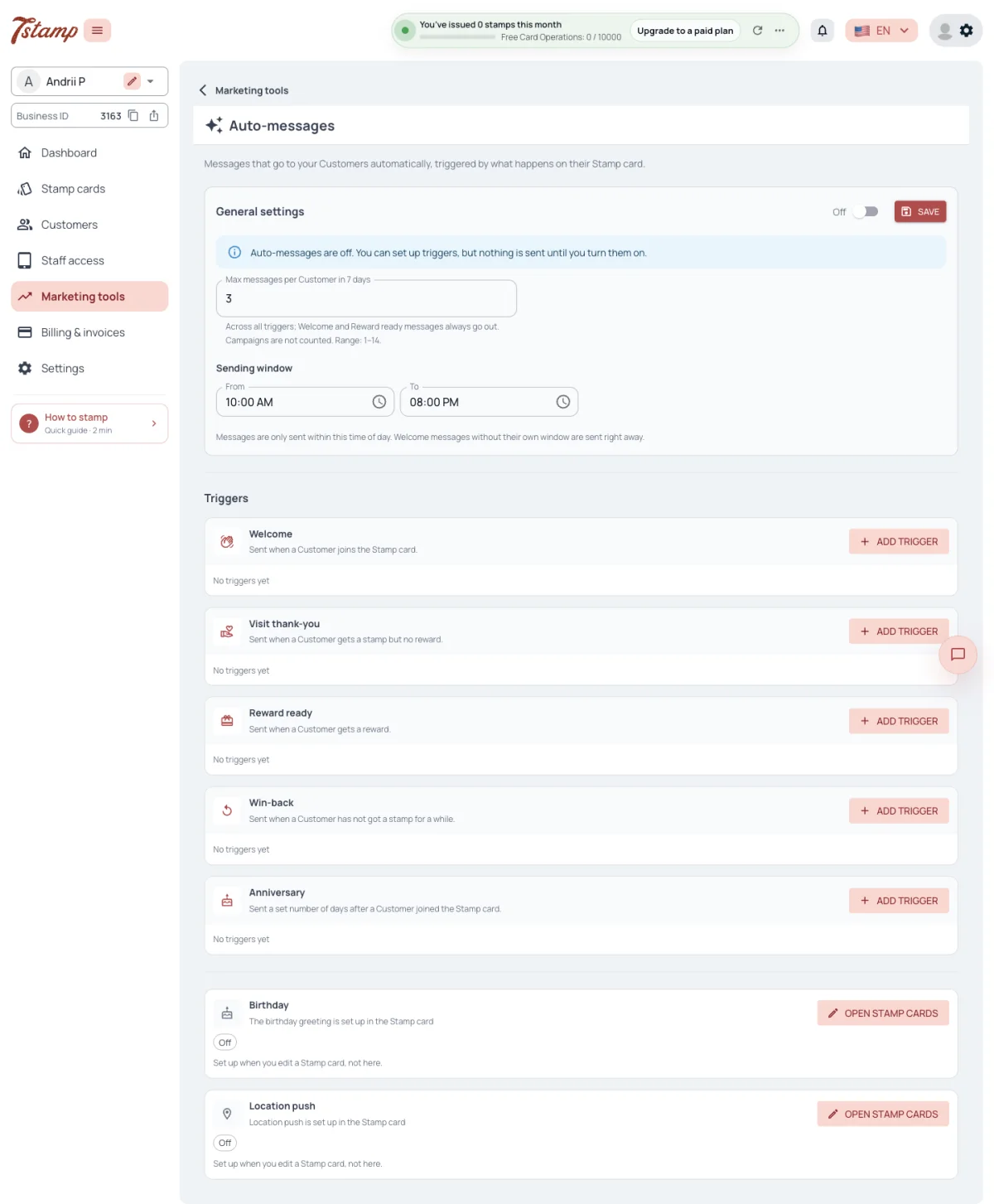
Auto-messages go out by themselves on five triggers: Welcome, Visit thank-you, Reward ready, Win-back and Anniversary. Birthday and Location push are shown on the same page, but they are set up in the Stamp card, not as triggers.
Auto-messages have one switch for the whole Business, Off until you turn it on. Triggers can be set up while it is Off, but nothing is sent, and the page says so on every trigger that is On. Events that happen while Auto-messages are Off are not sent later, and messages waiting to go out are dropped when Auto-messages are turned Off.
Each trigger works for one Stamp card, chosen when the trigger is created and not changed afterwards. A Stamp card can have several triggers of the same kind, and each of them sends.
What automations are there?
Five Auto-message triggers — Welcome, Visit thank-you, Reward ready, Win-back and Anniversary — plus the birthday greeting and Location push, which are set up in the Stamp card. Each trigger sends on the channels you choose for it — Wallet push, Email or Chatbot. All of this is on every plan, Free Forever included.
I set up a trigger, but nothing is sent. Why?
Auto-messages are probably Off. They have one switch for the whole Business, Off until you turn it on; while it is Off, triggers send nothing.
Will Customers get the messages they missed while Auto-messages were Off?
No. Events that happen while Auto-messages are Off are not sent later.
Can I move a trigger to another Stamp card?
No. The Stamp card is chosen when the trigger is created and can’t be changed; create a new trigger for the other Stamp card.
Weekly cap and sending window
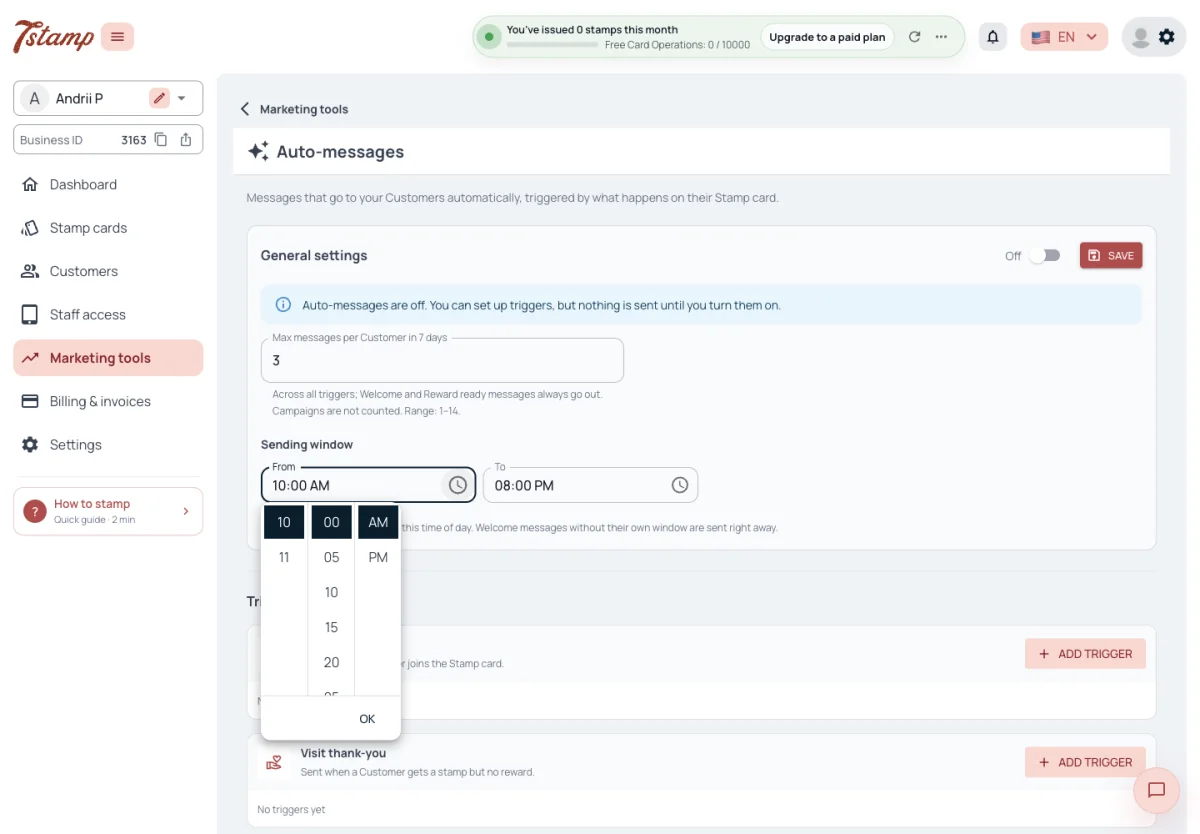
Max messages per Customer in seven days caps the Auto-messages one Business sends one Customer, across all its triggers and Stamp cards: three by default, from one to fourteen. A message over the cap is skipped, not postponed. Welcome and Reward ready always go out, whatever the cap, but they count towards it. Campaigns and birthday greetings are not counted.
Auto-messages go out within a sending window on the Business’s clock, from ten in the morning to eight in the evening by default. A message due outside it — at once, after a Delay or as a reminder — waits for the window to open. A Welcome trigger without a window of its own sends at any hour.
A trigger can have its own sending window, set under Advanced settings when the trigger is edited; left empty, the window of General settings applies.
Messages that wait — for a Delay, a reminder or the next opening of the window — are sent by an hourly run, so they go out up to an hour after their time.
A Customer got a stamp but no Visit thank-you. Why?
The weekly cap may have been reached. A message over Max messages per Customer in seven days is skipped, not postponed.
Why did a Welcome message go out at night?
A Welcome trigger without a window of its own sends at any hour. Give it its own window under Advanced settings when you edit the trigger.
Whose time zone does the sending window use?
The Business’s clock.
I set a Delay of a few minutes, but the message came much later. Why?
Messages that wait are sent by an hourly run, so they go out up to an hour after their time — and still only within the sending window.
Trigger channels and texts
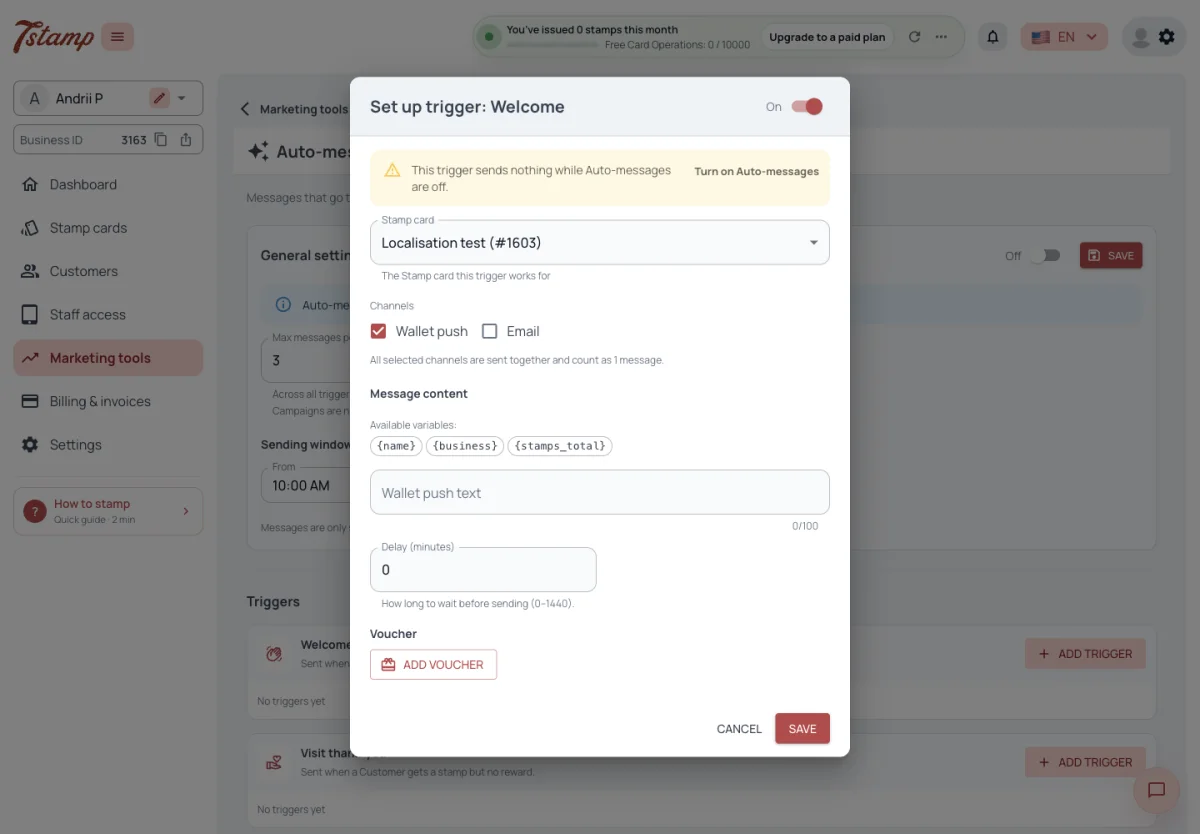
Each trigger sends on the channels chosen for it — Wallet push, Email, Chatbot, at least one — all together, and counts as one message for the weekly cap. A Customer gets only the channels that reach them; with none, nothing is sent.
Each channel has its own text: Wallet push up to one hundred characters, Email a subject and a plain-text body, Chatbot a text with an optional image or video and up to three link buttons. Auto-messages reach the Chatbot in Telegram and in WhatsApp. With a WhatsApp bot, the Chatbot sends the approved WhatsApp template chosen on the trigger, with the trigger’s template variables; a trigger without a template sends nothing to WhatsApp.
Every trigger offers {name} and {business}. Welcome adds {stamps_total},
Visit thank-you {stamps_total} and {stamps_left}, Reward ready
{voucher_code} and {expiry_date}, Anniversary {days_since_join}.
Every trigger except Reward ready can carry a Voucher. It is issued each time the trigger sends: with every Visit thank-you, every Win-back attempt and every Anniversary.
The admin shows no report of Auto-messages sent, skipped or failed — only the triggers and their settings.
Do Auto-messages reach WhatsApp?
Yes, as the approved WhatsApp template chosen on the trigger. A trigger without a template sends nothing to WhatsApp.
If a trigger sends Wallet push and Email, does it count as two messages?
No. All the channels of a trigger go together and count as one message for the weekly cap.
Is a trigger’s Voucher issued only once?
No. It is issued each time the trigger sends — with every Visit thank-you, every Win-back attempt and every Anniversary.
Can I see how many Auto-messages were sent?
No. The admin shows only the triggers and their settings, with no report of messages sent, skipped or failed.
Welcome and Visit thank-you
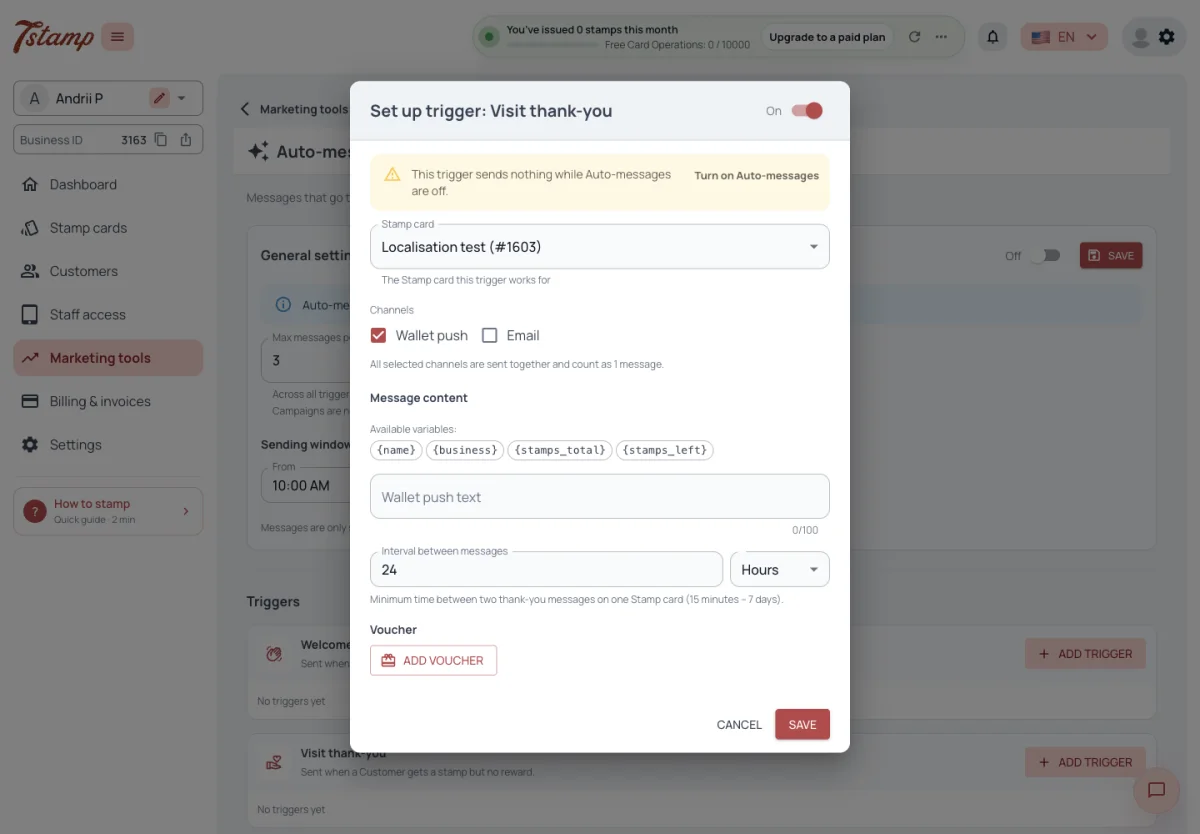
Welcome is sent once per card, when a Customer gets the Stamp card, by any way of issuing, or when they add it to a wallet, whichever comes first. Delay (minutes) holds it for up to a day.
Visit thank-you is sent when a Customer gets stamps and the stamps unlock no reward at all: no Voucher and no Award. Stamps that give a reward get Reward ready instead. Interval between messages, from fifteen minutes to seven days, one day by default, keeps it from repeating on the same card sooner than that.
When is the Welcome message sent?
Once per card — when the Customer gets the Stamp card, by any way of issuing, or adds it to a wallet, whichever comes first. Delay (minutes) can hold it for up to a day.
Does a stamp that gives a reward also get Visit thank-you?
No. Visit thank-you goes only when the stamps unlock no Voucher and no Award; a reward gets Reward ready.
A Customer comes in twice a day. Will they get Visit thank-you twice?
Not sooner than the Interval between messages allows — one day by default, from fifteen minutes to seven days.
Reward ready
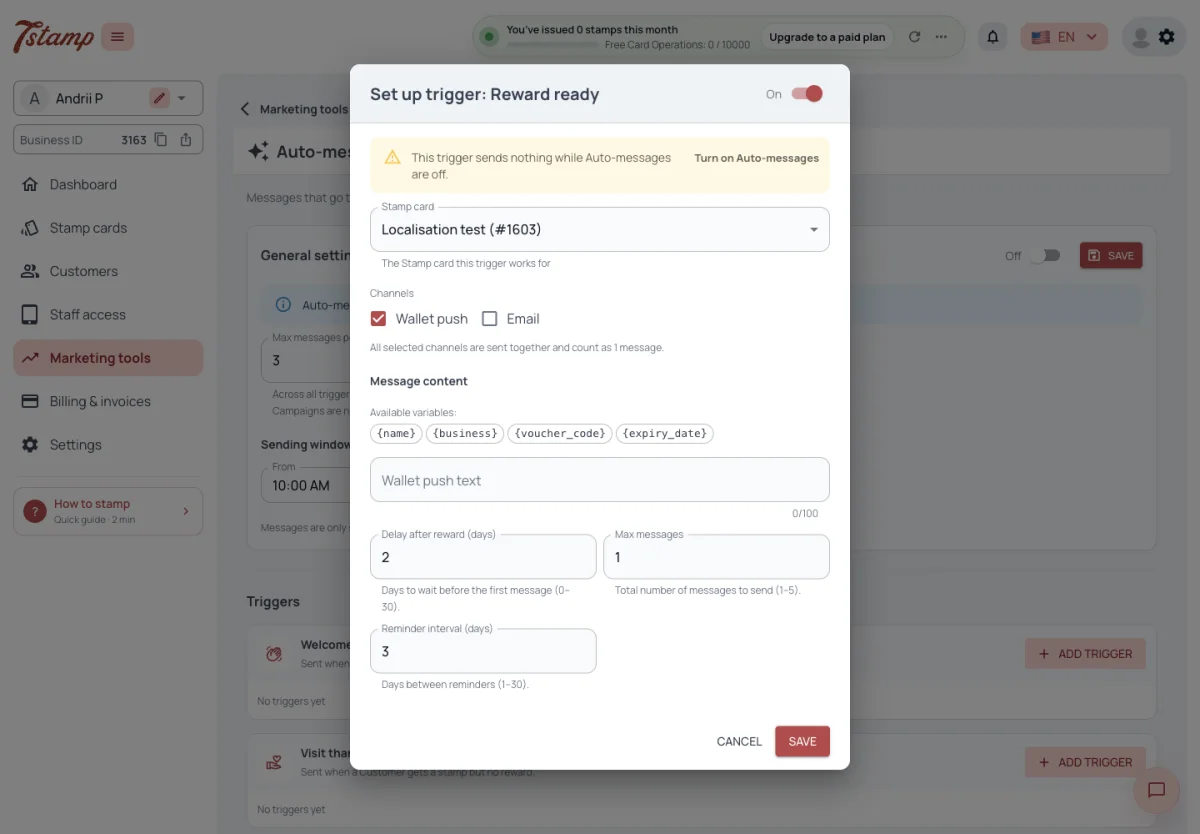
Reward ready is sent when the stamps give a reward: a Voucher or an Award, including a Lottery prize of either kind. For a Lottery wheel that waits for its spin, it is sent when the wheel stops.
It waits Delay after reward, from zero to thirty days, then sends up to Max messages, from one to five, Reminder interval days apart. Messages still waiting are dropped once the Voucher is redeemed, deleted or expired. An Award gets one message, after the Delay, and no reminders.
Is Reward ready sent for an Award?
Yes. It is sent for a Voucher and for an Award, including a Lottery prize of either kind. An Award gets one message and no reminders.
Will the Customer keep getting reminders after using the Voucher?
No. Messages still waiting are dropped once the Voucher is redeemed, deleted or expired.
How many reminders can Reward ready send?
Max messages is from one to five, Reminder interval days apart, after a Delay after reward of zero to thirty days.
Win-back and Anniversary
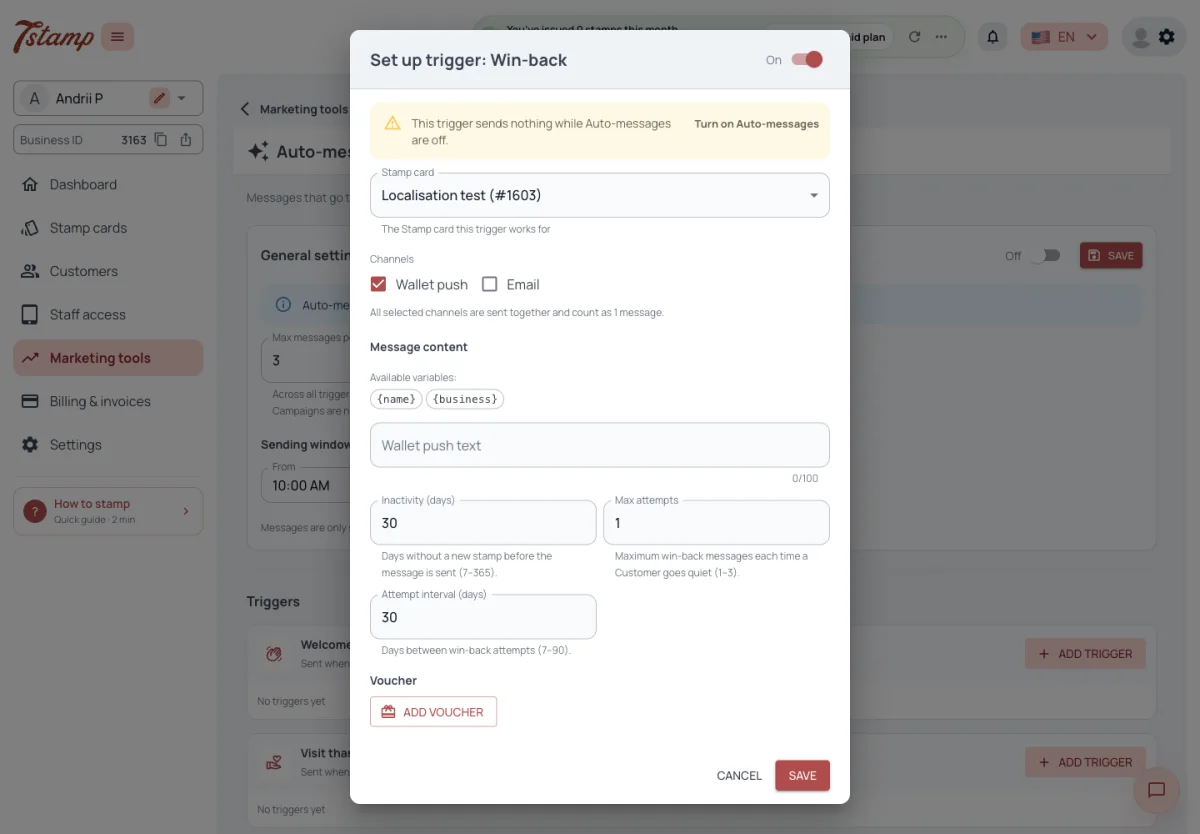
Win-back is sent when a card has had no stamp for Inactivity (days), from seven to three hundred and sixty-five, counted from the last stamp or, without one, from the day the card was issued. It tries up to Max attempts, from one to three, Attempt interval days apart, and starts again after the Customer’s next stamp.
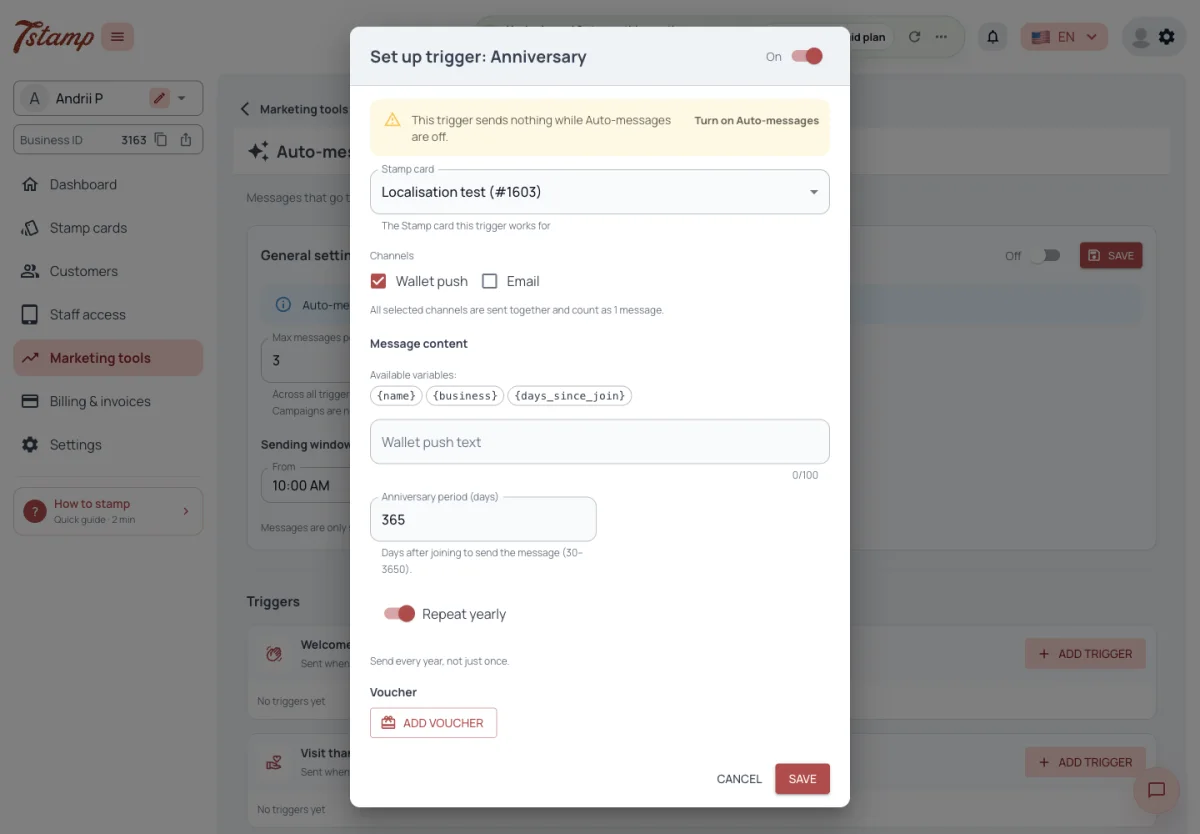
Anniversary is sent the set number of days after the Customer got the Stamp card, from thirty to three thousand six hundred and fifty, one year by default. With Repeat yearly it comes back every three hundred and sixty-five days after that.
From when is inactivity counted for Win-back?
From the card’s last stamp or, if it has none, from the day the card was issued.
Will Win-back keep writing to a Customer who never comes back?
No. It tries up to Max attempts, from one to three, and starts again only after the Customer’s next stamp.
Can the Anniversary message come every year?
Yes. With Repeat yearly it comes back every three hundred and sixty-five days after the first one.
Birthday greeting
The birthday greeting is set up in the Stamp card, not among the Auto-message triggers. While Birthday greeting is On, the Stamp card needs a Greeting message: the card is not saved without it. The Customer is then asked for a date of birth and may close the question without answering.
The greeting goes out from ten in the morning in the Customer’s time zone, on the birthday or the number of days before it set in Send before the birthday, from zero to thirty-one.
It is not an Auto-message: it goes out with Auto-messages Off, outside their sending window and beyond their weekly cap. It goes to every channel that reaches the Customer — a Wallet push to a card that has a pass, the Business’s bot chat, and an email to a confirmed address of a Customer who agreed to receive offers. There is no channel setting for it.
Switching Birthday greeting Off on a saved Stamp card stops the greeting: the card no longer asks for the date of birth, its Greeting message is cleared and its Birthday Voucher is deleted.
Can I send birthday greetings to my Customers?
Yes. Turn on Birthday greeting in the Stamp card and write the Greeting message. Customers are then asked for their date of birth and enter it themselves.
Can the greeting go out a few days before the birthday?
Yes. Set Send before the birthday, from zero to thirty-one days. It goes out from ten in the morning in the Customer’s time zone.
Does turning Auto-messages Off stop birthday greetings?
No. The birthday greeting is not an Auto-message, so it goes out with Auto-messages Off, outside their sending window and beyond their weekly cap.
What happens when I switch Birthday greeting Off?
The greeting stops. The card no longer asks for the date of birth, its Greeting message is cleared and its Birthday Voucher is deleted.
Location push
Location push is not sent by 7Stamp. The Stamp card’s active Locations and their texts are written into the pass — up to ten, highest priority first, each with its own text — and the phone’s wallet shows the pass near a Location. Location push is set up in the Stamp card.
Because the phone’s wallet shows it on its own, 7Stamp does not learn of a Location push. It costs nothing, it is not a Card Operation or an Email, and it is not in the Event log or any report.
Does 7Stamp send the Location push?
No. The Stamp card’s active Locations and their texts are written into the pass, and the phone’s wallet shows the pass near a Location.
How many Locations does the pass carry?
Up to ten of the Stamp card’s active Locations, highest priority first, each with its own text.
Where do I set up Location push?
In the Stamp card, not on the Auto-messages page.
Does a Location push use my Card Operations or Emails?
No. The phone’s wallet shows it on its own, so it costs nothing and is not counted.
Can I see how many Location pushes were shown?
No. 7Stamp does not learn when the phone shows one, so it is not in the Event log or any report.
Issue Voucher
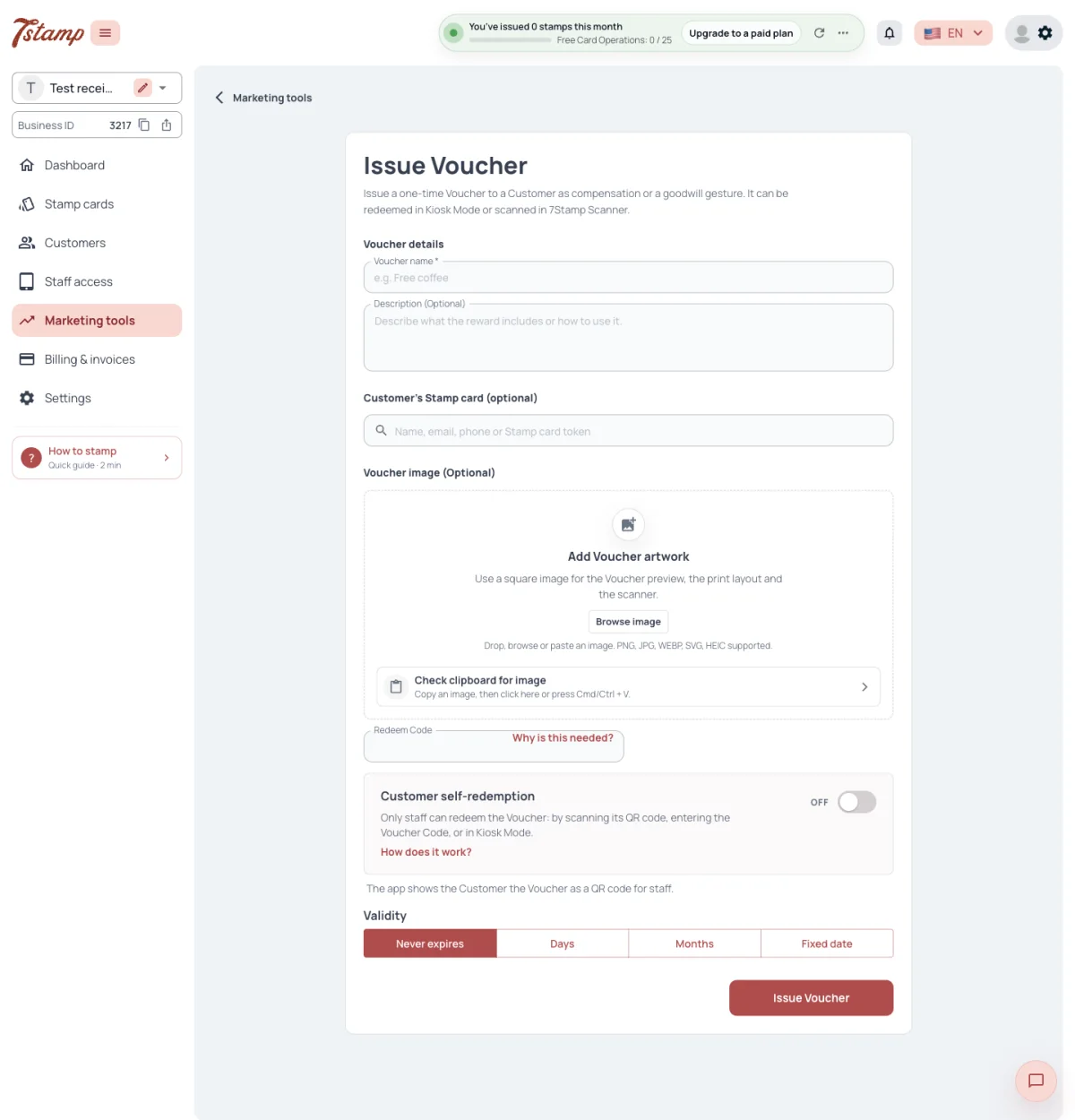
Issue Voucher, under Vouchers in Marketing tools, gives one Voucher to a chosen Customer’s card, as compensation or a goodwill gesture. The Customer is notified as for any other Voucher.
To choose the card, type at least two characters in Customer’s Stamp card: the Customer’s first name, last name, email, WhatsApp phone number or the card’s token, the Card number shown on the Customer’s Stamp card. Up to ten matches are listed, the most recently stamped first. Issue Voucher on a Customer’s Stamp card in Customers opens this page with that card already chosen.
Without a Customer, Issue Voucher creates a Voucher tied to no card, to be printed or downloaded as a PDF with its QR code. Only staff can redeem it.
Customer self-redemption is off by default: only staff can redeem the Voucher, by scanning its QR code or entering the Voucher Code. With it on, the Customer redeems the Voucher themselves in My 7Stamp or in the Chatbot and then gets the Redeem Code.
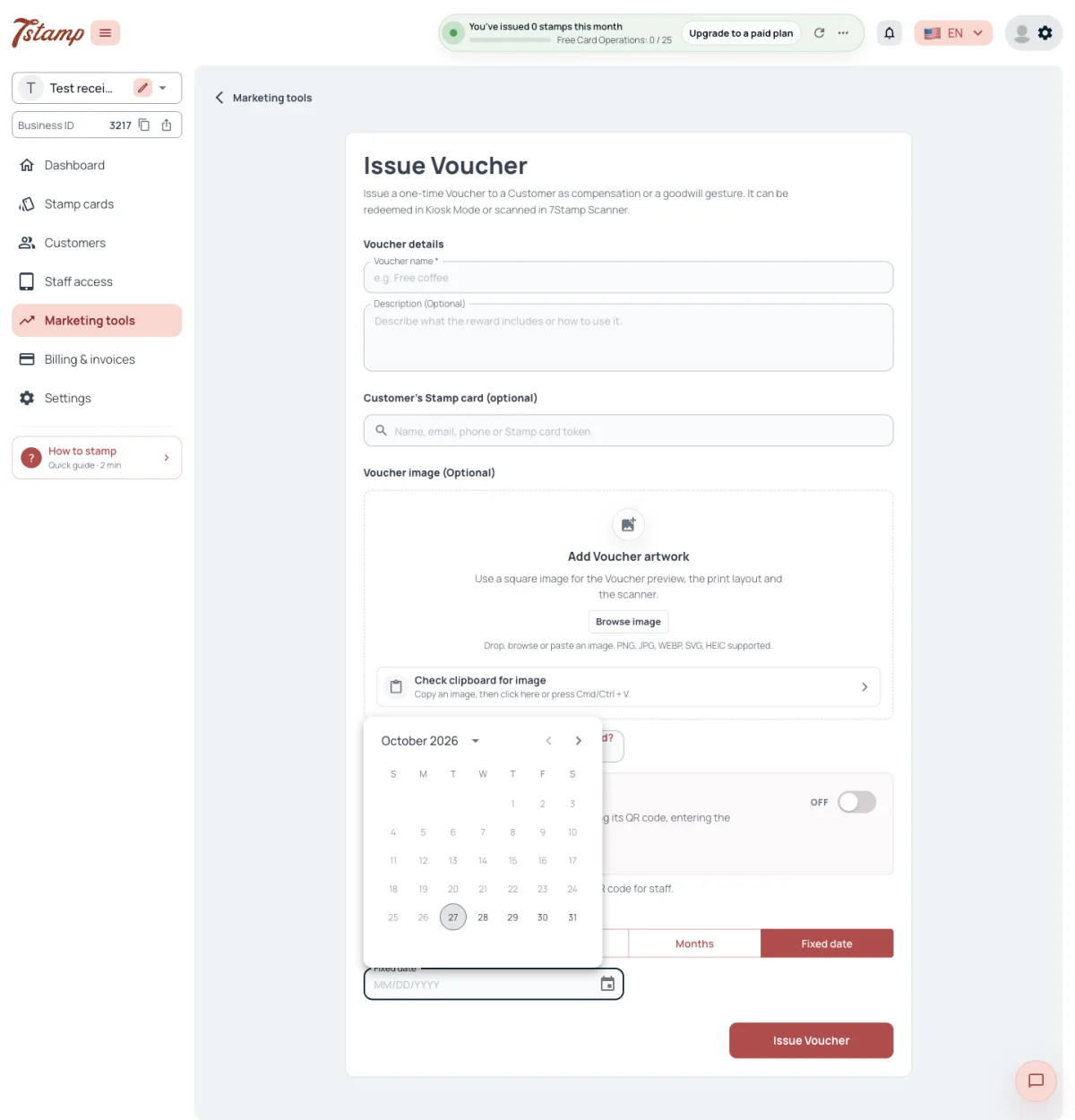
Validity is Never expires, a number of days, a number of months or a fixed date; Never expires is the default. Days and months are counted from the day the Voucher is issued.
A Voucher from Issue Voucher is not a Card Operation.
How do I give a Customer a Voucher as an apology?
Use Issue Voucher in Marketing tools and choose the Customer’s card. The Customer is notified as for any other Voucher.
Can I print a Voucher for someone who has no card?
Yes. Issue Voucher without a Customer creates a Voucher tied to no card, to print or download as a PDF with its QR code. Only staff can redeem it.
Does issuing a Voucher use a Card Operation?
No. A Voucher from Issue Voucher is not a Card Operation.
Can the Customer redeem the Voucher on their own?
Only with Customer self-redemption on; it is off by default. Then the Customer redeems it in My 7Stamp or in the Chatbot and gets the Redeem Code.
How do I find the Customer in Issue Voucher?
Type at least two characters of their first name, last name, email, WhatsApp phone number or the card’s token, the Card number on their Stamp card. Up to ten matches are listed, the most recently stamped first.
Can I issue a Voucher straight from a Customer’s card?
Yes. Issue Voucher on the Customer’s Stamp card in Customers opens Issue Voucher with that card already chosen.