
What a Staff Login is
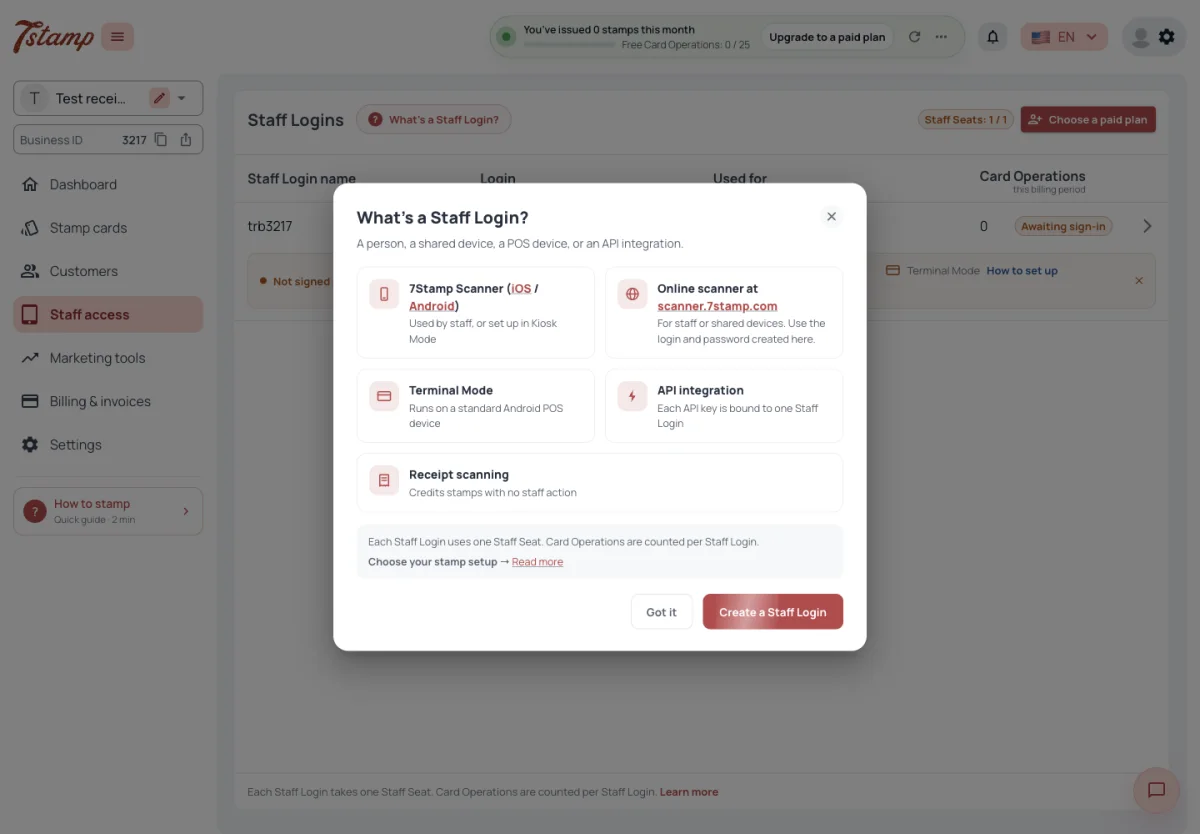
A Staff Login is a login and password your Business creates in the admin, under Staff access. It names a place of work, not a person: a counter, a shared device, a POS device or an API integration.
One Staff Login can be used in five ways:
- in the 7Stamp Scanner app;
- in the Online scanner;
- in Terminal Mode on an Android POS device;
- through an API key;
- as the Staff Login a receipt source is tied to.
A Staff Login belongs to one Business and works only with that Business’s Stamp cards and Customers. Each Business has its own Staff Logins, Staff Seats and plan, so staff who work for two Businesses need a Staff Login in each.
Should I create a Staff Login for every employee?
Not necessarily. A Staff Login names a place of work — a counter, a shared device, a POS device or an API integration — not a person.
Where can a Staff Login be used?
In the 7Stamp Scanner app, in the Online scanner, in Terminal Mode on an Android POS device, through an API key, and as the Staff Login a receipt source is tied to.
Our staff work in two of our Businesses. Can they use one Staff Login?
No. A Staff Login belongs to one Business and works only with its Stamp cards and Customers. Create a Staff Login in each Business.
Create a Staff Login
A Business that signs up through the Stamp card wizard gets its first Staff Login at once, named after its login and set to stamp the new Stamp card. Its login and password are shown on Staff access and in How to stamp.
A new Staff Login asks for three things:
- Staff Login name — name the counter, device or integration, not the person: Counter 1, Bar POS, POS — integration.
- Login — filled in for you from your Business’s initials and its Business ID; change it before saving if you like. A login is three to fifty characters: Latin letters, digits and the signs . _ - + @. Logins are unique across the whole platform, so a login another Business uses can’t be taken.
- Password — filled in with a generated password of letters and digits, without characters that are easy to confuse, such as 0 and O. Your own password needs at least six characters and no spaces.
Automatic stamping is optional at this point, and the Customer feedback part appears only when Customer Feedback is on.
Once the Staff Login is created, a window shows its login and password with a Copy button, the ways it can be used, and its status. The status changes to Active as soon as someone signs in with it.
Do I have to create a Staff Login after signing up?
No. A Business that signs up through the Stamp card wizard gets its first Staff Login at once. Its login and password are on Staff access and in How to stamp.
Why can’t I use the login I want?
Logins are unique across the whole platform, so one already used by another Business can’t be taken. A login is three to fifty characters of Latin letters, digits and . _ - + @.
What are the password rules?
At least six characters and no spaces. The form fills in a generated password you can keep or change.
I closed the window with the password. Is it lost?
No. Open the Staff Login on Staff access — its page shows the login and password again.
The Staff Logins list
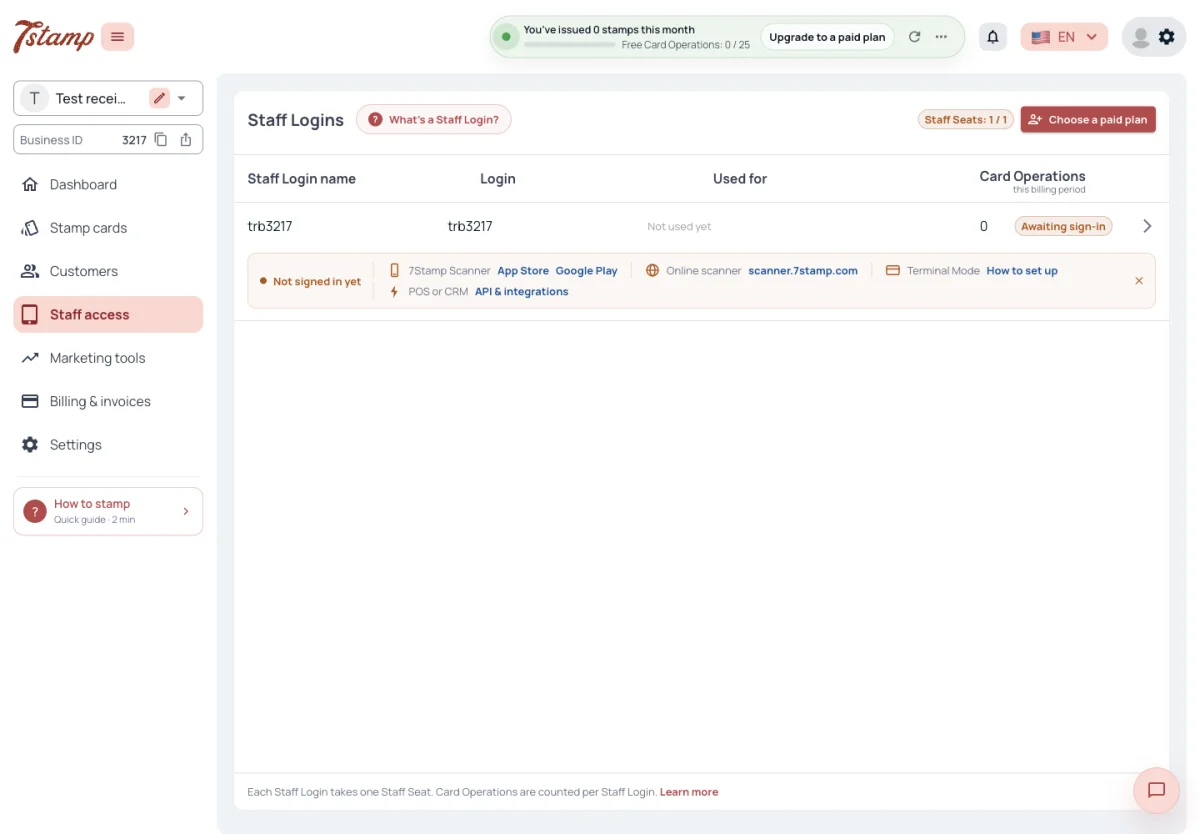
Staff access lists every Staff Login with its name, login, what it is used for, its Card Operations in this billing period and its status.
Used for shows Scanner once someone has signed in, API key when the Staff Login has one, Receipt source when a receipt source is tied to it, and Toast when a Toast location is. Otherwise it says Not used yet.
The status shows Awaiting sign-in until someone signs in with the Staff Login, and Days idle when it has had no sign-in and no Card Operations for thirty days. A Staff Login used only through an API key or Toast is never Awaiting sign-in: until its first operation it is marked as having made no Card Operations yet.
The Card Operations of each Staff Login are for information: the allowance is shared by the whole Business. To see what a Staff Login did, filter the Event log by Staff Login, or compare Staff Logins in the Dashboard’s Staff Logins block.
What does Awaiting sign-in mean?
Nobody has signed in with this Staff Login yet. A Staff Login used only through an API key or Toast is not shown this way; it is marked as having made no Card Operations yet.
Does each Staff Login have its own Card Operations limit?
No. The allowance is shared by the whole Business; Staff access shows how many each Staff Login used in this period, for information only.
How can I see which Staff Login gave a stamp?
The Event log shows the Staff Login behind each event and can be filtered by Staff Login. The Dashboard’s Staff Logins block compares them over a period.
A Staff Login’s page
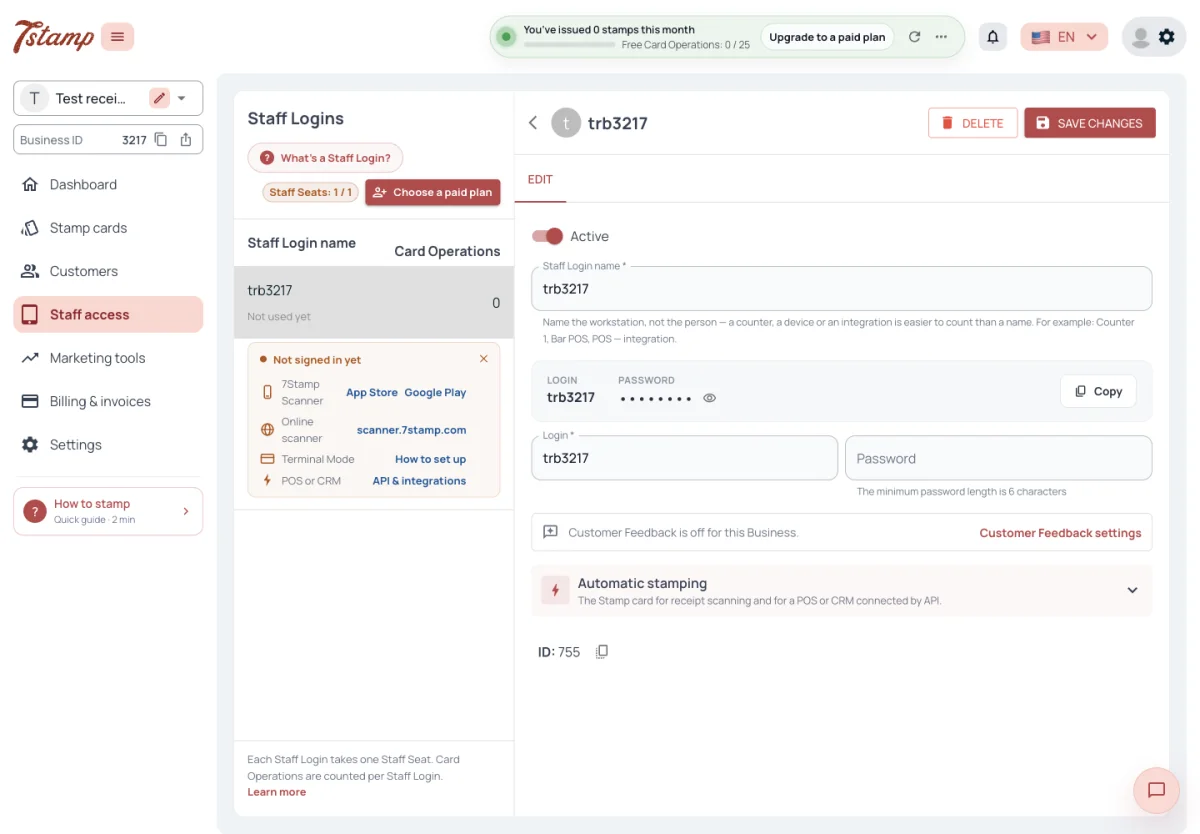
Open a Staff Login to change its name, login, password and the Stamp card for Automatic stamping, and to switch it on or off.
The page shows the login and password again, the password behind an eye, with a Copy button that copies both. A password set before passwords were kept can’t be shown; set a new one and it can be.
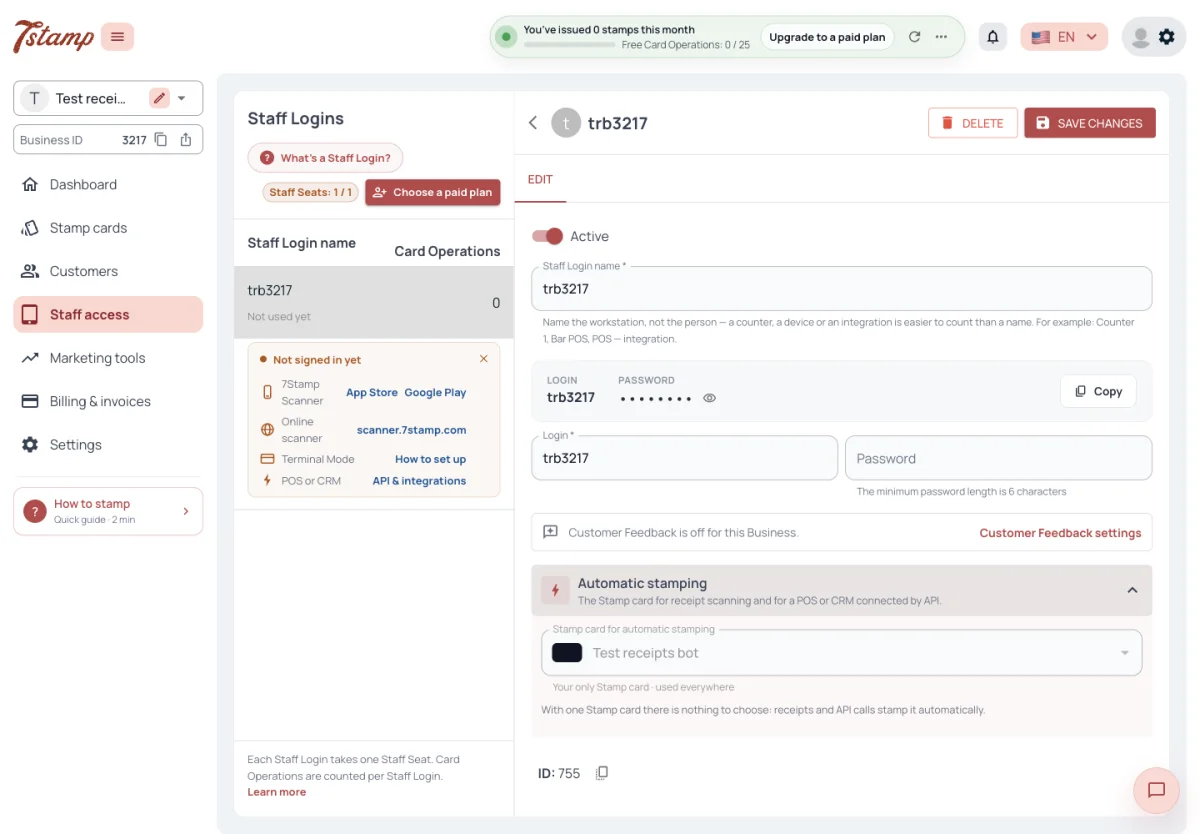
Automatic stamping picks the Stamp card that receipts and API calls of this Staff Login stamp. A Staff Login without its own uses the Business’s default Stamp card; with only one Stamp card in the Business the choice is locked to it.
When Customer Feedback is on, the page also has a Customer feedback part: the Staff Login’s own permanent review QR, a Google review link and the place’s coordinates. When it is off, the page says Customer Feedback is off for this Business.
Can I see a Staff Login’s password again?
Yes. The Staff Login’s page shows it behind an eye, with a Copy button that copies the login and password. A password set before passwords were kept can’t be shown — set a new one.
Which Stamp card do receipts and API calls stamp?
The one chosen for the Staff Login under Automatic stamping. Without one, the Business’s default Stamp card; with a single Stamp card, always that card.
Where is the review QR of a Staff Login?
On the Staff Login’s page, in the Customer feedback part. It is there only while Customer Feedback is on.
A new password or login
Setting a new password or a new login signs out every device signed in with the Staff Login; staff sign in again with the new details. The Staff Login’s API key is not affected.
There is no password reset in the scanner: the password is changed in the admin, on the Staff Login’s page. The password of a switched-off Staff Login can’t be changed, and it can’t get a new API key — switch it on first.
A member of staff forgot the password. How do they reset it?
There is no reset in the scanner. Open the Staff Login in the admin — its page shows the password — or set a new one there.
Will a new password sign out the devices that use this Staff Login?
Yes. Every device signed in with it is signed out and signs in again with the new details. The API key keeps working.
Why can’t I change the password of a Staff Login?
It is switched off. Switch it on first, then set the new password.
Switch off or delete a Staff Login
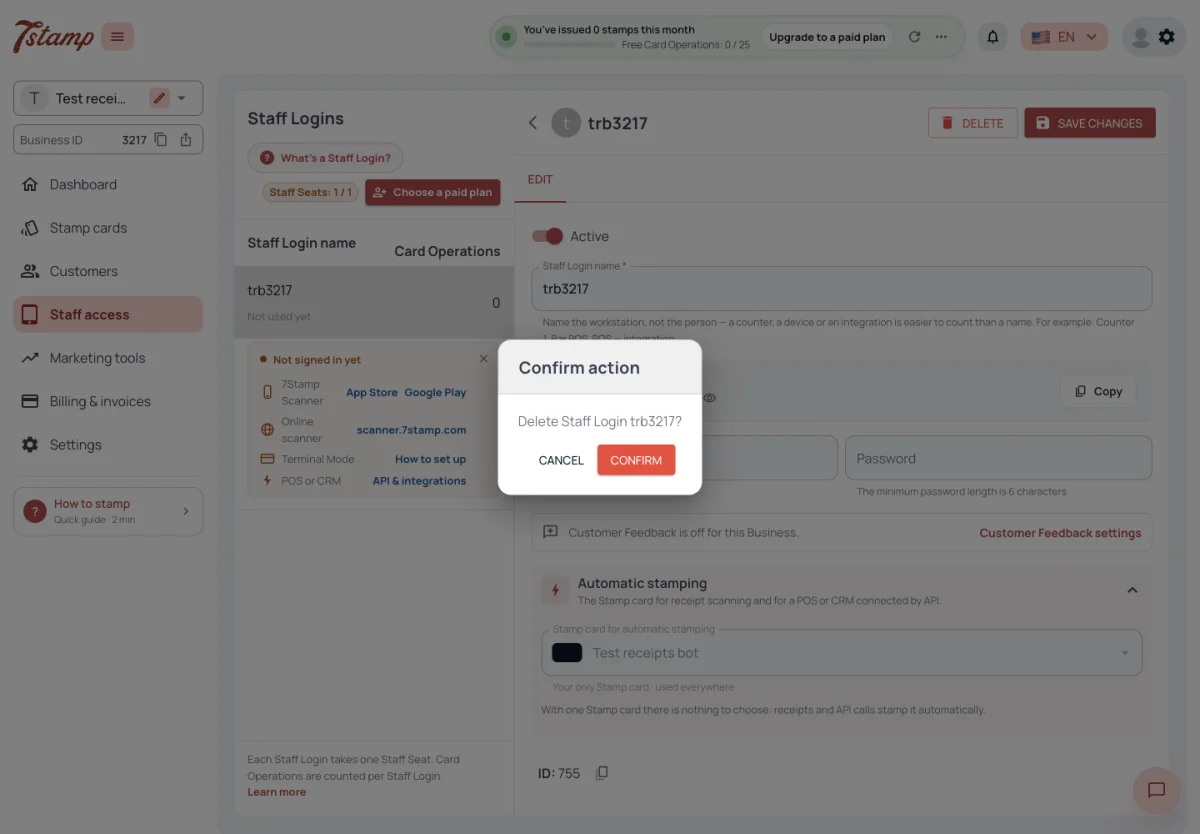
Switching a Staff Login off signs out every device signed in with it at once and stops its API key. It can’t sign in again until it is switched back on, and that needs a free Staff Seat.
When your plan has fewer Staff Seats than active Staff Logins, the newest Staff Logins are switched off and signed out, marked Off by plan. They turn back on by themselves, oldest first, as soon as Staff Seats are free again. A Staff Login you switched off by hand stays off.
Deleting a Staff Login asks to confirm, signs its devices out and stops its API key. It can’t be brought back in the admin, its login becomes free for a new Staff Login, and it no longer appears in the Dashboard’s Staff Logins comparison. Switching off and deleting both free the Staff Seat; the history of Card Operations stays.
What happens to the devices when I switch a Staff Login off?
They are signed out at once, and its API key stops. It can’t sign in again until it is switched back on.
Some Staff Logins say Off by plan. Why?
Your plan has fewer Staff Seats than active Staff Logins, so the newest were switched off. They turn back on by themselves, oldest first, when seats are free again.
Can I restore a deleted Staff Login?
No, not in the admin. Its login becomes free, so you can create a new Staff Login with the same login.
Do I lose the history when I delete a Staff Login?
No. Its seat is freed, and its history of Card Operations stays.
Staff Seats
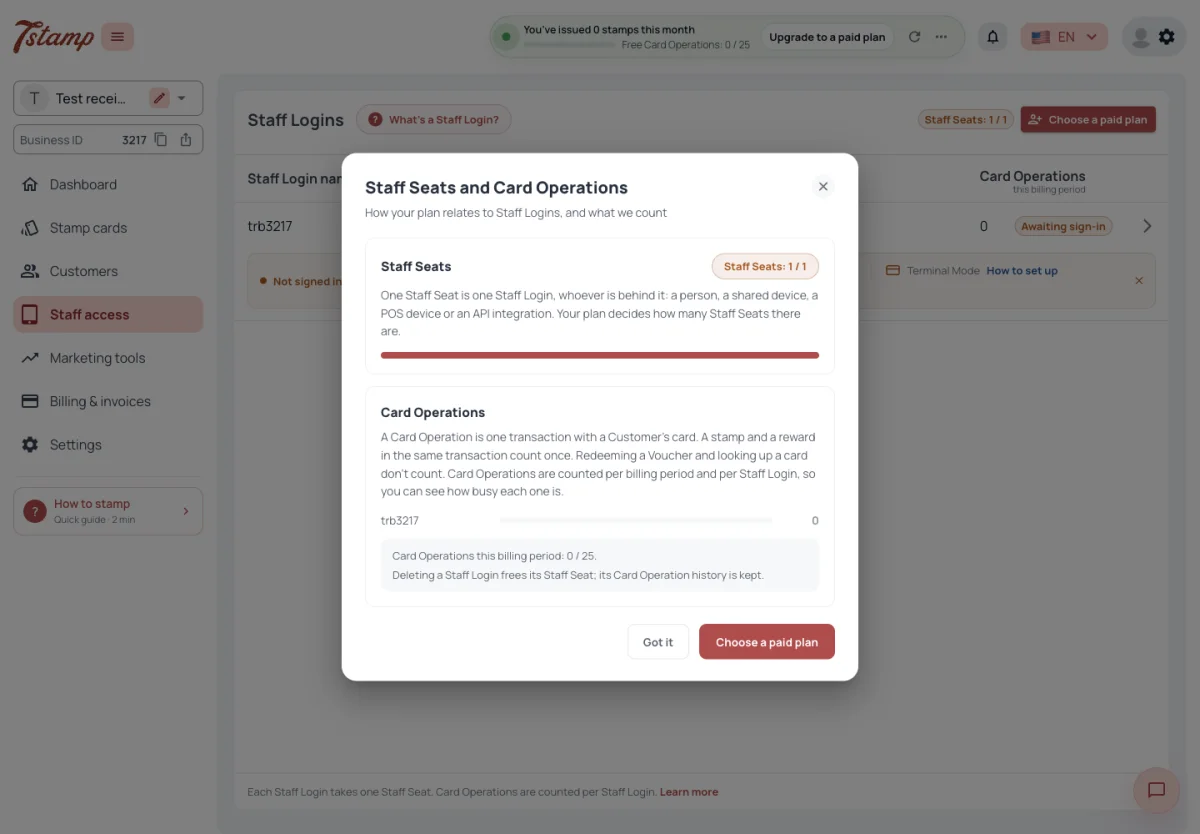
Each active Staff Login takes one Staff Seat of your plan; a switched-off or deleted one frees its seat. People who use the admin panel take none. A Card Operation is one transaction with a Customer’s card, and a stamp with the rewards it unlocks in the same transaction counts once.
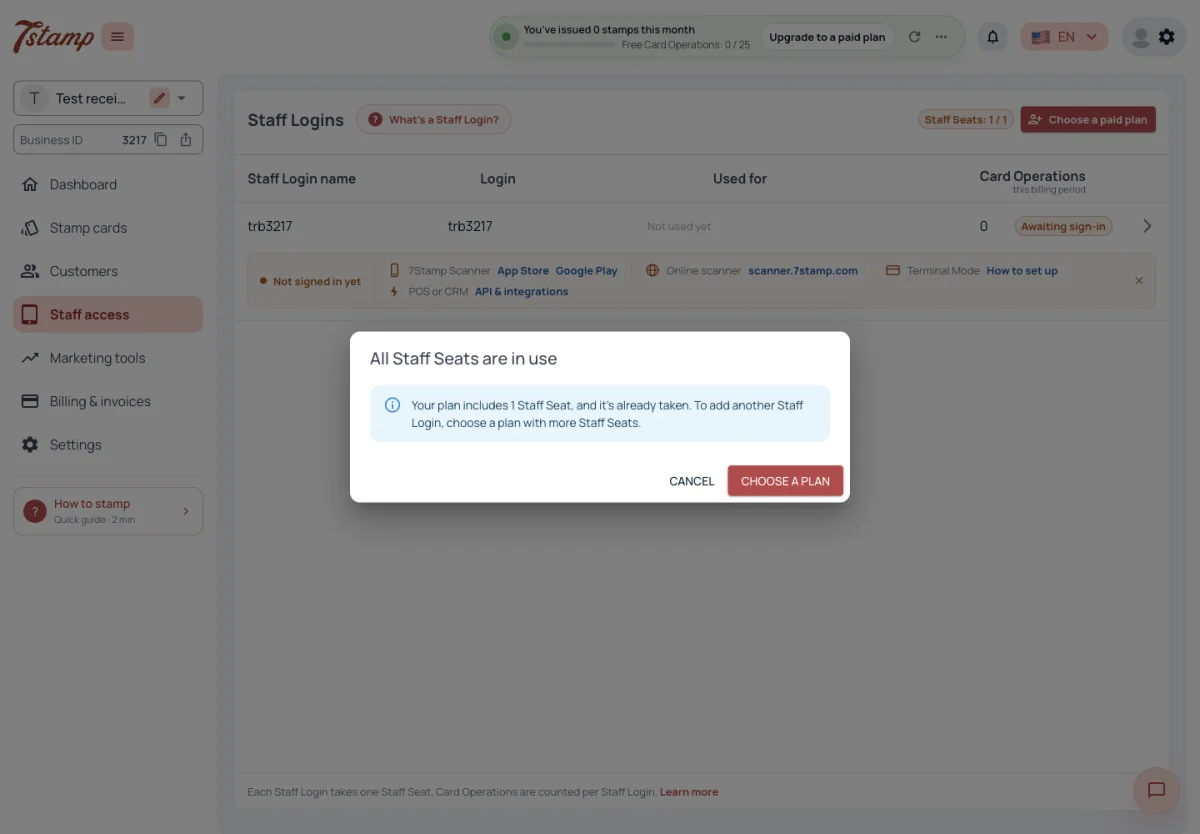
When all seats are taken, a new Staff Login can’t be created or switched on: the admin says All Staff Seats are in use. Prices of seats and what each one brings are in Plans and billing.
Why can’t I create another Staff Login?
All Staff Seats of your plan are taken. Switch a Staff Login off or delete it, or choose a plan with more Staff Seats.
Does a switched-off Staff Login take a Staff Seat?
No. Only active Staff Logins take seats; switching one off or deleting it frees its seat.
Does an admin panel user take a Staff Seat?
No. Only active Staff Logins take Staff Seats.
Sign in on a device
7Stamp Scanner opens on a sign-in screen that asks for the Staff Login’s login and password. The password is not a PIN.
A Staff Login is signed in on one device at a time. Signing in with it on another device, in the app or the Online scanner, signs the first device out with a message that its session was closed. Two counters working at the same time need two Staff Logins. An API key works alongside a signed-in device: its calls sign nobody out, and signing in doesn’t stop the key.
A sign-in lasts thirty days. After that the scanner says the session has expired and asks to sign in again. Sign out is in the scanner’s menu, below the modes and Open the admin panel; the menu also shows the app version and the Business ID.
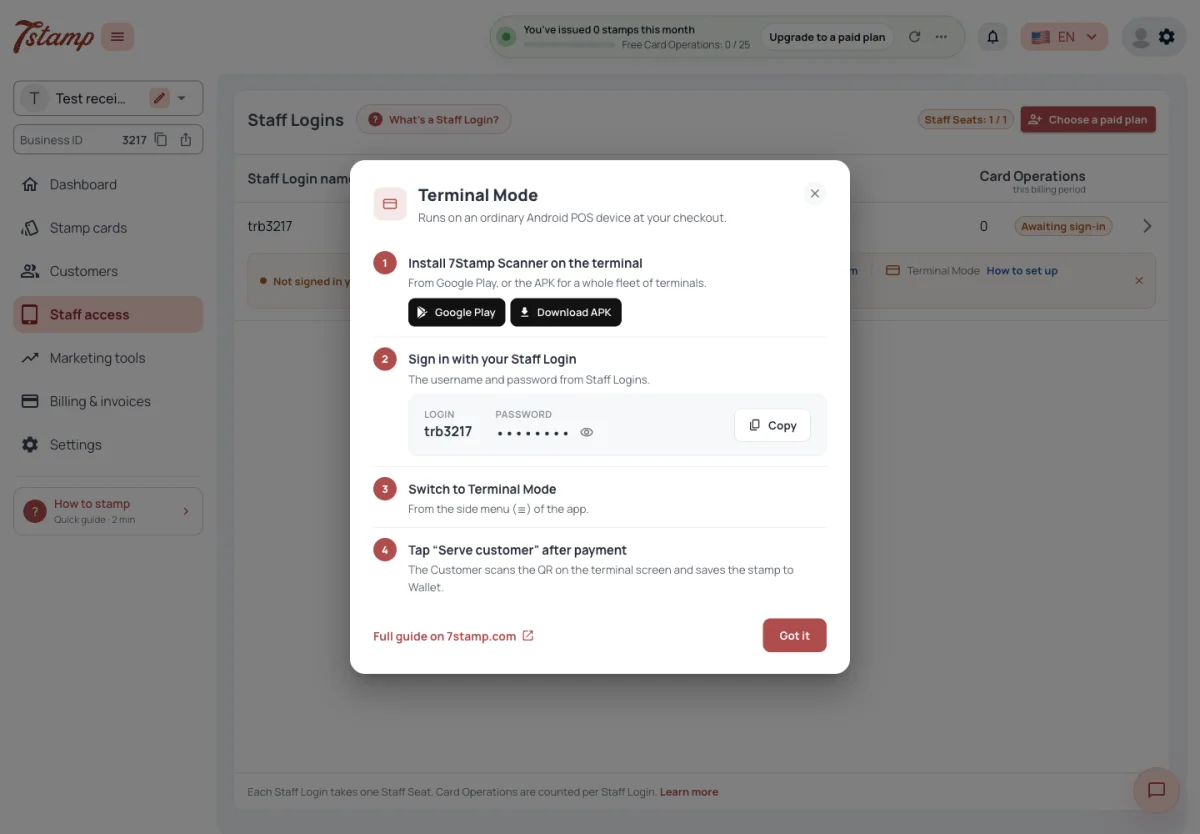
Terminal Mode runs 7Stamp Scanner on an Android POS device at the checkout, installed from Google Play or as an APK for a fleet of devices, or opened as the Online scanner in the device’s browser. It is switched on from the scanner’s side menu.
Can one Staff Login be used on two devices at once?
No. Signing in on a second device signs the first one out. Two counters working at the same time need two Staff Logins.
Why was the scanner signed out after a month?
A sign-in lasts thirty days. After that the scanner asks to sign in again with the same login and password.
Does an API integration sign out the scanner on the same Staff Login?
No. Calls made with the Staff Login’s API key sign nobody out, and signing in doesn’t stop the key.
Is the password a PIN code?
No. Staff sign in with the Staff Login’s login and password.
What staff can do in 7Stamp Scanner
Every Staff Login of a 7Stamp Business can do the same things. Staff can find a Customer’s card, add and remove stamps, reset a card’s stamps, spin a waiting lottery, redeem and delete Vouchers, and set or change the Customer’s date of birth. On the card they see the Customer’s name, email or phone, date of birth, card number, stamps and active Vouchers.
There are no per-Staff-Login permissions and no Manager PIN in 7Stamp. The scanner has no screens for Stamp cards, the Customer list, messages, billing or settings, and a Staff Login can’t sign in to the admin panel: Open the admin panel in the scanner’s menu only opens the admin in the browser, where a person signs in with their own account. Roles are only for those accounts — see Admin panel users and roles below.
Can we give staff different roles and permissions?
Not for Staff Logins — every Staff Login can do the same things in 7Stamp Scanner. Roles exist for the people who use the admin panel, and additional administrators are added on request.
Can I stop a member of staff from removing stamps?
No. There are no per-Staff-Login permissions and no Manager PIN in 7Stamp; every Staff Login can add and remove stamps.
Can staff open the Customer list or the settings from the scanner?
No. The scanner has no screens for Stamp cards, the Customer list, messages, billing or settings, and a Staff Login can’t sign in to the admin panel.
Admin panel users and roles
The admin panel is used with a personal account, signed in with email and password, Google or Apple. It is not a Staff Login and takes no Staff Seat. Whoever creates a Business becomes its owner and gets the Admin role in it.
Roles are Admin, Editor, Contributor, Creator and Viewer. In 7Stamp, Staff access, Stamp cards and Settings need Editor or Admin, billing needs Admin, and a Viewer can open the Dashboard. Users and roles are managed by an Admin of the Business, and only the owner can give the Admin role. A user whose roles don’t open the Business is told they have no access and is asked to get the Editor or Admin role from the owner.
The 7Stamp admin has no screen in its menu for adding users. Additional administrators are added on request: contact the 7Stamp team.
One account can own or work in several Businesses. Choose a Business, at the top of the sidebar, switches between them and keeps the current screen; Add Business there starts the Stamp card wizard for a new one.
How do I add another administrator to my Business?
The 7Stamp admin has no screen for it. Additional administrators are added on request — contact the 7Stamp team.
Can staff use their Staff Login to open the admin panel?
No. The admin panel is used with a personal account — email and password, Google or Apple. It is not a Staff Login and takes no Staff Seat.
A colleague sees “no access” in the admin. What do they need?
The Editor or Admin role in that Business, given by its owner or an Admin. Only the owner can give the Admin role.
Can I manage two Businesses from one account?
Yes. Choose a Business, at the top of the sidebar, switches between them; Add Business starts the Stamp card wizard for a new one.