
The app and the Online scanner
7Stamp Scanner is the app staff stamp with. It runs as an app for iOS and Android and as the Online scanner in any browser; both sign in the same way, with a Staff Login’s login and password. Under White Label the How to stamp page offers only the Online scanner, on the partner’s own scanner domain, without the store listings.
The scanner is not the admin. It has no screens for Stamp cards, the Customer list, messages, billing or settings, and a Staff Login cannot sign in to the admin panel: Open the admin panel in the scanner’s menu only opens the admin in the browser, where a person signs in with their own account.
A Staff Login belongs to one Business and works only with that Business’s Stamp cards and Customers. Staff who work for two Businesses need a Staff Login in each.
Do staff have to install an app?
No. The Online scanner runs in any browser and signs in the same way as the app for iOS and Android.
How do staff work without the 7Stamp Scanner app under White Label?
In the Online scanner on your own scanner domain. Under White Label the How to stamp page offers only it, without the store listings.
Can staff change settings or see the Customer list in the scanner?
No. The scanner has no screens for Stamp cards, the Customer list, messages, billing or settings. Those are in the admin, which a person opens with their own account.
One employee works in two of our Businesses. Is one Staff Login enough?
No. A Staff Login works only with its own Business’s Stamp cards and Customers; create one in each Business.
Sign in, sessions and the menu
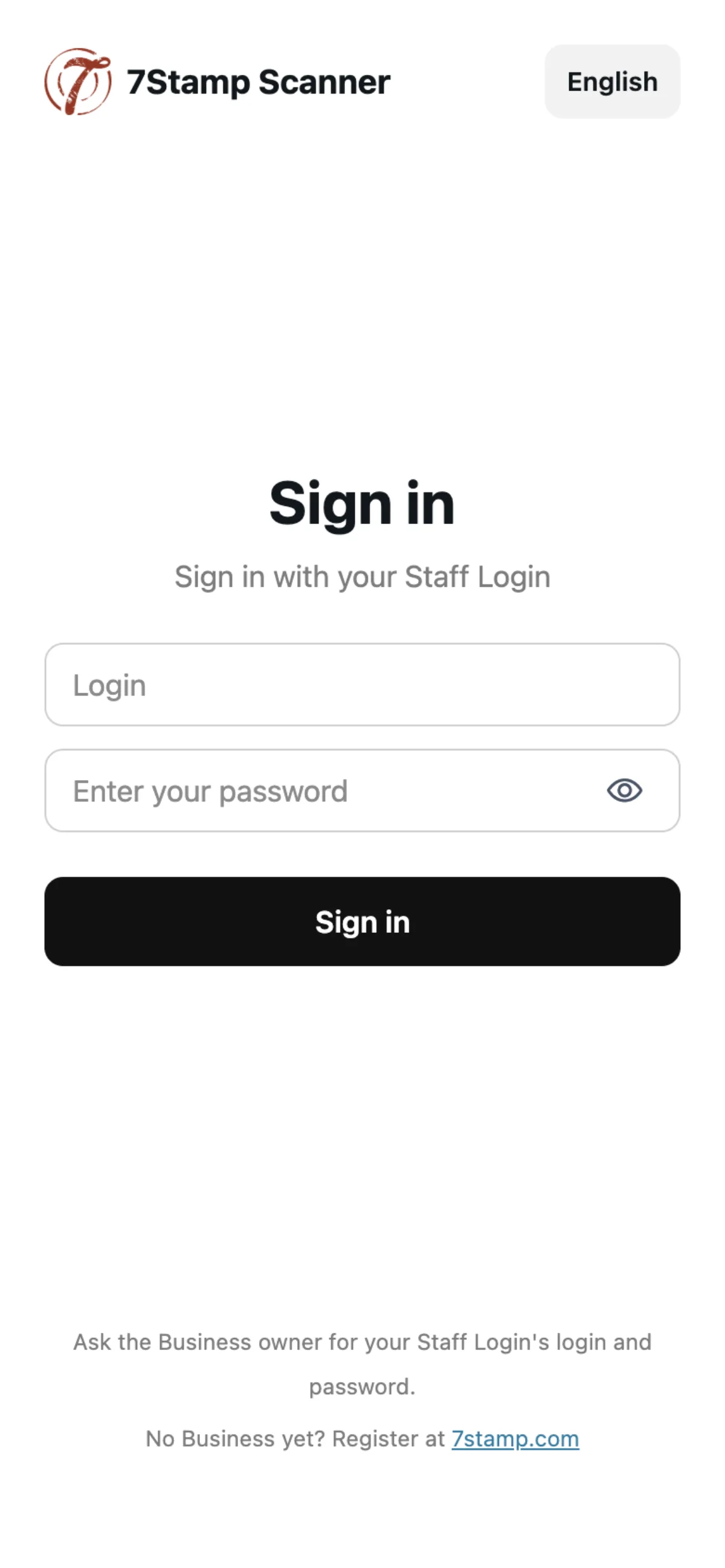
The scanner opens on a sign-in screen that asks for the Staff Login’s login and password — a password, not a PIN — and says: Ask the Business owner for your Staff Login’s login and password. There is no password reset in the scanner; the password is changed in the admin.
A Staff Login is signed in on one device at a time. Signing in with it on another device, in the app or the Online scanner, signs the first device out with a message that its session was closed. A sign-in lasts thirty days; then the scanner says the session has expired and asks to sign in again.
Every device signed in with a Staff Login is signed out when the Business sets a new password or login for it, or switches it off. After a new password or login, staff sign in again with the new details; a switched-off Staff Login cannot sign in until it is switched back on.
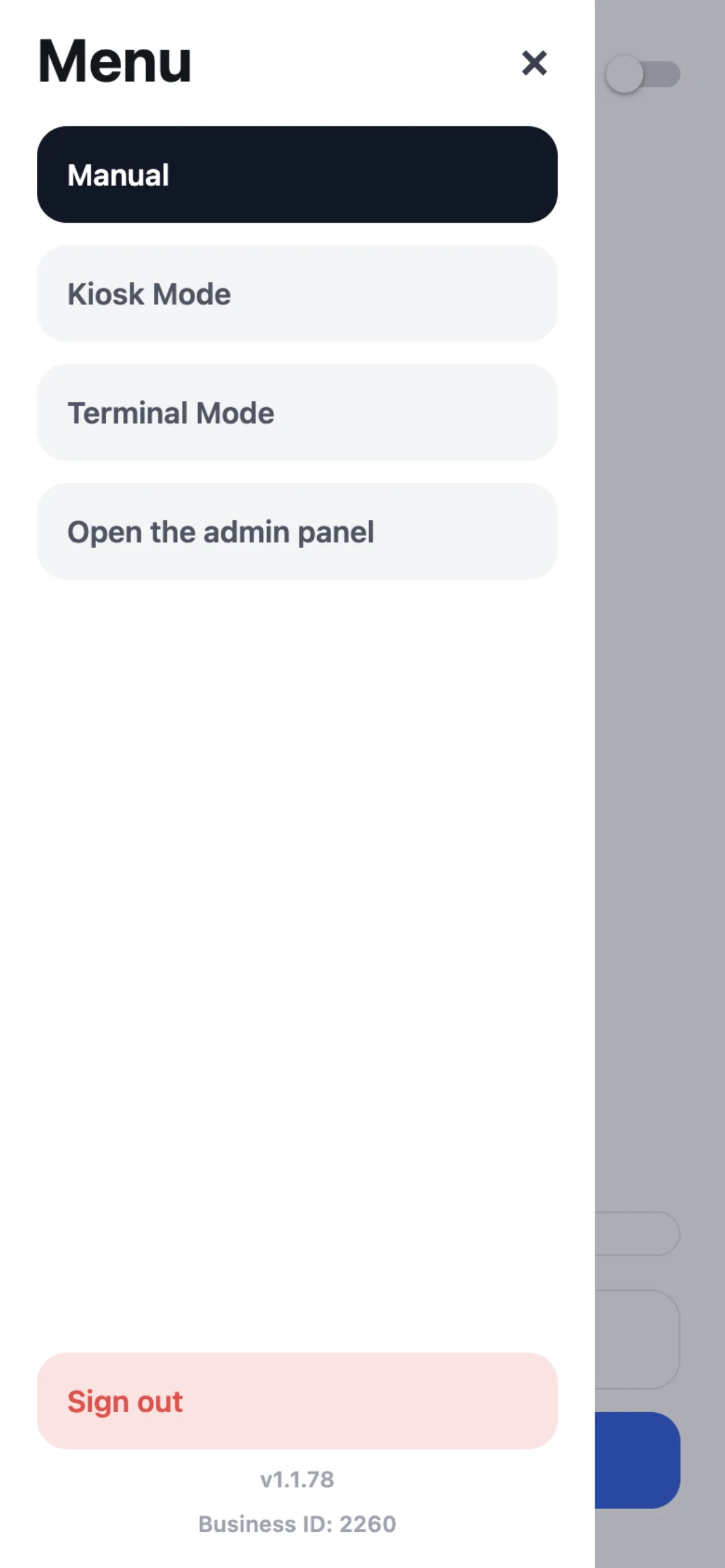
The menu (☰) switches between Manual, Kiosk Mode and Terminal Mode. Below them are Open the admin panel and Sign out, with the app version and the Business ID.
We have two tills working at the same time. Can they share one Staff Login?
No. A Staff Login is signed in on one device at a time; signing in on a second device signs the first one out. Two tills working at the same time need two Staff Logins.
A staff member forgot the password. How do they reset it?
There is no password reset in the scanner. The Business changes the password in the admin, and staff sign in with the new one.
Why was the scanner signed out?
Someone signed in with the same Staff Login on another device, the thirty-day sign-in ran out, or the Business set a new password or login for the Staff Login or switched it off.
Is the scanner password a PIN?
No. Staff sign in with the Staff Login’s login and password.
Manual
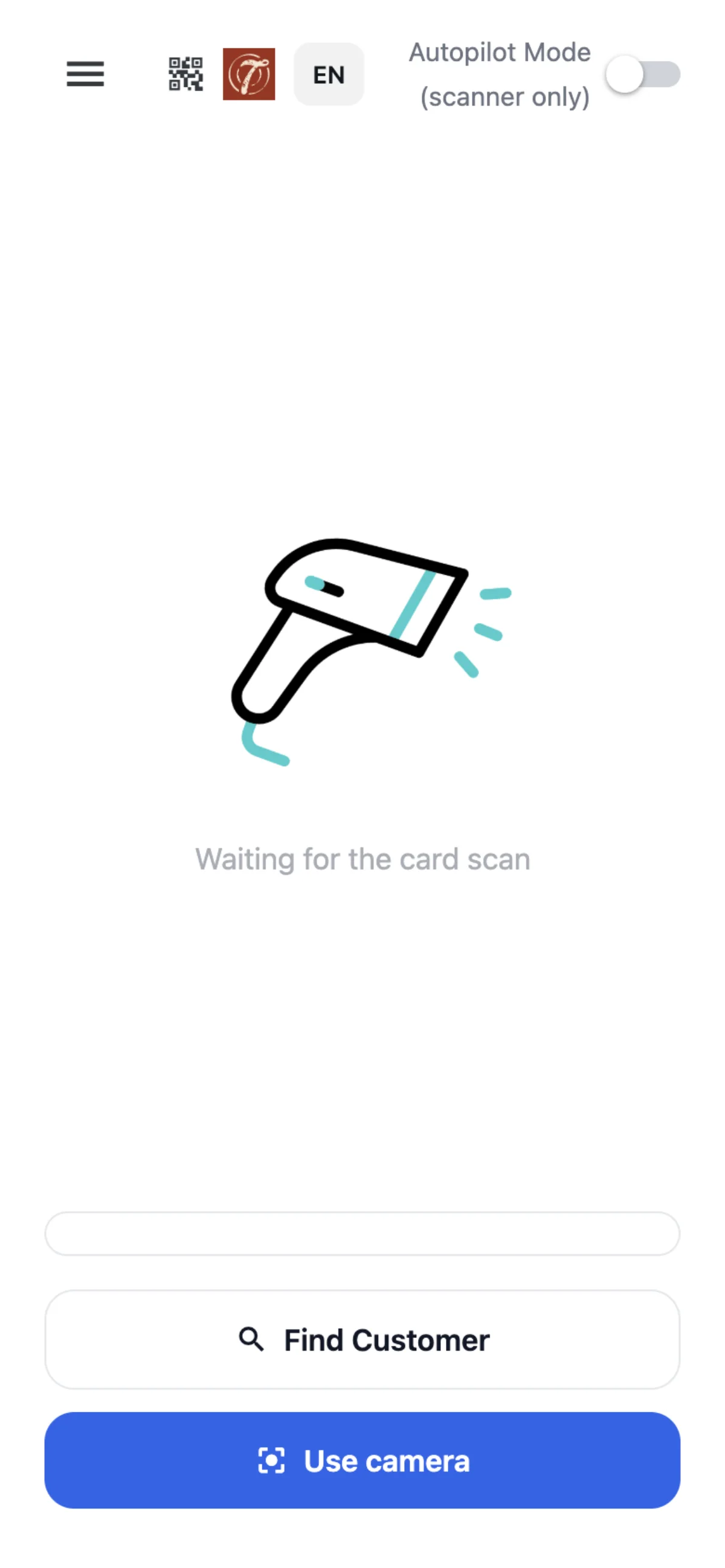
Manual waits for a card. Staff find the Customer in one of three ways:
- scan the card’s QR with Use camera or with a hardware QR reader;
- type the card number — the six-digit number the QR holds finds the same card;
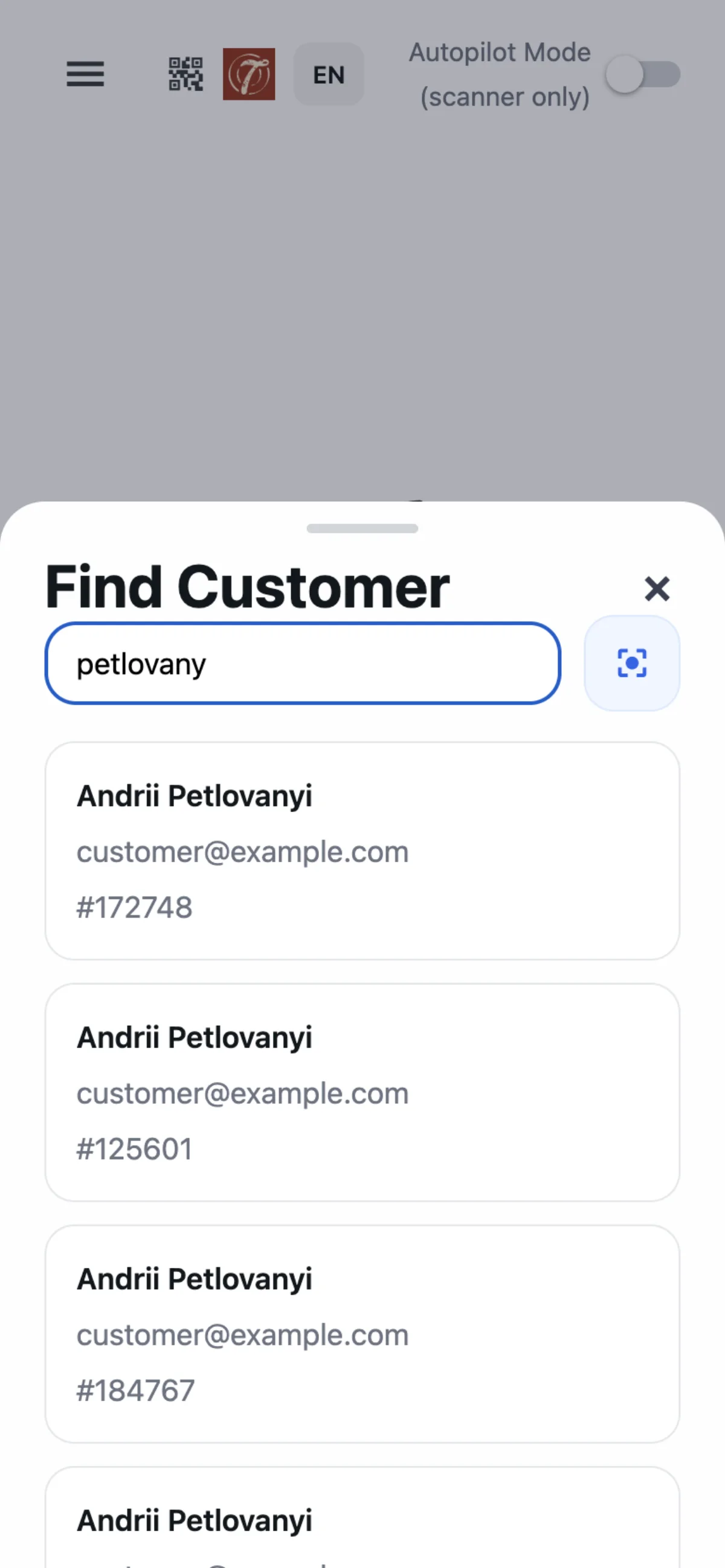
- Find Customer by name, email, phone or card number. It needs at least two characters and searches only your Business’s cards.
A scan opens the Customer’s card. Staff add any number of stamps with the stepper, and adding more than one asks to confirm. Scanning the same card again while it is open adds one stamp.
Can staff use a desk barcode scanner instead of the camera?
Yes. Manual takes the card’s QR from the camera or from a hardware QR reader.
The Customer’s phone is dead. How do staff find the card?
With Find Customer, by name, email, phone or card number — at least two characters. Typing the card number finds the same card as scanning its QR.
How do staff add several stamps at once?
Open the card, set the number with the stepper and confirm. Adding more than one stamp asks to confirm first.
Can staff find a Customer of another Business?
No. Find Customer searches only your Business’s cards.
A Customer with no card: Show QR code
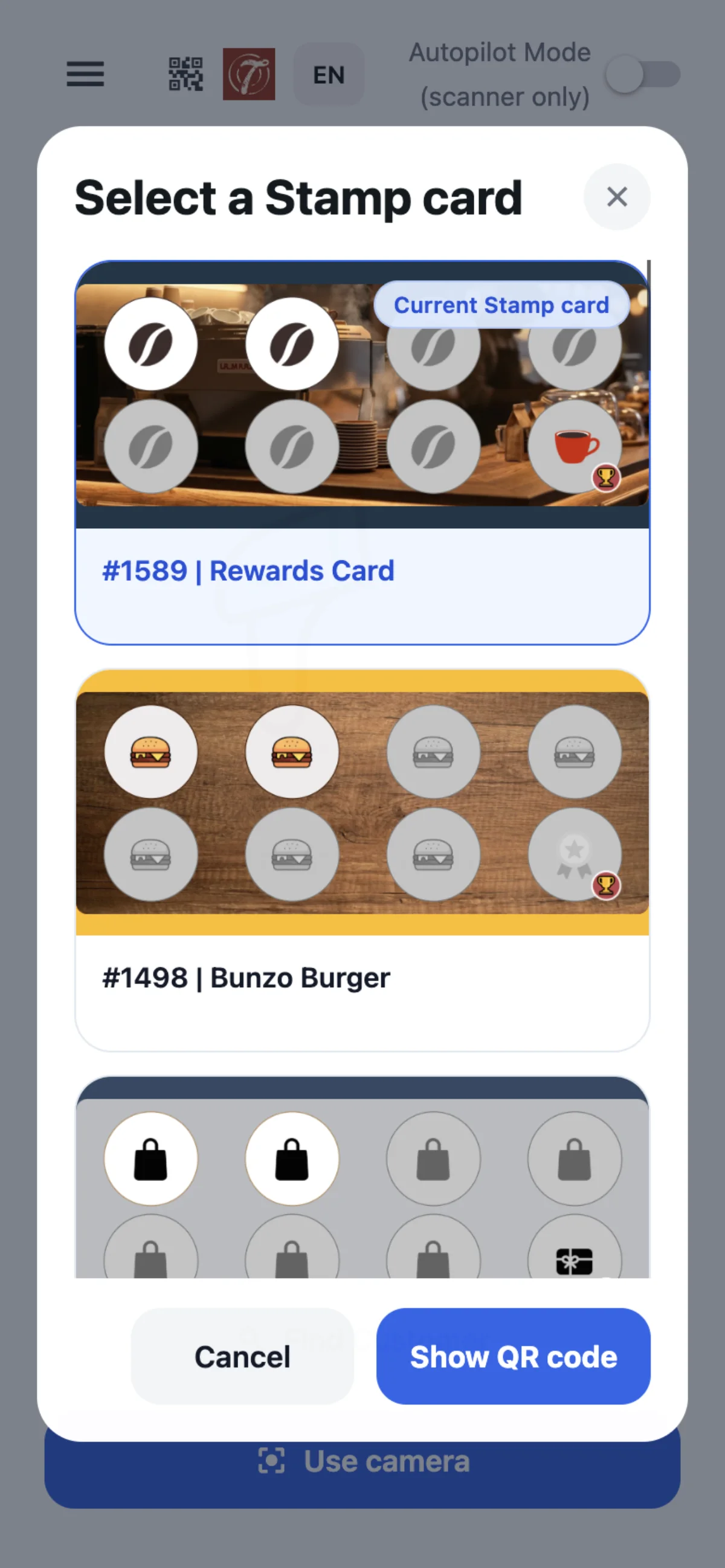
For a Customer who has no card yet, the QR button at the top of Manual shows a Stamp card’s join QR. Staff choose the Stamp card from your Business’s active ones; the device remembers the choice, and Change Stamp card picks another.
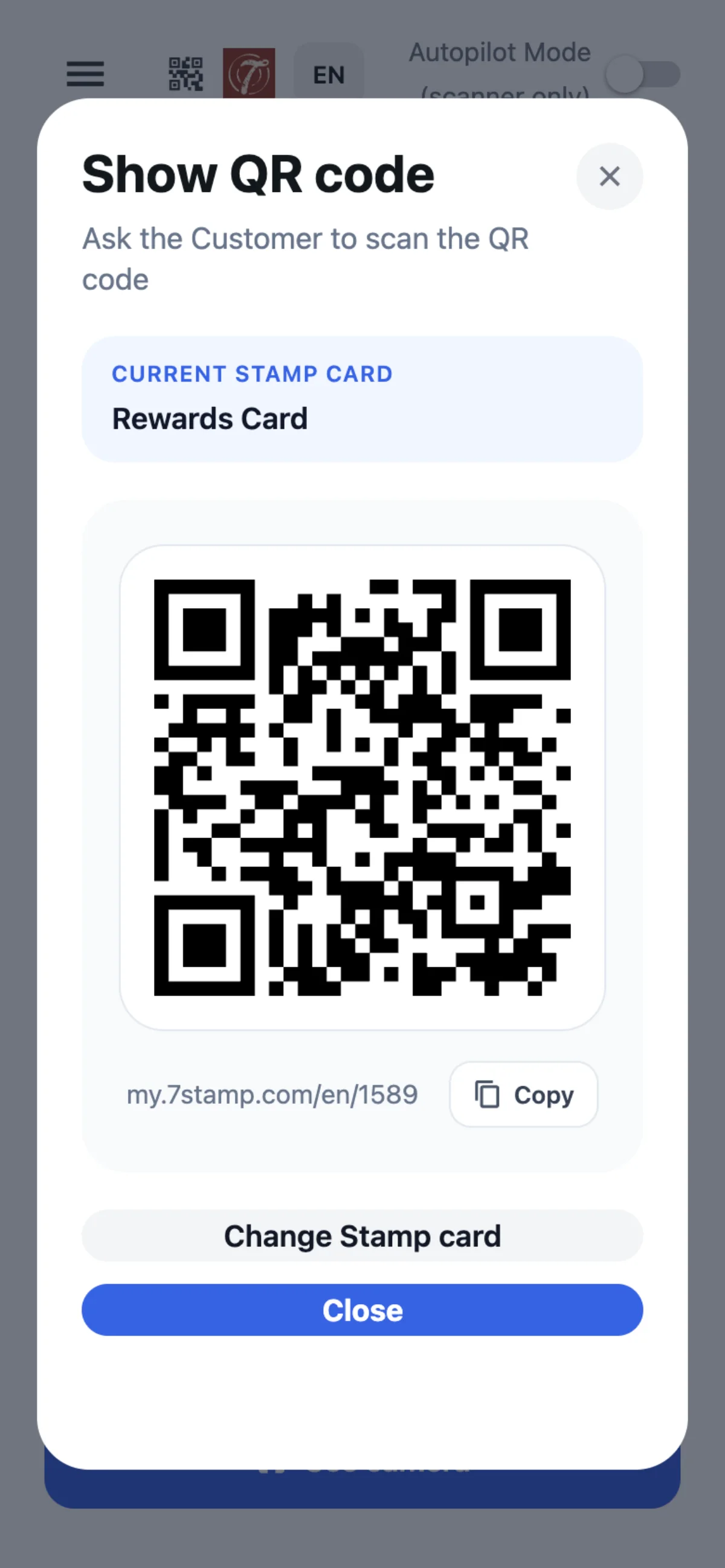
The Customer scans the QR and gets the card — in your Telegram or WhatsApp bot when your Business has one, on the web card page otherwise. The card comes with no stamp on it: staff then stamp the new card as usual.
A Customer has no card yet. How do they get one at the counter?
Tap the QR button at the top of Manual and let the Customer scan the Stamp card’s QR. They get the card in your bot, or on the web card page when you have no bot.
Does scanning the Show QR code give a stamp?
No. It gives the card with no stamp on it; staff then stamp the new card as usual.
We have two Stamp cards. Which one does the QR give?
The one chosen for it on that device. Change Stamp card picks another.
A Customer’s card in the scanner
The card shows staff the Customer’s name, email or phone, date of birth, card number, stamps and active Vouchers. From it staff add and remove stamps, reset the card’s stamps, spin a waiting lottery, redeem and delete Vouchers, and set or change the Customer’s date of birth.
Reset stamps takes all stamps off. A card never goes below zero, and Vouchers and rewards already given are not taken back.
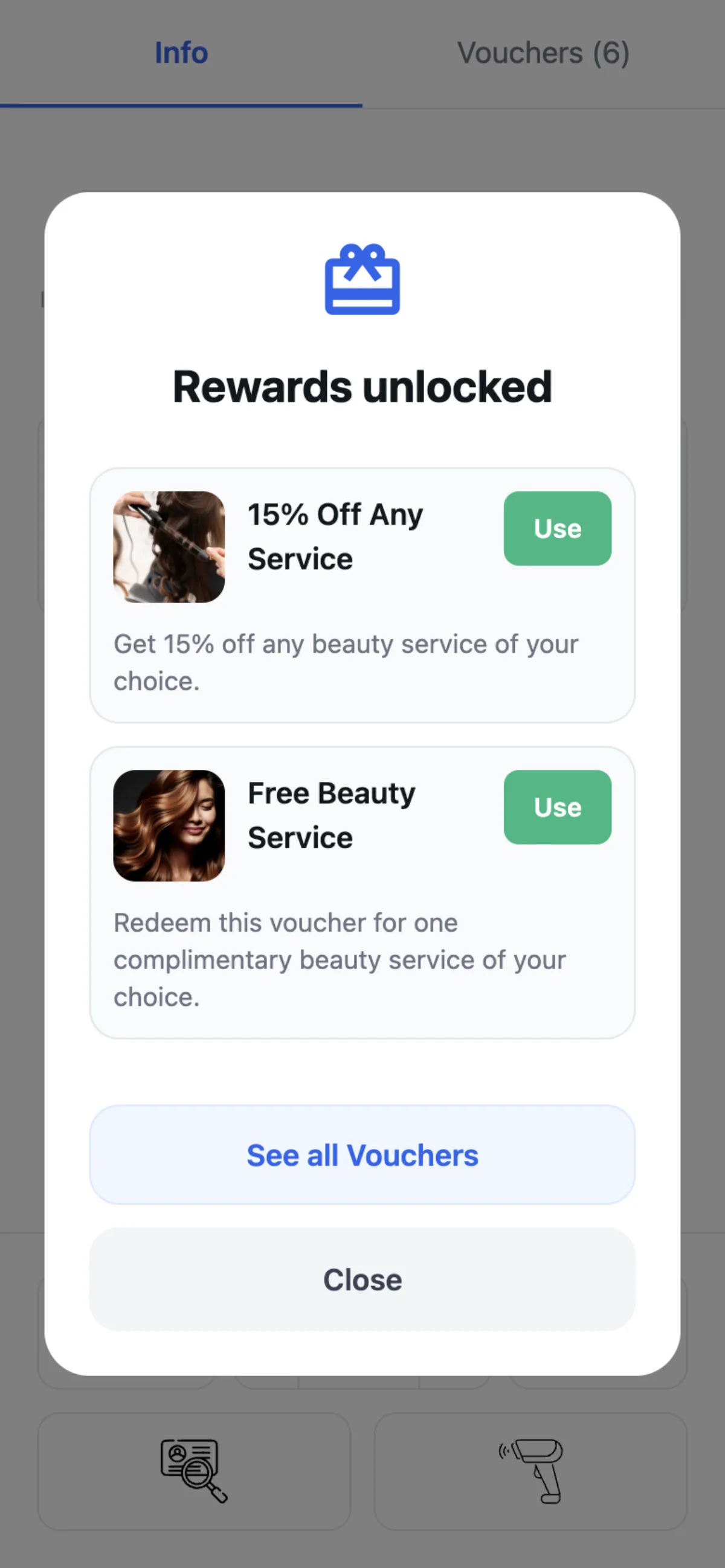
When one scan adds several stamps, every goal they pass is reached and gives its reward, including goals of a new round past a full card. How each reward works is in Rewards: Award, Voucher, Lottery.
A staff member added too many stamps. How do we fix it?
Remove the extra stamps on the Customer’s card in 7Stamp Scanner. A card never goes below zero.
If staff remove stamps, does the Customer lose a Voucher they already got?
No. Vouchers and rewards already given are not taken back.
Can staff enter a Customer’s date of birth?
Yes. Staff set or change it on the Customer’s card in the scanner.
Five stamps at once passed two reward goals. Does the Customer get both?
Yes. Every goal the stamps pass is reached and gives its reward.
Vouchers in the scanner
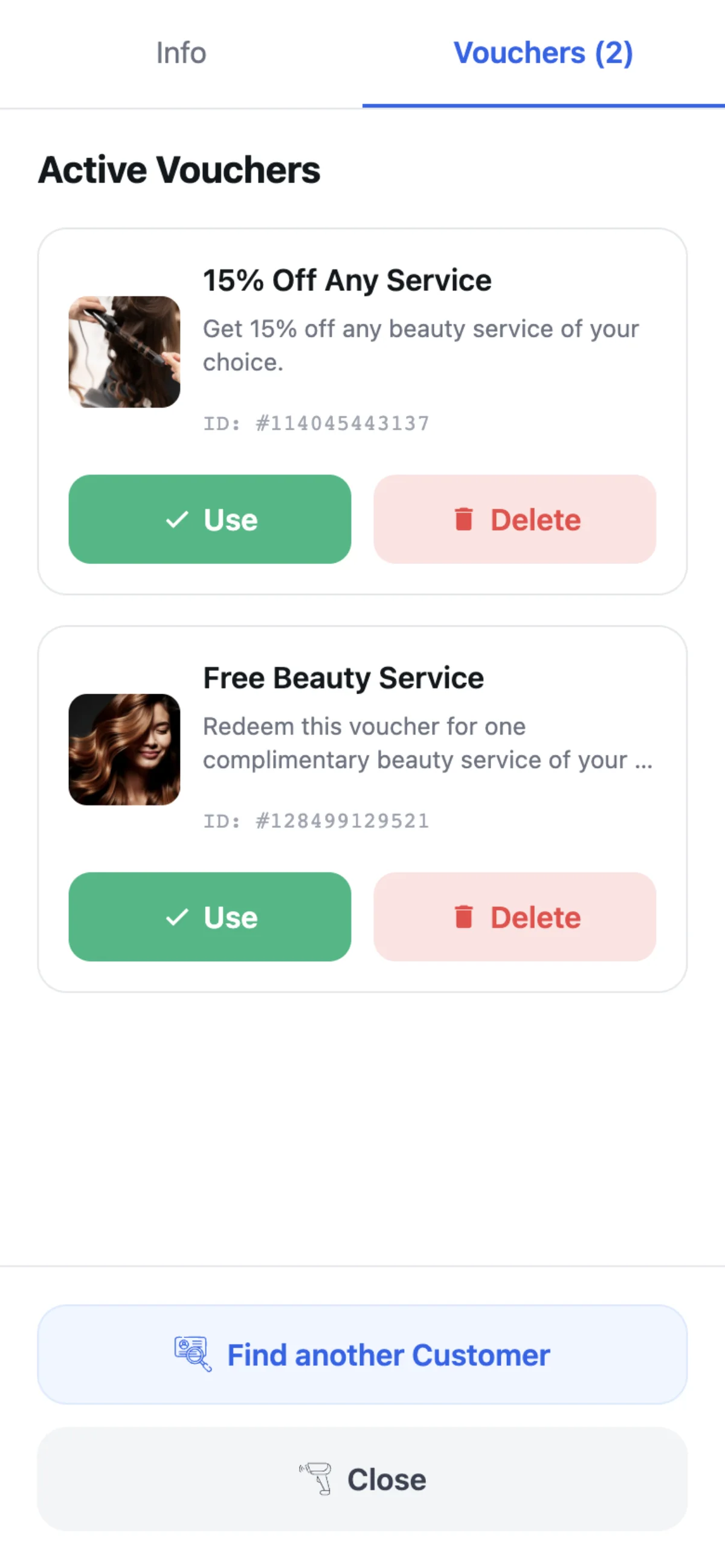
Staff redeem a Voucher by scanning its QR code, by entering the Voucher Code, or from the Vouchers tab of the Customer’s card. Outside Terminal Mode the scanner asks to confirm before marking it used.
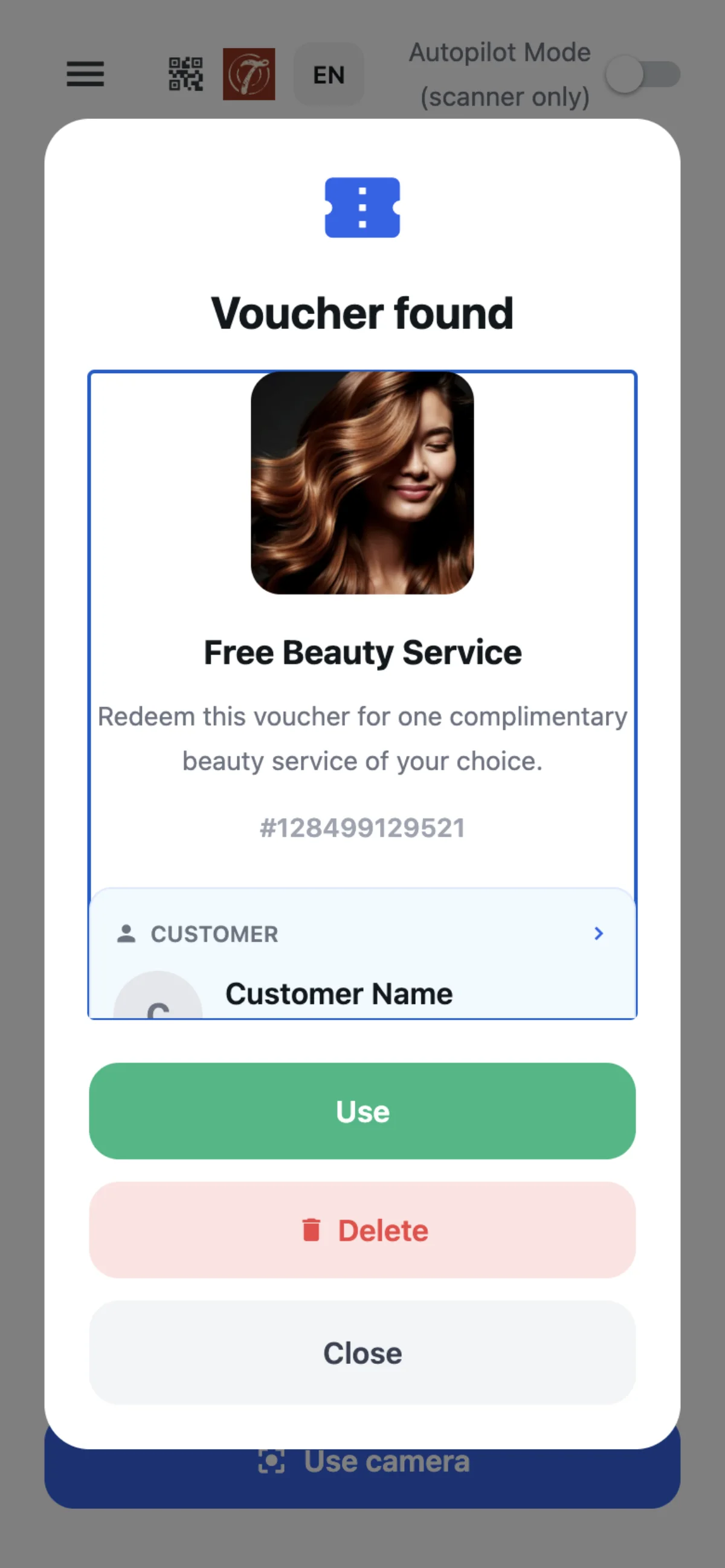
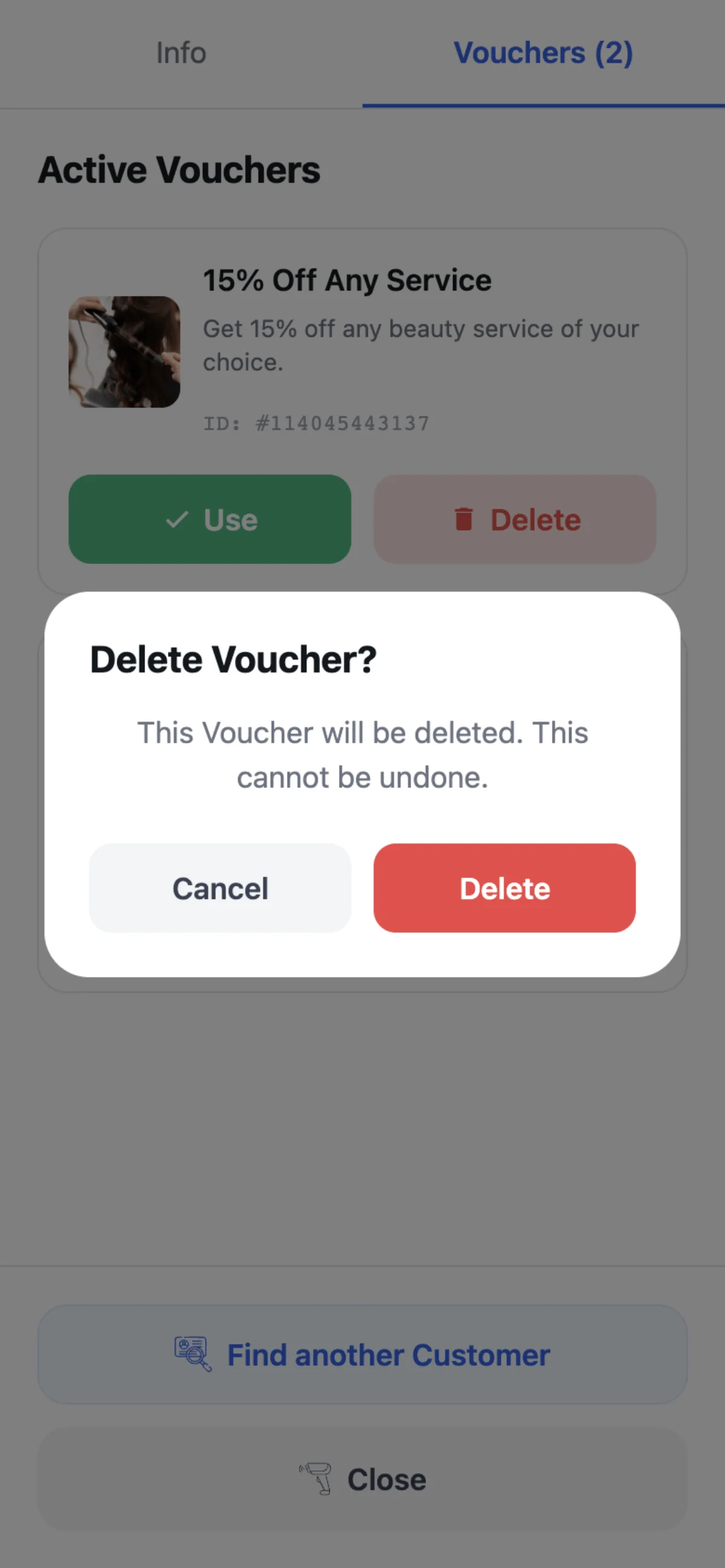
Staff can also delete a Customer’s Voucher. It cannot be undone, and a deleted Voucher can no longer be redeemed. Validity, self-redemption and Redeem Codes are in Rewards: Award, Voucher, Lottery.
How do staff redeem a Voucher?
Scan its QR code, enter the Voucher Code, or open the Vouchers tab of the Customer’s card and tap Use. Outside Terminal Mode the scanner asks to confirm.
Can a deleted Voucher be brought back?
No. Deleting cannot be undone, and a deleted Voucher can no longer be redeemed.
Does redeeming a Voucher ask for confirmation?
Yes, everywhere but Terminal Mode.
Autopilot Mode
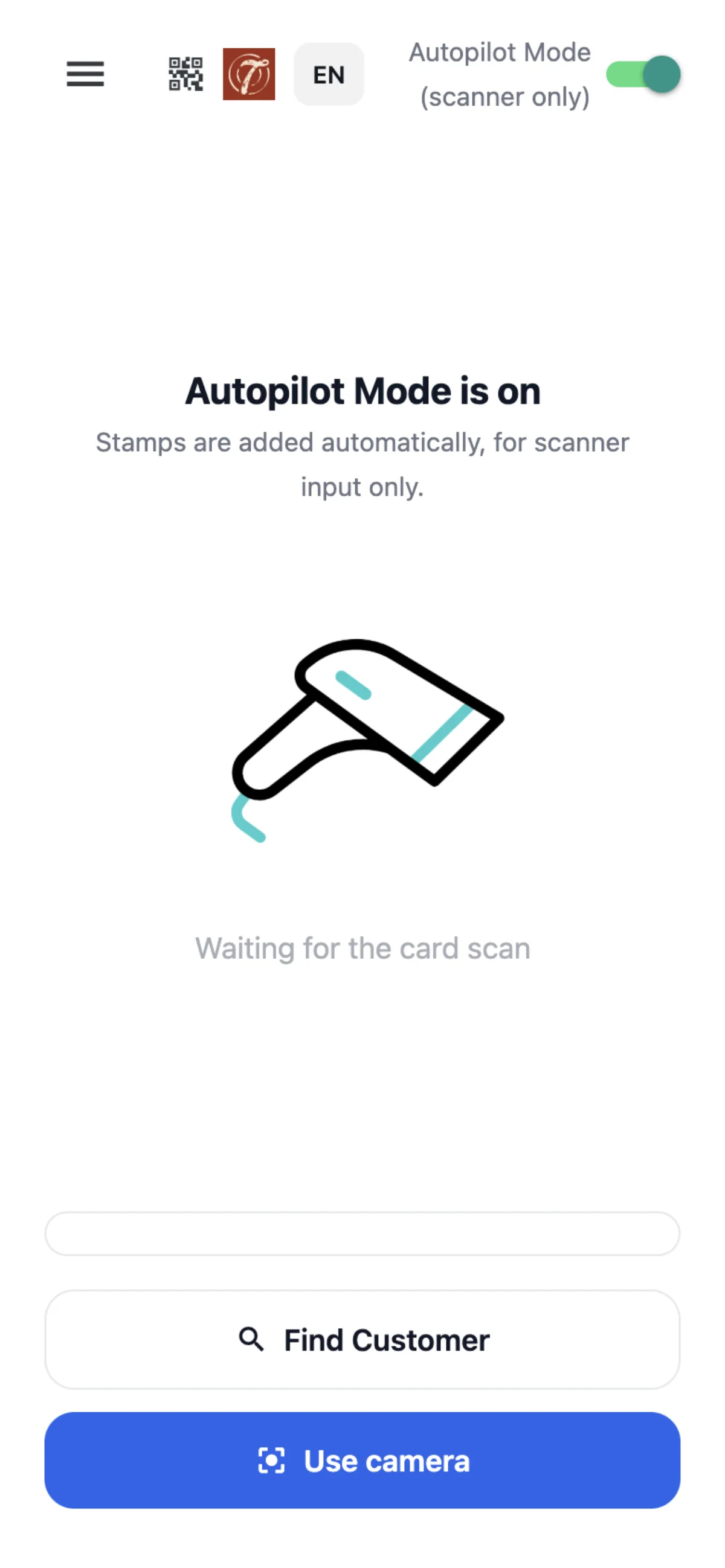
Autopilot Mode is the switch at the top of Manual. While it is on, every card read by a hardware QR reader gets one stamp at once, with nothing to press. A card read by the phone’s camera still only opens the Customer’s card, so Autopilot Mode needs a hardware QR reader.
Autopilot Mode adds one stamp per card whatever the Stamp card’s earning rule.
Every scan that stamps a card, in Autopilot Mode as in Manual, adds a line to the log under the scan area: the date and time, the card number, the card’s stamps out of its total, and any Award, Voucher or lottery result the scan gave. Tapping a line opens that Customer’s card.
Does Autopilot Mode work with the camera?
No. A card read by the camera only opens the Customer’s card. Automatic stamps come only from a hardware QR reader.
Can Autopilot Mode stamp by amount?
No. It adds one stamp per card, whatever the earning rule.
Where do I switch Autopilot Mode on?
At the top of the Manual screen in 7Stamp Scanner.
Nobody presses anything in Autopilot Mode. How do staff see what was stamped?
In the log under the scan area. Each line shows the time, the card number, its stamps out of the total and any Award, Voucher or lottery result; tapping it opens the Customer’s card.
Kiosk Mode
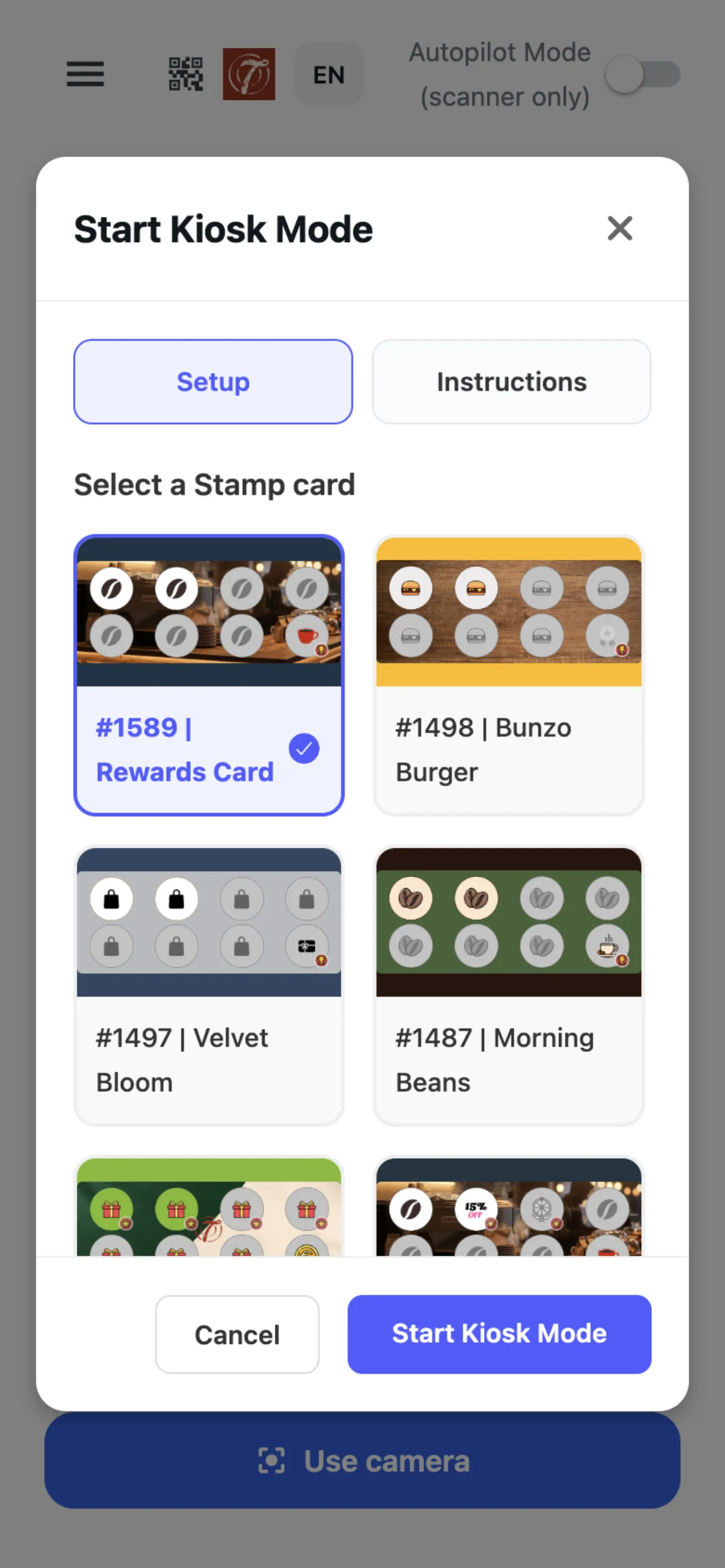
Kiosk Mode, in the scanner’s menu, turns 7Stamp Scanner into a screen that faces the Customers, for one Stamp card chosen when it starts. Customers scan their own card with the device’s camera and get one stamp per scan. A card of another Stamp card is refused with a message and gets no stamp.
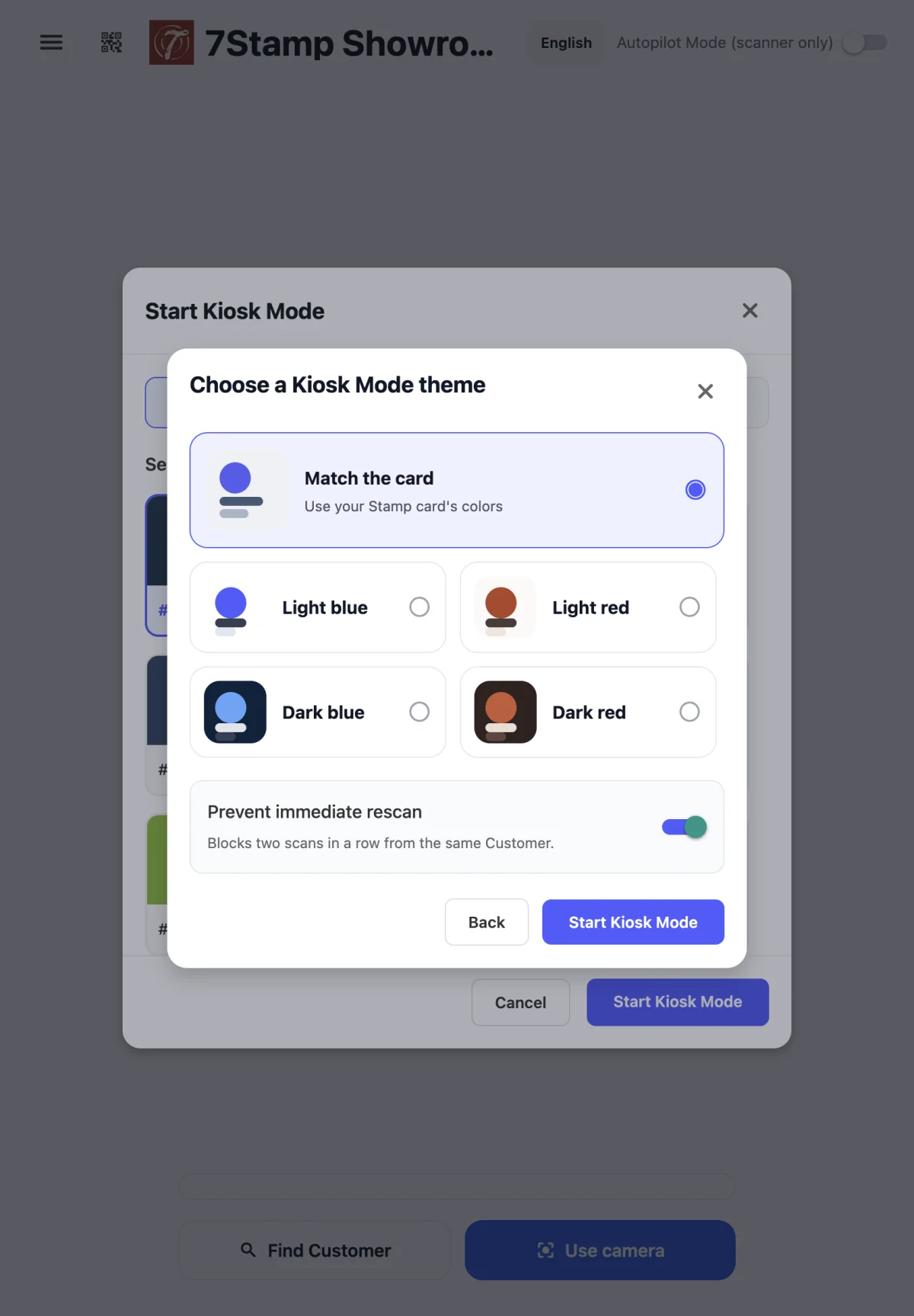
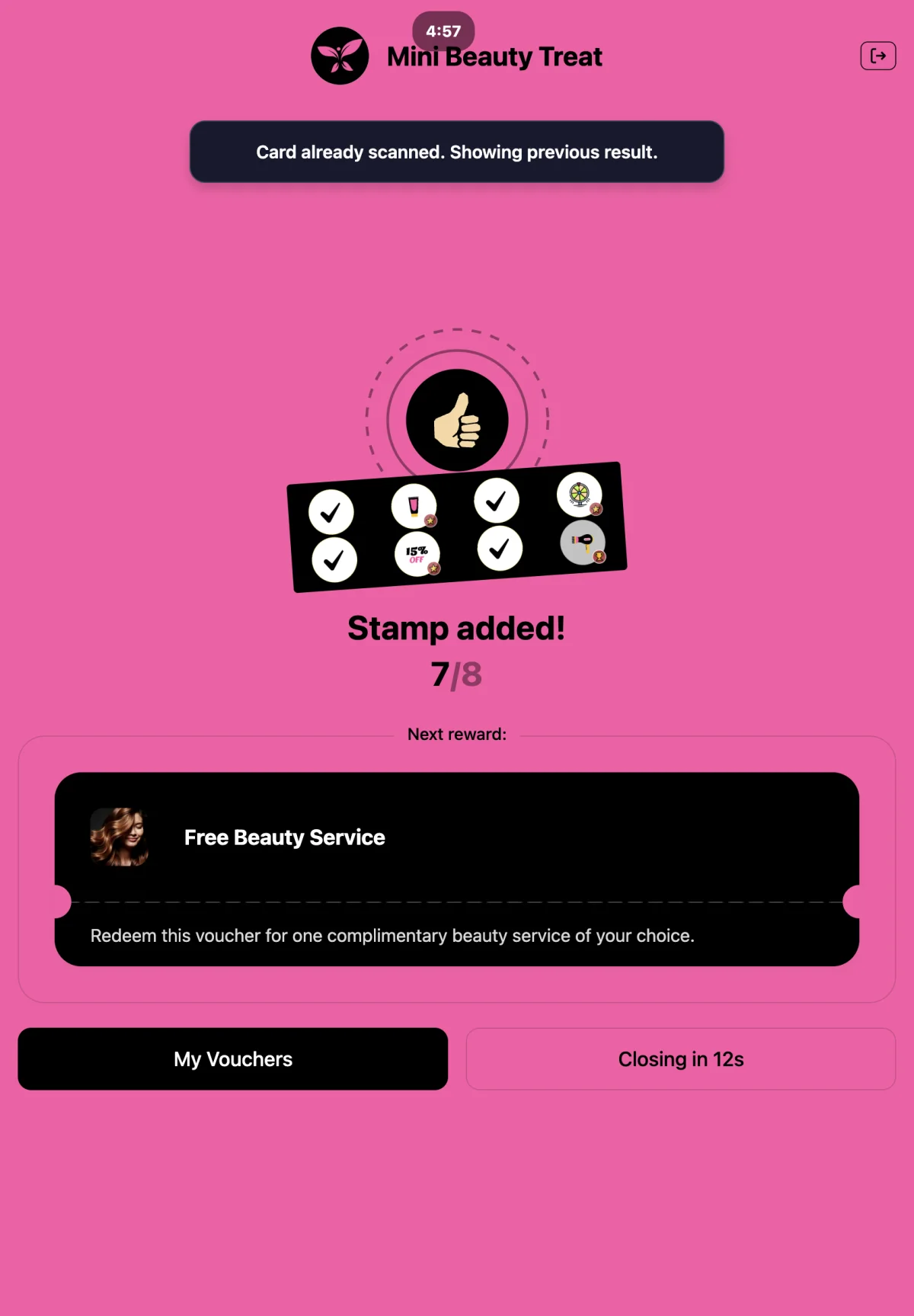
Prevent immediate rescan, on by default, stops the same card scanned twice in a row from getting a second stamp: the kiosk shows the previous result again.
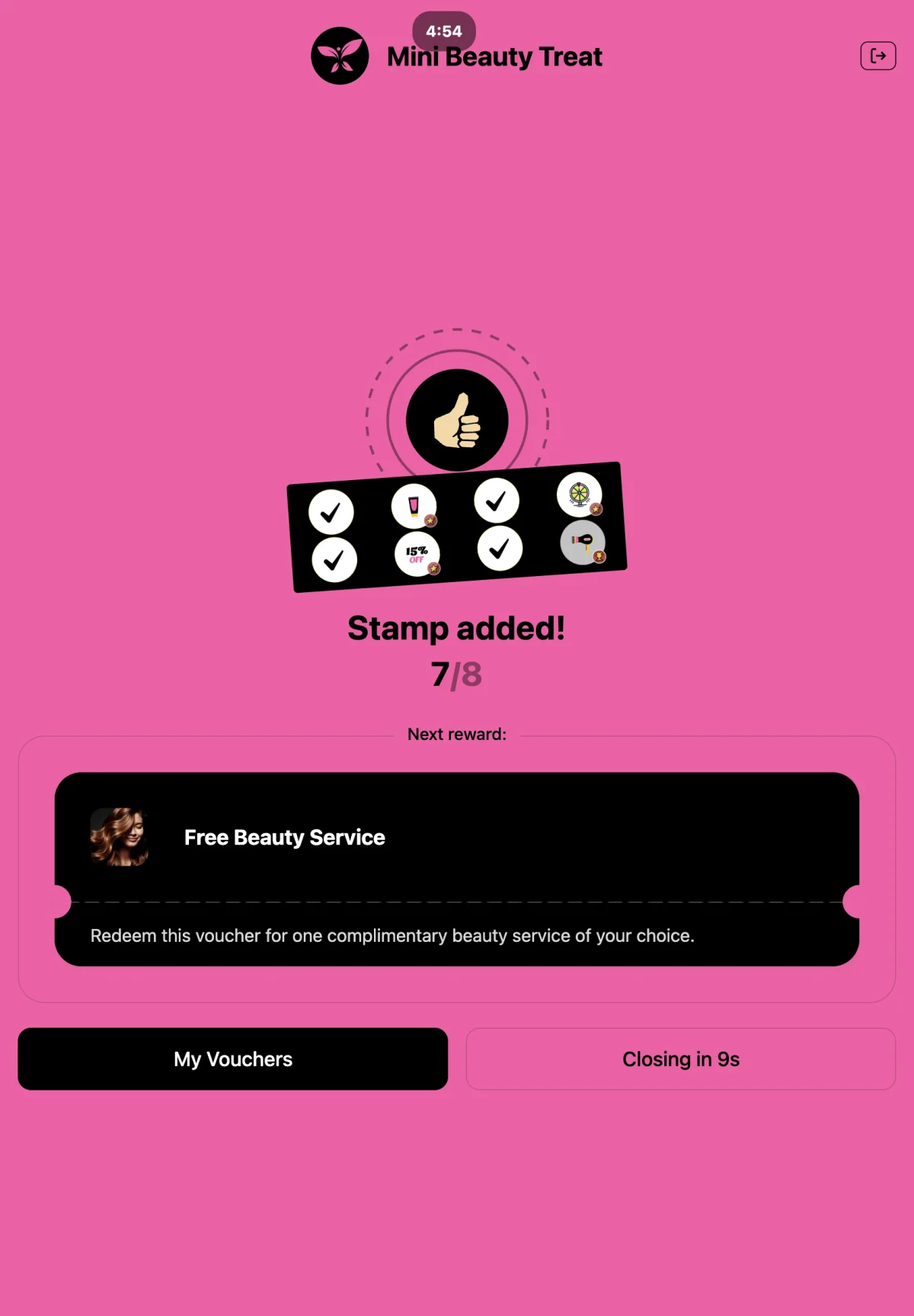
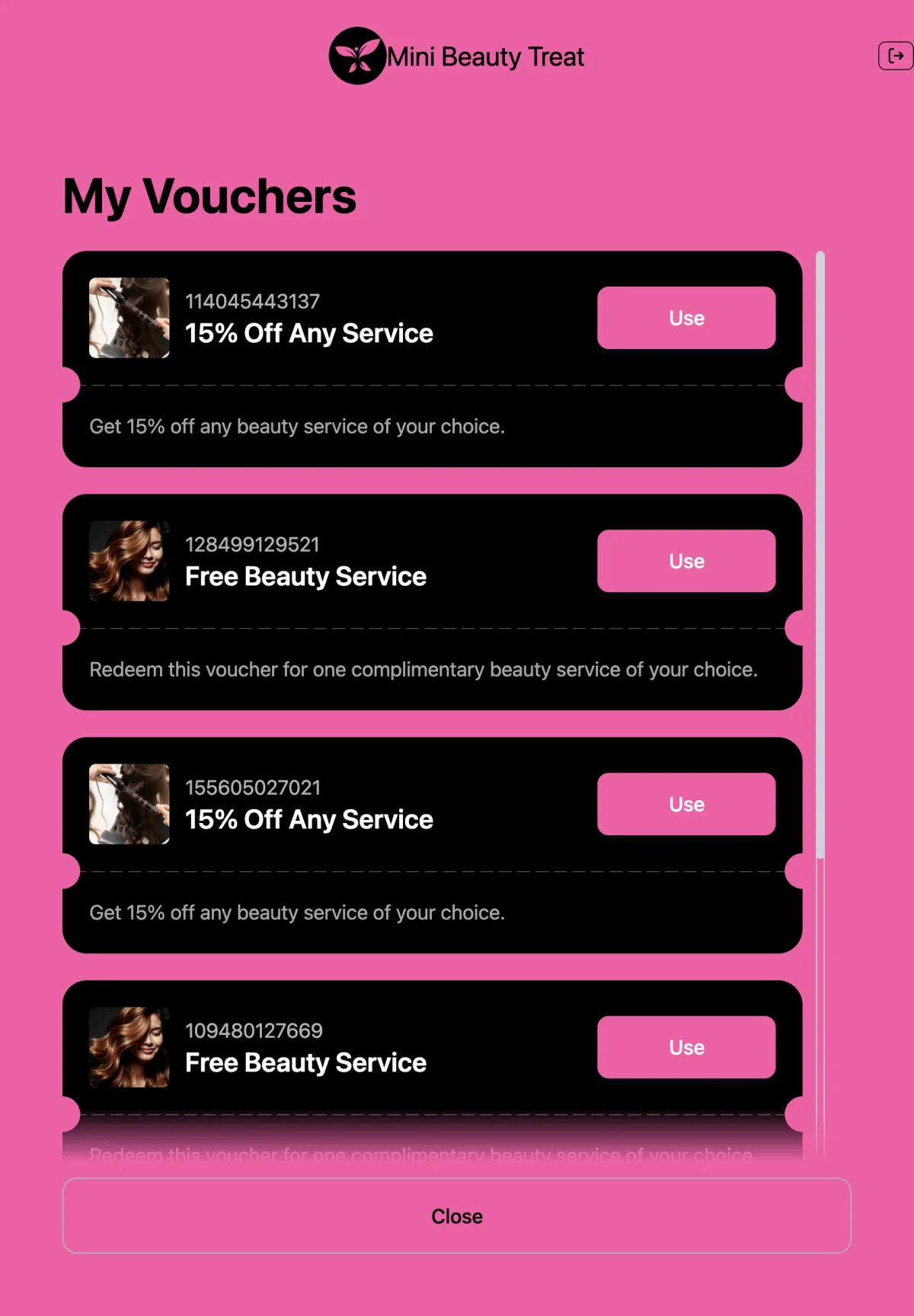
Customers can use their Vouchers on the kiosk: they tap Use, and the Voucher is redeemed as staff would redeem it, whether Customer self-redemption is on or off.
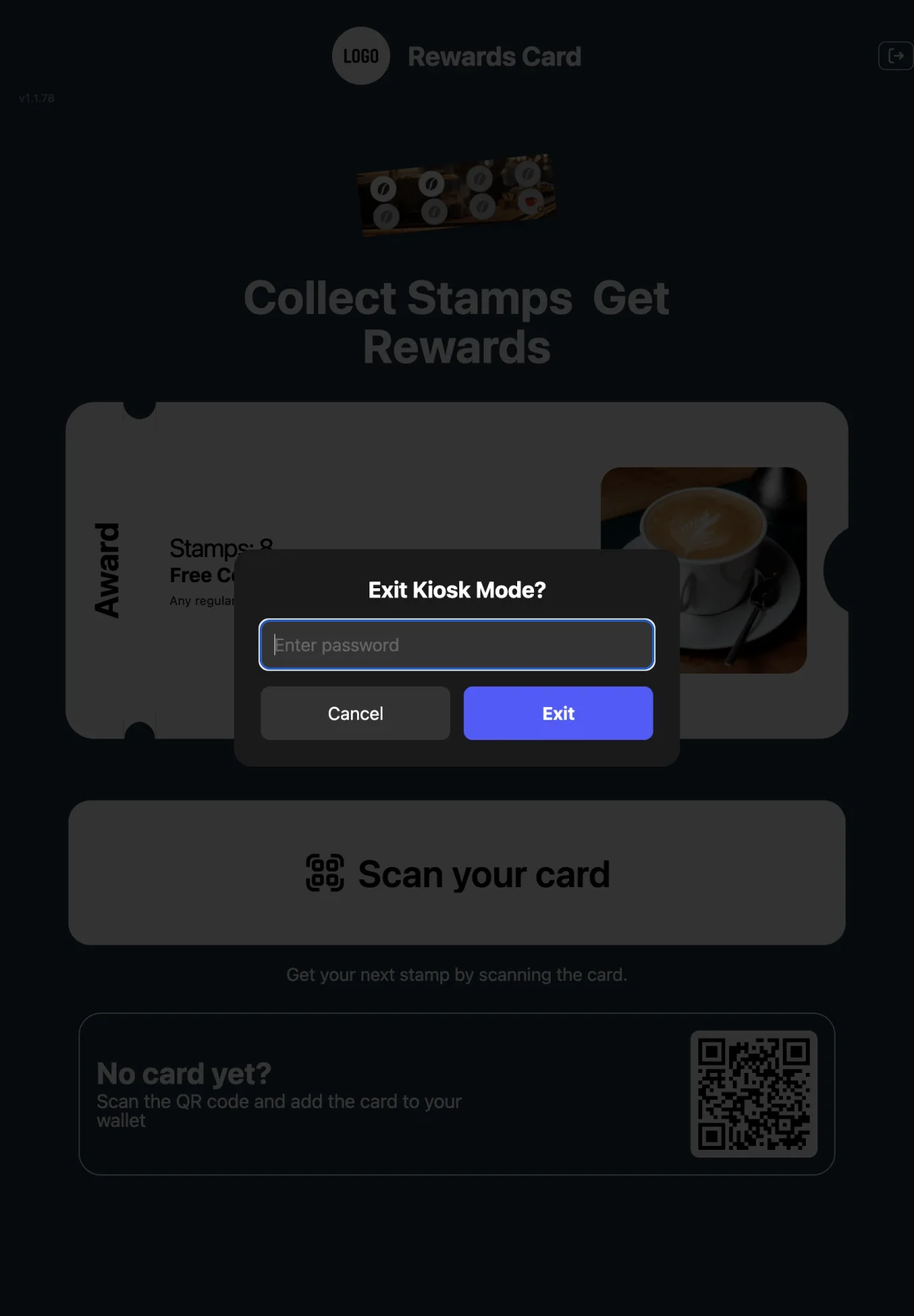
Leaving Kiosk Mode asks for the Staff Login’s password.
A Customer scanned a card of our other Stamp card at the kiosk. What happens?
The kiosk refuses it with a message and gives no stamp. Kiosk Mode works for the one Stamp card chosen when it starts.
Can a Customer scan the same card twice for two stamps?
Not with Prevent immediate rescan on, as it is by default — the kiosk shows the previous result again.
Can a Customer close Kiosk Mode?
No. Leaving Kiosk Mode asks for the Staff Login’s password.
Self-redemption is off. Can Customers still use Vouchers on the kiosk?
Yes. Kiosk Mode redeems as staff do, whether Customer self-redemption is on or off.
The kiosk screen and its theme
Between scans the kiosk shows the Customers the Stamp card’s logo and header text — your Business’s name when the card has none — and a carousel of the Stamp card’s rewards, with the stamp each one comes at, turning by itself. Scan your card opens the camera.
Below it, No card yet? shows the Stamp card’s join QR for Customers without the card. It opens your Telegram or WhatsApp bot when your Business has one, and otherwise the web card page, where the Customer adds the card to their wallet.
When you start Kiosk Mode you choose the Stamp card and then a theme for this screen: Match the card, which takes the Stamp card’s colours and is preselected, or Light blue, Dark blue, Light red or Dark red.
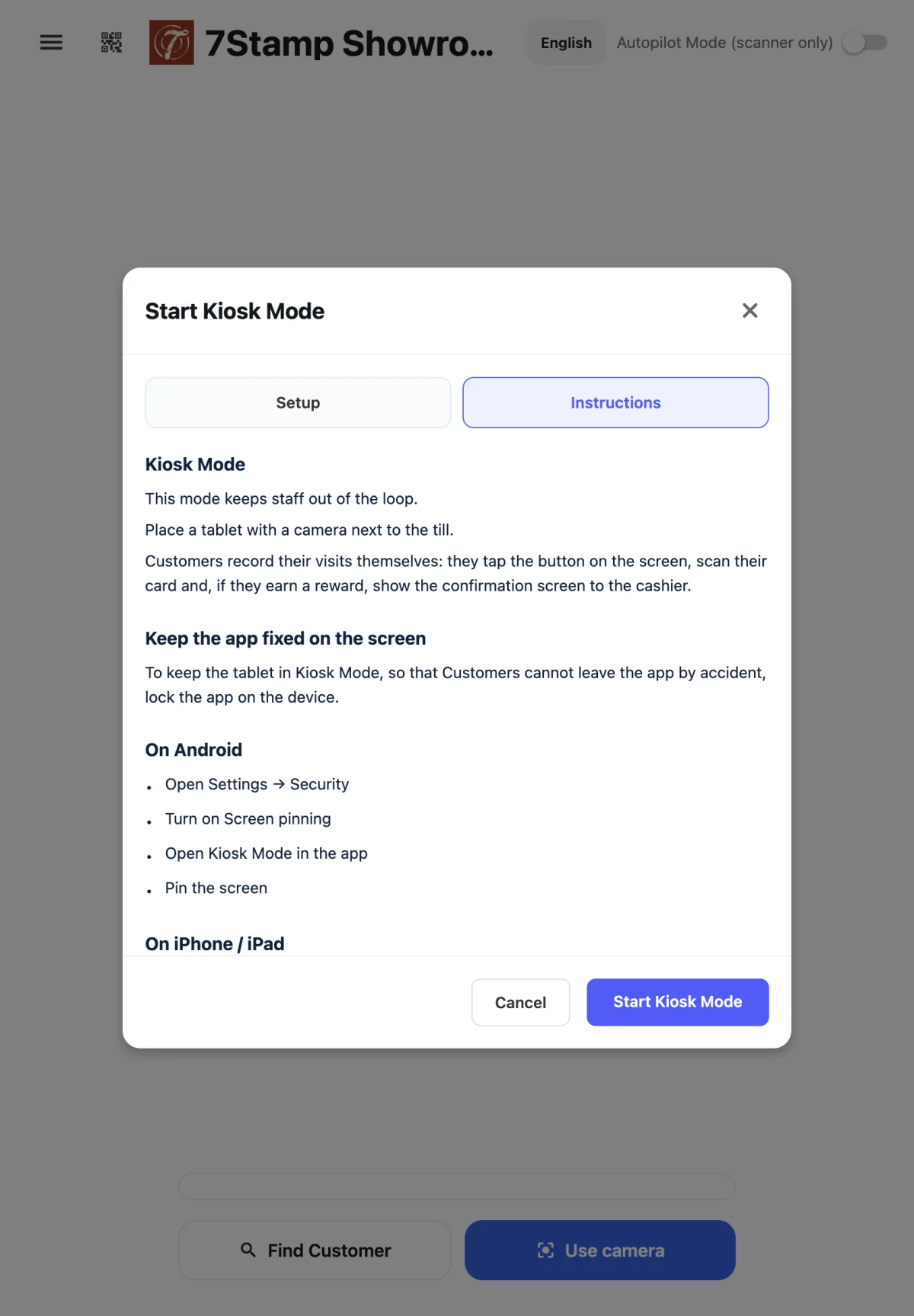
The Instructions tab of Start Kiosk Mode advises locking the app on the device, so Customers cannot leave it by accident: Screen pinning on Android, Guided Access on iPhone and iPad. 7Stamp Scanner does not lock the device itself.
Can a Customer get the Stamp card at the kiosk?
Yes. No card yet? on the kiosk screen shows the Stamp card’s join QR. It opens your bot, or the web card page when you have no bot.
Can the kiosk screen use our colours?
Yes. Match the card, preselected when you start Kiosk Mode, takes the Stamp card’s colours. Light blue, Dark blue, Light red and Dark red are the other themes.
How do I stop Customers leaving the scanner on the kiosk tablet?
Lock the app on the device, as the Instructions tab of Start Kiosk Mode advises — Screen pinning on Android, Guided Access on iPhone and iPad. 7Stamp Scanner does not lock the device itself.
What do Customers see on the kiosk between scans?
The Stamp card’s logo and header, a carousel of its rewards with the stamp each one comes at, the Scan your card button and the No card yet? QR.
Terminal Mode
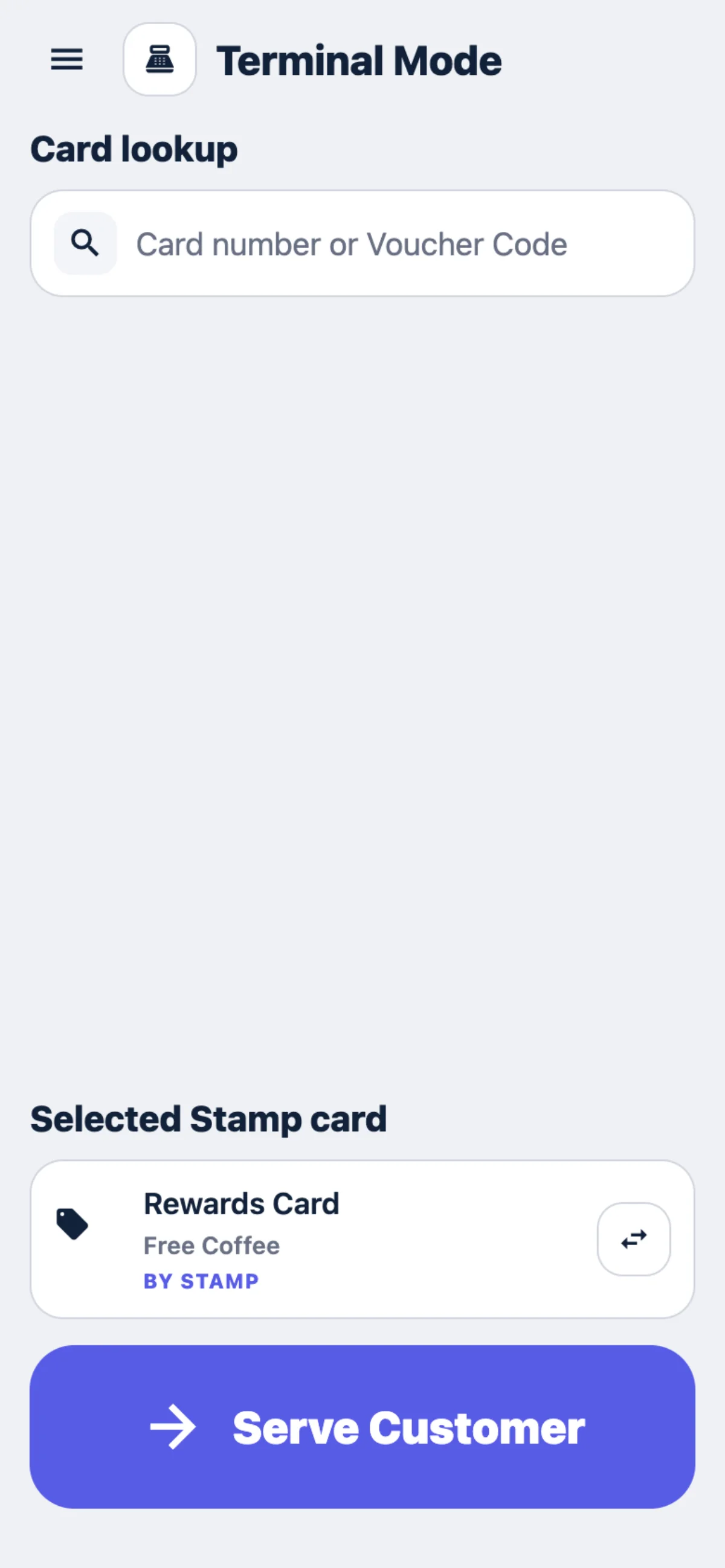
Terminal Mode runs 7Stamp Scanner on an Android POS device at the checkout. It is installed from Google Play, or as an APK for a fleet of devices, or opened as the Online scanner in the device’s browser, and switched on from the scanner’s menu.
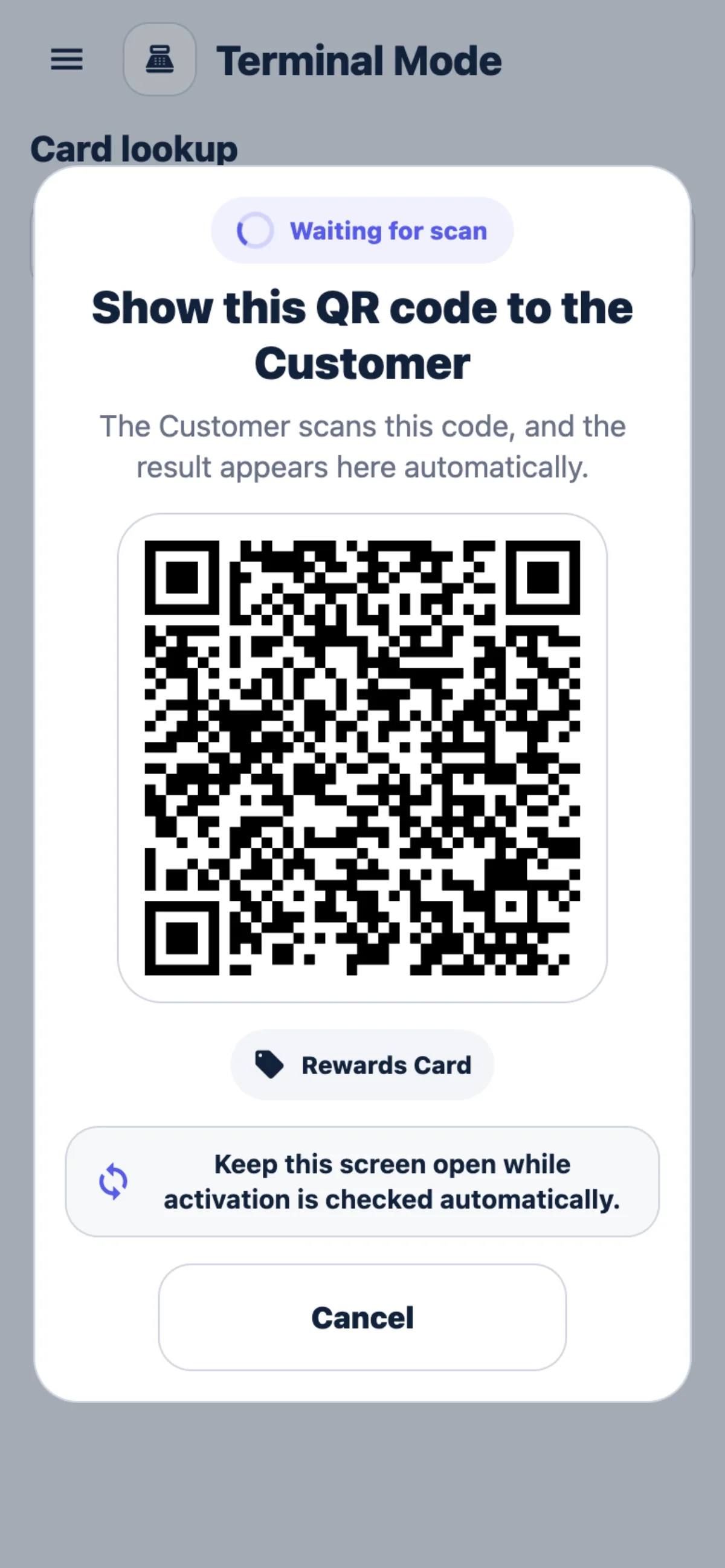
After the payment staff tap Serve Customer, and the device shows a single-use QR. The Customer scans it with their phone, gets the Stamp card if they have none and the stamps with it, and the result appears on the device by itself. On a By amount Stamp card Terminal Mode first asks for the purchase amount, and the stamps follow the stamp price; on any other Stamp card each Serve Customer gives one stamp.
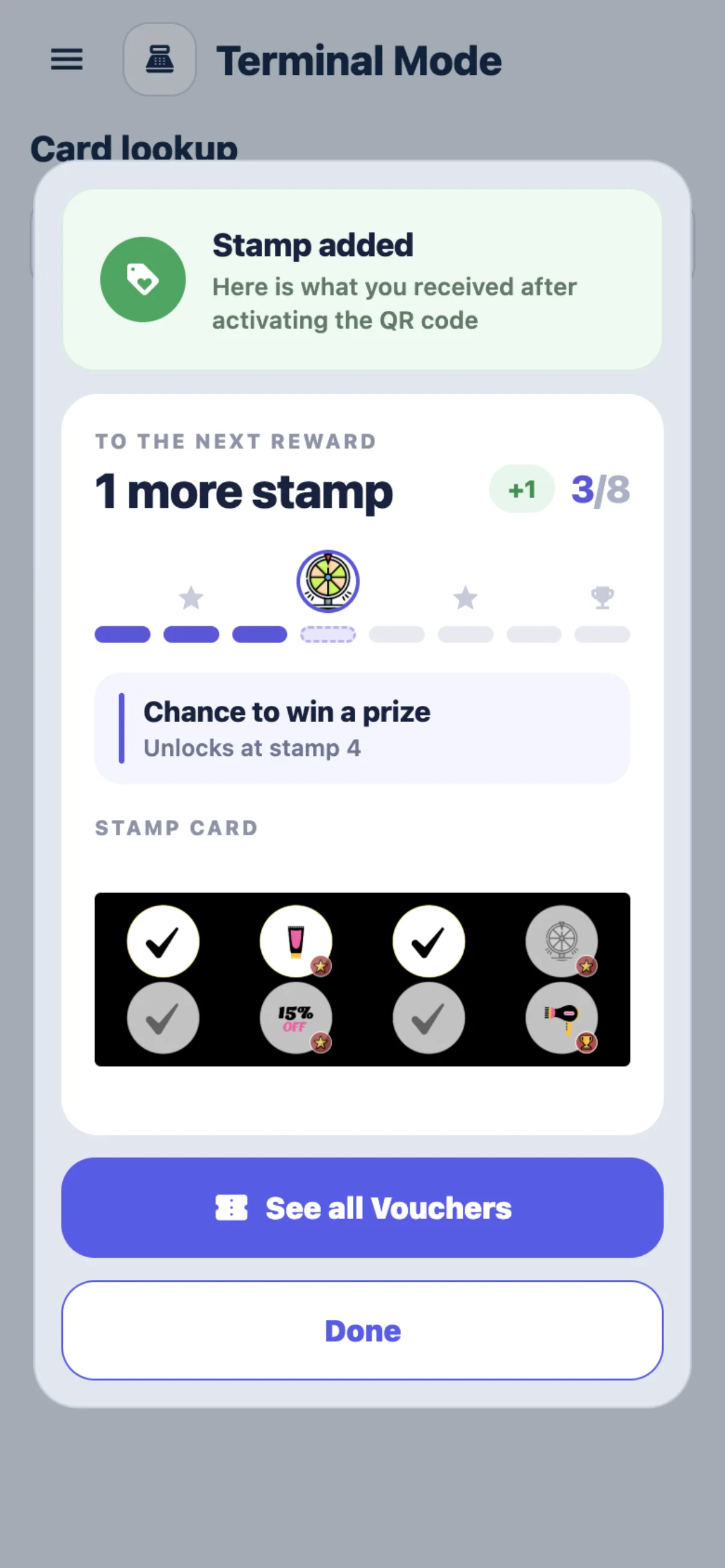
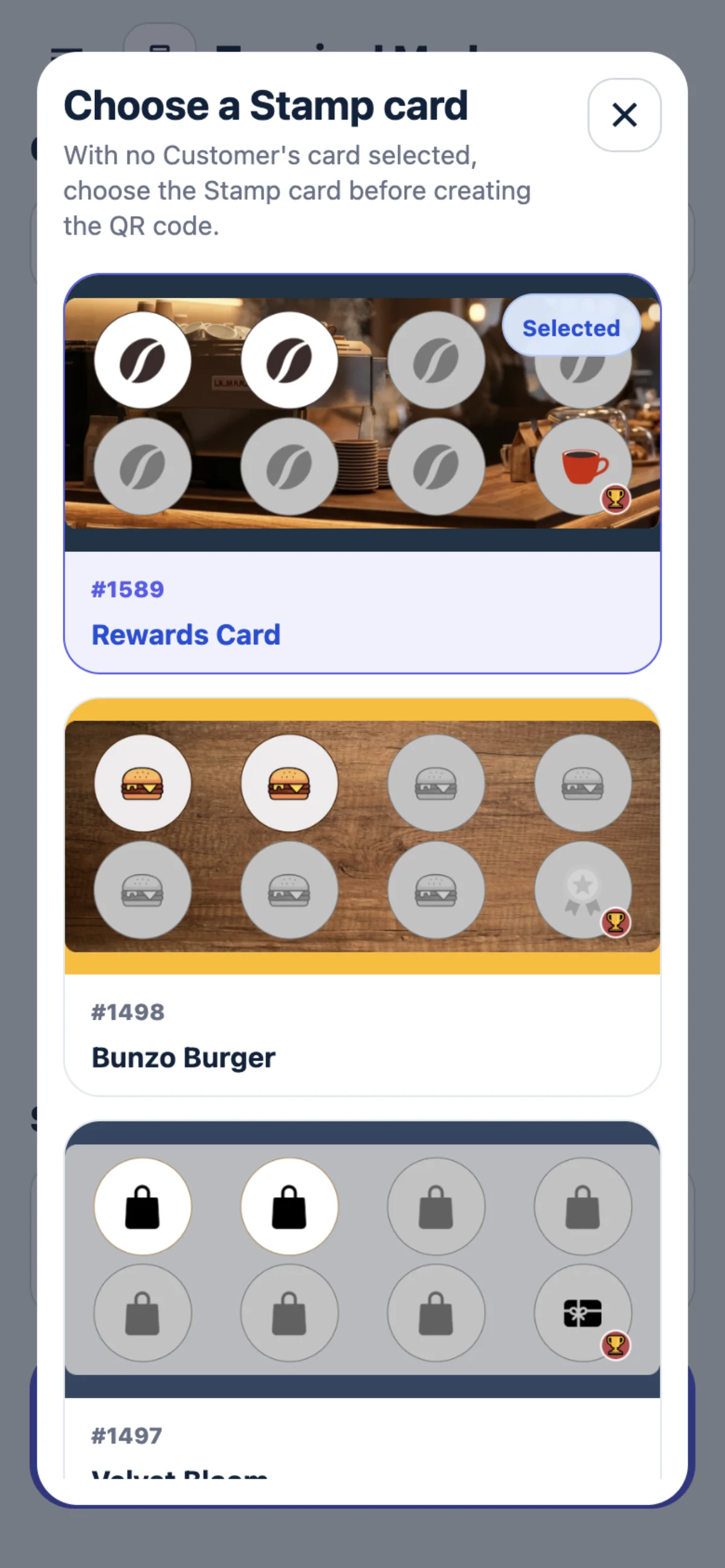
With no card looked up, Serve Customer uses the Selected Stamp card at the bottom of the screen: the one last chosen on that device for your Business, or else the first of your active Stamp cards. The change button next to it opens Choose a Stamp card, and a new Customer gets the card chosen there. The Staff Login’s Automatic stamping choice plays no part in Terminal Mode.
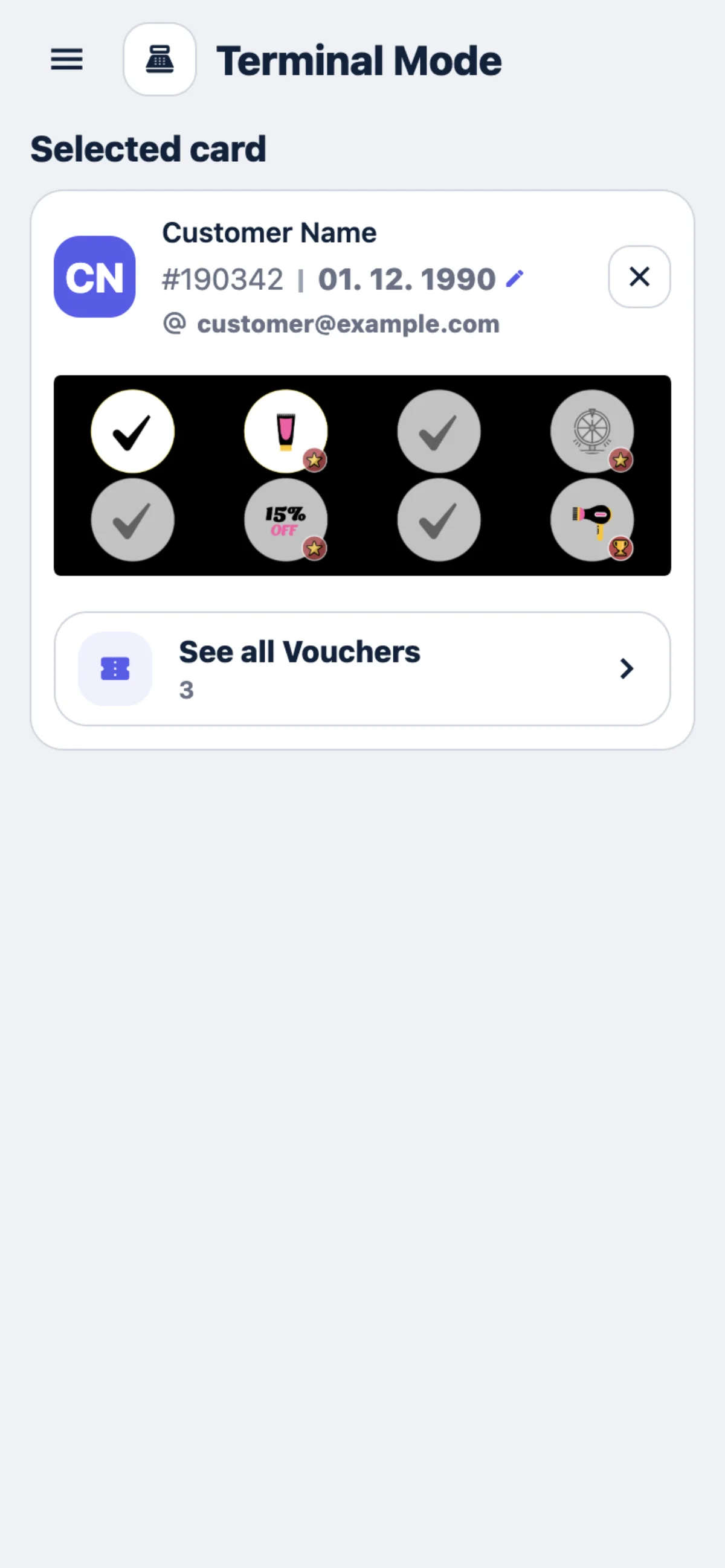
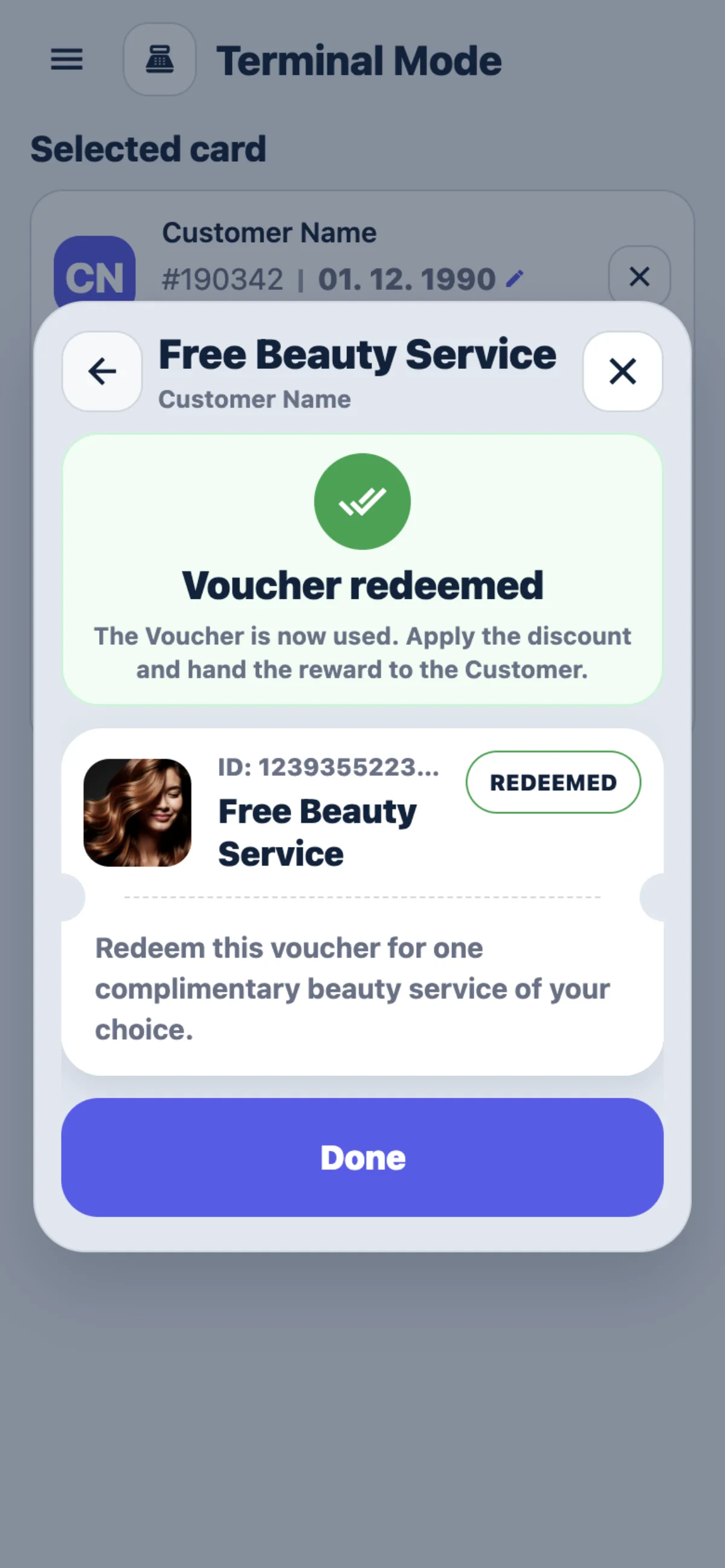
When staff look the Customer up first, by card number or Voucher Code, the QR shown next can be used only by that Customer, and that card’s own Stamp card is used. A Voucher opened here is redeemed without a confirmation step; the screen tells staff to apply the discount and hand the reward to the Customer.
Can Terminal Mode run on our payment device?
On an Android POS device — install 7Stamp Scanner from Google Play or as an APK, or open the Online scanner in the device’s browser.
How does Terminal Mode know the purchase amount?
On a By amount Stamp card it asks staff for the amount before showing the QR. On other Stamp cards each Serve Customer gives one stamp.
Can someone else scan the QR meant for one Customer?
If staff looked the Customer up first, by card number or Voucher Code, only that Customer can use the QR.
Does the Customer need the Stamp card already?
No. A Customer without it gets the Stamp card and the stamps when they scan the QR.
We have several Stamp cards. Which one does a new Customer get in Terminal Mode?
The Selected Stamp card shown above Serve Customer — the one last chosen on that device, or the first of your active Stamp cards. Change it with the button next to it. The Staff Login’s Automatic stamping choice does not apply here.
Which mode to use
| Mode | Who scans | Stamps per scan | What you need |
|---|---|---|---|
| Manual | Staff scan the Customer’s card | As many as staff choose | A phone, tablet or browser; camera or hardware QR reader |
| Autopilot Mode | A hardware QR reader reads the card | One | A hardware QR reader |
| Kiosk Mode | The Customer scans their own card | One | A device with a camera facing the Customers |
| Terminal Mode | The Customer scans a QR on the device | By the amount on a By amount Stamp card, otherwise one | An Android POS device |
Which mode stamps by purchase amount?
Terminal Mode, on a By amount Stamp card. Manual adds the number staff choose, and Kiosk Mode and Autopilot Mode add one stamp per scan.
Which mode needs no staff action for each stamp?
Autopilot Mode, with a hardware QR reader, and Kiosk Mode, where Customers scan their own card.
Which mode works without a Customer showing their card?
Terminal Mode. The device shows a QR, and the Customer scans it with their phone.