
The How to stamp page
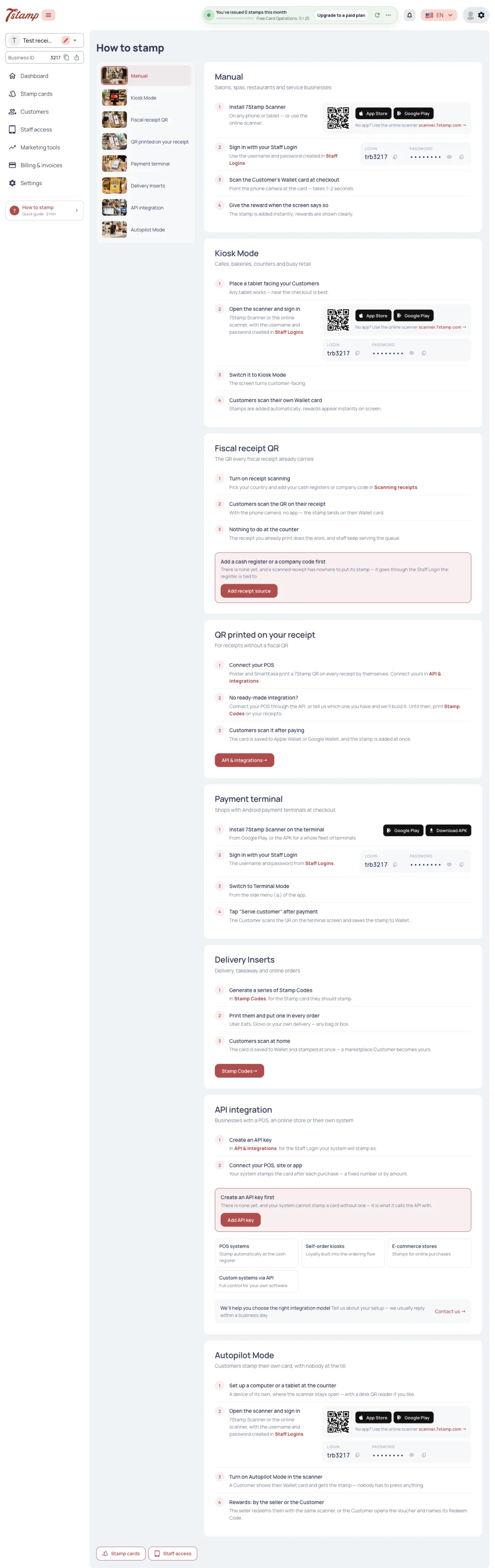
The admin’s How to stamp page lists eight ways to stamp: Manual, Kiosk Mode, Fiscal receipt QR, QR printed on your receipt, Terminal Mode, Delivery Inserts, API integration and Autopilot Mode. Each way shows its steps, where it is set up and, where it needs one, the Staff Login to sign in with.
The page shows one of the two receipt ways: Fiscal receipt QR when your Business’s country is one where fiscal receipts can be scanned, and QR printed on your receipt everywhere else. Until your Business has what a way needs, the way says so: API integration asks you to create an API key first, and Fiscal receipt QR asks you to add a cash register or a company code first.
Every stamp is given through a Staff Login: the one signed in to 7Stamp Scanner, the one an API key belongs to, or the one a receipt source is tied to.
Can we run the program almost without staff?
Yes. In Kiosk Mode Customers scan their own card on a tablet, Autopilot Mode stamps every card a hardware QR reader reads, and with Fiscal receipt QR, QR printed on your receipt, Delivery Inserts and API integration nobody at the counter stamps at all. How to stamp shows all eight ways.
Why does How to stamp show Fiscal receipt QR and not QR printed on your receipt?
The page shows the receipt way that fits your Business’s country — Fiscal receipt QR where fiscal receipts can be scanned, QR printed on your receipt everywhere else.
How to stamp asks me to create an API key first. Why?
API integration needs an API key before your system can stamp, and the page says so until one exists. Fiscal receipt QR likewise asks for a cash register or a company code first.
Is every stamp linked to a Staff Login?
Yes — to the one signed in to 7Stamp Scanner, the one an API key belongs to, or the one a receipt source is tied to.
Which way fits your business
The How to stamp guide opens on six pictures: Manually in the app, Tablet at the till, the receipt, Payment device, Delivery Inserts and Automatically via API. Each says who gives the stamp — Given by staff, By the Customer, While paying or Automatic — and Manually in the app is marked Recommended. Autopilot Mode has no picture of its own; you reach it on the page.
On the page, each way says under its name whom it suits:
| Way | Suits |
|---|---|
| Manual | Salons, spas, restaurants and service businesses |
| Kiosk Mode | Cafes, bakeries, counters and busy retail |
| Terminal Mode | Shops with Android payment devices at the checkout |
| Delivery Inserts | Delivery, takeaway and online orders |
| API integration | Businesses with a POS, an online store or their own system |
Fiscal receipt QR, QR printed on your receipt and Autopilot Mode say how the way works instead of whom it suits.
Which way should we start with?
How to stamp marks Manual, Manually in the app, as Recommended. It suits salons, spas, restaurants and service businesses. Kiosk Mode suits cafes, bakeries, counters and busy retail.
We sell through delivery apps and takeaway. Which way fits?
Delivery Inserts — How to stamp suggests it for delivery, takeaway and online orders.
We have our own online store. Which way fits?
API integration, for businesses with a POS, an online store or their own system.
Why is Autopilot Mode not among the pictures?
The guide opens on six pictures, and Autopilot Mode is not one of them. You reach it on the How to stamp page itself.
Manual
Staff find the Customer’s card in 7Stamp Scanner — by its QR or with Find Customer — and add the stamps by hand, as many as they choose.
What staff need is 7Stamp Scanner and the login and password of a Staff Login. How to sign in, find a card and add or remove stamps is in the 7Stamp Scanner article, under Manual.
What do staff need for Manual?
7Stamp Scanner and the login and password of a Staff Login. The How to stamp page shows the Staff Login to sign in with.
Can I add stamps to a Customer’s card in the admin instead?
No. Stamps cannot be added or removed in the admin. Staff do that in 7Stamp Scanner, or stamps come through the other ways to stamp.
The Customer has no phone with them. Can staff still stamp?
Yes. Find Customer in 7Stamp Scanner looks the card up by name, email, phone or card number.
Kiosk Mode
A device running 7Stamp Scanner faces the Customers, and they scan their own card with its camera. Staff start Kiosk Mode once, for one Stamp card.
Setting it up, the guard against double scans and leaving Kiosk Mode are in the 7Stamp Scanner article, under Kiosk Mode.
Does a cashier have to press anything in Kiosk Mode?
No. Customers scan their own card on the device that faces them.
Can one kiosk stamp two different Stamp cards?
No. Kiosk Mode works for the one Stamp card chosen when it starts; a card of another Stamp card is refused.
What device do I need for Kiosk Mode?
A device that runs 7Stamp Scanner and has a camera — Customers scan their card with it.
Fiscal receipt QR
The Customer scans the fiscal QR their receipt already carries, with the Scan receipt button in your Business’s Chatbot, and 7Stamp turns the receipt into stamps. 7Stamp fetches the receipt from the country’s fiscal service, so no POS integration is needed.
It works only in some countries and only through your own Telegram or WhatsApp bot. The countries, the receipt sources and every check are in the Receipt scanning article.
Do we need a POS integration for Fiscal receipt QR?
No. 7Stamp fetches the receipt from the country’s fiscal service.
Can Customers scan the receipt without a Chatbot?
No. The Scan receipt button exists only in the Business’s Telegram or WhatsApp bot, not on the web card page or in My 7Stamp.
Does Fiscal receipt QR work in my country?
How to stamp shows it only when your Business’s country supports it; the countries are listed in Receipt scanning. Elsewhere use QR printed on your receipt.
QR printed on your receipt
This way works in any country. Your POS prints a 7Stamp QR on the receipt, connected through the API or a ready integration, and the Customer scans it after paying. A POS with no integration can print Stamp Codes on its receipts instead (see Delivery Inserts and Stamp Codes below).
The ready integrations are under Settings → API & integrations: at the checkout Poster, Toast, your own POS through the API, and a request for a POS that is not connected yet. They are described in API, Webhooks and integrations.
We are not in a country with fiscal receipts. Can Customers still get stamps from a receipt?
Yes. QR printed on your receipt works in any country — your POS prints a 7Stamp QR and the Customer scans it after paying.
My POS is not in the list. What can I do?
Connect it through the API, or send a request for it in API & integrations. Until then, print Stamp Codes on your receipts.
Is Poster available outside 7Stamp’s own admin?
No. Poster needs an API key and is offered only in 7Stamp’s own admin, not under White Label.
Terminal Mode
7Stamp Scanner runs on the Android POS device at the checkout. After the payment staff tap Serve Customer, the device shows a single-use QR, and the Customer scans it with their phone — a Customer without the Stamp card gets it with the stamps.
Installing it, the amount for a By amount Stamp card and looking a Customer up first are in the 7Stamp Scanner article, under Terminal Mode.
Does the Customer need the Stamp card before paying?
No. A Customer who has no card gets it, together with the stamps, when they scan the QR.
Does the cashier have to scan the Customer’s phone in Terminal Mode?
No. The device shows a QR, the Customer scans it with their phone, and the result appears on the device by itself.
Can a QR from Serve Customer be used twice?
No. Serve Customer shows a single-use QR.
Delivery Inserts and Stamp Codes
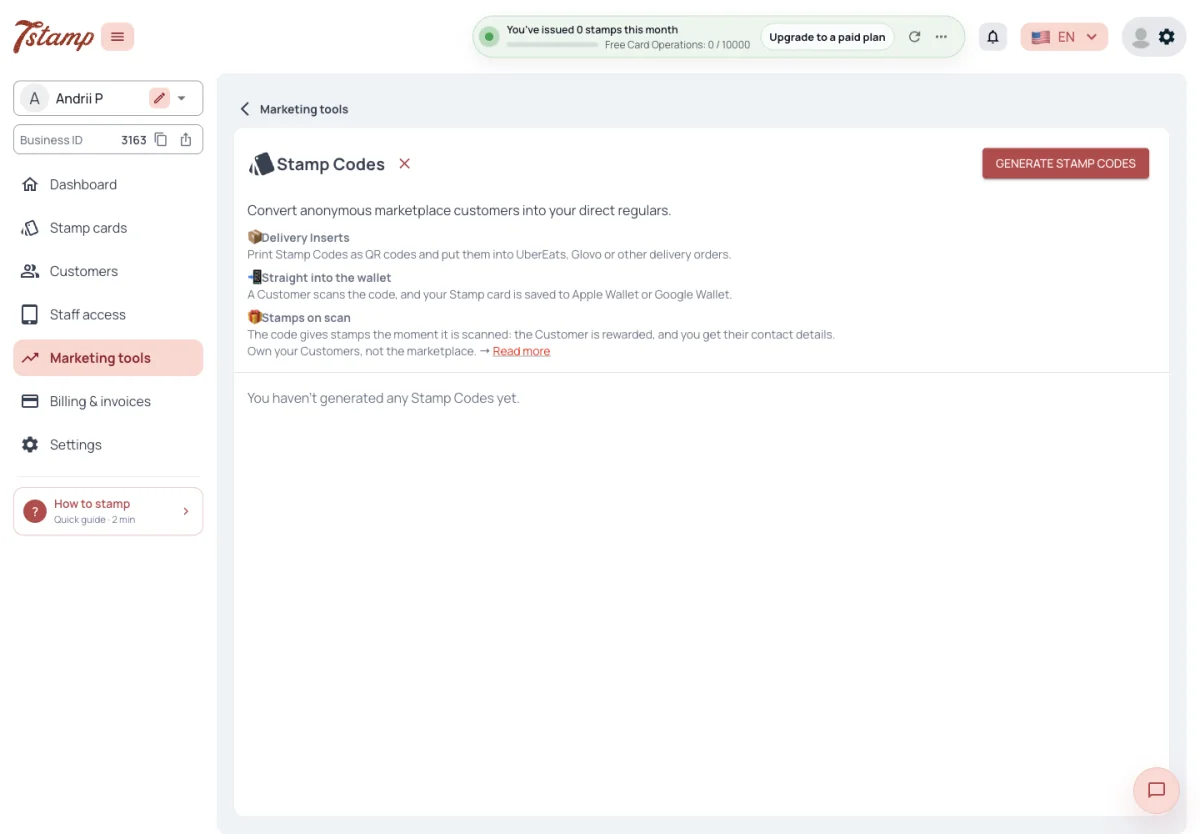
A Stamp Code is a single-use code of one Stamp card that gives stamps. It is handed out as a printable QR, a link or the code itself. A Customer without the card gets the card with it, and the stamps land on that card.
Delivery Inserts is a way to use Stamp Codes, not a separate thing: you print a series of Stamp Codes, put one in every delivery or takeaway order, and the Customer scans it at home. Stamp Codes are under Marketing tools.
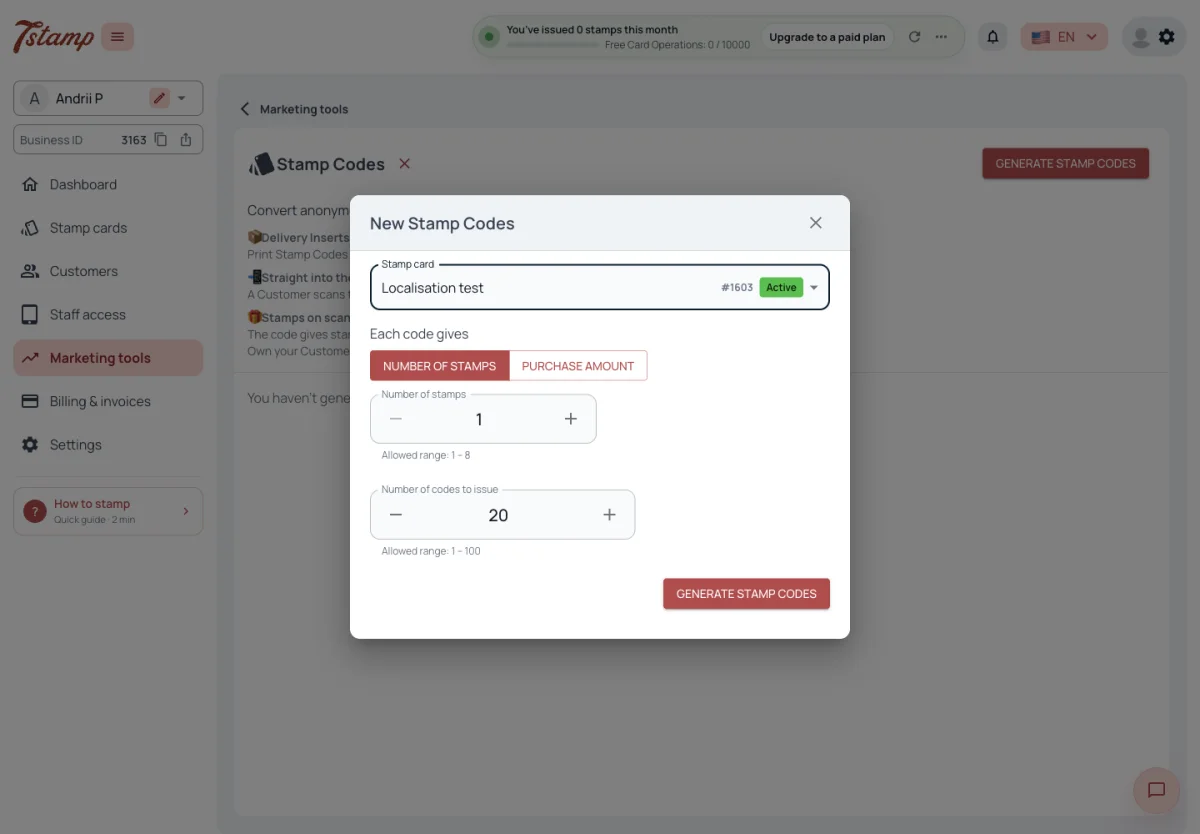
Each code of a series gives either a number of stamps, from one up to the Stamp card’s total, or a purchase amount. One series holds from one to a hundred codes.
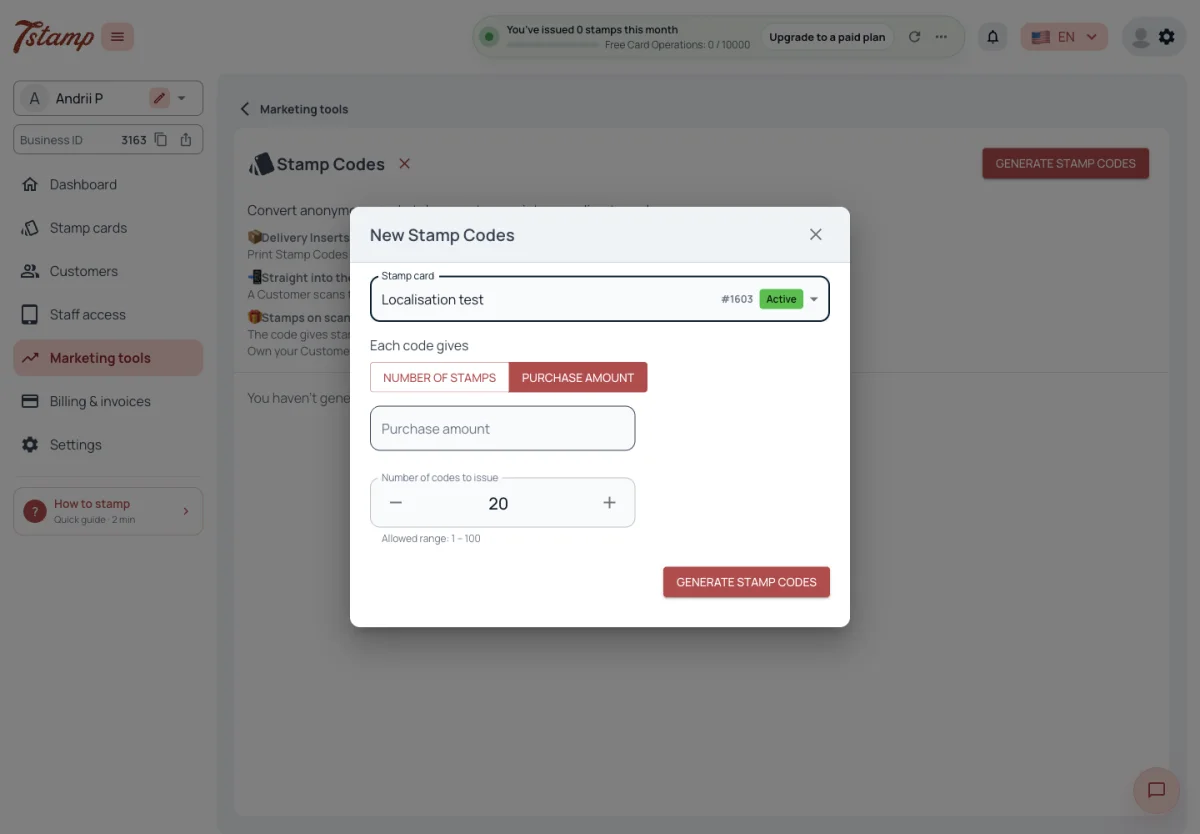
A code with an amount counts its stamps by the Stamp card’s stamp price when the Customer opens it. An amount below one stamp price gives the card with no stamp, and the Customer is told why.
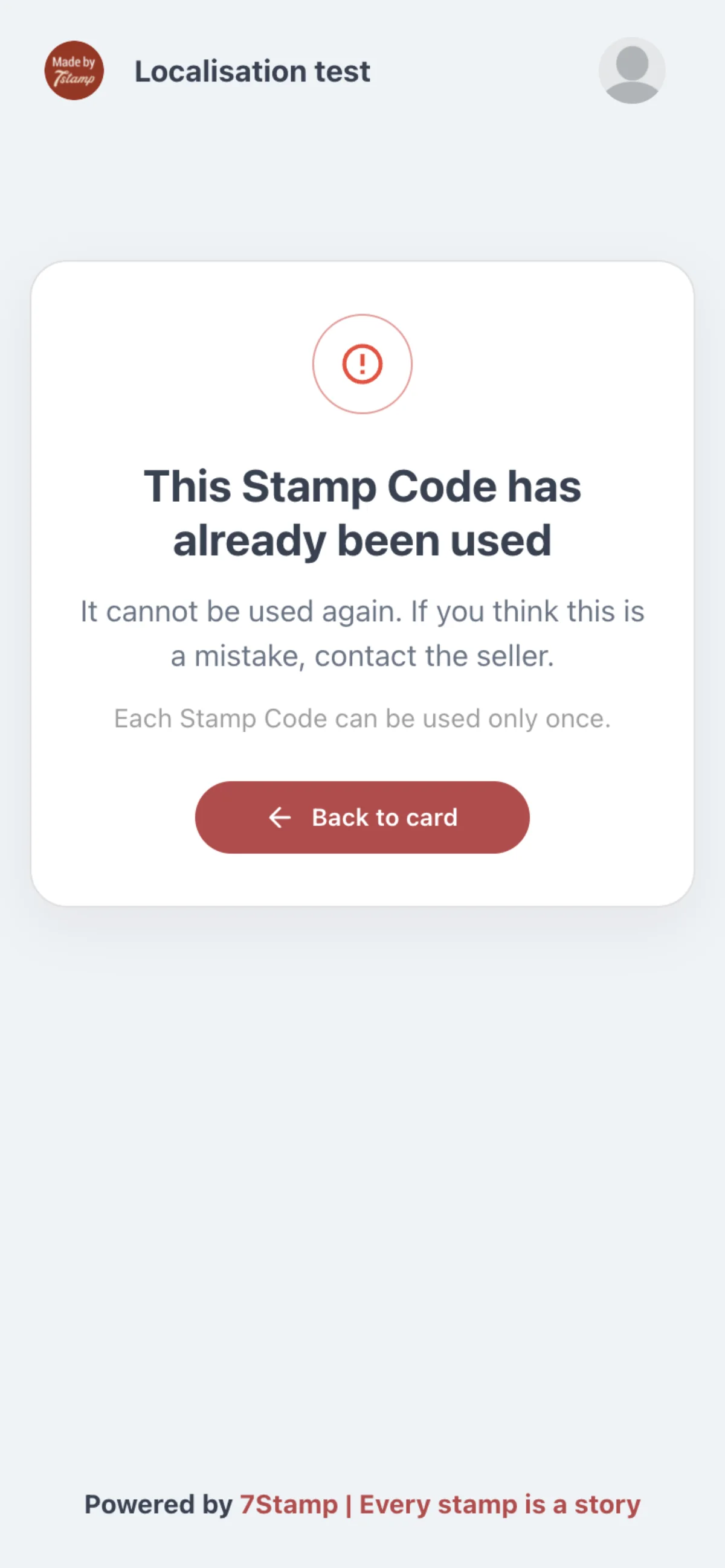
Each Stamp Code works once. A Customer opening a used one gets no stamps and sees that it has already been used; a Customer who had no card still gets the card. If two Customers open one code at the same moment, only one gets its stamps. When your Business has a Telegram or WhatsApp bot, a Stamp Code link opens the bot, and the card then lives in the chat; otherwise it opens the web card page.
How many stamps can one Stamp Code give?
From one up to the Stamp card’s total, or a purchase amount that is turned into stamps by the stamp price when the Customer opens the code.
How many Stamp Codes can I generate at once?
From one to a hundred codes per series. Generate another series when you need more.
A Customer scanned a Stamp Code twice. Did they get the stamps twice?
No. Each Stamp Code works once; the second time the Customer sees that it has already been used.
Do I need a separate setting for Delivery Inserts?
No. Delivery Inserts is a way to use Stamp Codes — print a series and put one code in every delivery or takeaway order.
API integration
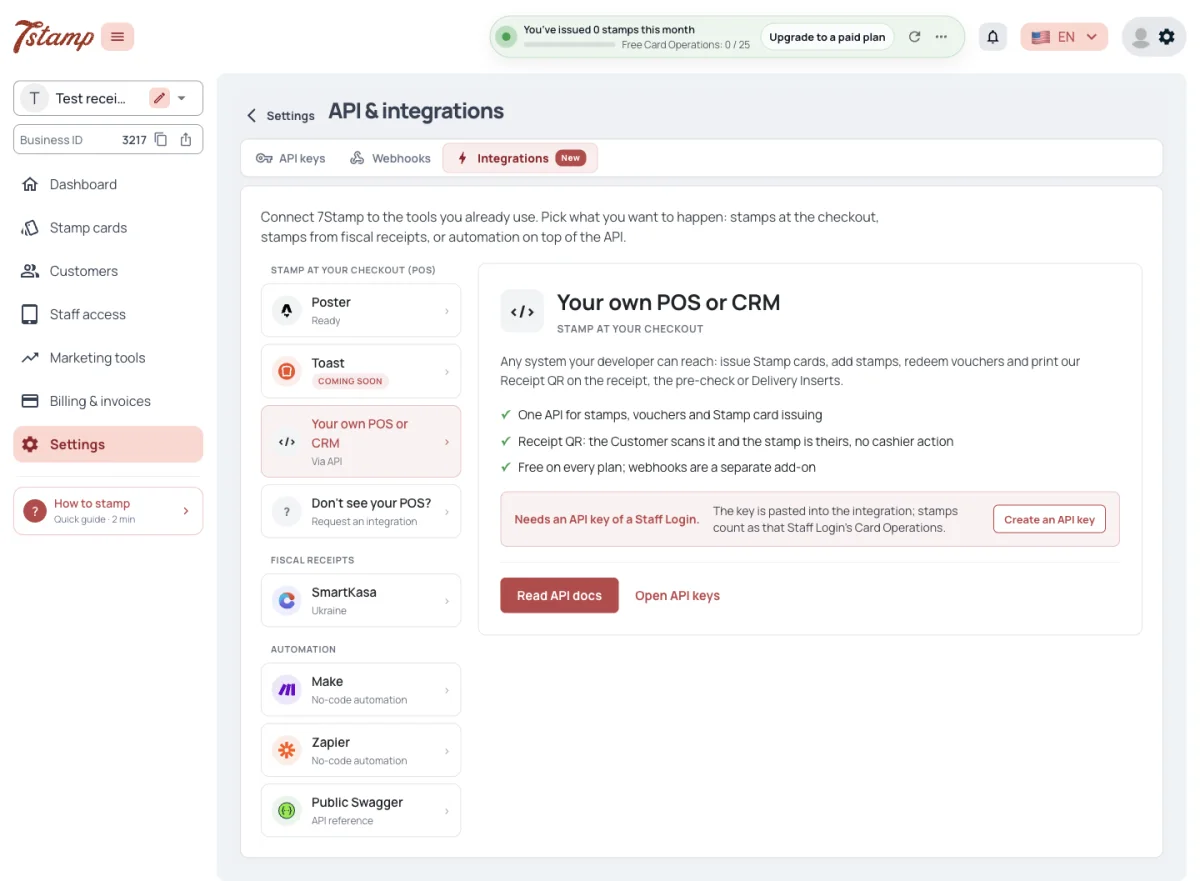
Your POS, online store or own software stamps through the API with an API key created in API & integrations for a Staff Login; every call acts as that Staff Login. Through the API a system issues cards and adds stamps for its own Customer identifier.
A scan through the API sends a number of stamps, a purchase amount or receipt lines. A number of stamps wins over the amount and the earning rule; zero stamps means “count them from the amount or the receipt”. The API only adds stamps: removing them is done in 7Stamp Scanner. Before a scan, the system can ask what it would give; the answer saves nothing and counts no Card Operation, and it works for a Customer who has no card yet.
API keys, Webhooks and the ready integrations are in API, Webhooks and integrations.
Can we add stamps from our own CRM or POS?
Yes, through the API. Create an API key for a Staff Login in API & integrations; your system then issues Stamp cards and adds stamps for its own Customer identifier.
Can our system take stamps back through the API?
No. The API’s scan only adds stamps. Stamps are removed in 7Stamp Scanner.
Our system sends both a number of stamps and an amount. Which one counts?
The number of stamps. It wins over the amount and the earning rule; send zero stamps to have them counted from the amount or the receipt.
Can we show the Customer what a purchase will give before stamping?
Yes. The API can ask what a scan would give; the answer saves nothing and counts no Card Operation.
Autopilot Mode
A hardware QR reader at the counter stamps every card it reads, one stamp each, with nobody pressing anything. The Customer shows the card, and the stamp is added.
Autopilot Mode is a switch in 7Stamp Scanner’s Manual and needs a hardware QR reader: a card read by the phone’s camera only opens the Customer’s card. The details are in the 7Stamp Scanner article, under Autopilot Mode.
Can Autopilot Mode use the phone’s camera?
No. With Autopilot Mode on, a card read by the camera only opens the Customer’s card. Automatic stamps need a hardware QR reader.
How many stamps does Autopilot Mode add?
One stamp for every card the hardware QR reader reads.
Where is Autopilot Mode switched on?
In 7Stamp Scanner, on the Manual screen.
How many stamps a purchase gives
Each Stamp card has one earning rule, set in the editor under How Customers earn stamps:
- Per order — one stamp for each purchase, whatever its amount.
- By amount — one stamp for every full stamp price in the purchase amount, rounded down, so one purchase can give several stamps: a purchase worth two and a half stamp prices gives two.
- By item — one stamp for each unit of a product whose code is on the Stamp card’s list, so two of a listed product give two stamps. Codes match regardless of letter case.
A purchase below one stamp price, or a receipt with none of the listed products, is a valid scan that adds no stamp. The Customer is told why — for an amount, how much was missing — and nothing is sent to them.
By amount and By item work wherever a purchase amount or receipt lines reach 7Stamp: Terminal Mode (By amount), fiscal receipts, Stamp Codes with an amount, the API, POS integrations and Toast. Manual, Kiosk Mode and Autopilot Mode add a number of stamps, never an amount: Kiosk Mode and Autopilot Mode add one stamp per scan, Manual the number staff choose.
Can stamps be given by purchase amount?
Yes. Choose By amount for the Stamp card. The amount reaches 7Stamp through Terminal Mode, fiscal receipts, Stamp Codes with an amount, the API and POS integrations. Manual has no amount — staff choose the number of stamps.
With By amount, does a big purchase give several stamps?
Yes. Each full stamp price in the amount gives one stamp, rounded down — two and a half stamp prices give two stamps.
A Customer’s purchase was below the stamp price. What happens?
The scan is valid but adds no stamp. The Customer is told how much was missing; their card does not change.
Does Kiosk Mode stamp by amount?
No. Kiosk Mode and Autopilot Mode add one stamp per scan, whatever the earning rule.
Which Stamp card gets the stamps
When staff scan a Customer’s card, the stamps go to that card’s Stamp card. Receipts and API calls carry no card, so the Stamp card they stamp is chosen per Staff Login, on its page under Automatic stamping.
A Staff Login without its own choice uses the Business’s default Stamp card. That default has no setting of its own: when a Staff Login is created while the Business has exactly one Stamp card and no default, that card becomes the default. With only one Stamp card in the Business, the choice is locked to it.
With two or more Stamp cards and none chosen — neither for the Staff Login nor as the default — its fiscal receipts give no stamps, and its API calls that name no Stamp card are refused.
We have two Stamp cards. Which one do receipts stamp?
The one chosen for the receipt source’s Staff Login under Automatic stamping. With none chosen and no default, the receipts give no stamps.
Where do I choose the Stamp card for API calls?
On the Staff Login’s page, under Automatic stamping. Every call made with that Staff Login’s API key uses it unless the call names a Stamp card.
Does Automatic stamping change what a card scan in 7Stamp Scanner stamps?
No. A scanned card is stamped on its own Stamp card.
When a scan gives no stamp
A scan gives no stamp to a card of another Business, a card deleted in the admin, a card whose owner deleted their profile, or a card of a Stamp card that is switched off or deleted. A Customer whose card was deleted adds the card again and gets a new one.
Scans are not rate-limited: the same card can be stamped again right away, from 7Stamp Scanner and through the API alike. Only Kiosk Mode guards against a double scan, on its own side.
Stamps on a Customer’s card do not expire.
Do stamps expire?
No. Stamps on a Customer’s card do not expire; only Vouchers can have an end date.
Can staff stamp the same card twice in a row?
Yes. Scans are not rate-limited. Only Kiosk Mode blocks a second scan of the same card in a row.
Why did a Customer’s card get no stamp?
The card may belong to another Business, be deleted, belong to a Customer who deleted their profile, or belong to a Stamp card that is switched off or deleted.
NFC, Apple VAS and Google Smart Tap
NFC does not add stamps: 7Stamp Scanner reads a card’s QR or its number, and neither the scanner nor the Customer’s side reads NFC.
NFC can bring Customers in. You can write a Stamp card’s join link to your own NFC tag, so a phone tap opens the card as scanning the join QR does. 7Stamp itself has no NFC setting.
Apple VAS and Google Smart Tap, where the payment device recognises the loyalty card before payment, can be set up with 7Stamp’s partners. The partner provides the protocol certificate, and the device must accept Apple’s and Google’s encryption keys.
Does NFC add stamps?
No. Stamps come from the ways on the How to stamp page; 7Stamp Scanner reads a card’s QR or its number, not NFC.
Can Customers get the Stamp card by tapping an NFC tag?
Yes. Write the Stamp card’s join link to your own NFC tag; a tap opens the card like the join QR.
Can a payment device recognise the loyalty card before payment with Apple VAS or Google Smart Tap?
Yes, with 7Stamp’s partners. You need the protocol certificate from the partner, and the device must accept Apple’s and Google’s encryption keys.