
How receipt scanning works
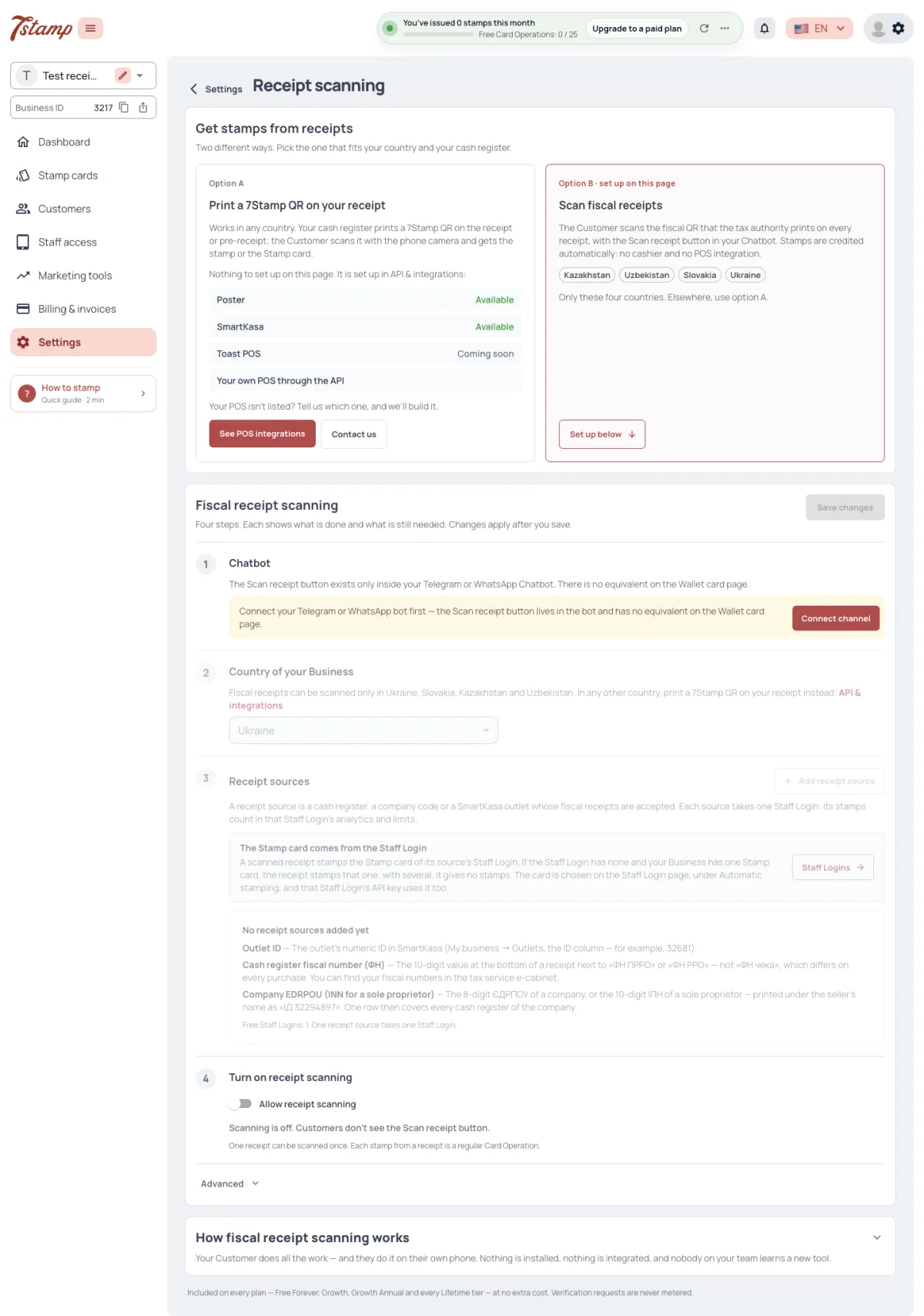
Settings → Receipt scanning offers two ways to get stamps from receipts. Option A, a 7Stamp QR printed on your receipt, is set up in API & integrations and is described in Ways to give a stamp. Option B, scanning fiscal receipts, is set up on this page and is what this article is about.
The Customer taps Scan receipt in your Business’s Telegram or WhatsApp bot and scans the fiscal QR on the receipt. 7Stamp fetches that receipt from the country’s fiscal service, checks it and stamps it by the Stamp card’s earning rule, from the receipt total and its product lines. The first receipt of a Customer issues them the card.
What do staff have to do for a fiscal receipt?
Nothing. The Customer scans the receipt in your Chatbot, and 7Stamp fetches it from the fiscal service and adds the stamps.
Does the Customer need the Stamp card before scanning a receipt?
No. The first receipt a Customer scans issues the card.
Can a fiscal receipt give stamps by amount or by product?
Yes. The receipt is stamped by the Stamp card’s earning rule, from the receipt total and its product lines.
Setting it up: four steps
Until receipt scanning is switched on or has a receipt source, the page opens on the choice between option A and option B. After that, a line at the top says whether Customers can scan, with the country and the number of receipt sources.
Fiscal receipt scanning is set up in four steps, in this order:
- Chatbot — your Telegram or WhatsApp bot.
- Country of your Business.
- Receipt sources.
- Turn on receipt scanning — the Allow receipt scanning switch.
Each step shows whether it is done, still to do or has a problem. The country and the receipt sources open only once a Chatbot is connected. Changes apply after Save changes.
While Allow receipt scanning is off, your bot shows no Scan receipt button and a receipt is refused; the line under the switch then reads: Scanning is off. Customers don’t see the Scan receipt button. With the switch on, the line says whether Customers can scan right now, or what is missing: a Chatbot, a saved country, a receipt source, or a receipt source without a problem.
In what order do I set up receipt scanning?
Chatbot, the country of your Business, receipt sources, and then the Allow receipt scanning switch. Each step shows whether it is done, still to do or has a problem.
Why can’t I pick the country?
The country and the receipt sources open only once a Chatbot is connected. Connect your bot in the first step.
The switch is on, but Customers still can’t scan. Why?
Read the line under the switch. It says what is missing — a Chatbot, a saved country, a receipt source, or a receipt source without a problem.
Do Customers see the Scan receipt button while receipt scanning is off?
No. While Allow receipt scanning is off, the bot shows no Scan receipt button and a receipt is refused.
I changed the settings, but nothing happened.
Changes on the Receipt scanning page apply after Save changes.
Countries
Fiscal receipts can be scanned for stamps only in Ukraine, Slovakia, Kazakhstan and Uzbekistan.
In any other country use option A: your POS prints a 7Stamp QR on the receipt, or Stamp Codes when it has no integration.
Which countries does fiscal receipt scanning work in?
Only Ukraine, Slovakia, Kazakhstan and Uzbekistan.
We are in another country. Can Customers still get stamps from a receipt?
Yes, with a 7Stamp QR printed on your receipt by your POS, or with Stamp Codes printed on it when your POS has no integration.
Our Business runs in two countries. Does receipt scanning cover both?
Fiscal receipts are scanned only in Ukraine, Slovakia, Kazakhstan and Uzbekistan. In other countries use a QR printed on your receipt.
The Chatbot
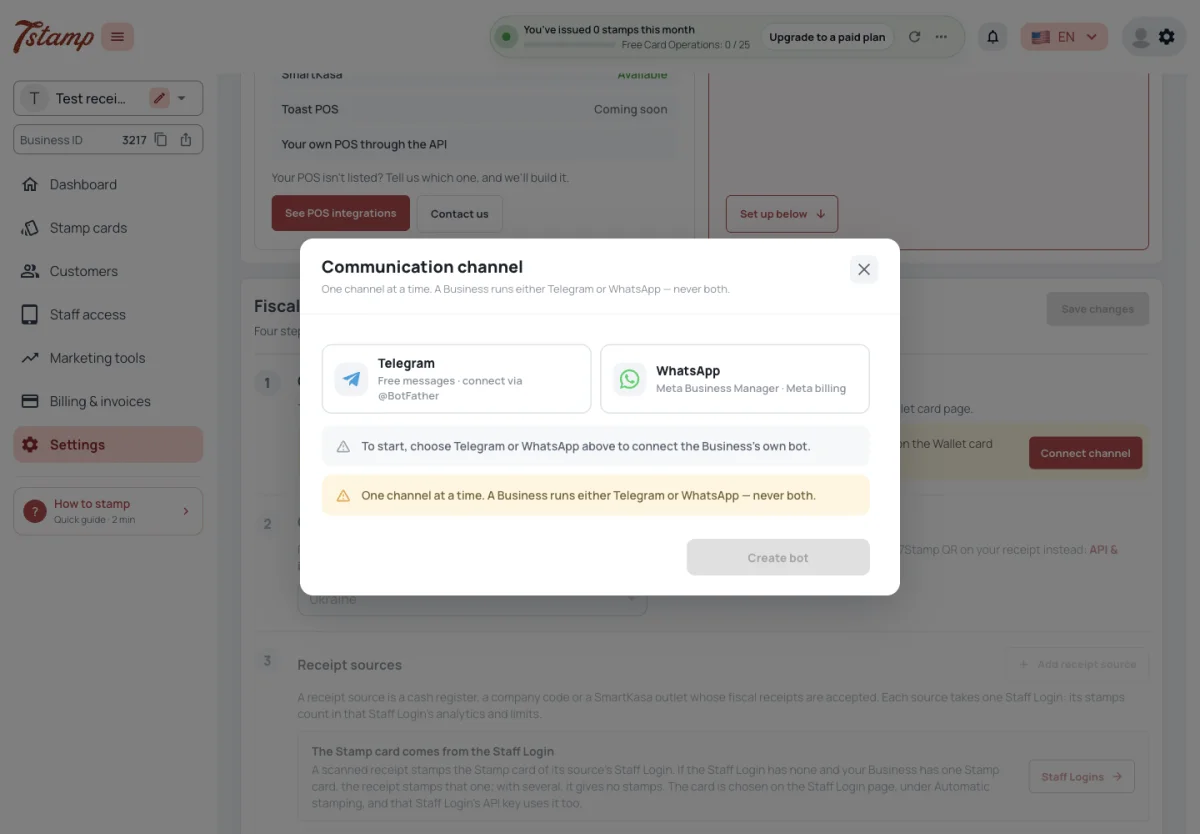
The Scan receipt button exists only in your Business’s Telegram or WhatsApp bot. There is none on the web card page or in My 7Stamp, so fiscal receipt scanning needs a connected bot.
With no bot yet, Connect channel in the Chatbot step opens the bot connection right on the Receipt scanning page, so you do not leave it. If your bot is switched off, the step offers Go to Chatbot instead, which opens Settings → Channels → Chatbot.
The bot is your own: a Telegram bot connected with the token from @BotFather, or a WhatsApp number connected through your Meta Business Manager. 7Stamp has no shared bot for Customers. A Business has one bot at a time, in Telegram or in WhatsApp, never both. Everything else about the bot is in Channels: Wallet push, Email, Chatbot.
Can Customers scan a receipt from their Stamp card in Apple Wallet?
No. The Scan receipt button exists only in your Telegram or WhatsApp bot, not on the web card page or in My 7Stamp.
Can I use 7Stamp’s bot instead of creating my own?
No. 7Stamp has no shared bot for Customers; you connect your own Telegram bot or WhatsApp number.
Can we connect both Telegram and WhatsApp for receipts?
No. A Business has one bot at a time, in Telegram or in WhatsApp.
Do I have to leave Receipt scanning to connect the bot?
No. With no bot yet, Connect channel in the Chatbot step opens the bot connection on the same page. A switched-off bot is turned back on in Settings → Channels → Chatbot, through Go to Chatbot.
Receipt sources
A fiscal receipt gives stamps only when it comes from a receipt source your Business added in Receipt scanning: a cash register’s fiscal number, a company code, or a SmartKasa outlet. Each source is tied to a Staff Login, and its stamps are given through that Staff Login. A source whose Staff Login is switched off or deleted takes no receipts.
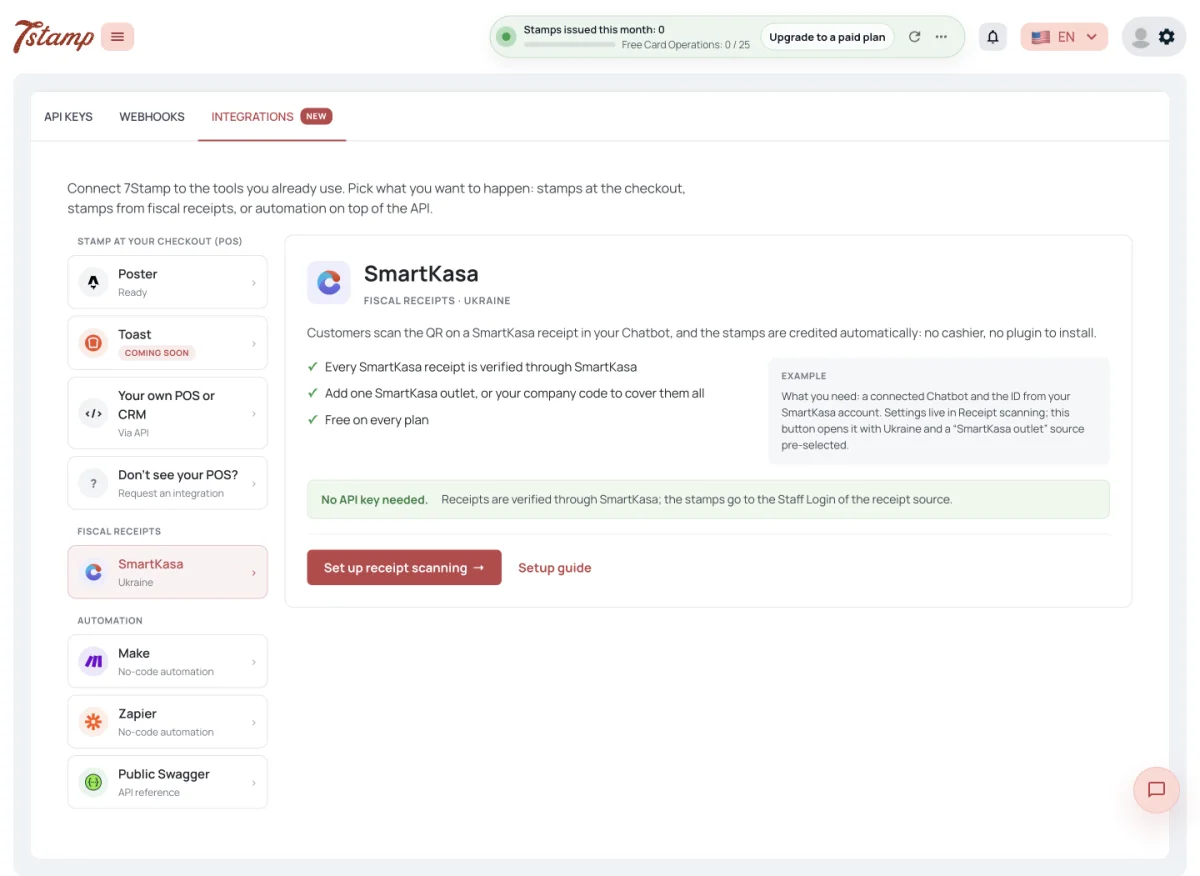
SmartKasa needs no API key: it is a receipt source in Receipt scanning, added by a SmartKasa outlet ID, or by the company code to cover every outlet. Customers scan the SmartKasa receipt in your Chatbot, and the stamps go to the Staff Login of that receipt source.
The Stamp card a receipt stamps comes from the source’s Staff Login — see Which Stamp card gets the stamps in Ways to give a stamp.
Customers scan receipts but get no stamps. Why?
The receipt must come from a receipt source your Business added — a cash register’s fiscal number, a company code or a SmartKasa outlet — and the source’s Staff Login must be switched on. A Stamp card must also be chosen for that Staff Login (Ways to give a stamp, Which Stamp card gets the stamps).
We have several cash registers. Do I add each one?
Add each cash register’s fiscal number, or add the company code as one source.
Do I need a SmartKasa API key?
No. SmartKasa is added as a receipt source in Receipt scanning, by a SmartKasa outlet ID or by the company code for every outlet.
Which Staff Login gets the stamps from receipts?
The Staff Login the receipt source is tied to.
SmartKasa: practical setup
SmartKasa lets a Customer collect stamps from a fiscal receipt without the cashier scanning the Customer’s card. After a purchase, the Customer opens the Business’s Telegram or WhatsApp Chatbot, taps Scan receipt and scans the fiscal QR on the receipt. 7Stamp checks the receipt and applies the earning rule of the Stamp card selected for that receipt source.
Set it up in this order:
- Connect the Business’s Chatbot.
- Choose the country of the Business: Ukraine, Slovakia, Kazakhstan or Uzbekistan.
- Add a receipt source. Choose a SmartKasa outlet ID, or use the company code to cover every SmartKasa outlet of that company. SmartKasa needs no API key.
- Turn on Allow receipt scanning and select Save changes.
Every source is tied to an active Staff Login. Its Automatic stamping setting chooses the Stamp card that receives stamps from accepted receipts. Set the source’s Scan window too: a new source accepts receipts for five minutes after purchase by default; zero means no time limit.
When a receipt is accepted, the Customer receives the stamps and the reward configured on the Stamp card. With Customer Self-Redemption on, the Customer redeems an issued Voucher in the Chatbot and shows the code or redeemed status at checkout. With it off, staff redeem the Voucher in 7Stamp Scanner.
Does SmartKasa need an API key for receipt scanning?
No. Add the SmartKasa outlet ID as a receipt source, or use the company code to cover every SmartKasa outlet of that company.
What does the cashier have to do when a Customer scans a SmartKasa receipt?
Nothing. The Customer scans the fiscal QR in the Business’s Chatbot; 7Stamp checks the receipt and adds the stamps.
Which Stamp card receives stamps from a SmartKasa receipt?
The Stamp card selected in Automatic stamping for the active Staff Login tied to that receipt source.
How long can a Customer wait before scanning a SmartKasa receipt?
A new source accepts receipts for five minutes after purchase. Change its Scan window, or set zero for no time limit.
Which receipts are accepted
A receipt gives stamps once, and only while it is no older than its source allows. A receipt that 7Stamp itself sent to SmartKasa for an order is refused. A receipt from a cash register or company your Business has not added as a source gives no stamps.
How old a receipt may be is the source’s Scan window, in minutes: how long after the purchase its receipts can still be scanned. A new source gets five minutes; zero means no limit. You change it when you add or edit the receipt source.
What a receipt scan costs is below, under What receipt scanning costs.
Can a Customer scan the same receipt twice?
No. A receipt gives stamps once.
Can a Customer scan an old receipt?
Only within the receipt source’s Scan window — five minutes after the purchase for a new source, unless you change it. Zero means no limit.
Customers scan the receipt at home in the evening and get nothing. Why?
A new receipt source takes receipts for five minutes after the purchase; a later scan is refused. Make the source’s Scan window longer, or set zero for no limit.
Can a Customer get stamps for another shop’s receipt?
No. Only receipts from the receipt sources your Business added give stamps.
Test mode
Advanced, at the bottom of the Receipt scanning page, holds Test mode, for trying the flow before you go live. While it is on, any receipt is accepted: no country, receipt source or Scan window is checked, and one receipt can be scanned again.
Allow receipt scanning must still be on. The stamps Test mode gives are real stamps on the Customer’s card and count as Card Operations, so turn Test mode off before going live.
How do I try receipt scanning without setting up receipt sources?
Open Advanced on the Receipt scanning page and turn on Test mode. Any receipt is then accepted, with no country, receipt source or Scan window checked. Allow receipt scanning must still be on.
Are stamps from Test mode real?
Yes. They land on the Customer’s card and count as Card Operations.
Can one receipt be scanned twice in Test mode?
Yes. Test mode does not check for a receipt scanned before — turn it off before going live.
What receipt scanning costs
Receipt scanning has no fee of its own on any plan, and fetching and checking a receipt with the fiscal service is not counted.
A receipt that passes the checks and stamps a Stamp card counts one Card Operation — one per receipt, however many stamps it gives, even none when it is below the stamp price or has no listed product. A refused receipt counts nothing.
When the Card Operations run out, a receipt scan still saves the receipt, but issues no card and adds no stamp, and the admins get a notice. Allowances and plans are in Plans and billing.
Does receipt scanning cost extra?
No. It has no fee of its own on any plan, and checking the receipt with the fiscal service is not counted. A receipt that stamps a card counts one Card Operation.
A receipt gave three stamps. How many Card Operations is that?
One. A receipt counts one Card Operation, however many stamps it gives.
Does a refused receipt use a Card Operation?
No. A receipt scanned before, too old, or from a source you have not added counts nothing.
What happens to receipt scans when the Card Operations run out?
The receipt is saved, but no card is issued and no stamp added; the admins get a notice.