
13. Staff — कर्मचारी और स्कैनर लॉगिन
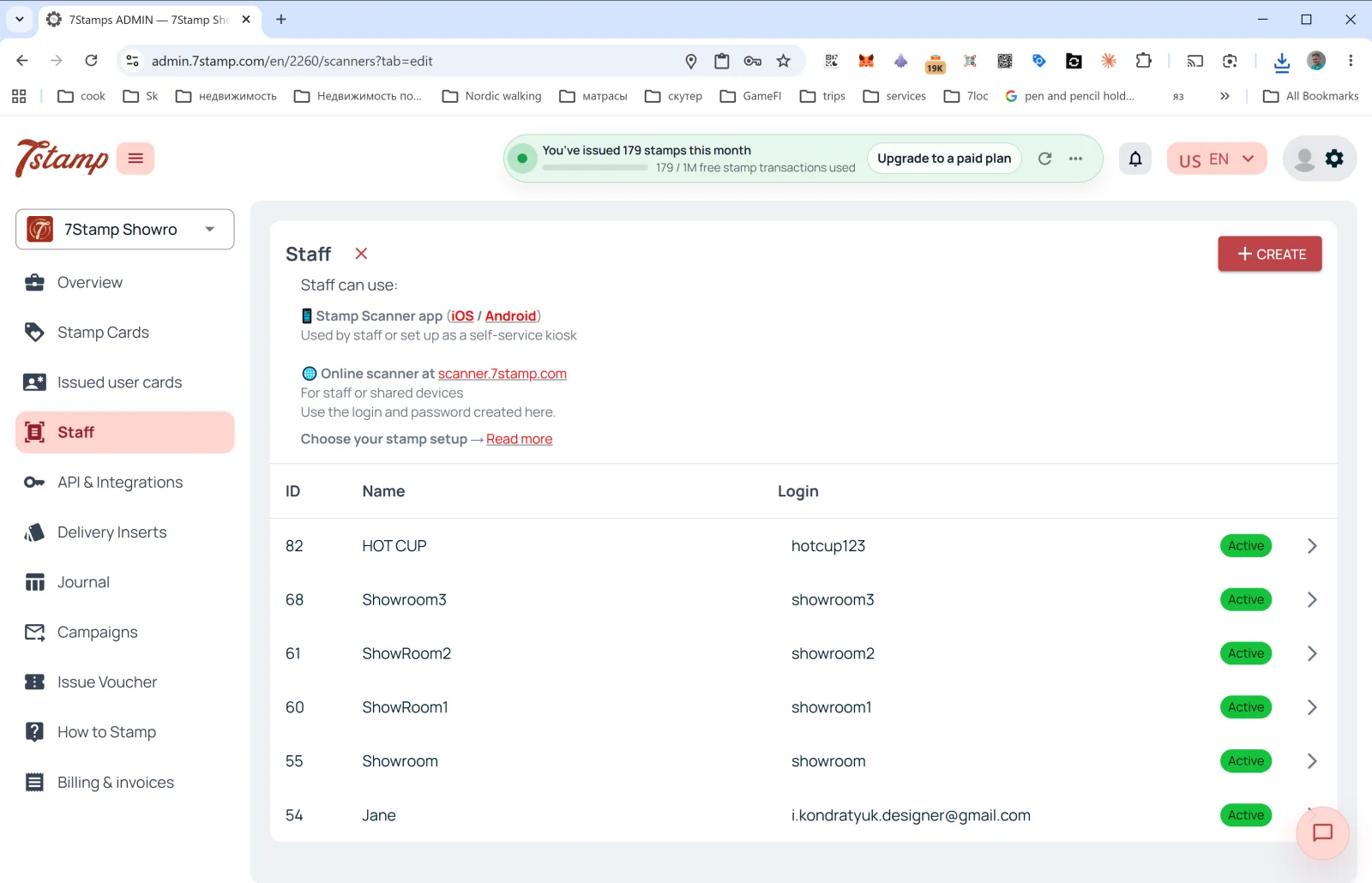
साइड मेन्यू का Staff (कर्मचारी) सेक्शन वह जगह है जहां आप ग्राहकों के कार्ड स्कैन करने वाले कर्मचारियों को मैनेज करते हैं।
Staff क्या है
7Stamp की बिलिंग के हिसाब से एक कर्मचारी लॉगिन = एक Staff Seat = एक एंट्री पॉइंट, जो एक समय पर एक सेशन में काम करता है। इसकी गिनती लॉगिन से होती है, हार्डवेयर से कभी नहीं, और यह हो सकता है:
- कोई खास कर्मचारी (जैसे अन्ना नाम की बरिस्ता)।
- कोई खास कैश काउंटर या काउंटर (जैसे
Bar Counter,Cash Register 2)। - एक लोकेशन / ब्रांच (अगर आपकी कई लोकेशन हैं, तो हर एक का अपना लॉगिन हो सकता है)।
Staff कहां काम करता है
पेज के ऊपर दिया गया विवरण:
- 📱 Stamp Scanner ऐप (iOS / Android) — “कर्मचारी इस्तेमाल करते हैं या इसे सेल्फ़-सर्विस कियोस्क के रूप में सेट किया जाता है”।
- 🌐 scanner.7stamp.com पर ऑनलाइन स्कैनर — “कर्मचारियों या साझा डिवाइस के लिए। यहां बनाया गया लॉगिन और पासवर्ड इस्तेमाल करें।”
यानी एक ही कर्मचारी लॉगिन मोबाइल ऐप और वेब वर्ज़न दोनों में इस्तेमाल हो सकता है, लेकिन एक समय पर केवल एक सक्रिय सेशन में: एक पर साइन इन करने से दूसरा साइन आउट हो जाता है। एक साथ काम करने वाले दो एंट्री पॉइंट के लिए दो कर्मचारी लॉगिन चाहिए।
सूची के कॉलम
- ID — कर्मचारी का आंतरिक नंबर।
- Name — दिखाया जाने वाला नाम (
HOT CUP,Jane,Showroom1आदि)। - Login — Scanner में लॉगिन करने का नाम।
- Status —
Active(हरा बैज)।
नया कर्मचारी लॉगिन बनाना
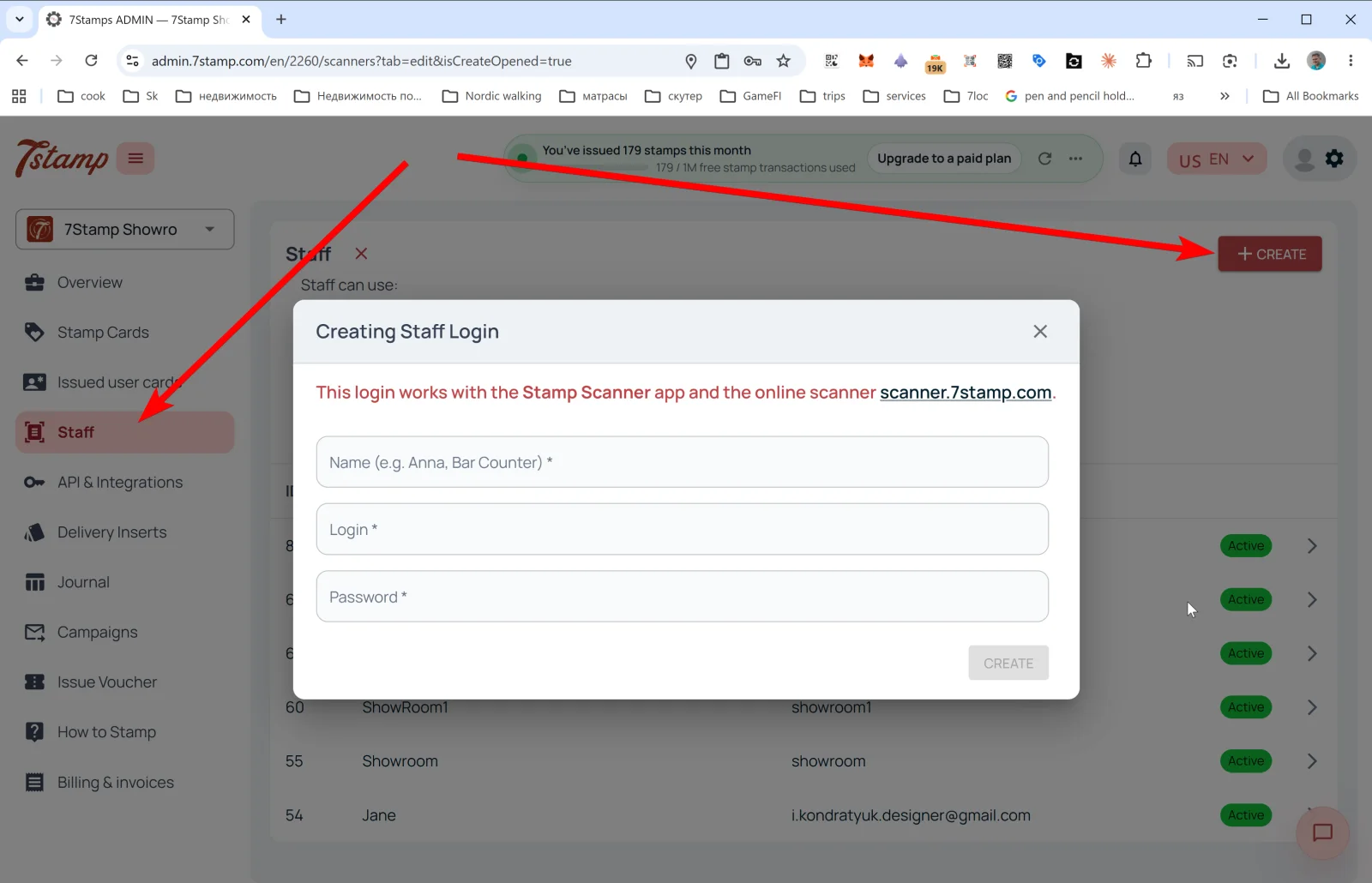
ऊपर दाईं ओर + CREATE पर टैप करें — Creating Staff Login पॉपअप खुलता है।
संदेश: “यह लॉगिन Stamp Scanner ऐप और ऑनलाइन स्कैनर scanner.7stamp.com के साथ काम करता है।”
फ़ील्ड:
- Name (e.g. Anna, Bar Counter) * — दिखाया जाने वाला नाम।
- Login * — लॉगिन (जैसे
anna_barयाbar_counter)। - Password * — पासवर्ड।
CREATE पर टैप करें — कर्मचारी लॉगिन सूची में दिख जाता है और तुरंत Scanner में लॉगिन के लिए उपलब्ध होता है।
सलाह। अगर आपकी दो शिफ़्ट हैं — सुबह और शाम — तो दो अलग कर्मचारी लॉगिन बनाएं (morning_shift और evening_shift)। Overview → Location analytics (Staff) में आपको हर एक के आंकड़े अलग-अलग दिखेंगे और आप समझ पाएंगे कि ग्राहकों को प्रोग्राम कौन बेहतर तरीके से ऑफ़र करता है।
दृश्य मार्गदर्शिका
Use the screen sets below as a visual companion to the लेख. खोलें any image to inspect it at full size.