
Reference
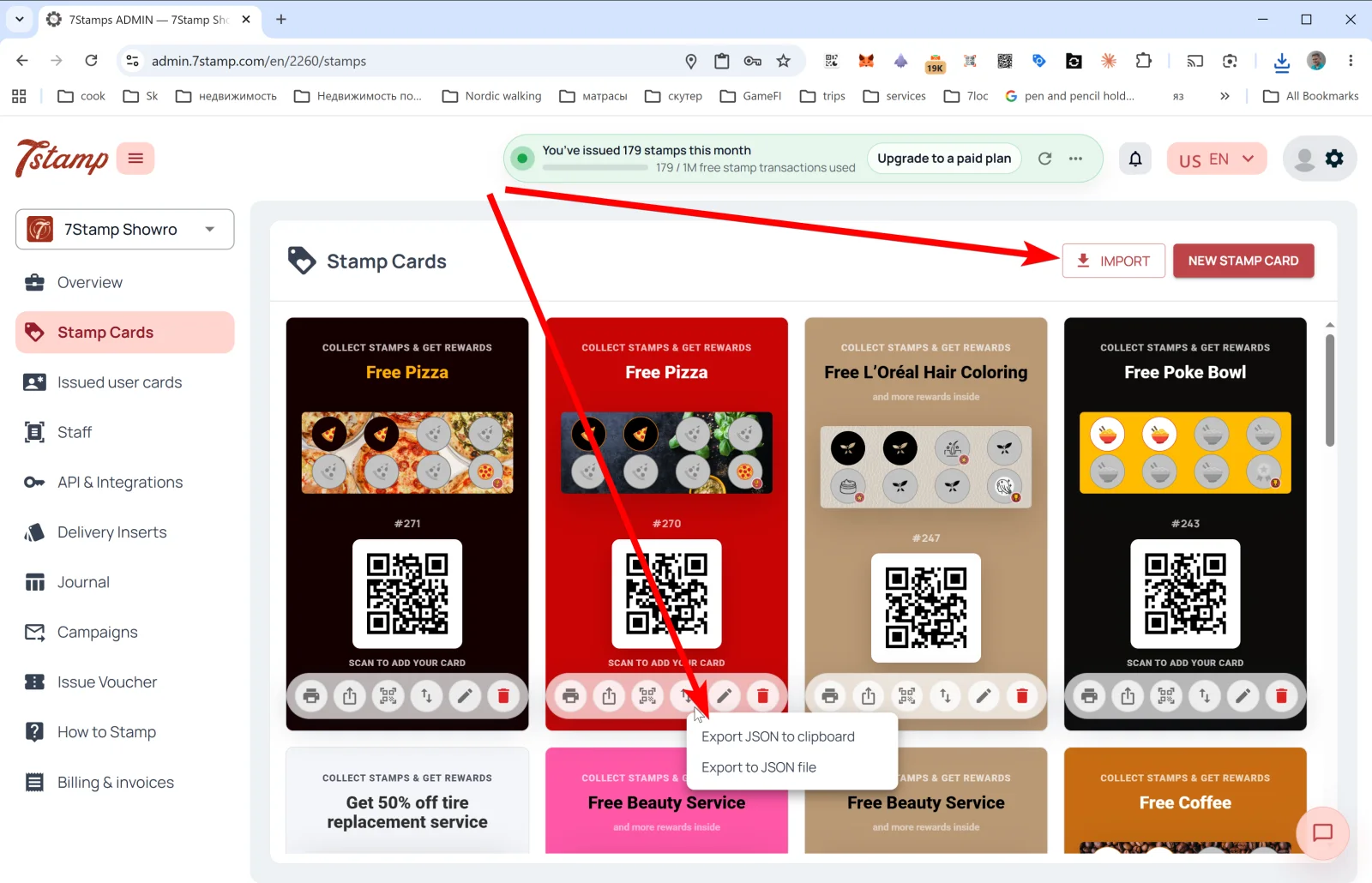
გვერდითი მენიუს განყოფილება Stamp Cards არის თქვენი ყველა ბარათის შაბლონის გალერეა. თითოეულ ბარათზე ჩანს მისი დიზაინი, სტამპების პროგრესის ზოლი, #ID და QR, რომლითაც მომხმარებლები პროგრამას უერთდებიან.
4. Stamp Cards — თქვენი ლოიალობის ბარათები
გვერდითი მენიუს განყოფილება Stamp Cards (სტამპ-ბარათები) არის თქვენი ყველა ბარათის შაბლონის გალერეა. თითოეულ ბარათზე ჩანს მისი დიზაინი, სტამპების პროგრესის ზოლი, #ID და QR, რომლითაც მომხმარებლები პროგრამას უერთდებიან.
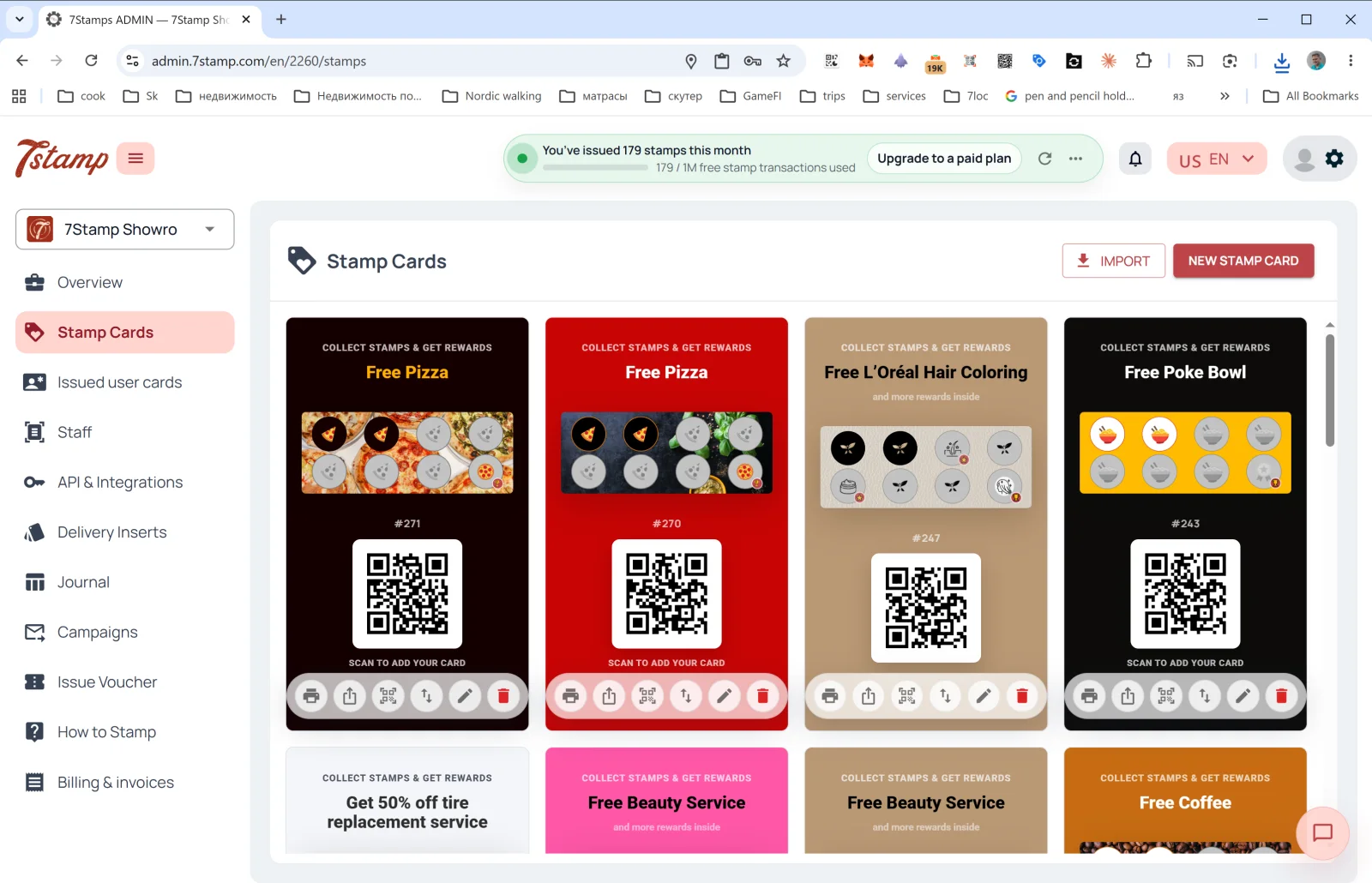
რისი გაკეთება შეიძლება Stamp Cards გვერდზე
ორი ღილაკი ზედა მარჯვენა კუთხეში:
- NEW STAMP CARD — გახსენით Card Designer და შექმენით ახალი ბარათი ნულიდან ან შაბლონიდან. დეტალები იხილეთ განყოფილებაში 5. Card Designer.
- IMPORT — ბარათის ჩატვირთვა JSON ფაილიდან (მაგალითად, თუ ის სხვა პროფილიდან გაიტანეთ ან პარტნიორისგან მიიღეთ).
გალერეაში თითოეული ბარათის ქვეშ — მოქმედებების ექვსი ხატულა (მარცხნიდან მარჯვნივ):
| ხატულა | რას აკეთებს |
|---|---|
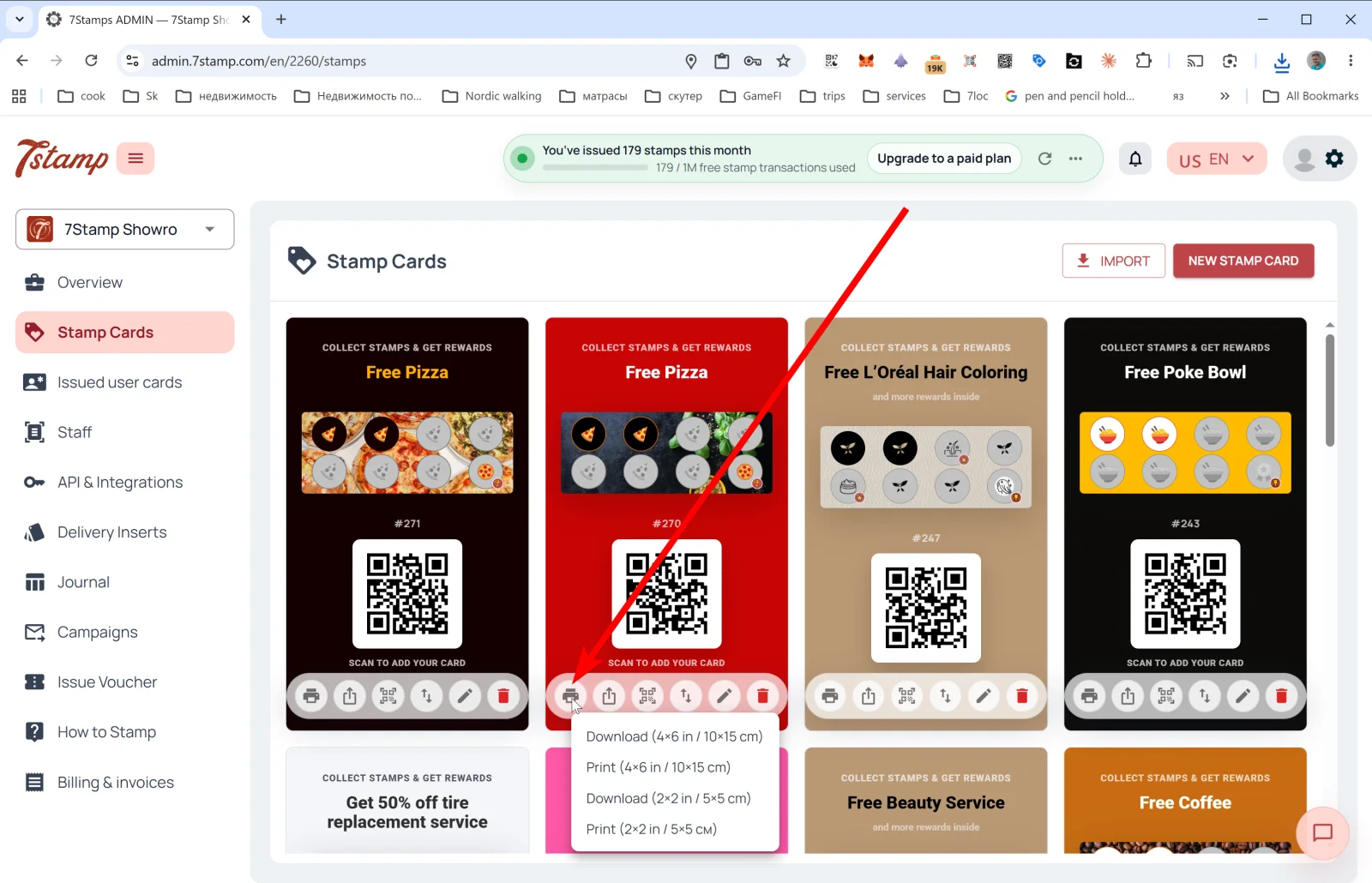
| 🖨️ Print / Download QR | ხსნის QR-ეტიკეტის ექსპორტის მენიუს ორ ფორმატში: Download (4×6 in / 10×15 cm), Print (4×6 in / 10×15 cm), Download (2×2 in / 5×5 cm), Print (2×2 in / 5×5 cm). დიდი ფორმატი განკუთვნილია პლაკატისთვის ან შესასვლელთან დახლის აბრისთვის; პატარა ფორმატი — მაგიდის სადგამისთვის ან შეფუთვისთვის. |
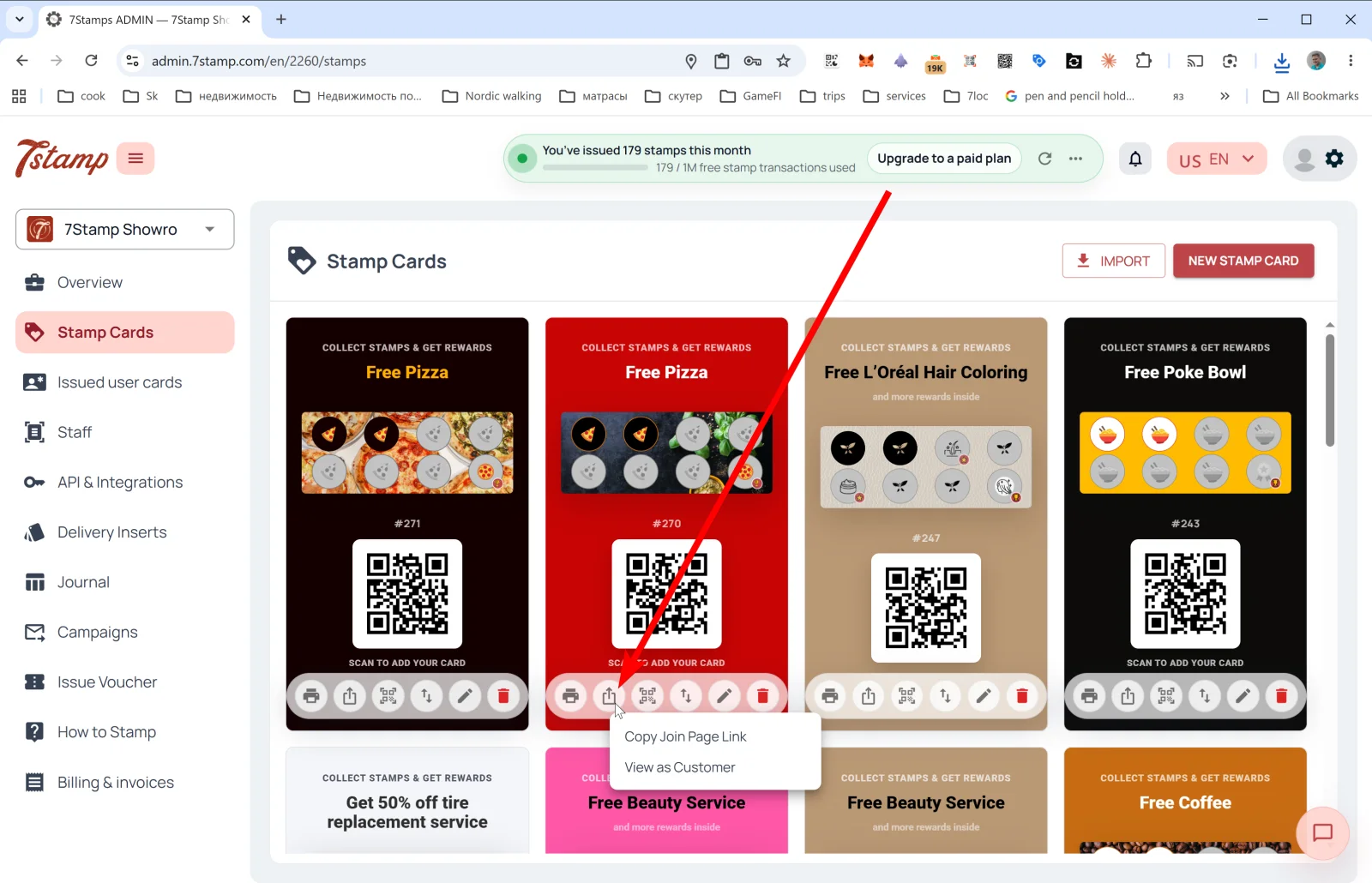
| ⤴️ Share | საჯარო ბმულების მენიუ: Copy Join Page Link (აკოპირებს ბარათის პირდაპირ ბმულს Instagram-ის ბიოსთვის, ვებსაიტისთვის, ელფოსტისთვის) და View as Customer (ხსნის შეერთების გვერდს ისე, როგორც მომხმარებელი დაინახავს, რათა შეამოწმოთ, როგორ იმუშავებს). |
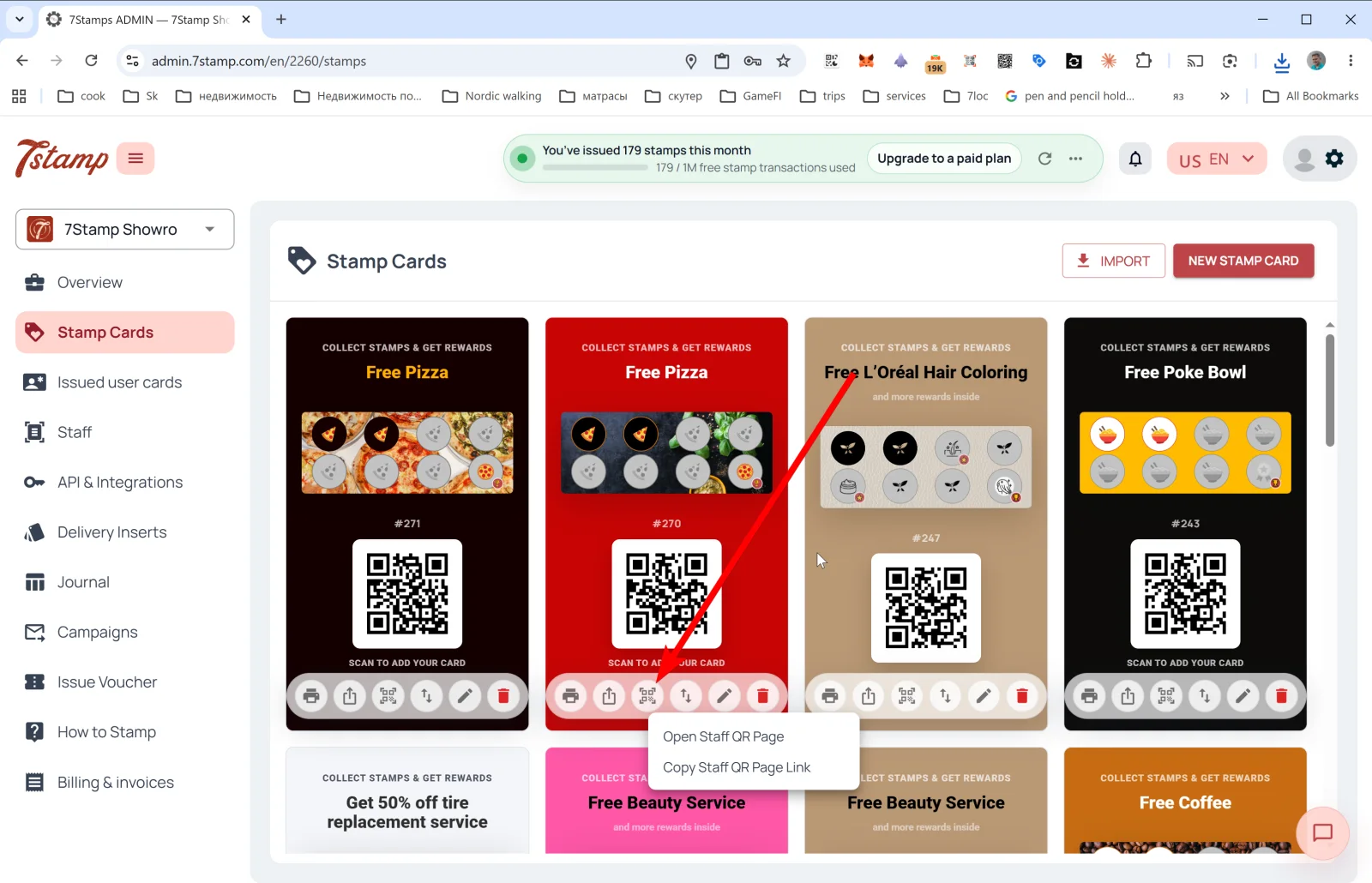
| 🔳 Staff QR Page | პერსონალის QR-გვერდის მენიუ: Open Staff QR Page და Copy Staff QR Page Link. თანამშრომელი ამ გვერდს ტელეფონზე ხსნის და მომხმარებელს აჩვენებს — მომხმარებელი ასკანერებს და იღებს ბარათს. სასარგებლოა პრემიუმ-მომსახურებისას, როცა პირადი კონტაქტი მნიშვნელოვანია. |
| ↕️ Export Card Template | Export JSON to clipboard ან Export to JSON file. სასარგებლოა სარეზერვო ასლისთვის, მიგრაციისთვის, ბარათის პარტნიორისთვის გაზიარებისთვის ან შაბლონად გამოსაყენებლად. |
| ✏️ Edit | ბარათის გახსნა Card Designer-ში რედაქტირებისთვის. |
| 🗑️ Delete | ბარათის წაშლა. |
რჩევა. დასაწყისში ერთდროულად ხუთი ბარათი არ გჭირდებათ — ერთი კარგად მორგებული ბარათი, როგორც წესი, ერთი თვის ტესტირებისთვის საკმარისია. როცა გაიგებთ, რა მუშაობს, შეგიძლიათ ის Export/Import-ით დააკლონიროთ და A/B ვარიანტები გაუშვათ.
რას აჩვენებს ბარათის წინასწარი ხედი გალერეაში
ბარათის წინასწარი ხედი გალერეაში ვიზუალურად იმეორებს იმას, რასაც მომხმარებელი Apple/Google Wallet-ში დაინახავს:
- სათაურის ნიშანი: “COLLECT STAMPS & GET REWARDS”.
- საბოლოო ჯილდოს სახელი (მაგალითად, “Free Pizza”, “Free Beauty Service”, “Free Coffee”).
- სტამპების პროგრესის ზოლი ხატულებით — აქტიური და არააქტიური.
- ბარათის შაბლონის
#ID(მაგალითად,#271). - QR-კოდი “SCAN TO ADD YOUR CARD” — მომხმარებლები მას ასკანერებენ ბარათის Wallet-ში შესანახად.
Visual walkthrough
Use the screen sets below as a visual companion to the article. Open any image to inspect it at full size.