Reference Program design

Stamp カード — your ロイヤルティ カード

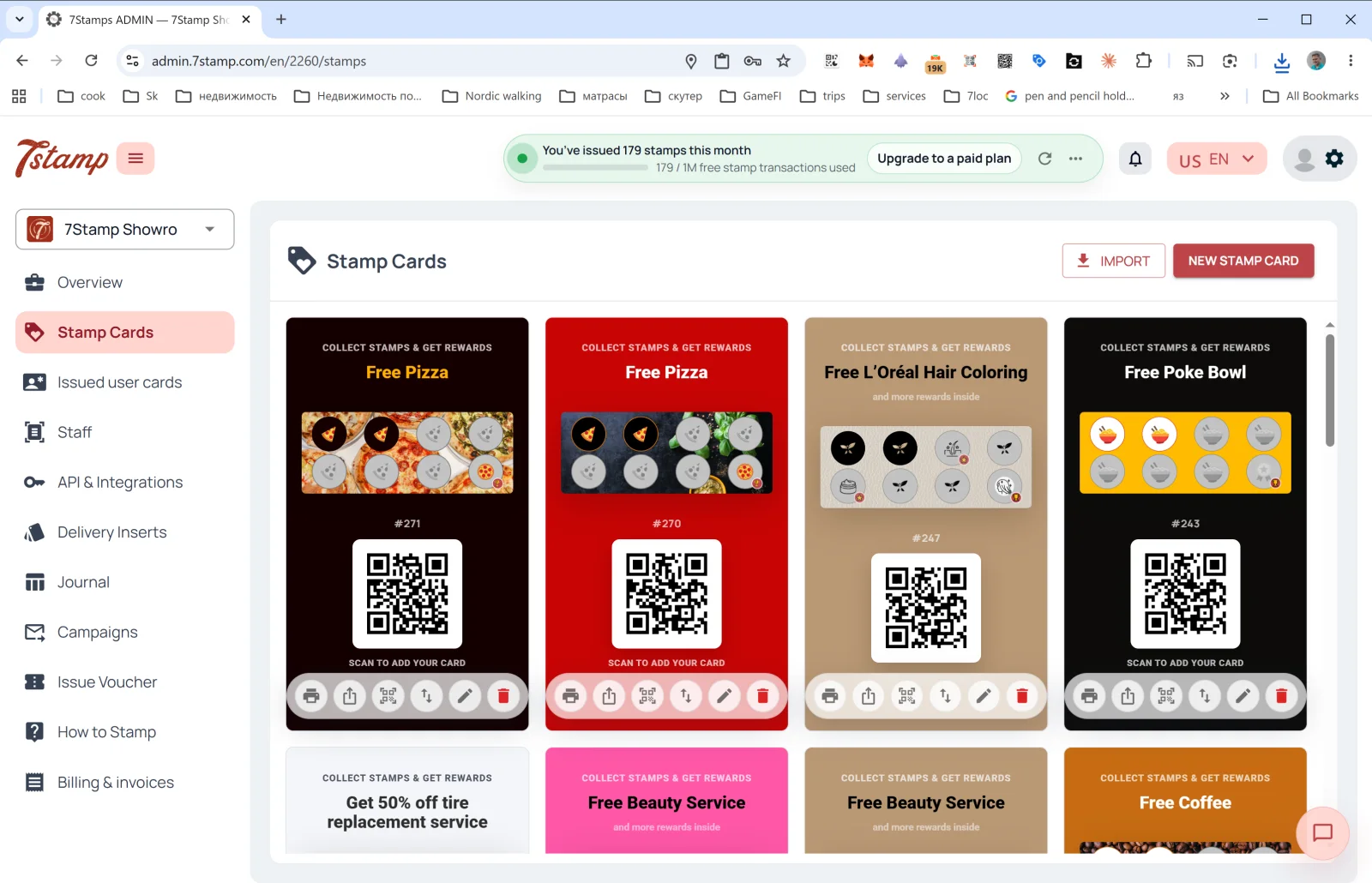
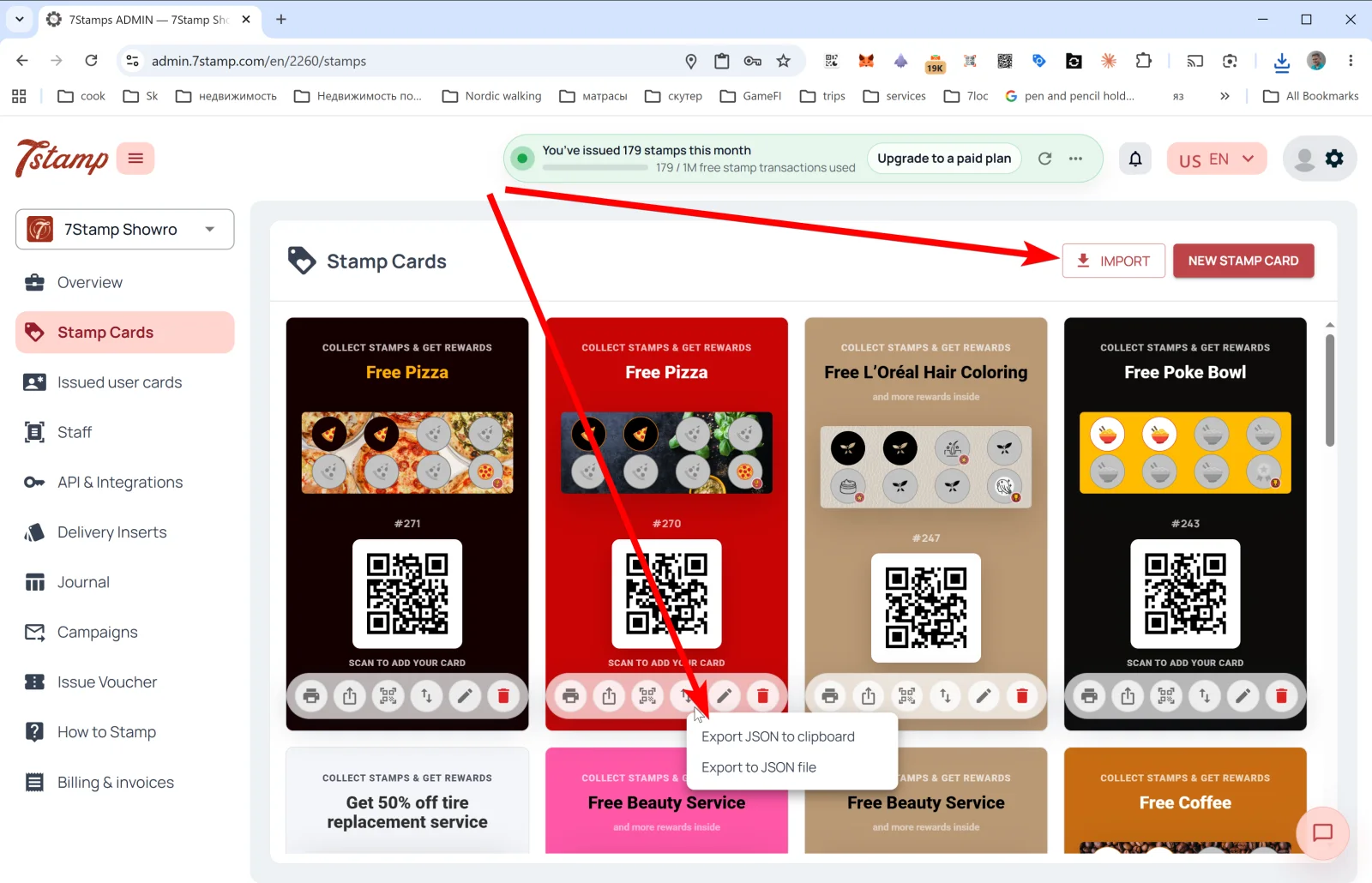
The Stamp カード セクション in the side menu is the gallery of all your カード templates. Each カード shows its design, the Stamp progress bar, the #ID, and the QR for 顧客 to 参加.

クイックリード

更新日: 2026年5月25日

4. Stamp カード — your ロイヤルティ カード

The Stamp カード セクション in the side menu is the gallery of all your カード templates. Each カード shows its design, the Stamp progress bar, the #ID, and the QR for 顧客 to 参加.

0201 StampCards

What you can do on the Stamp カード page

Two buttons in the upper right:

  • NEW STAMP CARD — 開く カード Designer and 作成 a new カード from scratch or from a template. 項目s in セクション 5. カード Designer.
  • IMPORT — load a カード from a JSON file (for example, if you exported it from another profile or received it from a partner).

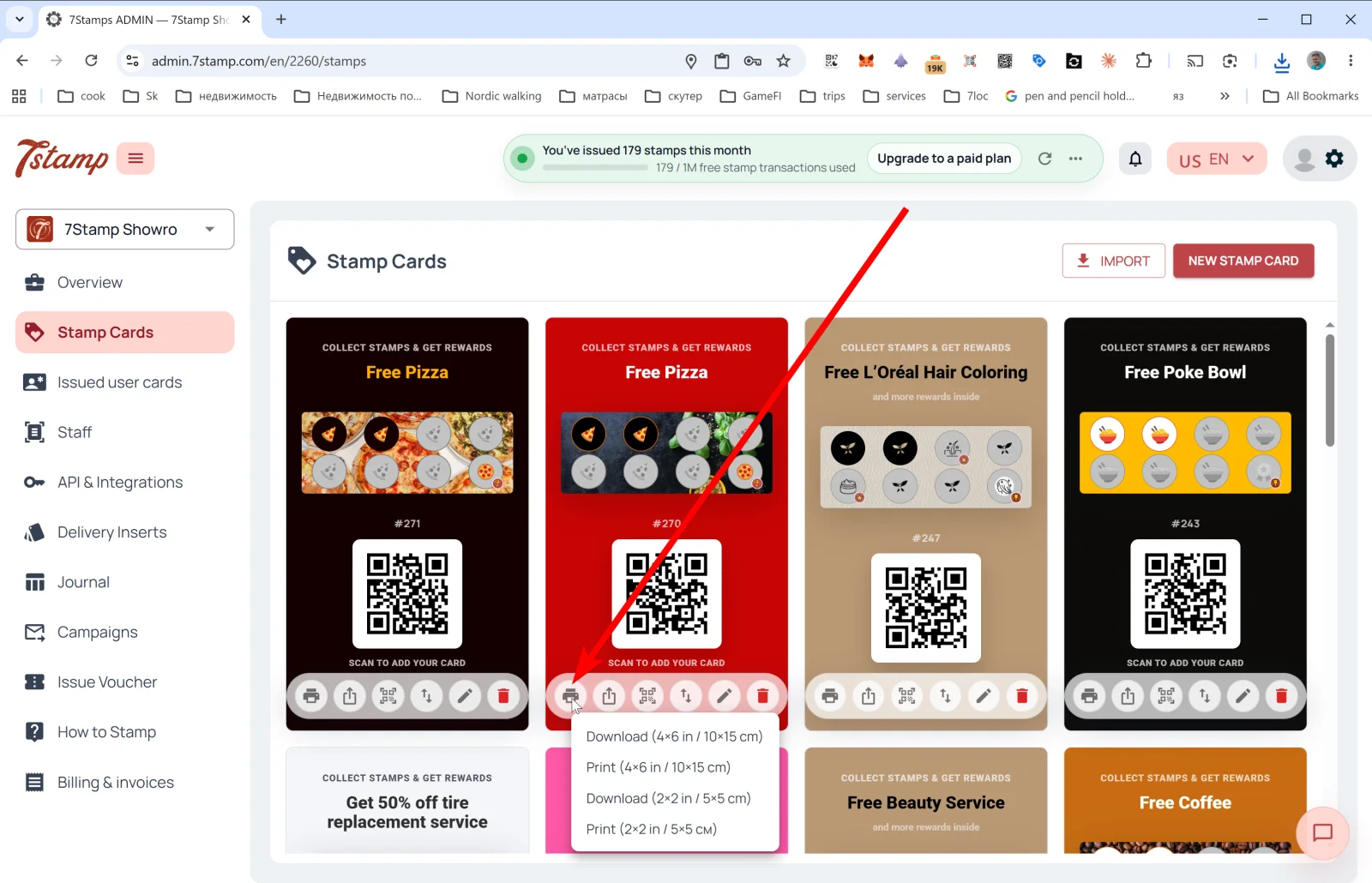
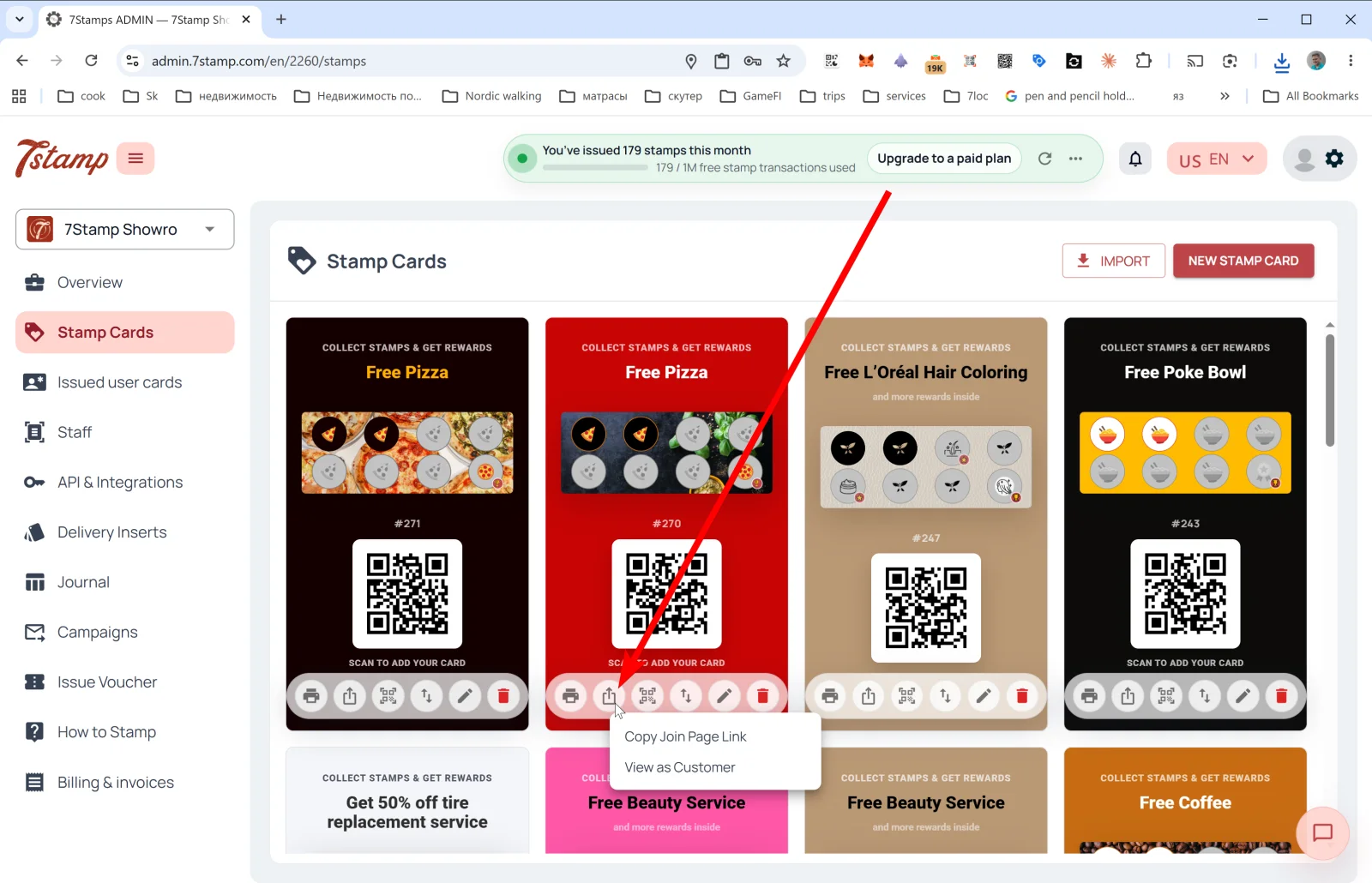
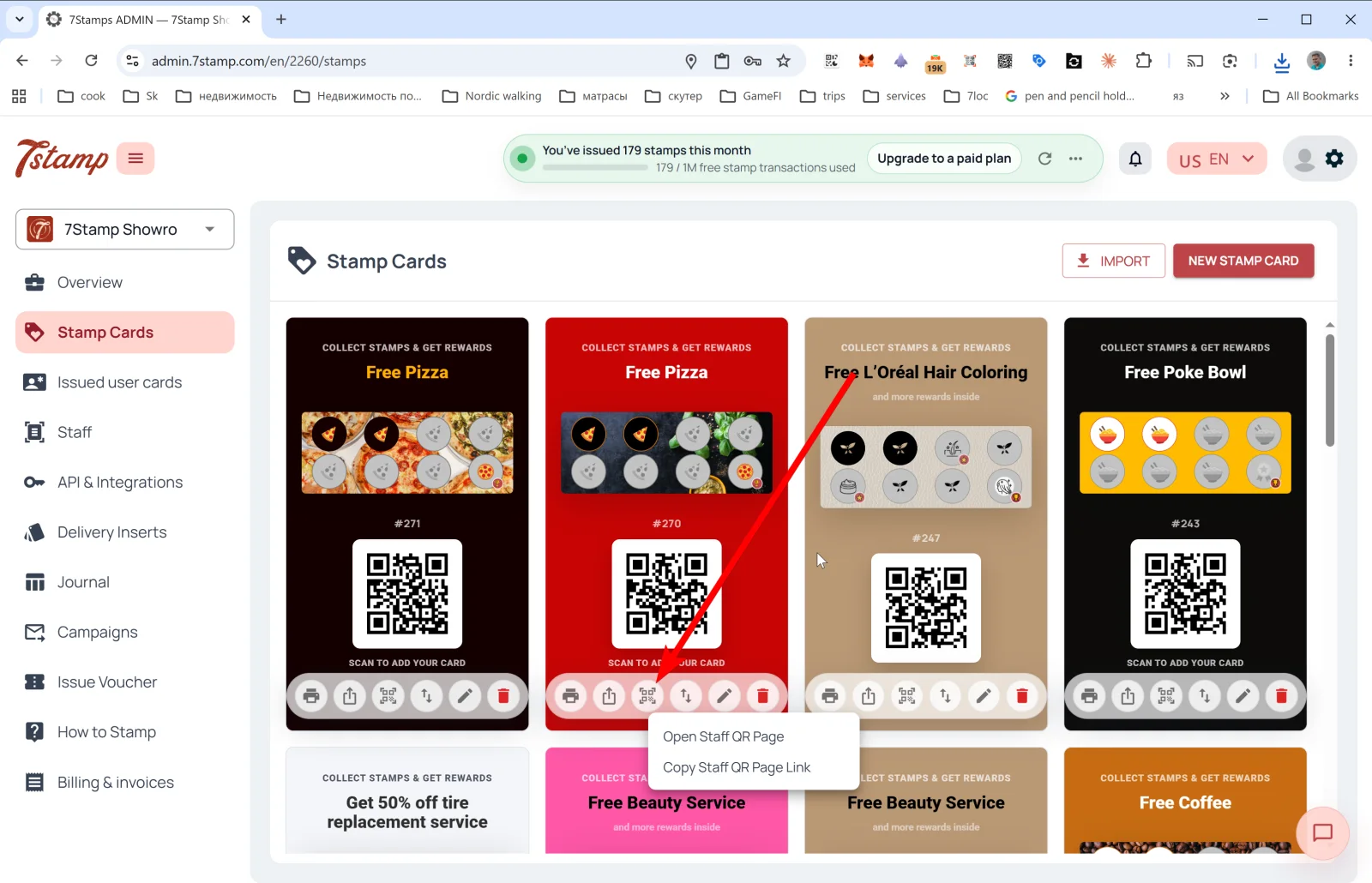
Below each カード in the gallery — six action icons (left to right):

IconWhat it does
🖨️ Print / Download QROpens the QR label export menu in two formats: Download (4×6 in / 10×15 cm), Print (4×6 in / 10×15 cm), Download (2×2 in / 5×5 cm), Print (2×2 in / 5×5 cm). The large format is for a poster or counter sign at the entrance; the small format is for a table tent or for packaging.
⤴️ SharePublic link menu: Copy 参加 Page Link (copies the direct link to the カード for Instagram bio, website, email) and View as 顧客 (opens the 参加 page as a 顧客 would see it, so you can verify how it will work).
🔳 スタッフ QR Pageスタッフ QR page menu: 開く スタッフ QR Page and Copy スタッフ QR Page Link. The スタッフ member opens this page on their phone and shows it to the 顧客 — the 顧客 scans and receives their カード. Useful in premium service, when personal 連絡 matters.
↕️ Export カード TemplateExport JSON to clipboard or Export to JSON file. Useful for backup, migration, sharing the カード with a partner, or templating.
✏️ Edit開く the カード in カード Designer for editing.
🗑️ DeleteDelete the カード.
0202 StampCards
0203 StampCards
0204 StampCards
0205 StampCards

Tip. When you 始める, you don’t need five カード at once — one well-tuned カード is usually enough for a month of testing. Once you 理解する what works, you can clone it via Export/Import and run A/B variants.

The カード preview in the gallery visually mirrors what the 顧客 will see in Apple/Google Wallet:

  • Header badge: “COLLECT STAMPS & GET REWARDS”.
  • Final 特典 name (e.g., “Free Pizza”, “Free ビューティー Service”, “Free Coffee”).
  • Stamp progress bar with icons — active and inactive.
  • #ID of the カード template (e.g., #271).
  • QR code “SCAN TO ADD YOUR CARD” — 顧客 スキャン it to 保存 the カード to Wallet.

ビジュアルガイド

Use the screen sets below as a visual companion to the 記事. 開く any image to inspect it at full size.

Галерея Stamp Cards і дії з шаблонами

5
Галерея Stamp Cards із live- і draft-шаблонами
Створення нової картки з галереї
Відкриття чинного шаблону та перегляд його налаштувань
Імпорт шаблону для бекапу або клонування
Експорт шаблону для передачі або версійного бекапу

最初にお読みください

次のステップ

ガイド
Program design 2026年5月12日

カード Designer — カード builder (5 steps)

When you 作成 a new カード (by pressing NEW STAMP CARD), you can pick a visual template close to your style. At the top you can quickly switch between ビジネス types (e.g., restaurants) or scroll through all of them.

更新日: 2026年5月12日

記事を開く
ガイド
導入の基本 2026年5月12日

7stampユーザーマニュアル

元のフルマニュアルは個別のナレッジベース記事に分割され、このページは全体構成をたどるための目次として機能します。

更新日: 2026年5月12日

記事を開く
ガイド
Program design 2026年5月12日

カード Designer — カード builder (5 steps)

When you 作成 a new カード (by pressing NEW STAMP CARD), you can pick a visual template close to your style. At the top you can quickly switch between ビジネス types (e.g., restaurants) or scroll through all of them.

更新日: 2026年5月12日

記事を開く
Reference
Program design 2026年5月12日

特典 — three types of gifts

In the カード Designer Build Your Journey step you pick one of three 特典の種類. Each type is a different interaction scenario, a different economy, and a different level of control.

更新日: 2026年5月12日

記事を開く