
ガイド
新しいカードを作成するとき(NEW STAMP CARD を押す)、自分のスタイルに近いビジュアルテンプレートを選べます。上部で業種(例:レストラン)をすばやく切り替えたり、すべてのテンプレートをスクロールして見たりできます。選び間違えても心配ありません。色やアイコンはすべてカスタマイズできます。テンプレートを選ぶと新しいカードにコピーされ、Card Designer が開きます。この手順は省略することもできます。Start From…
5. Card Designer — カード作成ツール(5ステップ)
新しいカードを作成するとき(NEW STAMP CARD を押す)、自分のスタイルに近いビジュアルテンプレートを選べます。上部で業種(例:レストラン)をすばやく切り替えたり、すべてのテンプレートをスクロールして見たりできます。選び間違えても心配ありません。色やアイコンはすべてカスタマイズできます! テンプレートを選ぶと新しいカードにコピーされ、Card Designer が開きます。この手順は省略することもできます。Start From Scratch を押すだけで、同じ Card Designer が開きます。
Card Designer は、新しいカードを作成するときにも、既存のカードで ✏️ Edit アイコンを押したときにも開きます。5段階で進めるステップ形式のウィザードです。
- Personalize your style:スタイルとブランディング。
- Add Visuals:スタンプの設定。
- Build Your Journey:特典と Milestone Rewards。
- Additional settings:誕生日とジオフェンスの通知。
- Result:最終プレビューとカードの再生成。
画面の右側には常にライブの Preview stamp card が表示され、変更するたびにリアルタイムで更新されます。プレビュー下部のナビゲーションで任意のステップをタップすると、ユーザーがそのスタンプ数に達したときのカードの見え方を確認できます。
5.1 ステップ 1. Personalize your style:スタイルとブランディング
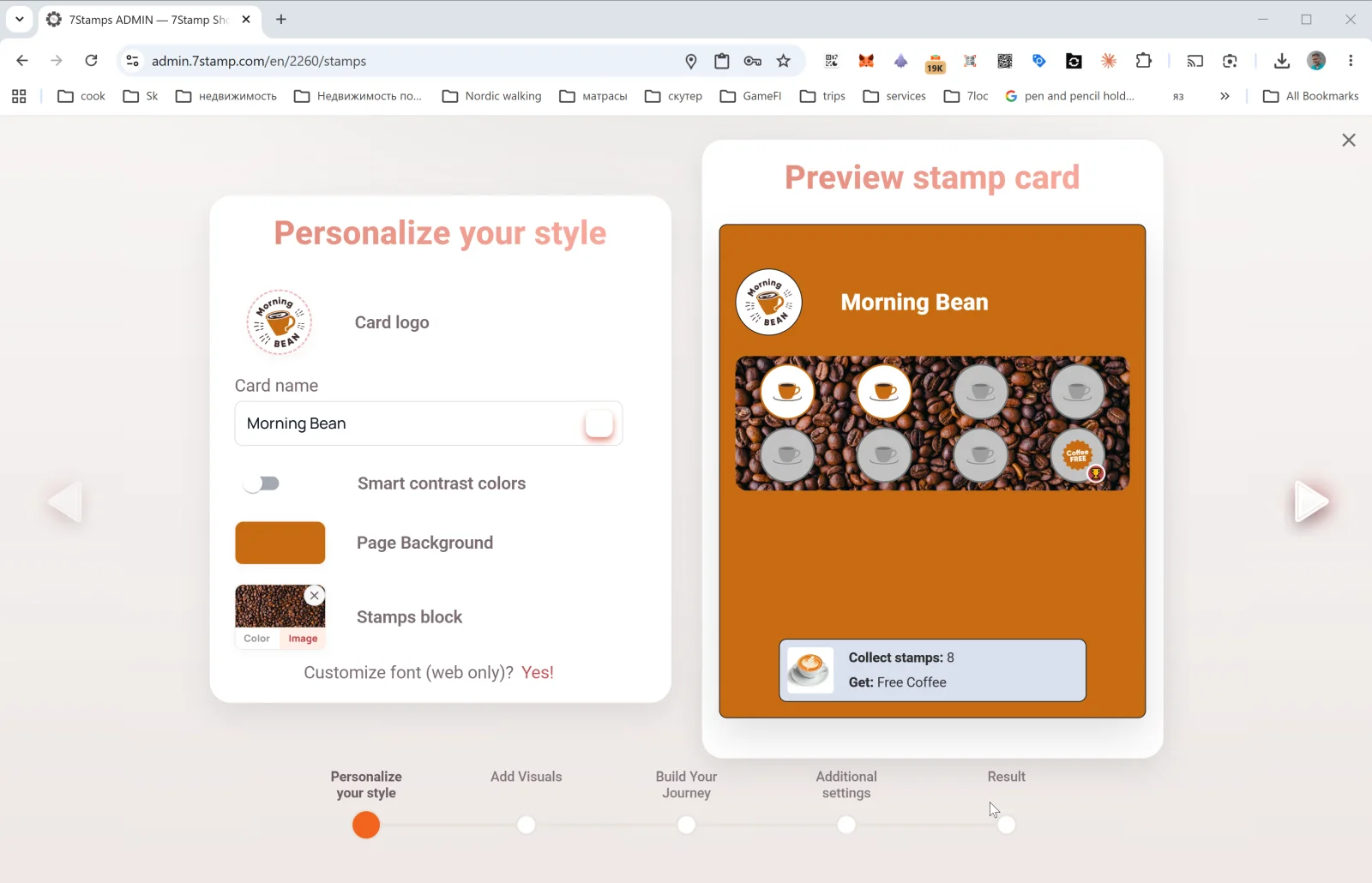
最初のステップでは、カードの見た目とブランディングを設定します。
- Card logo:ビジネスのロゴ(ファイルからアップロード、またはクリップボードから貼り付け)。
- Card name:カードの名前(例:
Morning Bean、Beauty Salon Loyalty、Free Pizza Club)。顧客が Wallet で目にする名前です。 - Smart contrast colors:コントラストのある色を自動で選ぶトグル(配色に自信がない場合におすすめ)。有効にすると、色同士が溶け込んでしまう場合にシステムが自動で調整します。
- Page Background:カードページの背景色。
- Stamps block:スタンプ欄そのものの背景。Color(単色)と Image(アップロードした画像。例:コーヒーショップならコーヒー豆の写真)を切り替えられます。
- Customize font (web only)? Yes!:フォントのカスタマイズ(Web プレビューにのみ適用され、Wallet ではシステムフォントが使われます)。
カードデザインの基本ルール: ロゴは小さいサイズでも読めること。背景は単色かコントラストの低いものにしましょう。そうしないとスタンプが見づらくなります。公開前には必ず View as Customer をタップし、実際のスマートフォンの画面でカードの見え方を確認してください。
5.2 ステップ 2. Add Visuals:スタンプの設定
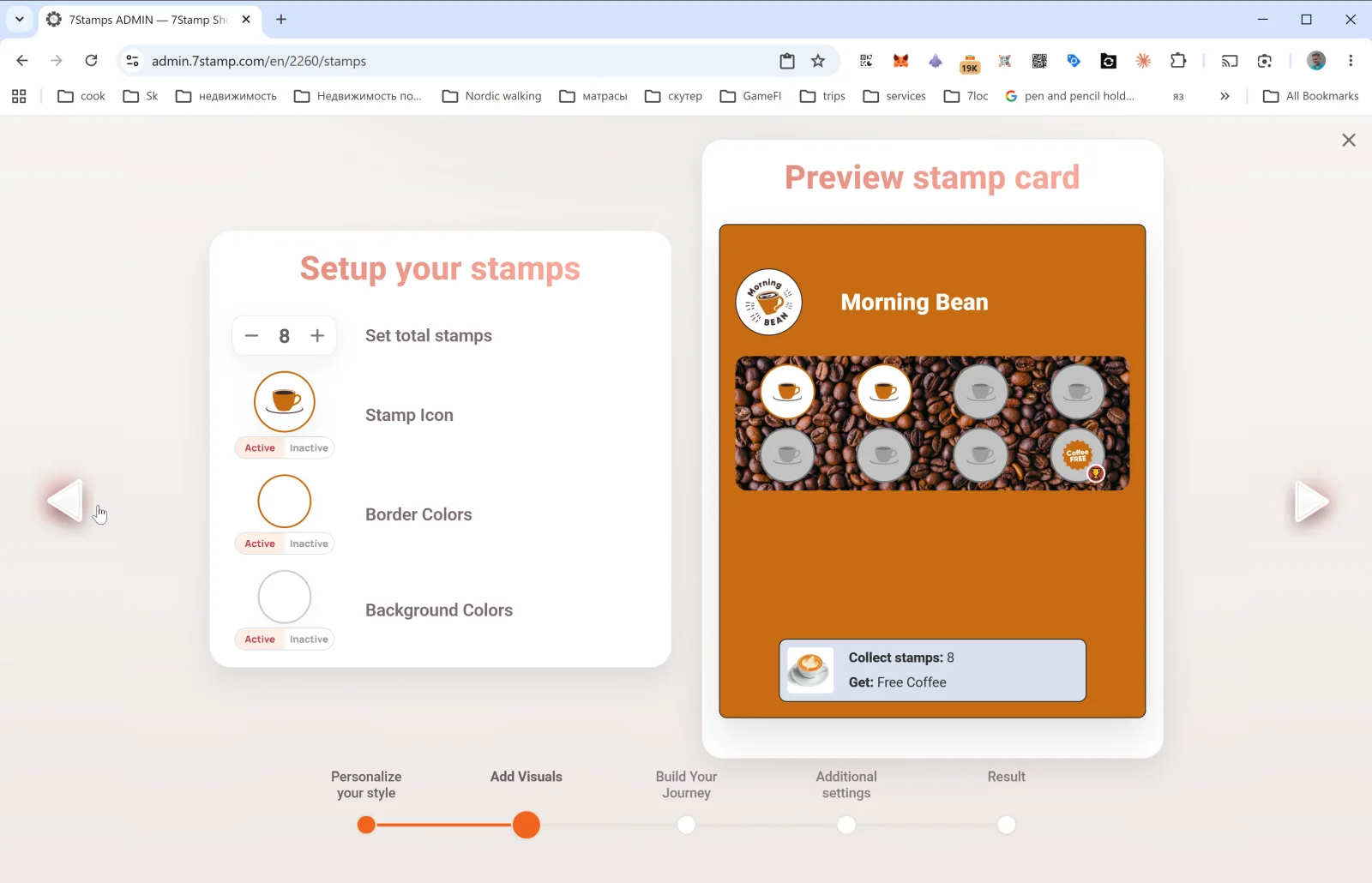
このステップでは、スタンプの見た目を設定します。
- Set total stamps:カードのスタンプ総数(例:
8)。これが最終目標で、顧客がこの数に達すると特典が発行されます。 - Stamp Icon:スタンプのアイコン。Active(獲得済み)と Inactive(未獲得)の状態ごとに別々にアップロードします。主力商品のアイコン(コーヒーカップ、ピザ、はさみなど)を獲得済みに使い、同じ画像のグレー版を未獲得に使うのがおすすめです。
- Border Colors:獲得済みと未獲得それぞれのスタンプの枠線の色。
- Background Colors:獲得済みと未獲得それぞれのスタンプの背景色。
コーヒーショップやクイックサービスには、スタンプ8個のカードがちょうどよいバランスです。上質なサービス(サロン、レストラン)では4~6個が一般的です。購入頻度の高い業種(ベーカリー、ファストフード)では10~12個。15個を超えないようにしましょう。意欲が下がり、バウチャーが手の届かないものに感じられてしまいます。
5.3 ステップ 3. Build Your Journey:特典と Milestone Rewards
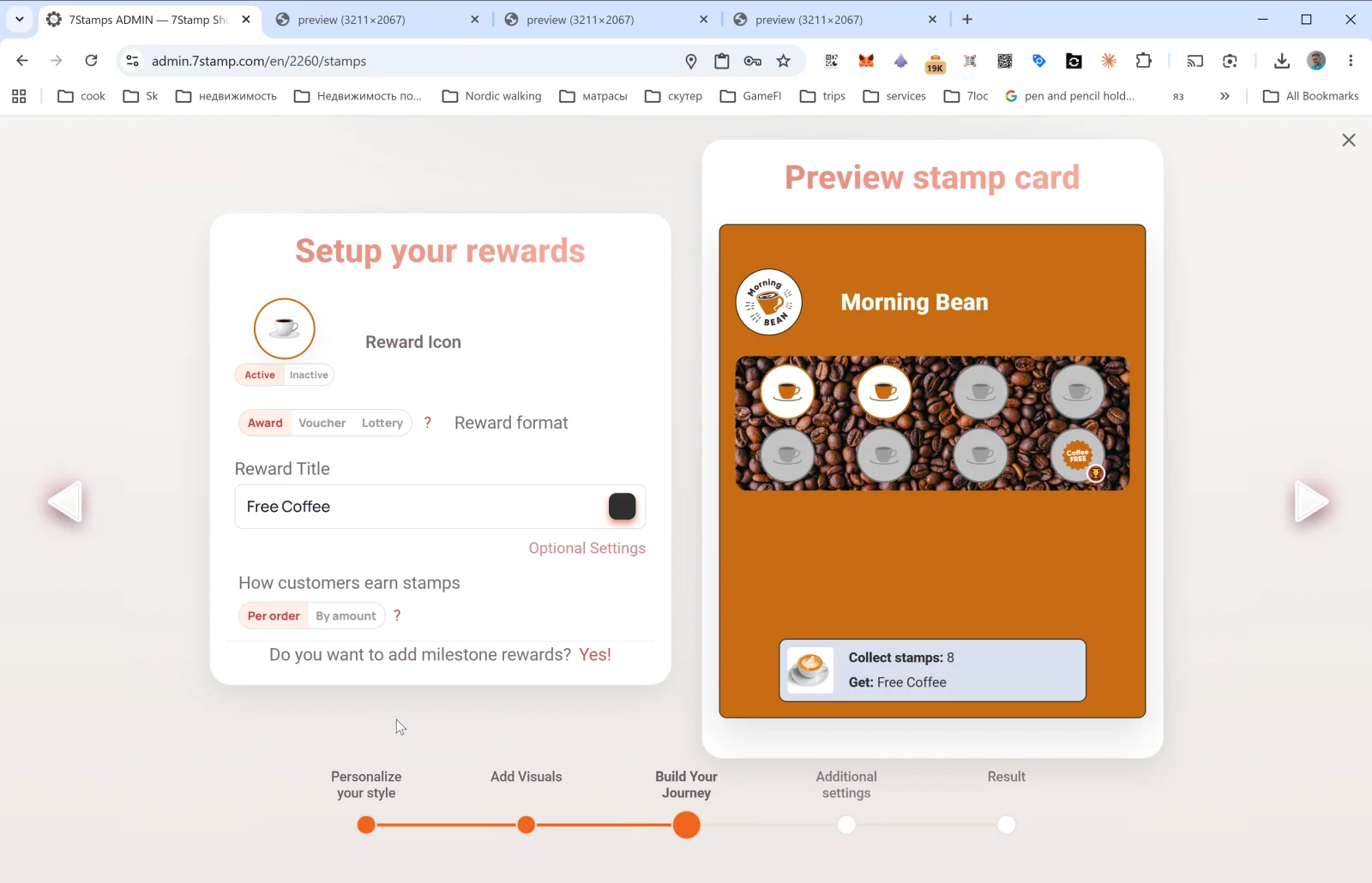
最も重要なステップです。ここで、顧客が何を受け取り、どうやって獲得するかを決めます。
Reward Icon
特典のアイコン(Active / Inactive)。カードの最後のマスに、通常のスタンプの代わりに表示されます。
Reward format
3つの選択肢のトグル:Award | Voucher | Lottery。これが3種類の特典で、それぞれ セクション 6 で詳しく説明しています。簡単にまとめると:
- Award:その場で渡すテキストのギフト(「Free Coffee」)。シンプルで手早く使えます。
- Voucher:独自のライフサイクルを持つ Smart Voucher。Redeem Code も任意で使えます。
- Lottery:確率を設定した複数の候補から抽選します。
Reward Title
最終ギフトのテキスト(例:Free Coffee、Free L'Oréal Hair Coloring、50% off tire replacement)。顧客は Wallet でもプレビューでも、最後までこのテキストを目にします。
Optional Settings
Optional reward settings ポップアップが開き、特典の追加パラメーターを設定できます。内容は選んだ種類によって異なります(Award、Voucher、Lottery を参照)。
顧客がスタンプを獲得する方法:付与ルール
トグル:Per order | By amount。
- Per order:金額に関係なく、1会計/1注文ごとにスタンプ1個。シンプルでわかりやすく、ほとんどのカフェやサロンに合います。
- By amount:会計金額の N 通貨単位ごとにスタンプ1個。客単価が変動するレストランや小売店に向いており、購入額を増やすきっかけになります。会計金額を 7Stamp に送る必要があります(POS 連携または Receipt QR 経由)。
Do you want to add milestone rewards? Yes!
このリンクで、ゴールが1つのカードを Milestone Rewards、つまり途中にいくつかのギフトがあるカードに変えられます。例:スタンプ3個 → 小さなギフト、6個 → 中くらいのギフト、9個 → 最終特典。詳しくは セクション 6.4 を参照してください。
5.4 ステップ 4. Additional settings:誕生日とジオフェンス
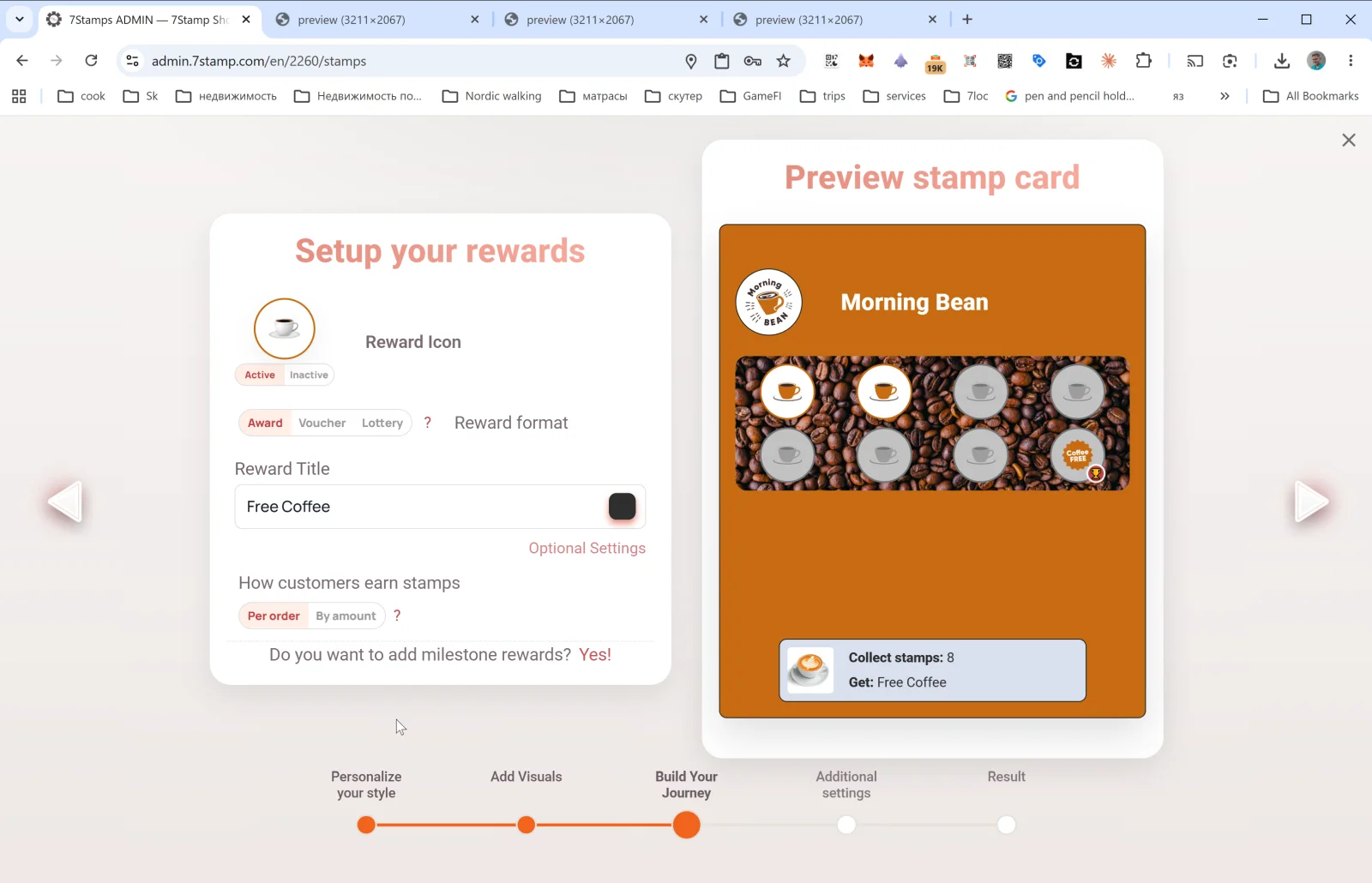
このステップでは自動化の機能を設定します。カードを公開した後は、手をかけなくても動き続ける仕組みです。
Birthday Rewards
- Enable birthday greetings:Yes / No。
- Greeting message:お祝いのメッセージ(例:
Happy Birthday! 🎉)。 - Congratulations before N days:誕生日の何日前にお祝いを送るか(
0= 当日、3= 3日前)。 - Give birthday voucher:Yes / No。Yes にすると、お祝いのメッセージと一緒にバウチャーが自動的に発行されます。
誕生日は顧客のカードから取得します。顧客は登録時、または後からカードページで誕生日を設定できます。
Geo-fence notification:位置情報によるリマインダー
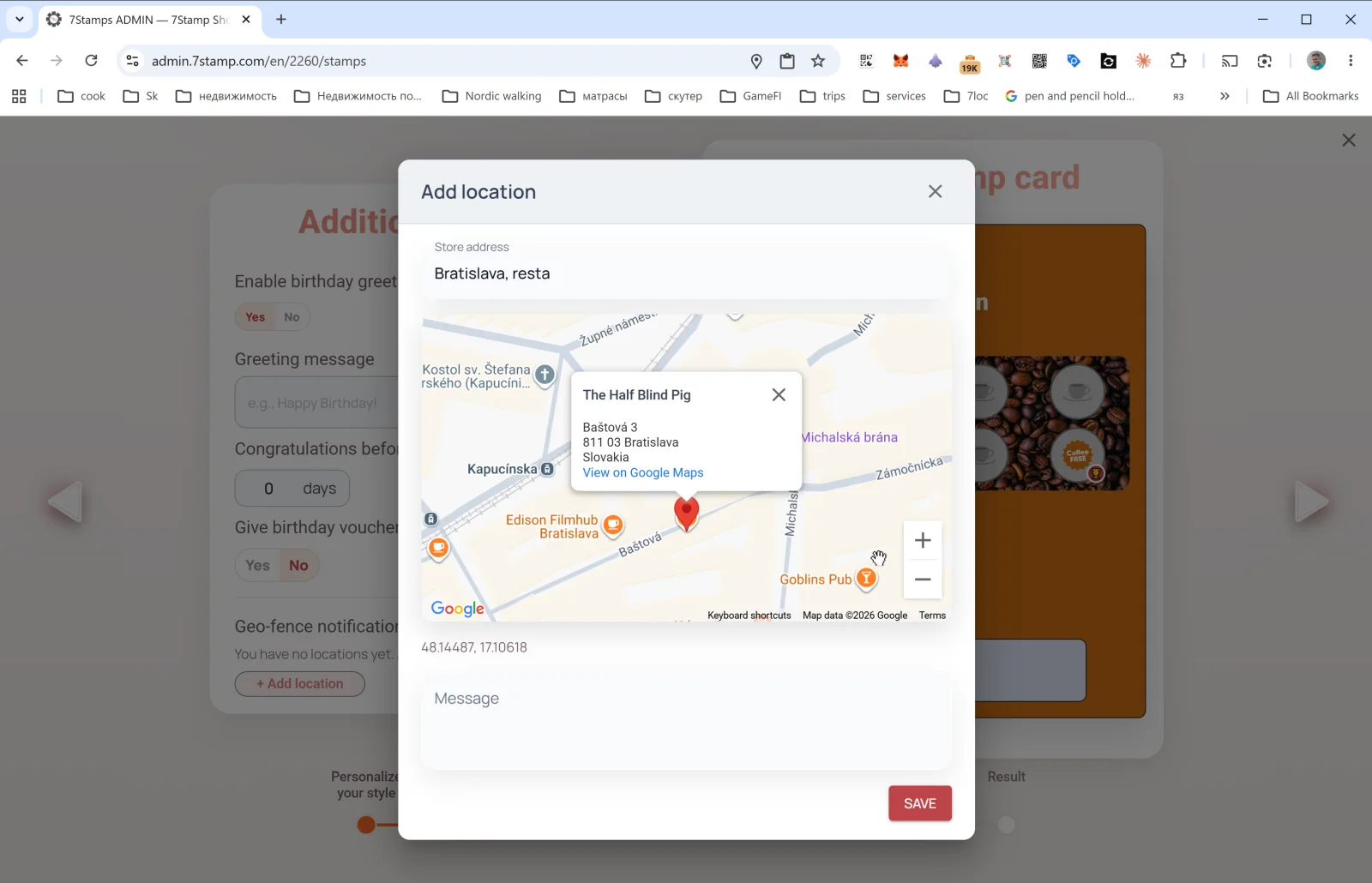
Geo-fence notification は初期状態では空で、「You have no locations yet」と表示されます。+ Add location をタップすると、Add location ポップアップが開きます。
- Store address:店舗の住所を入力します(例:
Bratislava, Baštová 3)。入力中に Google Maps が候補を表示します。 - 地図上にマーカーが表示されるので、位置を微調整します。座標は自動的に記録されます(例:
48.14487, 17.10618)。 - Message:顧客が近くに来たときに届く通知のテキスト(例:
You're nearby! Drop by for your morning coffee ☕)。
複数の店舗を追加でき、どの店舗でもジオフェンスが作動します。
ご注意: 位置情報による通知は、顧客が位置情報と Wallet push notifications を有効にしている場合にのみ届きます。このチャネルを押しの強い販促には使わず、温かく控えめなトーンを保ちましょう。
5.5 ステップ 5. Result:カードの最終的な再生成
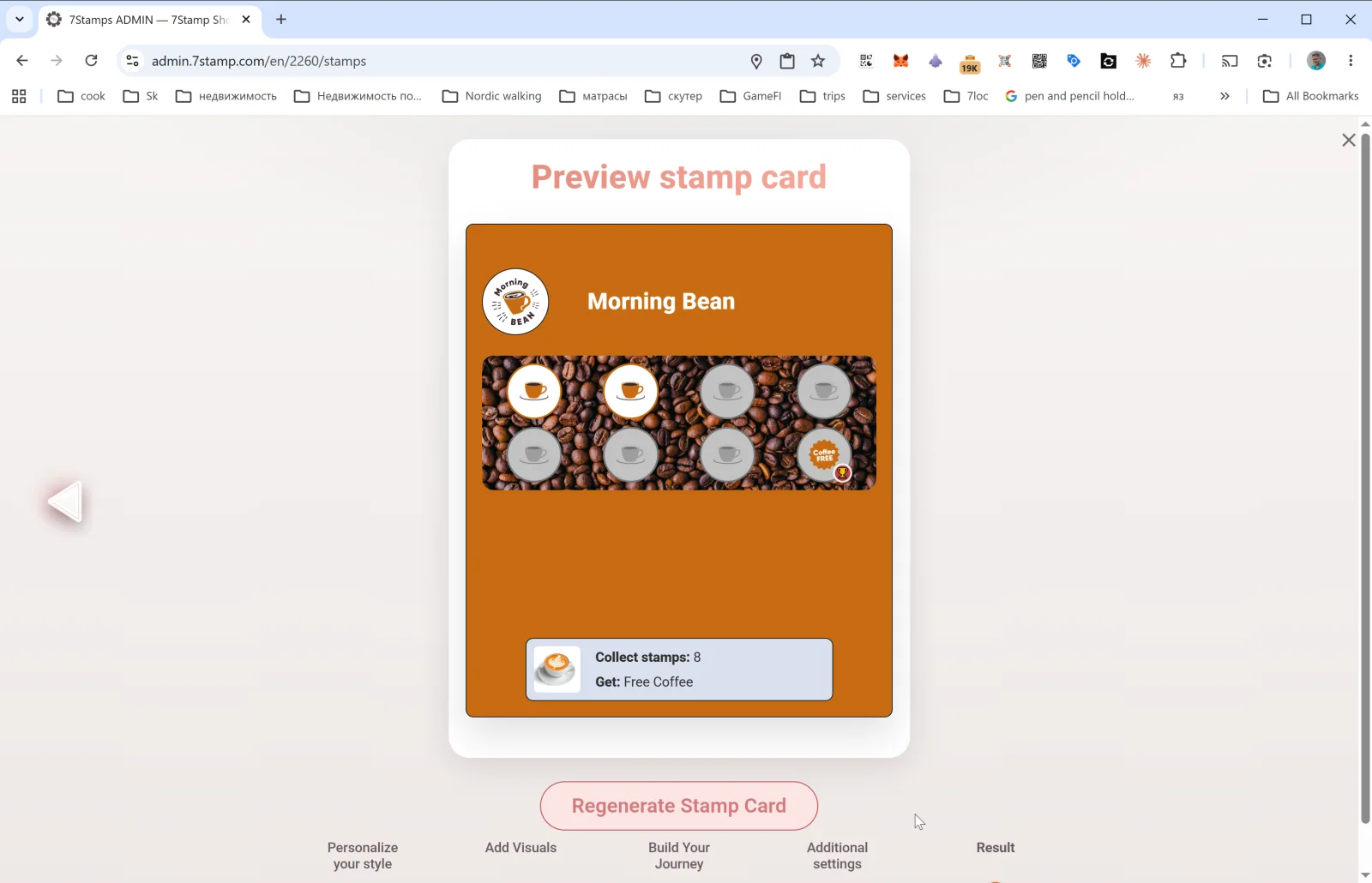
最後のステップでは、最終的な Preview stamp card と Regenerate Stamp Card ボタンが表示されます。
- 新しいカードを作成している場合、このボタンを押すとカードが公開されます。押した後、カードが Stamp Cards ギャラリーに表示され、QR が使えるようになります。
- 既存のカードを編集している場合、Regenerate Stamp Card ですべての変更が適用され、発行済みのすべての顧客カードのデザインが更新されます(Wallet の push 更新による)。色、テキスト、アイコンの変更は自動的に顧客に反映されます。
編集についての重要な注意: デザインは思い切って変えて構いません。顧客側でも更新されます。ただし、運用中のカードで基本的な仕組み(スタンプ数、特典の種類)は変えないでください。既存の参加者が混乱します。別の仕組みが必要な場合は、新しいカードを作成し、古いカードはアーカイブしましょう。
ビジュアルウォークスルー
以下のスクリーンセットを記事のビジュアルガイドとして使用してください。任意の画像をクリックしてフルサイズで確認できます。