
गाइड
जब आप नया Card बनाते हैं (NEW STAMP CARD दबाकर), तो पहले आप अपने brand के करीब एक visual template चुन सकते हैं. ऊपर business types के बीच जल्दी switch किया जा सकता है या पूरी list scroll की जा सकती है.
5. Card Designer — Card builder (5 steps)
जब आप NEW STAMP CARD दबाकर नया Card बनाते हैं, तो पहले आप अपने style के करीब एक visual template चुन सकते हैं. ऊपर business types के बीच जल्दी switch किया जा सकता है या पूरी list scroll की जा सकती है. अगर पहला template सही न लगे तो चिंता की बात नहीं है: colors, icons, और बाकी design elements बाद में बदल सकते हैं. Template चुनते ही वह आपके नए Card में copy हो जाता है और आप Card Designer में पहुंच जाते हैं. चाहें तो इस step को छोड़कर सीधे Start From Scratch भी चुन सकते हैं.
Card Designer नया Card बनाते समय भी खुलता है, और किसी existing Card के ✏️ Edit icon पर click करने पर भी. यह पाँच steps वाला guided builder है:
- Personalize your style — branding और visual style.
- Add Visuals — Stamp configuration.
- Build Your Journey — rewards और milestone rewards.
- Additional settings — birthday और geo-fence automations.
- Result — final preview और Card regeneration.
Screen के दाईं ओर हमेशा live Preview Stamp Card दिखाई देता है. आप जो भी change करते हैं, preview उसी समय update होता है. Preview की bottom navigation में किसी भी step पर tap करके देख सकते हैं कि अलग-अलग progress points पर Card कैसा दिखाई देगा.
5.1 Step 1. Personalize your style — branding और visual style
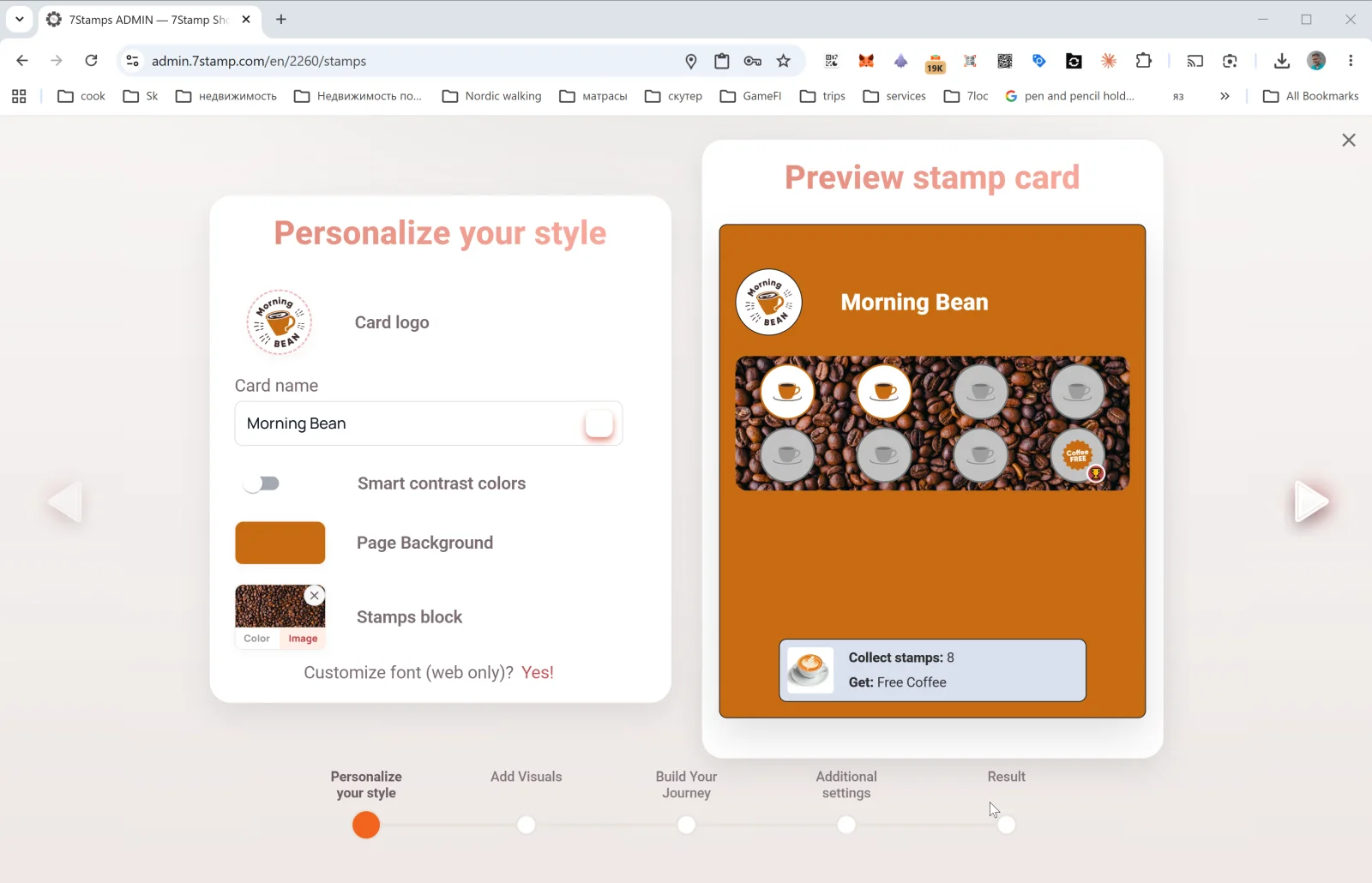
इस step में Card का look और brand identity सेट की जाती है:
- Card logo — आपका business logo. File upload या clipboard paste दोनों चलेंगे.
- Card name — Card का नाम, जैसे
Morning Bean,Beauty Salon Loyalty, याFree Pizza Club. यही नाम ग्राहक Wallet में देखेंगे. - Smart contrast colors — automatic contrast toggle. अगर palette को लेकर भरोसा न हो तो इसे on रखना बेहतर है; system ऐसे colors चुनने में मदद करेगा जो एक-दूसरे में घुलें नहीं.
- Page Background — Card page का background color.
- Stamps block — Stamp area का background. यहाँ Color या Image दोनों options हैं.
- Customize font (web only) — font customization केवल web preview पर लागू होती है; Wallet system font ही इस्तेमाल करता है.
Design tip. Logo छोटा होने पर भी साफ दिखना चाहिए. Background बहुत busy या बहुत low-contrast होगा तो स्टैम्प पढ़ना मुश्किल हो जाएगा. Publish करने से पहले हमेशा View as Customer खोलकर असली phone screen पर result देख लें.
5.2 Step 2. Add Visuals — Stamp configuration
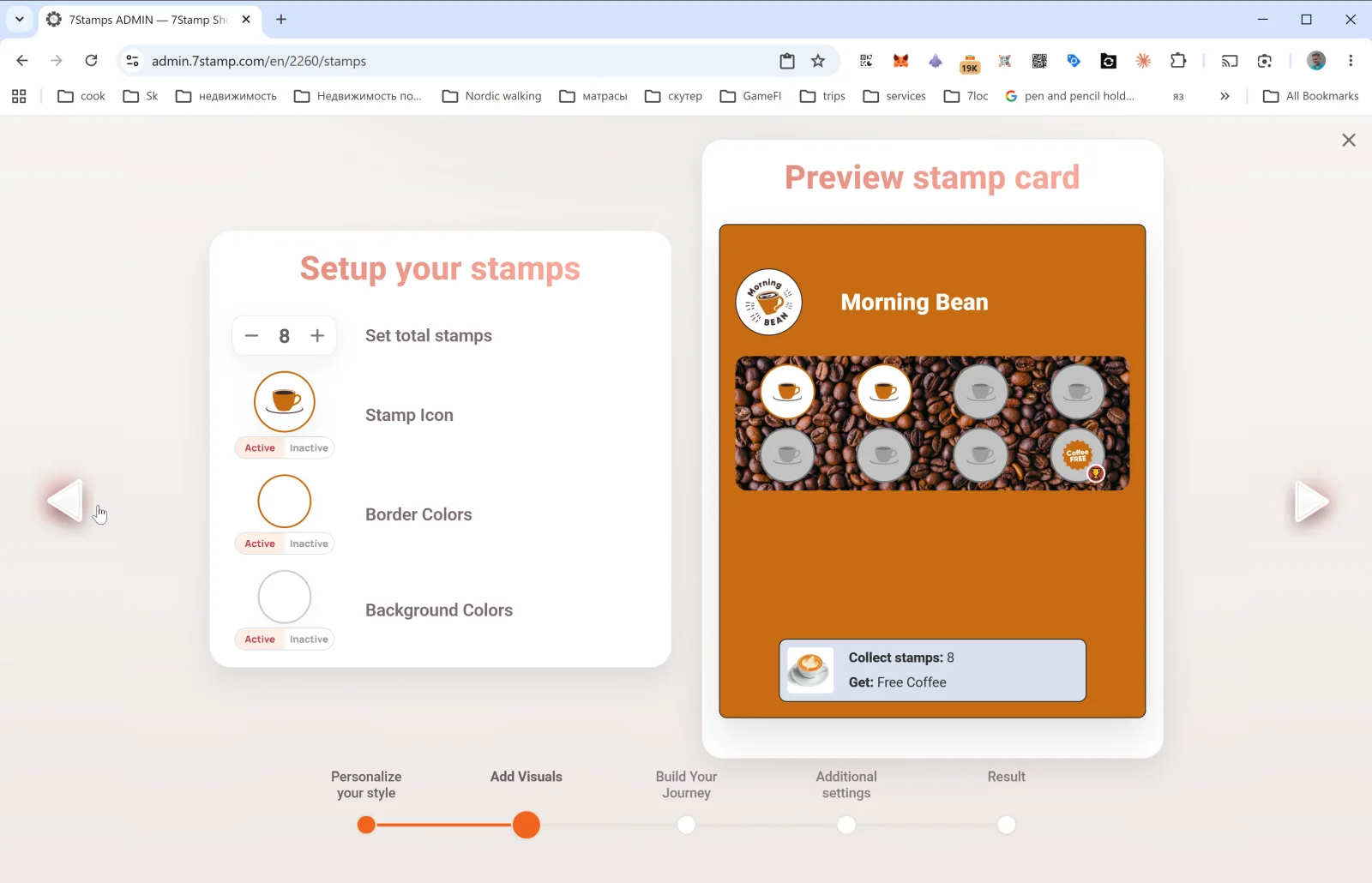
इस step में तय होता है कि स्टैम्प कैसे दिखेंगे:
- Set total Stamps — Card पर कुल कितने स्टैम्प होंगे. उदाहरण के लिए
8. यही final goal होता है; इस count तक पहुँचने पर reward trigger होता है. - Stamp Icon — Stamp icon. Active और Inactive states के लिए अलग images upload की जा सकती हैं. आमतौर पर एक ही symbol का colored और muted version अच्छा काम करता है.
- Border Colors — active और inactive Stamp borders के colors.
- Background Colors — active और inactive Stamp backgrounds के colors.
कई coffee shops और quick-service businesses के लिए 8 स्टैम्प अच्छा balance होता है. Premium services, जैसे salons या restaurants, अक्सर 4–6 स्टैम्प रखती हैं. High-frequency businesses, जैसे bakeries या fast food, 10–12 स्टैम्प तक जा सकते हैं. 15 से ऊपर जाने पर motivation अक्सर गिरने लगती है.
5.3 Step 3. Build Your Journey — rewards और milestone rewards
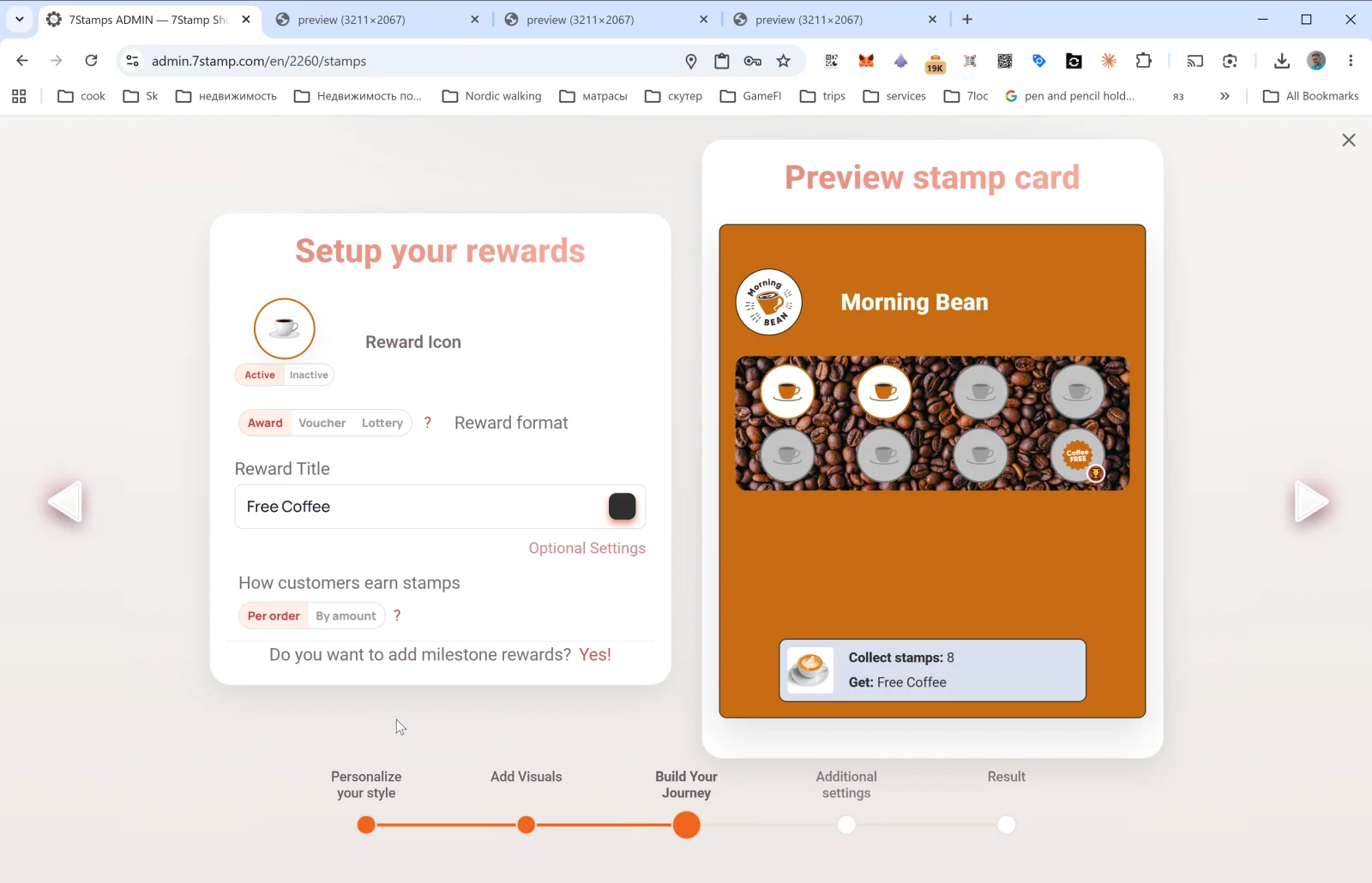
यह सबसे अहम step है. यहीं आप तय करते हैं कि ग्राहक को क्या मिलेगा और किस logic से मिलेगा.
Reward Icon
Final reward cell में दिखने वाला icon. यह सामान्य स्टैम्प icon की जगह दिखाई देता है. Active और Inactive versions अलग-अलग सेट किए जा सकते हैं.
Reward format
तीन options में से एक चुनना होता है: Award | Voucher | Lottery. तीनों reward types की detail Section 6 में है. संक्षेप में:
- Award — सीधा text gift, जैसे
Free Coffee. - Voucher — Smart Voucher, जिसका अपना lifecycle होता है और चाहें तो Redeem Code भी जोड़ा जा सकता है.
- Lottery — probabilities के साथ variants वाला gamified reward.
Reward Title
Final gift का headline text, जैसे Free Coffee, Free Hair Coloring, या 50% off tire replacement. यह text ग्राहक पूरे journey में देखते हैं — preview में भी और Wallet में भी.
Optional Settings
यह Optional Reward settings popup खोलता है. अंदर के fields चुने गए reward type पर निर्भर करते हैं. ज़्यादा detail के लिए Award, Voucher, और Lottery sections देखें.
ग्राहक स्टैम्प कैसे कमाते हैं — stamping rule
यहाँ दो modes हैं: Per order और By amount.
- Per order — हर qualifying order पर एक स्टैम्प, amount चाहे जो हो. यह ज़्यादातर cafes, salons, और straightforward loyalty setups के लिए सबसे आसान rule है.
- By amount — हर N currency units पर एक स्टैम्प. यह restaurants और variable basket-size retail के लिए अच्छा है. इस mode के लिए purchase amount को 7Stamp तक पहुँचाना होगा, आमतौर पर POS integration या receipt QR के जरिए.
Milestone rewards जोड़ना
Link Do you want to add milestone rewards? Yes! single-goal Card को multi-step journey में बदल देता है. उदाहरण: 3 स्टैम्प पर छोटा reward, 6 पर medium reward, और 9 पर final reward. Detail Section 6.4 में है.
5.4 Step 4. Additional settings — Birthday और Geo-fence automations
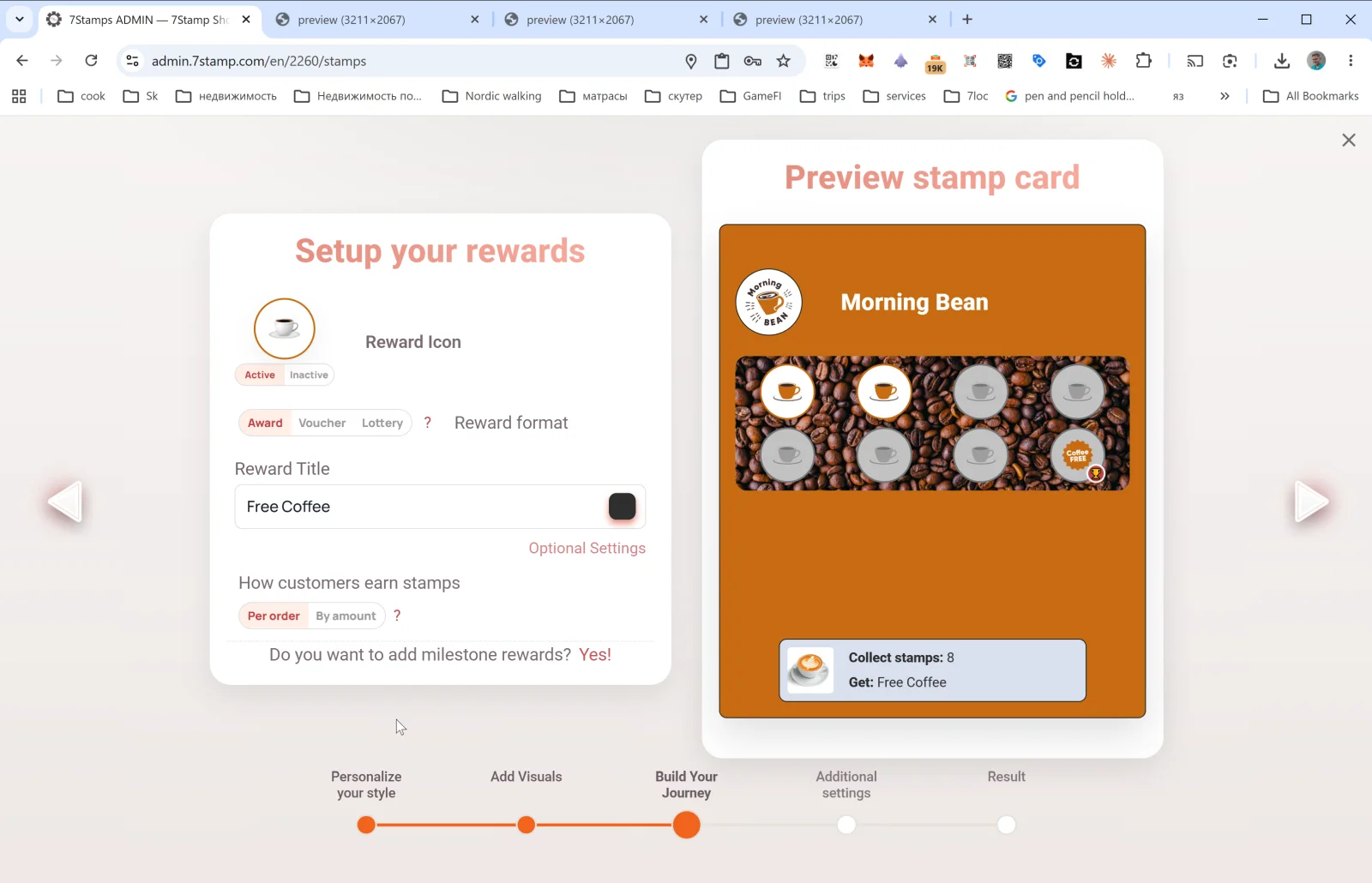
यह step उन automations के लिए है जो Card publish होने के बाद भी अपने-आप चलती रहती हैं.
Birthday rewards
- Enable birthday greetings — on/off.
- Greeting message — birthday greeting text, जैसे
Happy Birthday! 🎉. - Congratulations before N days — birthday से कितने दिन पहले message भेजना है.
- Give birthday voucher — अगर on है, तो greeting के साथ voucher अपने-आप issue होता है.
Birthday date ग्राहक Card join करते समय दे सकते हैं, या बाद में Card page पर update कर सकते हैं.
Geo-fence notification
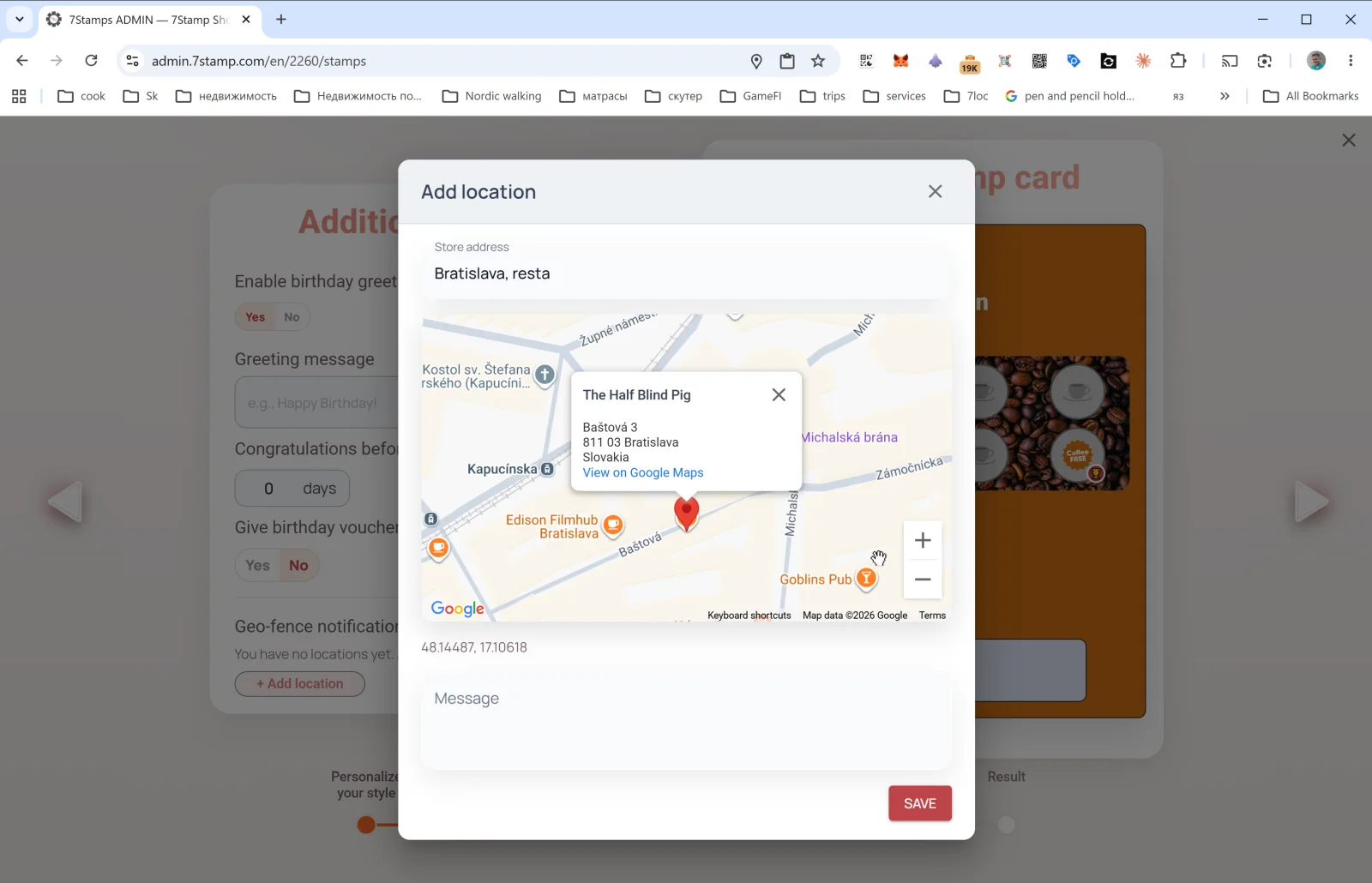
शुरुआत में यहाँ message दिखता है कि अभी कोई locations नहीं हैं. + Add location दबाने पर Add location popup खुलता है:
- Store address — venue का address लिखें. Google Maps suggestions मदद करते हैं.
- Map पर marker दिखेगा; ज़रूरत हो तो उसे adjust करें. Coordinates automatically save हो जाते हैं.
- Message — वह notification text जो ग्राहक को location के पास आने पर मिलेगा.
आप कई locations जोड़ सकते हैं. Geo-fence किसी भी configured location के पास trigger हो सकता है.
ध्यान रखें. Geo notifications तभी काम करेंगी जब ग्राहक ने geolocation और Wallet push notifications दोनों allow किए हों. इस channel का tone हल्का और helpful रखें; इसे aggressive promotion channel की तरह इस्तेमाल न करें.
5.5 Step 5. Result — final Card regeneration
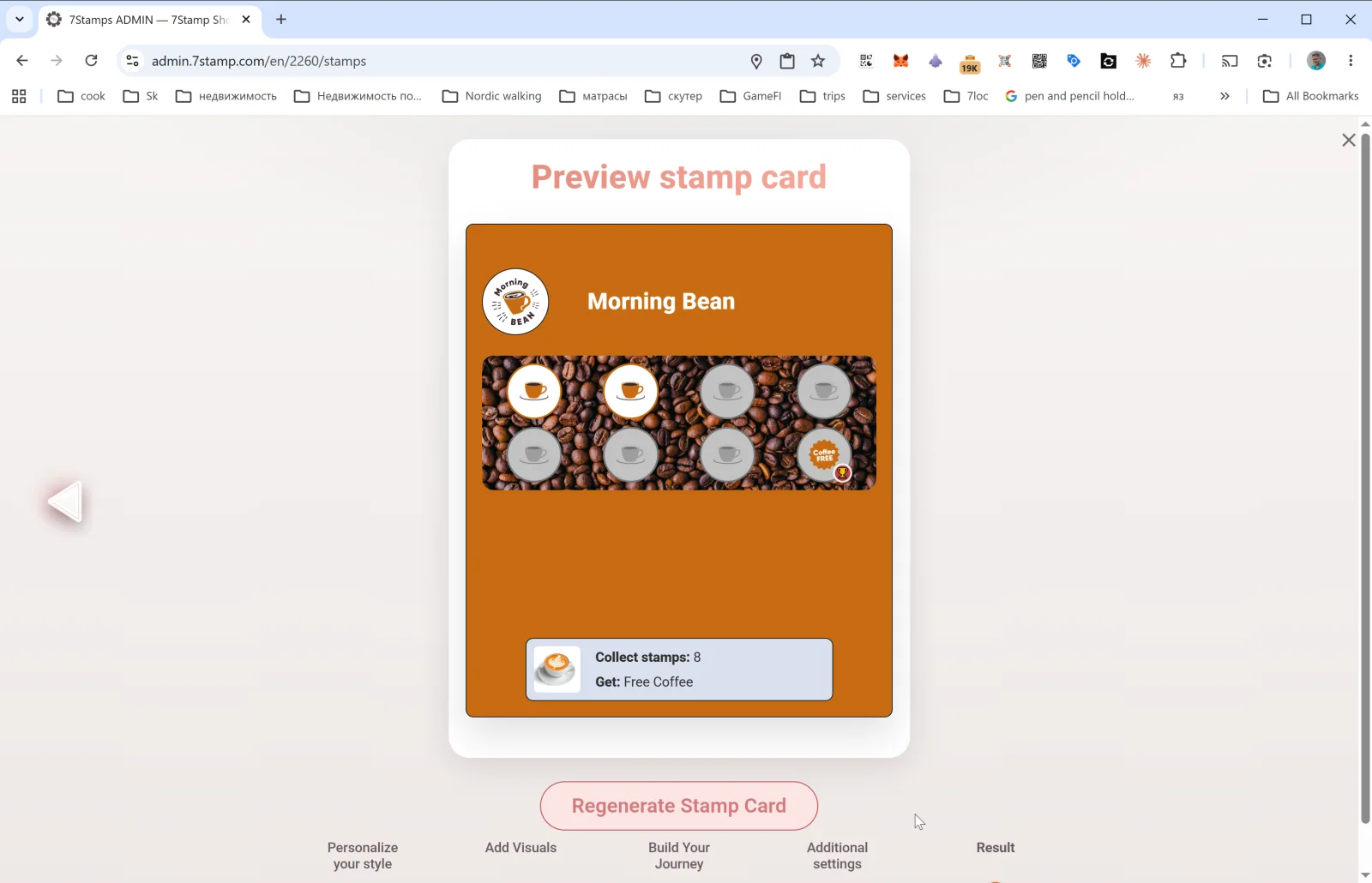
आखिरी step में final Preview Stamp Card और Regenerate Stamp Card button दिखता है.
- नया Card बनाते समय यह button Card को publish करता है. Publish होते ही वह Stamp Cards gallery में दिखने लगता है और उसका QR काम करने लगता है.
- किसी existing Card को edit करते समय Regenerate Stamp Card सभी changes apply करता है और design updates पहले से issued customer Cards तक भी push कर देता है.
महत्वपूर्ण बात। Colors, text, और icons जैसे visual changes निडर होकर करें — ये existing customers तक safely पहुँच जाते हैं. लेकिन live Card पर core mechanics, जैसे total Stamp count या reward type, बदलना confusion पैदा कर सकता है. अगर logic बदलनी है, तो नया Card बनाना अधिक सुरक्षित है.
दृश्य मार्गदर्शिका
Use the screen sets below as a visual companion to the लेख. खोलें any image to inspect it at full size.