
Reference
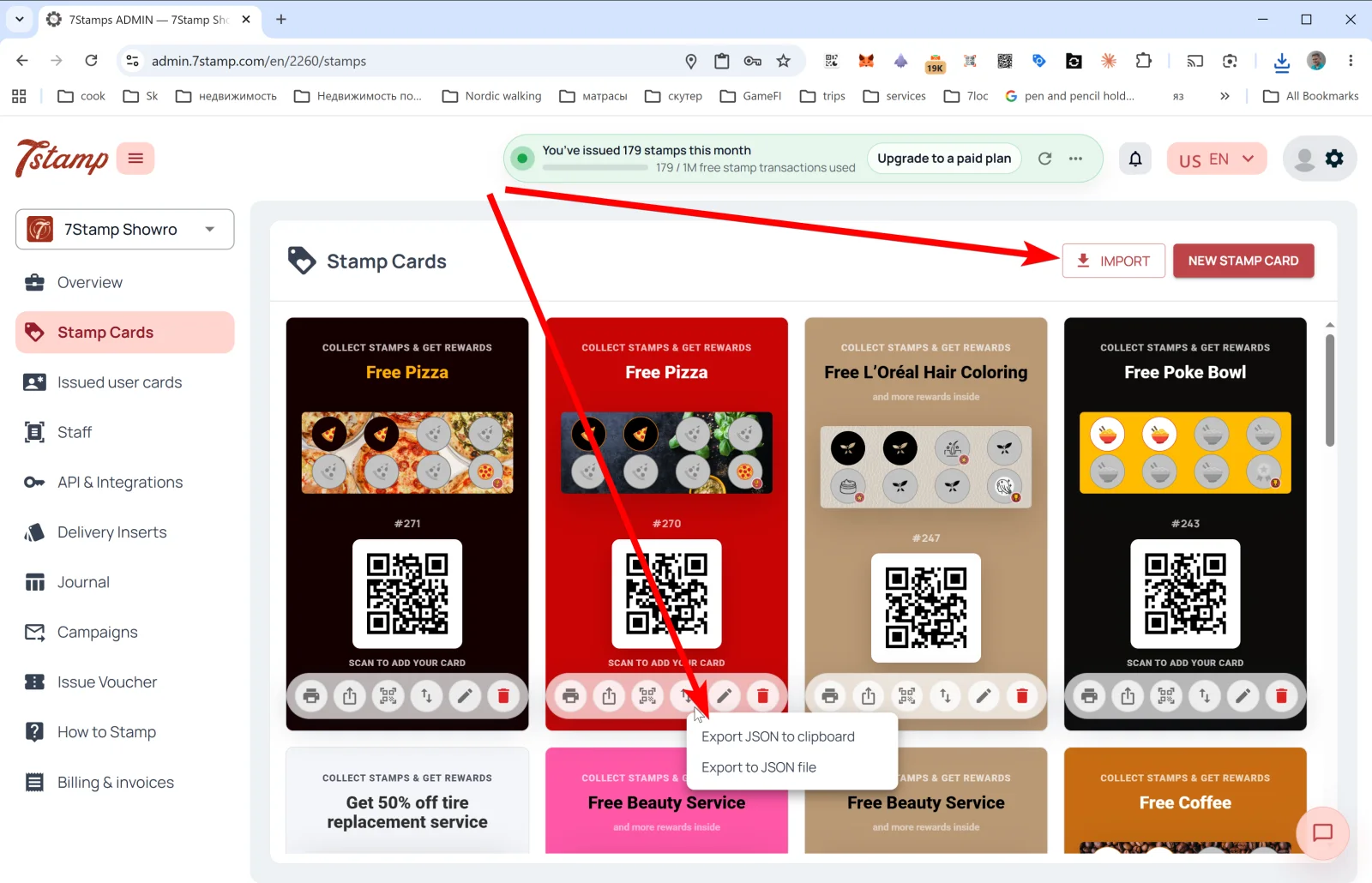
The Stamp Cards section in the side menu is the gallery of all your card templates. Each card shows its design, the stamp progress bar, the #ID, and the QR for customers to join.
4. Stamp Cards — your loyalty cards
The Stamp Cards section in the side menu is the gallery of all your card templates. Each card shows its design, the stamp progress bar, the #ID, and the QR for customers to join.
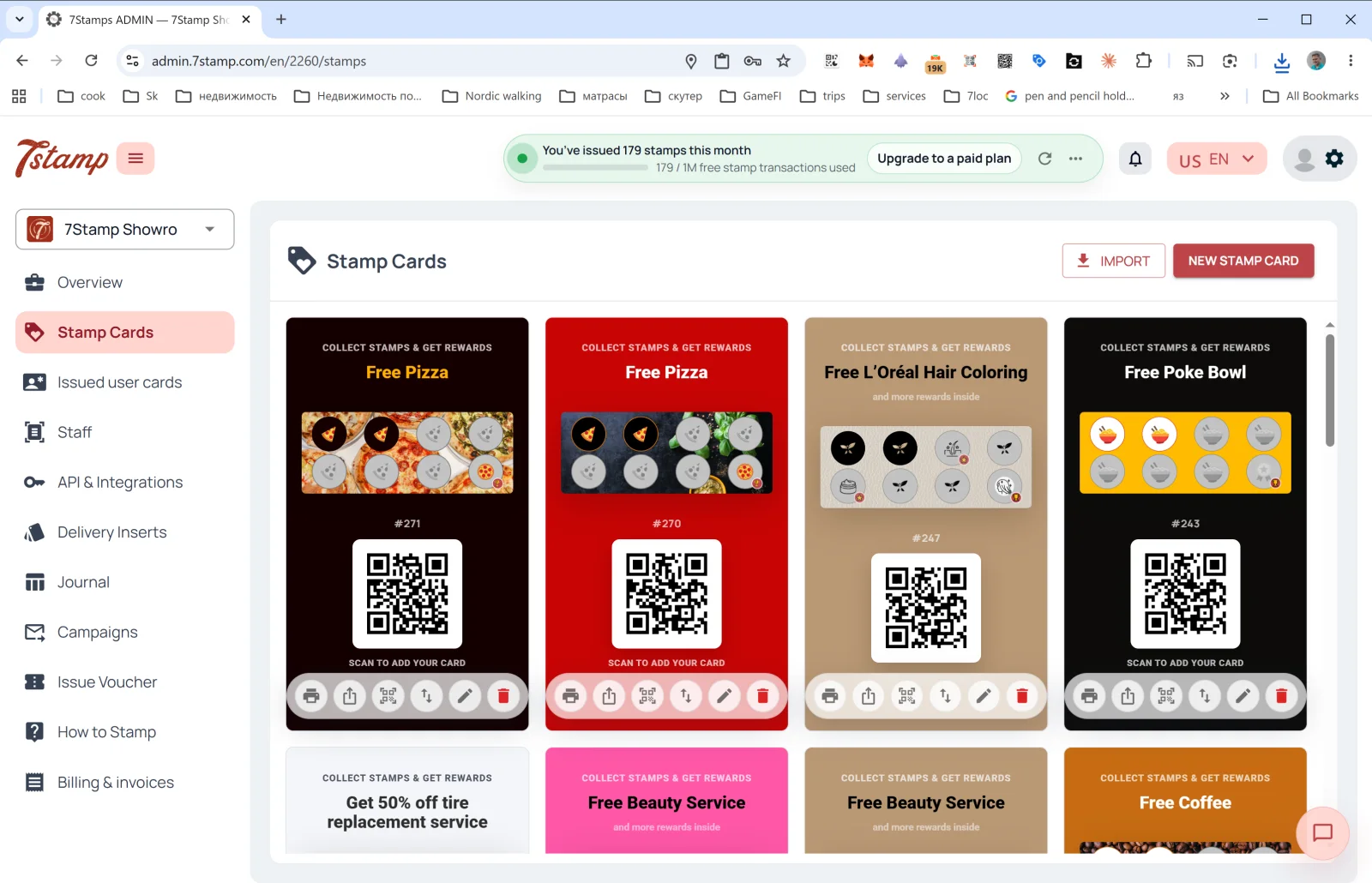
What you can do on the Stamp Cards page
Two buttons in the upper right:
- NEW STAMP CARD — open Card Designer and create a new card from scratch or from a template. Details in Section 5. Card Designer.
- IMPORT — load a card from a JSON file (for example, if you exported it from another profile or received it from a partner).
Below each card in the gallery — six action icons (left to right):
| Icon | What it does |
|---|---|
| 🖨️ Print / Download QR | Opens the QR label export menu in two formats: Download (4×6 in / 10×15 cm), Print (4×6 in / 10×15 cm), Download (2×2 in / 5×5 cm), Print (2×2 in / 5×5 cm). The large format is for a poster or counter sign at the entrance; the small format is for a table tent or for packaging. |
| ⤴️ Share | Public link menu: Copy Join Page Link (copies the direct link to the card for Instagram bio, website, email) and View as Customer (opens the join page as a customer would see it, so you can verify how it will work). |
| 🔳 Staff QR Page | Staff QR page menu: Open Staff QR Page and Copy Staff QR Page Link. The staff member opens this page on their phone and shows it to the customer — the customer scans and receives their card. Useful in premium service, when personal contact matters. |
| ↕️ Export Card Template | Export JSON to clipboard or Export to JSON file. Useful for backup, migration, sharing the card with a partner, or templating. |
| ✏️ Edit | Open the card in Card Designer for editing. |
| 🗑️ Delete | Delete the card. |
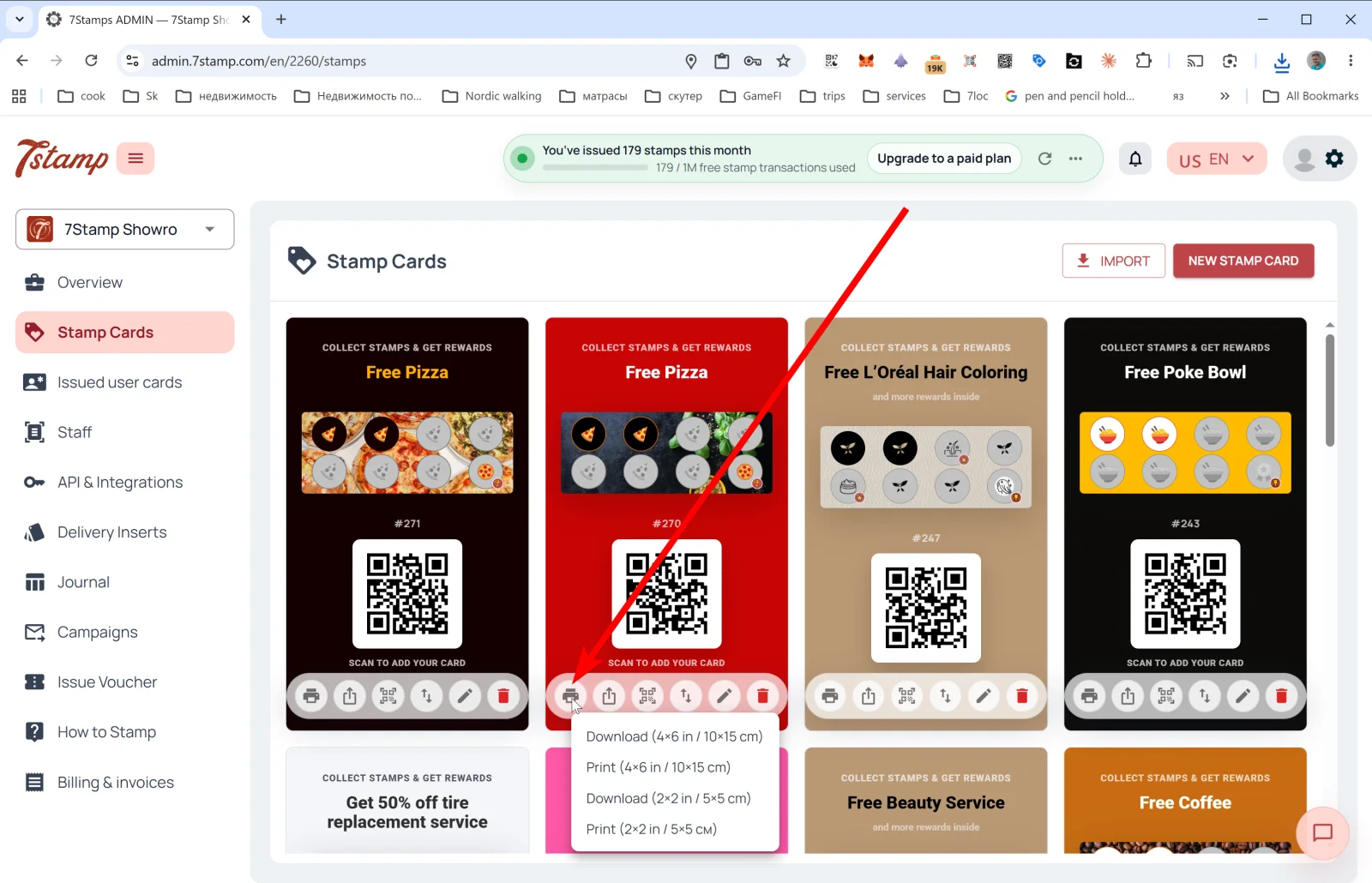
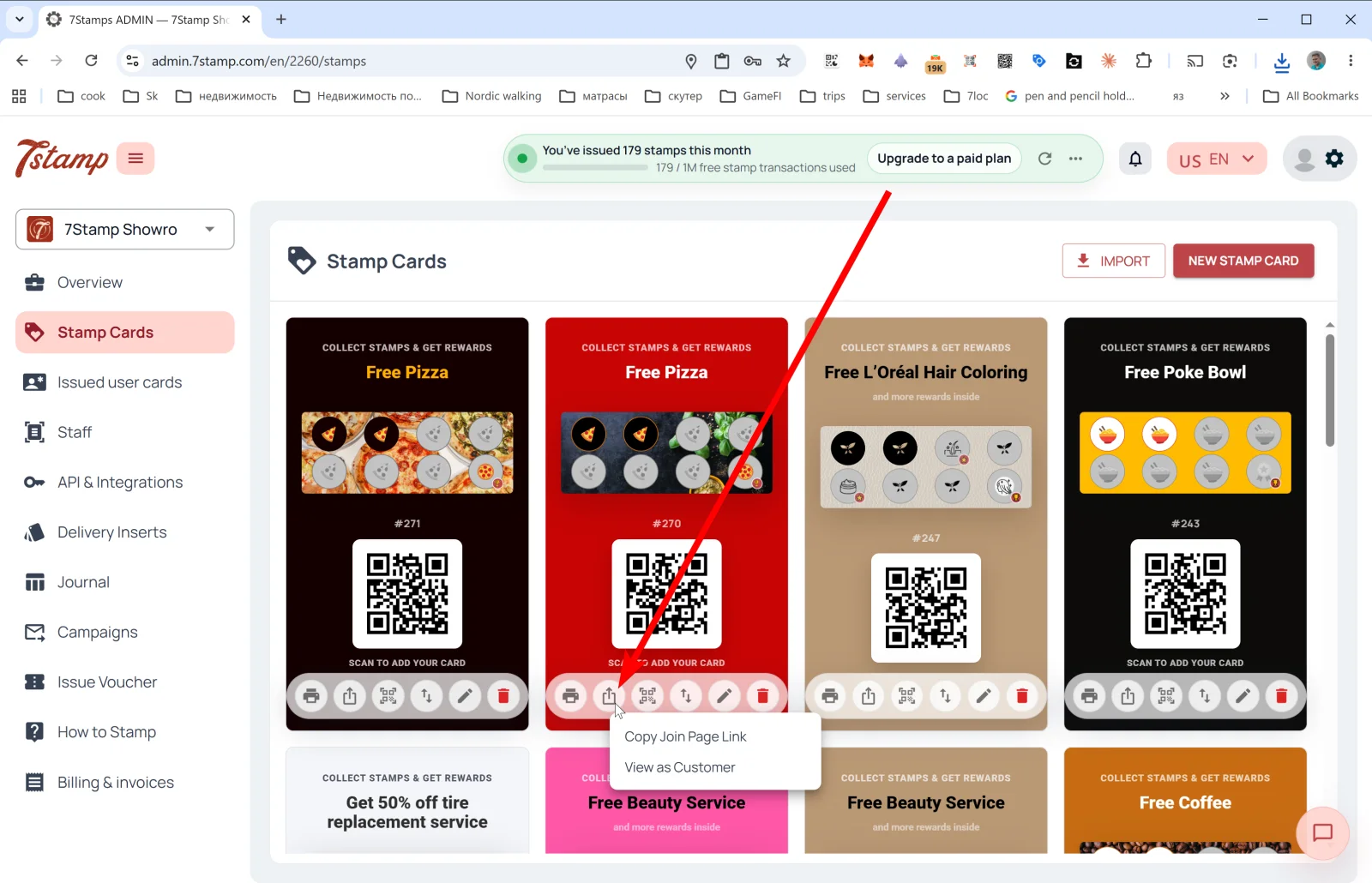
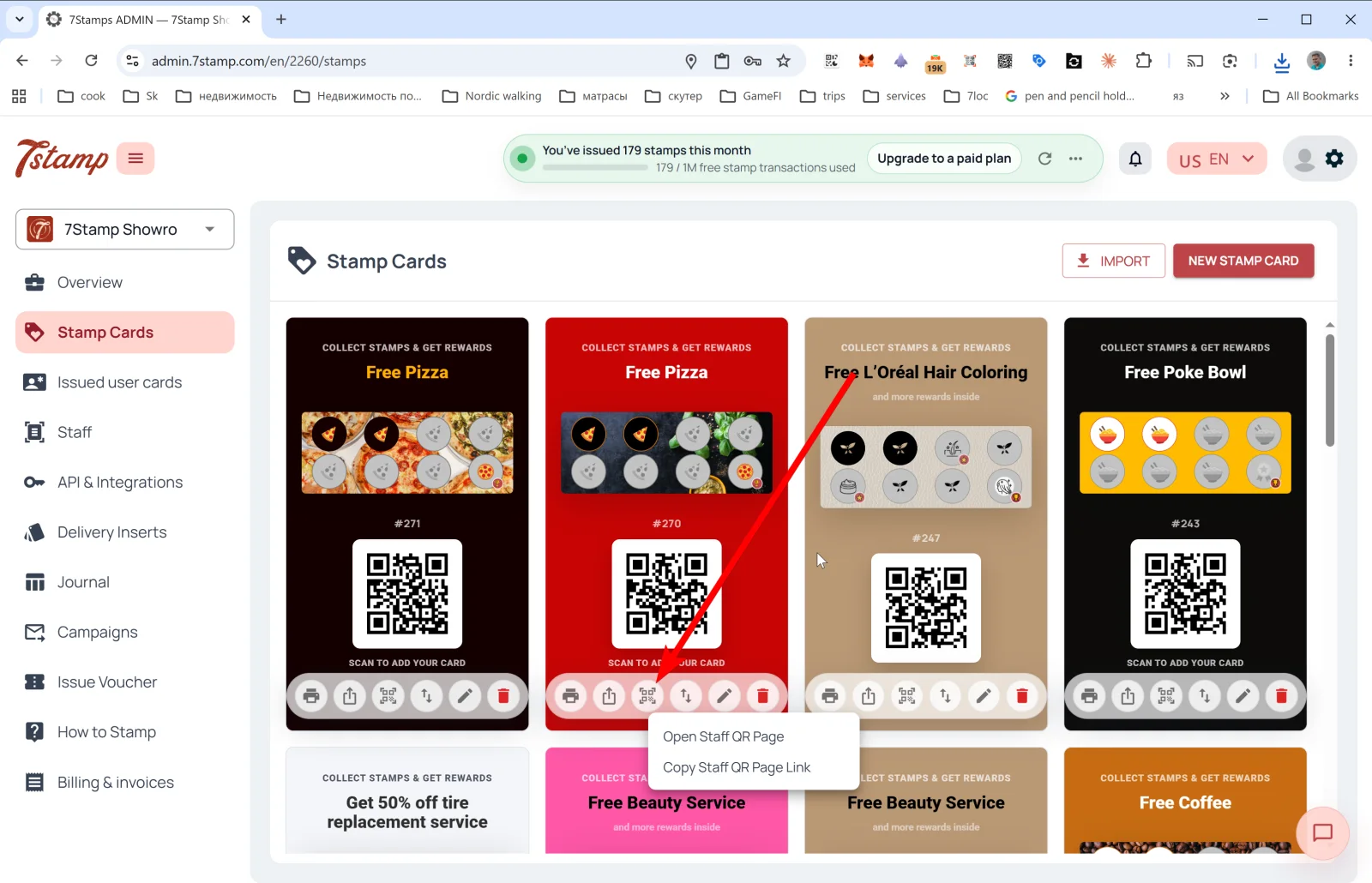
Tip. When you start, you don’t need five cards at once — one well-tuned card is usually enough for a month of testing. Once you understand what works, you can clone it via Export/Import and run A/B variants.
What the card preview shows in the gallery
The card preview in the gallery visually mirrors what the customer will see in Apple/Google Wallet:
- Header badge: “COLLECT STAMPS & GET REWARDS”.
- Final reward name (e.g., “Free Pizza”, “Free Beauty Service”, “Free Coffee”).
- Stamp progress bar with icons — active and inactive.
#IDof the card template (e.g.,#271).- QR code “SCAN TO ADD YOUR CARD” — customers scan it to save the card to Wallet.
Visual walkthrough
Use the screen sets below as a visual companion to the article. Open any image to inspect it at full size.