
10. Issued user cards — ลูกค้าที่ได้รับบัตรแล้ว
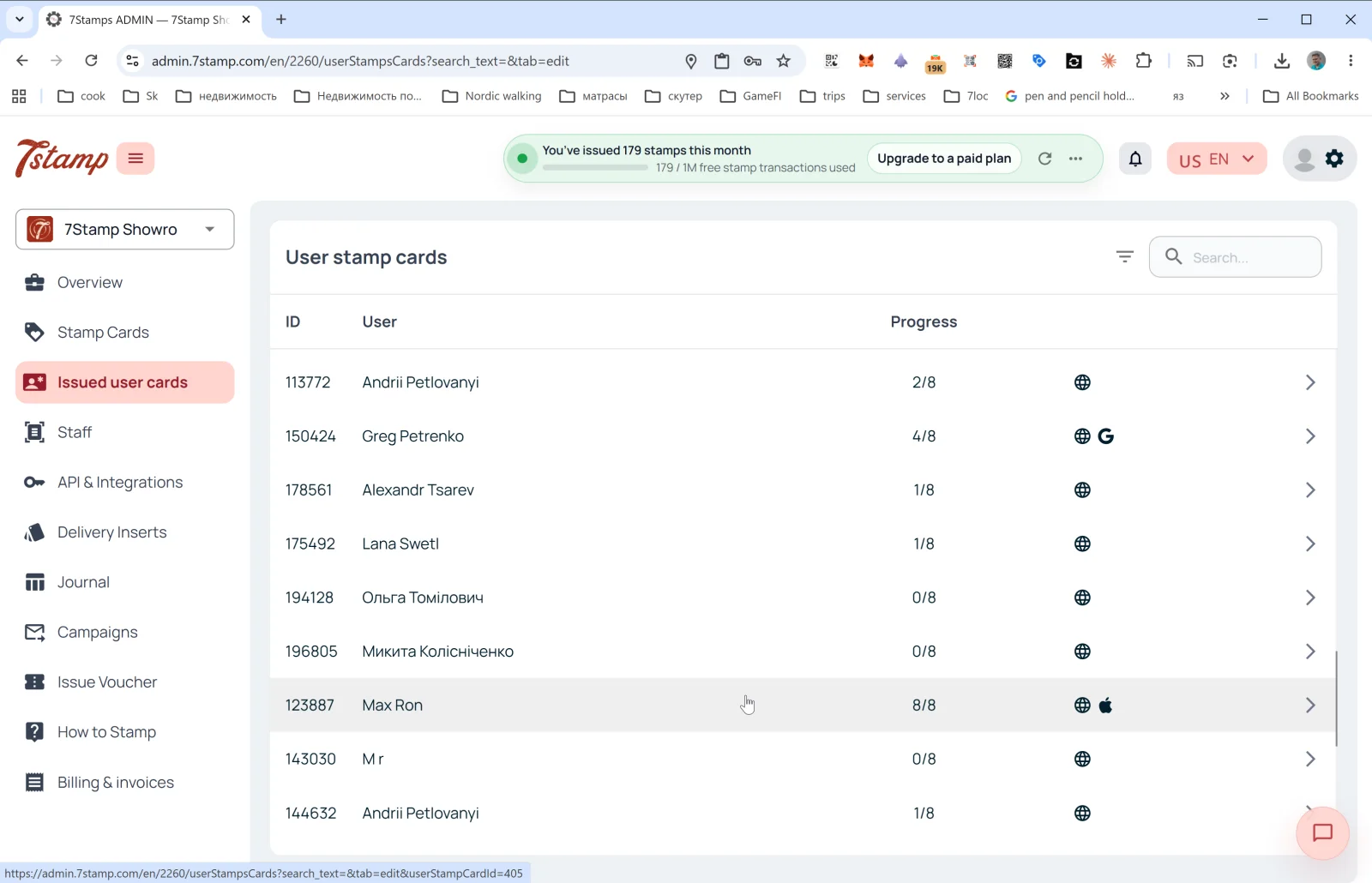
ส่วน Issued user cards ในเมนูด้านข้างคือรายชื่อลูกค้าทั้งหมดที่ถือบัตรของธุรกิจคุณอย่างน้อยหนึ่งใบ หัวข้อของหน้าภายในคือ User stamp cards
คอลัมน์ในรายการ
- ID — หมายเลขบัตรของลูกค้า (เช่น
113772) - User — ชื่อลูกค้า (ตามที่กรอกตอนลงทะเบียน)
- Progress — ความคืบหน้าของแสตมป์ในปัจจุบัน (เช่น
2/8,8/8) - Platform — ไอคอนทางด้านขวาแสดงว่าลูกค้าเก็บบัตรไว้ที่ใด:
- 🌐 — เวอร์ชันเว็บ (ไม่ได้บันทึกลง Wallet)
- 🍎 — Apple Wallet
- G — Google Wallet
- ลูกศร
→— เปิดรายละเอียดบัตร
มุมขวาบน: ไอคอนตัวกรองและช่อง Search… (ค้นหาด้วยชื่อ ID หรืออีเมล)
รายละเอียดบัตรของลูกค้า
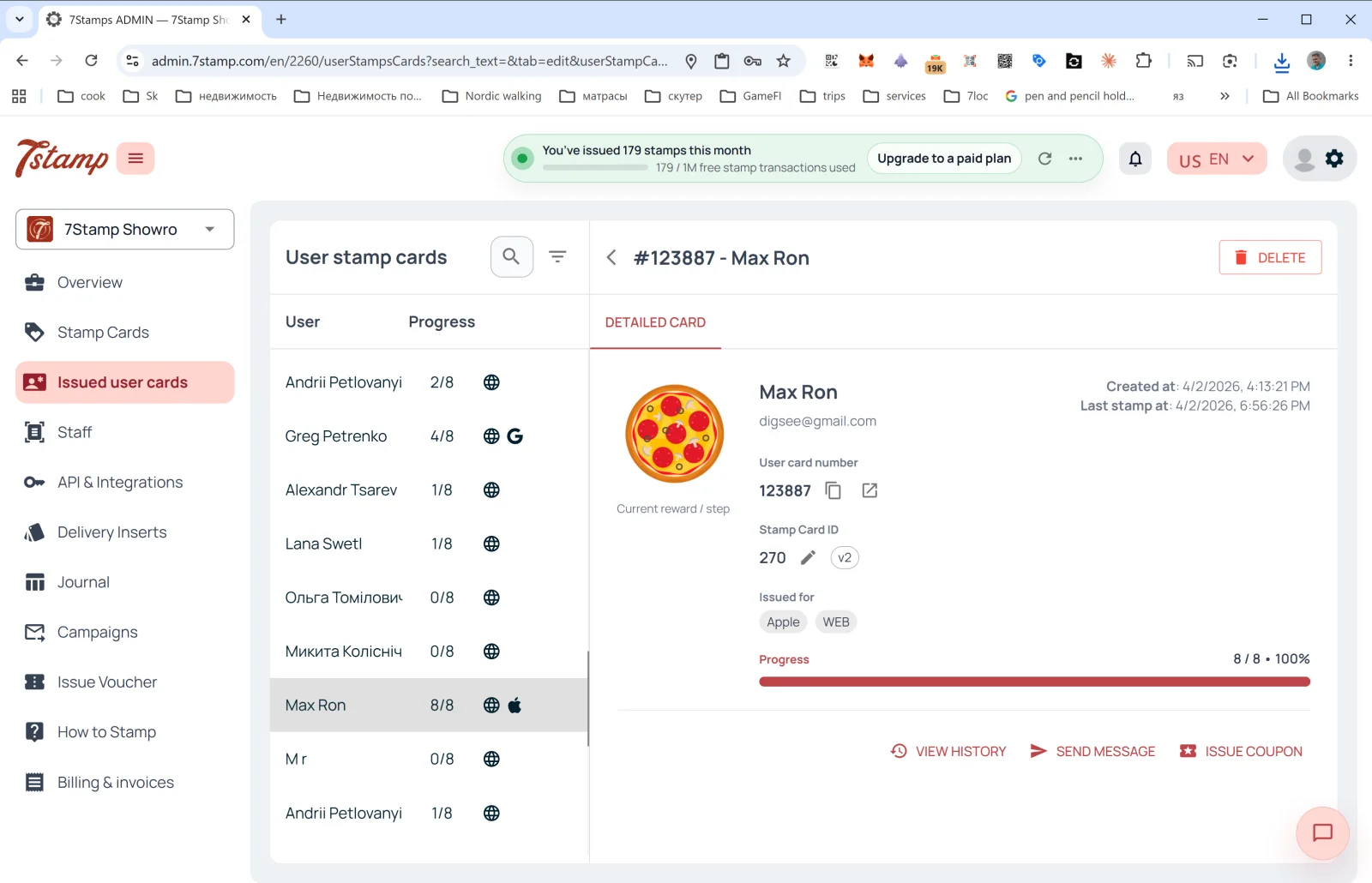
เมื่อคลิกที่แถว แผงด้านข้าง DETAILED CARD จะเปิดขึ้น:
- #ID - ชื่อลูกค้า ในส่วนหัว + ปุ่ม DELETE (ลบบัตรของลูกค้า)
- รูปภาพ Current reward / step — ของรางวัลปัจจุบันหรือถัดไป
- User card number — หมายเลขบัตรของลูกค้า (พร้อมปุ่มคัดลอกและเปิด)
- Stamp Card ID — ID ของเทมเพลต + เวอร์ชัน (
v2,v10…) - Issued for — แพลตฟอร์มที่บันทึกบัตรไว้ (Apple, WEB, Google) ลูกค้าหนึ่งคนบันทึกบัตรไว้ใน Wallet หลายแห่งได้
- Created at — วันที่สร้างบัตร
- Last stamp at — วันที่ได้รับแสตมป์ครั้งล่าสุด
- Progress — แถบความคืบหน้า (เช่น
8 / 8 • 100%)
การดำเนินการ
- VIEW HISTORY — เปิดบันทึกเหตุการณ์ทั้งหมดของบัตรใบนี้: ออกบัตรเมื่อใด ได้รับแสตมป์เมื่อใด ได้รับและใช้สิทธิ์บัตรกำนัลใดบ้าง และได้รับแคมเปญใดบ้าง
- SEND MESSAGE — ส่งข้อความส่วนตัวถึงลูกค้า (ผ่าน PUSH/Email)
- ISSUE COUPON — ออกบัตรกำนัลส่วนตัวได้โดยตรงจากบัตรของลูกค้า (เช่น เพื่อชดเชยหรือเป็นของขวัญ)
ส่วน Issued user cards คือ “CRM ขั้นพื้นฐาน” ของคุณ: แม้ไม่มี CRM ภายนอก คุณก็เห็นลูกค้าทั้งหมดได้ที่นี่ ค้นหาลูกค้าที่ต้องการ ดูประวัติ และติดต่อพวกเขาได้
คำแนะนำแบบภาพ
ใช้ชุดหน้าจอด้านล่างเป็นตัวช่วยทางภาพสำหรับบทความ คลิกรูปภาพใดก็ได้เพื่อดูในขนาดเต็ม