
Reference
The Issued user cards section in the side menu is the list of all customers who hold at least one card of your business. The page header inside is User stamp cards.
10. Issued user cards — customers with issued cards
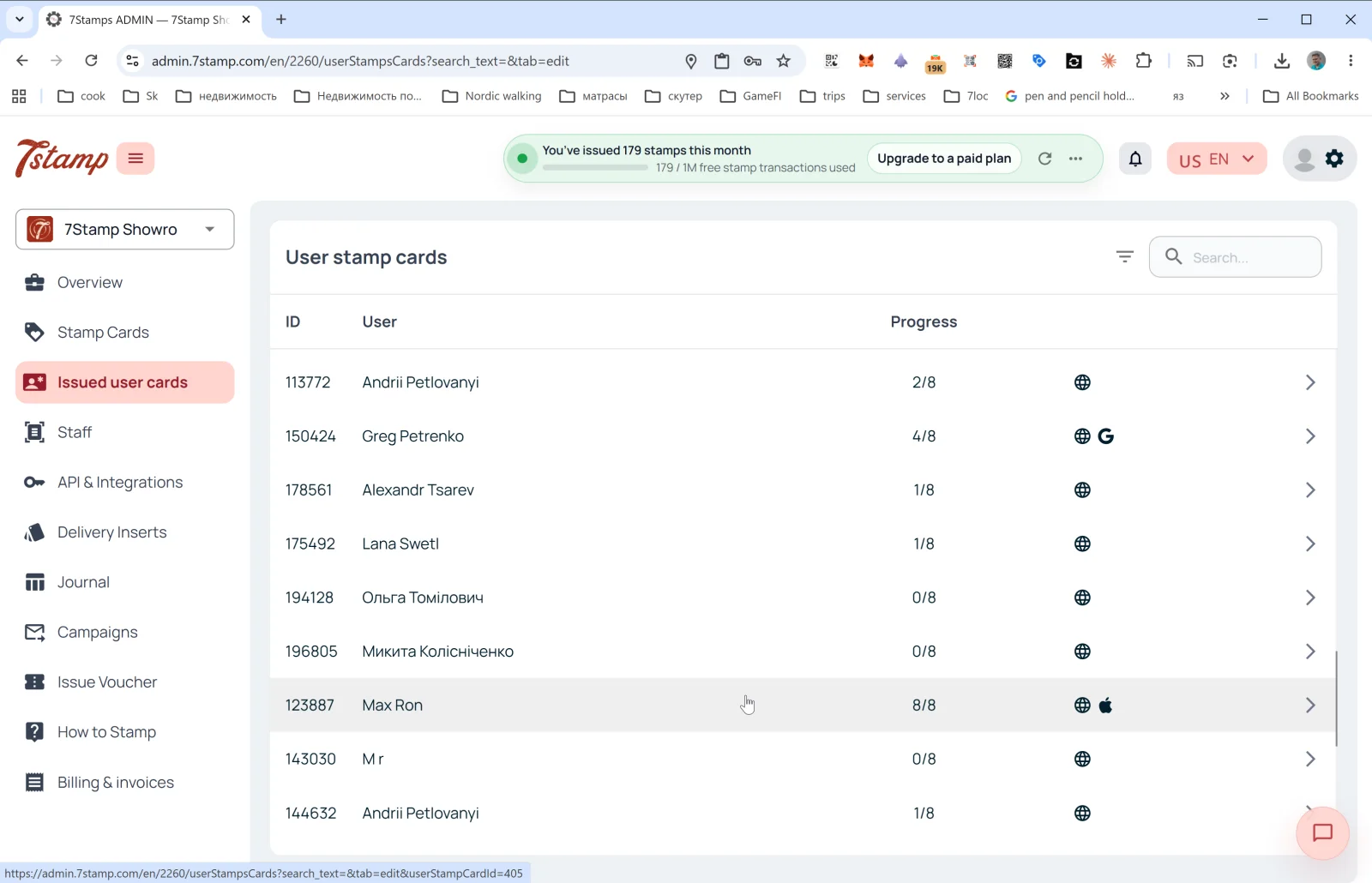
The Issued user cards section in the side menu is the list of all customers who hold at least one card of your business. The page header inside is User stamp cards.
List columns
- ID — the customer card number (e.g.,
113772). - User — the customer name (as they entered at registration).
- Progress — current stamp progress (e.g.,
2/8,8/8). - Platform — icons on the right show where the customer keeps the card:
- 🌐 — web version (no Wallet save).
- 🍎 — Apple Wallet.
- G — Google Wallet.
- Arrow
→— open card details.
Top right: the filter icon and the Search… field (search by name, ID, email).
Customer card details
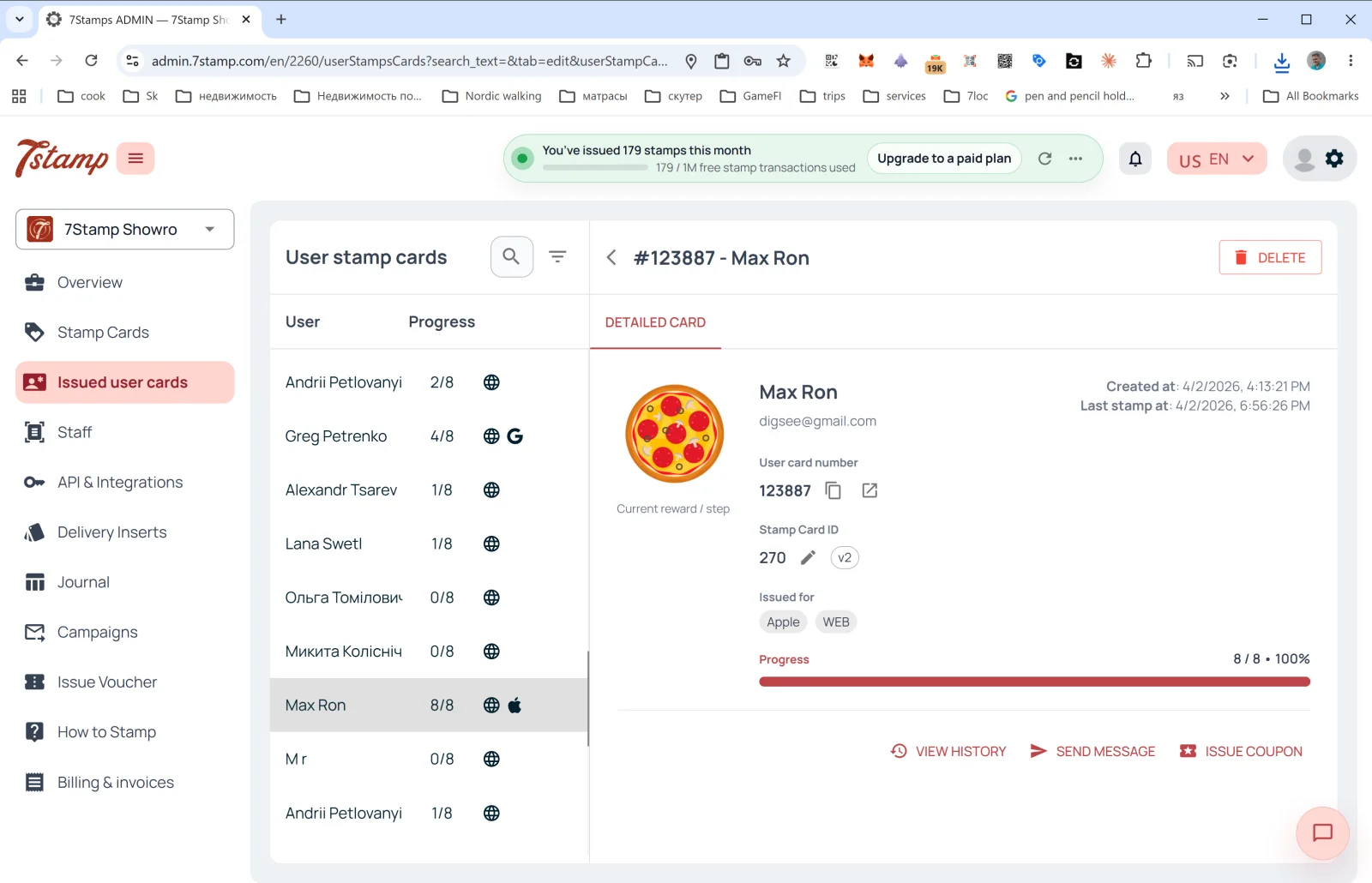
Clicking a row opens the DETAILED CARD side panel:
- #ID - Customer Name in the header + the DELETE button (delete the customer card).
- A Current reward / step image — the current or next gift.
- User card number — the customer card number (with copy and open buttons).
- Stamp Card ID — the template ID + version (
v2,v10…). - Issued for — on which platform the card is saved (Apple, WEB, Google). One customer can save the card in several Wallets.
- Created at — card creation date.
- Last stamp at — date of the last stamp.
- Progress — progress bar (e.g.,
8 / 8 • 100%).
Actions
- VIEW HISTORY — opens the full event log for this card: when it was issued, when stamps were added, which vouchers were earned and redeemed, which campaigns were sent.
- SEND MESSAGE — send a personal message to the customer (via PUSH/Email).
- ISSUE COUPON — issue a personal voucher directly from the customer card (e.g., as a compensation or a gift).
The Issued user cards section is your “CRM minimum”: even without an external CRM, here you see all customers, can find a specific one, see their history, and contact them.
Visual walkthrough
Use the screen sets below as a visual companion to the article. Open any image to inspect it at full size.