
7. Card distribution channels
Card कोई app नहीं है जिसे customer को install करना पड़े. यह एक web page (Join Page) और Apple Wallet / Google Wallet pass का combination है. इसलिए असली सवाल यह है कि customer उस page तक कैसे पहुंचे. इसका जवाब distribution channels हैं: QR, direct link, Staff QR Page, Delivery Inserts, receipt flow, या CRM/API-based invites. ज़्यादातर businesses के लिए एक से ज़्यादा channels साथ में काम करते हैं.
7.1 Printable QR labels (दो formats)
Stamp Cards gallery में किसी Card के नीचे 🖨️ icon से आप QR label export कर सकते हैं:
- 4×6 in / 10×15 cm — बड़ा format. Posters, entrance signs, counter displays, या standees के लिए ठीक.
- 2×2 in / 5×5 cm — छोटा format. Table tent, packaging sticker, insert card, या takeaway bag के लिए उपयुक्त.
हर format के लिए दो options होते हैं:
- Download — PDF/PNG export करके print shop या local printer पर use करें.
- Print — compatible printer पर सीधे भेजें.
QR वहीं रखें जहाँ customer वैसे भी कुछ सेकंड रुकते हों: counter, table, exit, waiting zone. अगर QR बहुत दूर लगा होगा तो लोग बाद में भूल जाएंगे.
7.2 Direct link (Join Page)
⤴️ icon के अंदर Copy Join Page Link option public URL copy करता है. इसे आप यहाँ use कर सकते हैं:
- Instagram bio और Stories
- website या landing page
- staff email signatures
- newsletter या welcome email
- delivery menu या QR menu
एक ही Join Page iOS और Android दोनों पर काम करता है. Device के अनुसार system Apple Wallet या Google Wallet में Card save करने का सही option दिखाता है.
7.3 View as Customer — customer journey preview
⤴️ icon के अंदर View as Customer वही page खोलता है जो customer वास्तव में देखेंगे. Publish करने से पहले यह check ज़रूर करें:
- Logo छोटे screen पर भी साफ दिख रहा है या नहीं
- Stamp progress पहली नज़र में समझ आ रही है या नहीं
- Reward title कट तो नहीं रहा
- Colors आपस में मिलकर confusing तो नहीं लग रहे
यह step छोटी design mistakes को live जाने से पहले पकड़ने का सबसे आसान तरीका है.
7.4 Staff QR Page — assisted enrollment
🔳 icon के अंदर Open Staff QR Page और Copy Staff QR Page Link options मिलते हैं. यह एक अलग page है जो enrollment QR दिखाता है. Typical flow:
- Staff member अपने phone पर Staff QR Page खोलता है, या चाहे तो उसे अपने Apple Wallet / Google Wallet में save कर सकता है.
- Customer से बात करते समय वही QR दिखाया जाता है.
- Customer scan करके तुरंत Card save कर लेते हैं.
यह premium service environments, जैसे salons, barbershops, restaurants, और spa locations में बहुत अच्छा काम करता है, क्योंकि staff program को समझाते हुए personal touch भी दे सकता है.
7.5 Delivery Inserts — delivery orders के printable inserts
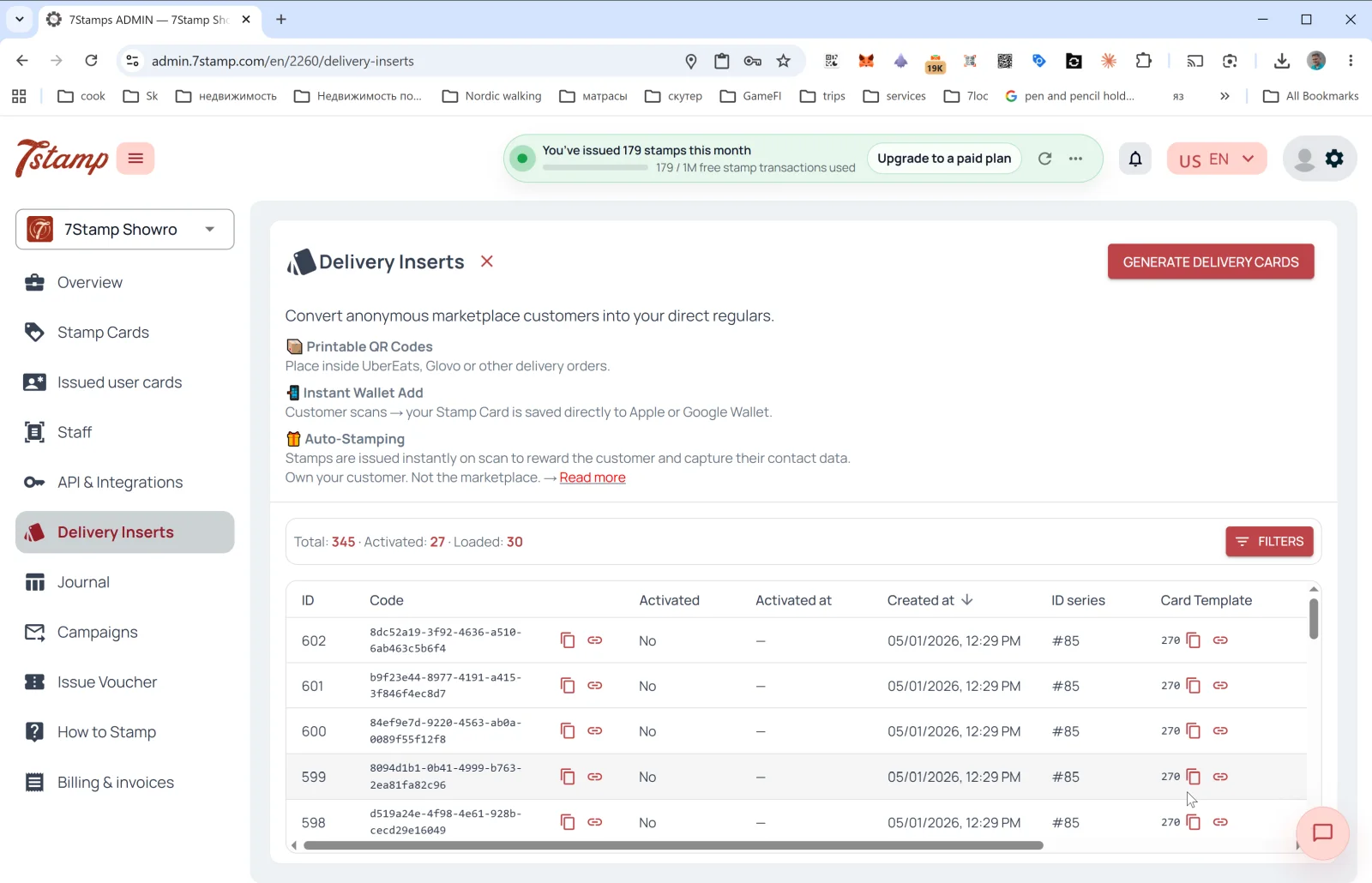
Delivery Inserts side menu का dedicated section है. इसका मुख्य उद्देश्य marketplace customers को direct customers में बदलना है. अगर orders Glovo, UberEats, Wolt, या किसी दूसरे aggregator से आते हैं, तो Delivery Inserts आपको order package के अंदर अपना own loyalty entry point रखने देते हैं.
इस section में आपको मिलेगा:
- 📦 Printable QR Codes — order के अंदर रखने के लिए unique QR inserts
- 📱 Instant Wallet Add — scan होते ही Card Apple Wallet या Google Wallet में save हो जाता है
- 🎁 Auto-Stamping — scan के साथ Stamps अपने-आप add हो सकते हैं
Batch कैसे generate करें
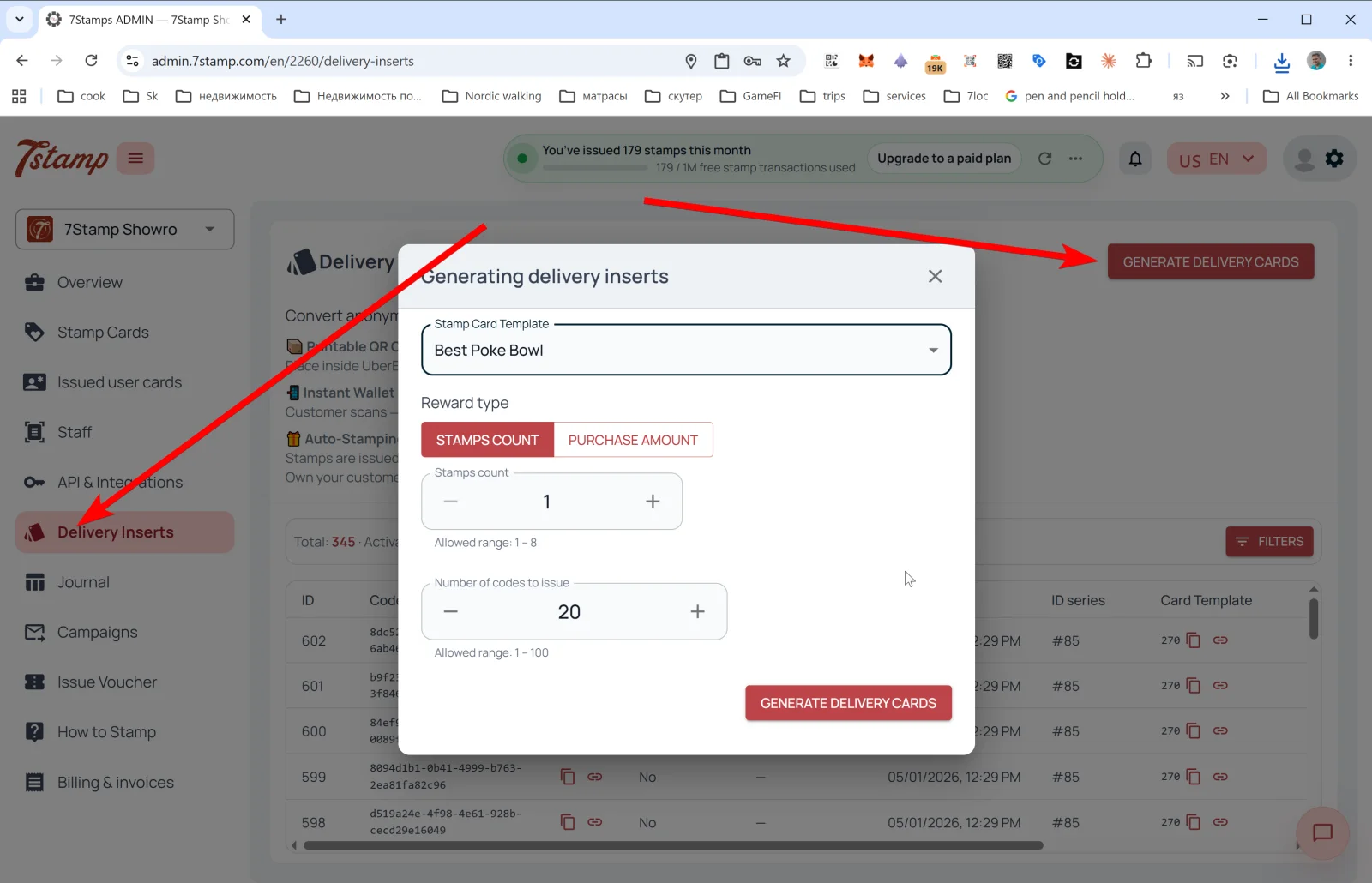
ऊपर दाईं ओर GENERATE DELIVERY CARDS दबाएं. इससे popup खुलेगा:
- Stamp Card Template — कौन-सा Card इस्तेमाल होगा
- Reward type — STAMPS COUNT या PURCHASE AMOUNT
- Stamps count — हर scan पर कितने स्टैम्प देने हैं
- Number of codes to issue — एक batch में कितने unique codes generate करने हैं
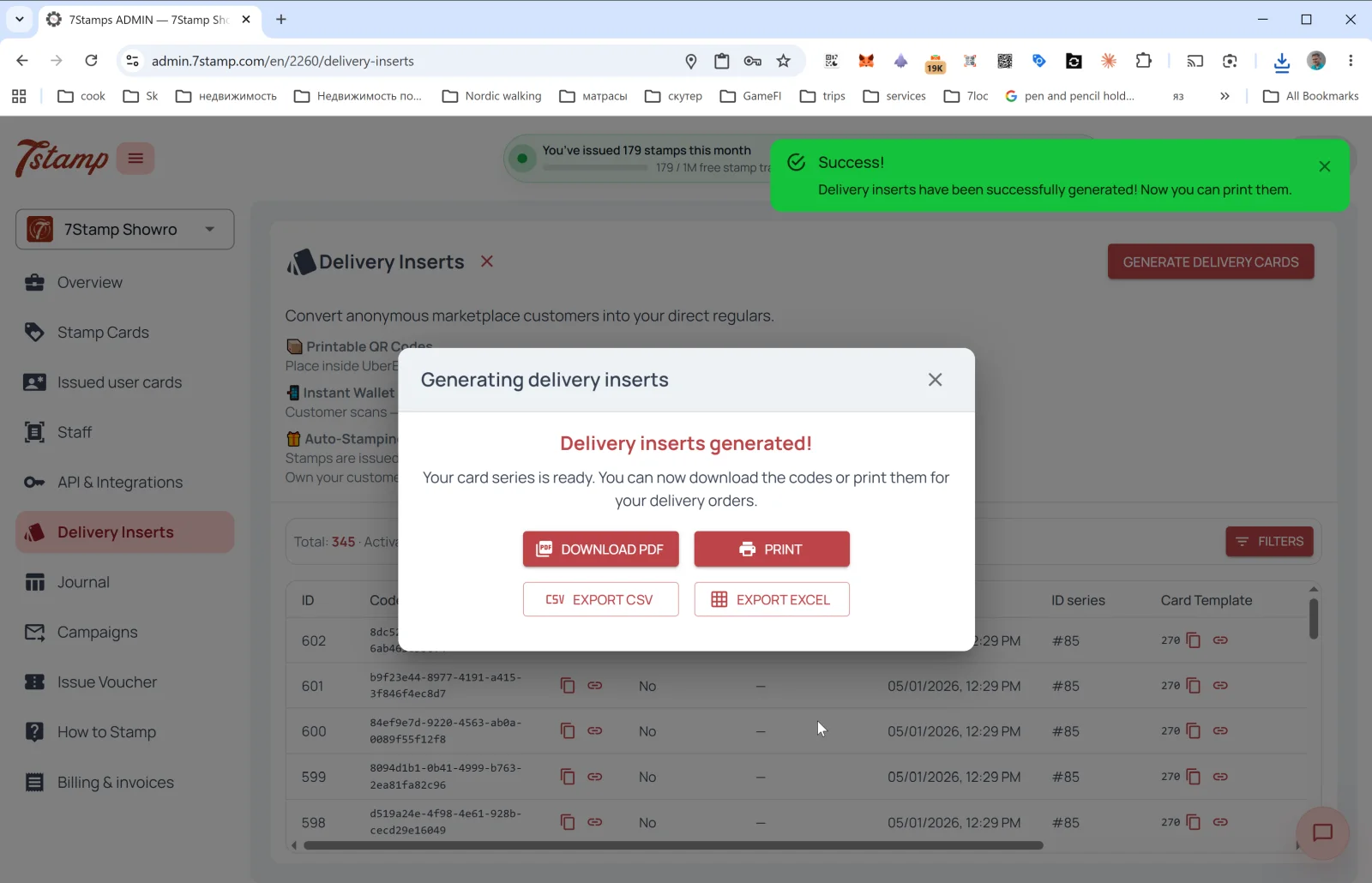
Generation के बाद confirmation window चार export buttons देती है:
- DOWNLOAD PDF
- EXPORT CSV
- EXPORT EXCEL
Issued inserts table
Main Delivery Inserts page पर summary stats दिखती हैं: Total / Activated / Loaded. नीचे table में सभी codes की list होती है:
- ID — running number
- Code — insert UUID
- Activated — use हुआ या नहीं
- Activated at — activation date
- Created at — creation date
- ID series — batch identifier
- Card Template — linked Card
FILTERS से activation, date, या series के आधार पर narrow down कर सकते हैं.
Tip. Inserts को 50–100 के batches में print करना practical रहता है. Design पर यह साफ लिखा होना चाहिए कि customer को मिलेगा क्या, जैसे: “इस QR को scan करें → Card save करें → 9th order पर free coffee पाएँ”.
7.6 Receipt QR — receipt या pre-check पर QR
Admin में Receipt QR के लिए अलग dedicated menu नहीं होता, लेकिन concept वही है:
- QR receipt, pre-check, या order confirmation email पर छपता है
- Customer भुगतान के बाद scan करता है
- अगर Card अभी तक saved नहीं है तो issue हो जाता है; अगर saved है तो स्टैम्प add हो जाते हैं
- किसी extra staff-side software की ज़रूरत नहीं पड़ती — यह एक pure Zero Integration scenario हो सकता है
- अगर scan के बाद Lottery trigger होती है, तो customer अपने phone browser में ही spin करते हैं
One-off receipt codes के लिए आप Delivery Inserts का उपयोग कर सकते हैं. अगर हर receipt पर वही persistent QR छापना है, तो Join Page QR print कर सकते हैं, लेकिन उस case में auto-stamping नहीं होगा जब तक POS integration न जोड़ा जाए.
7.7 CRM links और API-based issuance
API के जरिए (देखें Section 14) आप:
- specific customers के लिए personal Card links generate कर सकते हैं
- Card issue करते समय शुरुआती स्टैम्प जोड़ सकते हैं
- CRM segments import करके targeted invites भेज सकते हैं
यह useful है जब a) customer offline खरीदी करके चले गए हों, b) आप follow-up campaign चलाना चाहते हों, या c) loyalty enrollment को किसी existing customer database से जोड़ना हो.
दृश्य मार्गदर्शिका
Use the screen sets below as a visual companion to the लेख. खोलें any image to inspect it at full size.