
Reference
In the Card Designer Build Your Journey step you pick one of three Reward types. Each type is a different interaction scenario, a different economy, and a different level of control.
6. Rewards — three types of gifts
In the Card Designer Build Your Journey step you pick one of three Reward types. Each type is a different interaction scenario, a different economy, and a different level of control.
6.1 Award — instant text gift
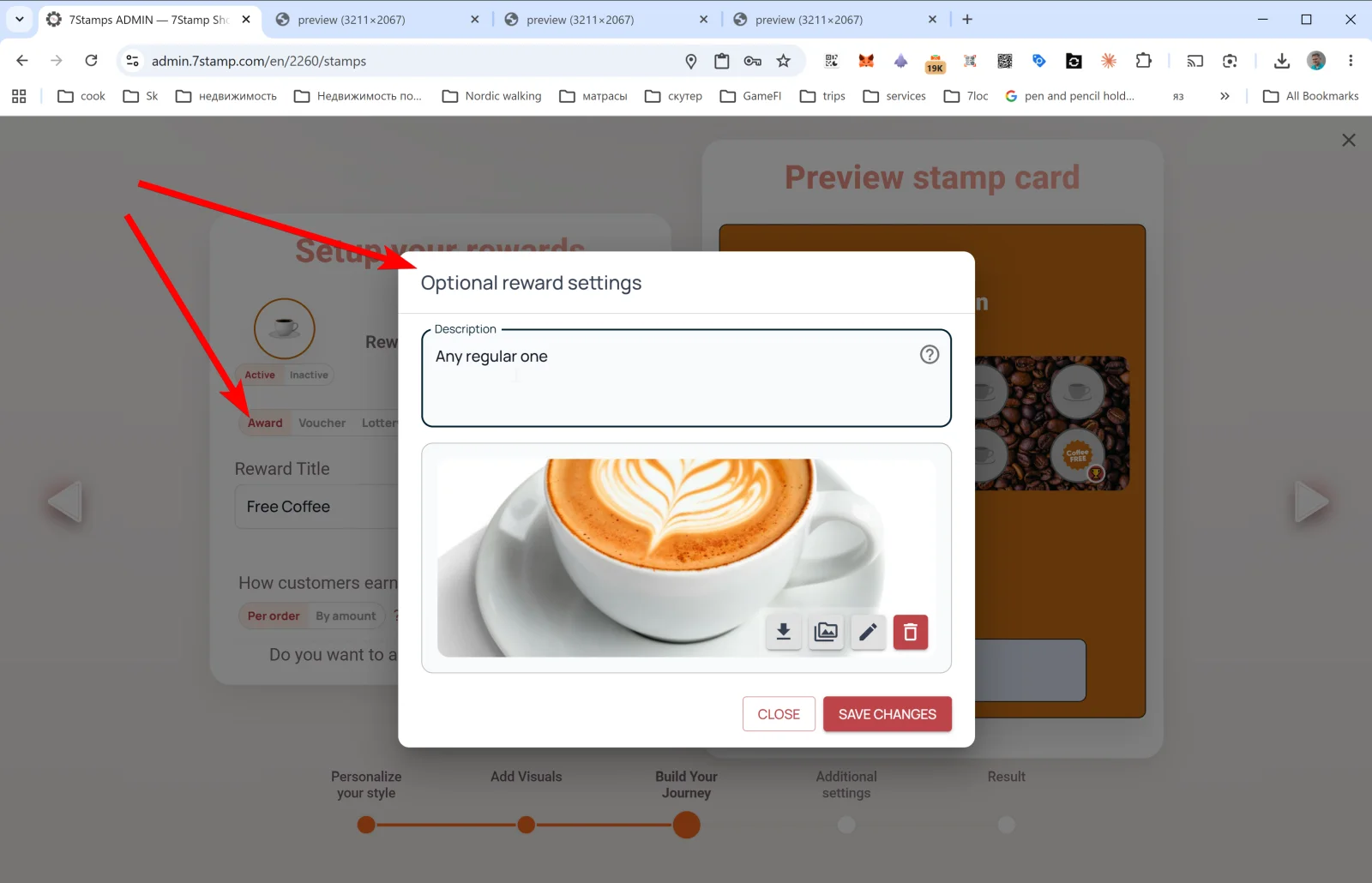
Award is the simplest type. It’s just a text message and a picture the customer sees on reaching the goal. No codes, no vouchers, no draws — the customer shows the screen to the cashier, and the cashier hands the gift over.
Optional reward settings for Award
- Description — the gift description (e.g.,
Any regular coffee from our menu). - Image — the gift image (PNG, JPG, JPEG, WEBP, SVG, HEIC, HEIF, AVIF). Can be pasted from clipboard.
- Buttons: CLOSE / SAVE CHANGES.
When to use Award
- When your service runs on quick trust (coffee shop, bakery, fast food).
- When your POS doesn’t support promo codes.
- When the gift is handed out by the same staff member who serves the customer.
- When you’re just testing the program and want to keep things simple.
When not to use Award
- When there’s a risk the customer screenshots it and tries to reuse it. Use a Voucher instead — it has a
redeemedlifecycle state, after which the voucher is invalid. - When the gift is expensive and you want to control when it’s redeemed. A Voucher is safer here, too.
6.2 Voucher — Smart Voucher with Redeem Code
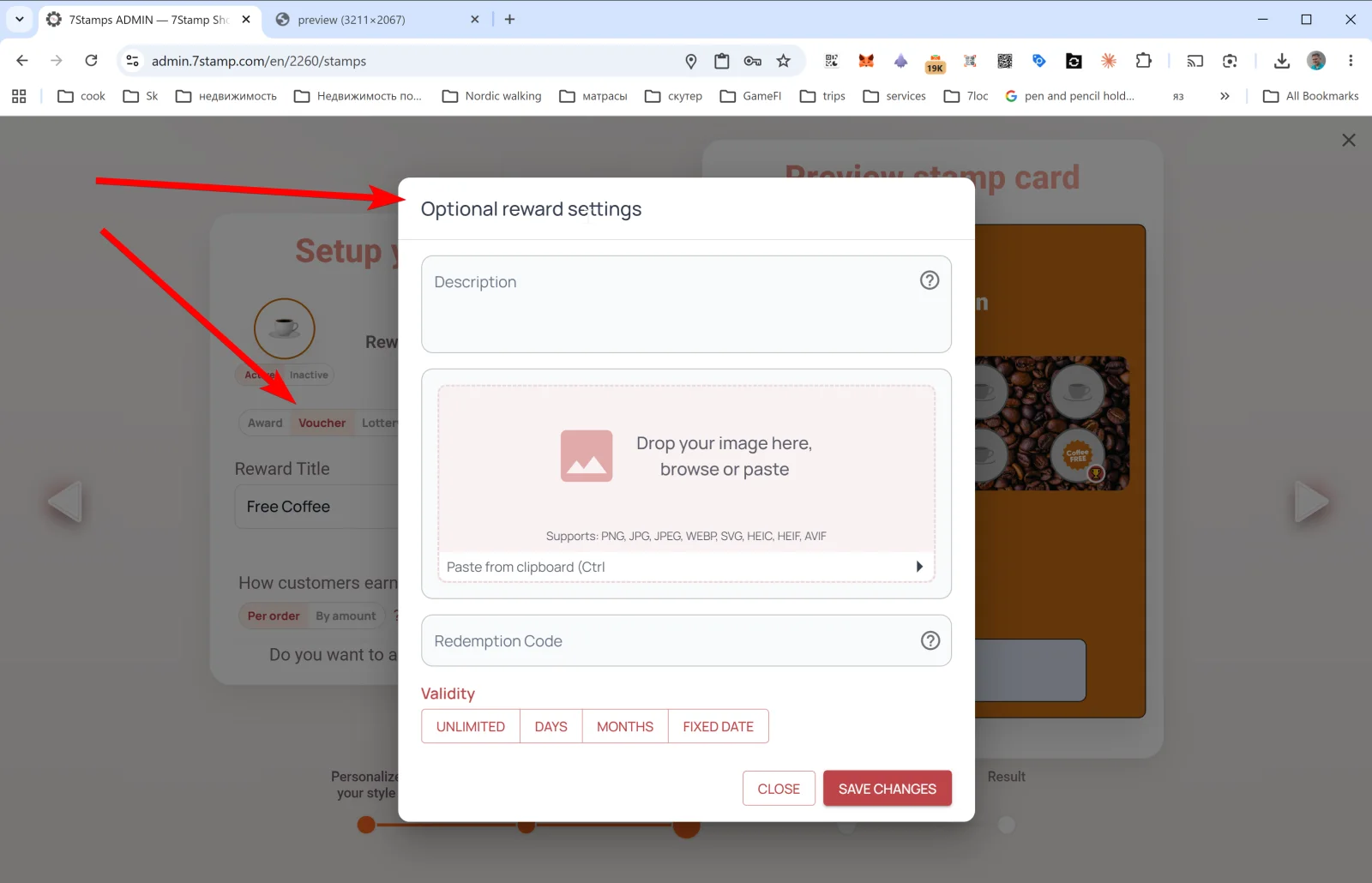
Voucher (Smart Voucher) is a voucher with its own lifecycle. Once the goal is reached, an active voucher appears in the customer’s Wallet. The customer uses it whenever they want — separately from the moment they earned it. When the cashier redeems the voucher, the status flips to redeemed, and it can no longer be used — even if the customer kept a screenshot.
Optional reward settings for Voucher
- Description — the voucher description.
- Image — the picture (PNG / JPG / JPEG / WEBP / SVG / HEIC / HEIF / AVIF).
- Redeem Code — the redemption code. It can match a regular promo code in your POS (e.g.,
FREECOFFEE,GIFT100,BDAY25). The code is automatically rendered both as text and as QR. If your POS already handles promo codes — no integration is needed; the cashier just reads or enters the code into the till. - Validity — duration. One of four options:
- UNLIMITED — no expiry.
- DAYS — N days from issuance.
- MONTHS — N months from issuance.
- FIXED DATE — until a specific date.
Voucher lifecycle
issued → active → redeemed → expired
- issued — voucher generated but not yet attached to a customer (for standalone vouchers).
- active — voucher is available in the customer’s Wallet; can be used.
- redeemed — voucher has been used; can no longer be reused.
- expired — validity period elapsed.
This state machine is the main defense against screenshot fraud. Even if the customer kept a screenshot, after redeemed the till (via Redeem Code) or the scanner will refuse to apply it again.
When to use Voucher
- When the gift is expensive and you need to confirm hand-over.
- When the scenario is “earn now, use later” (typical for salons, restaurants, premium service).
- When your POS already supports promo codes — Voucher with a Redeem Code turns 7Stamp into a Wallet layer on top of your existing discount system without any POS rework.
- When you want the exact Redemption rate metric — how many vouchers were actually used.
6.3 Lottery — gamified draw
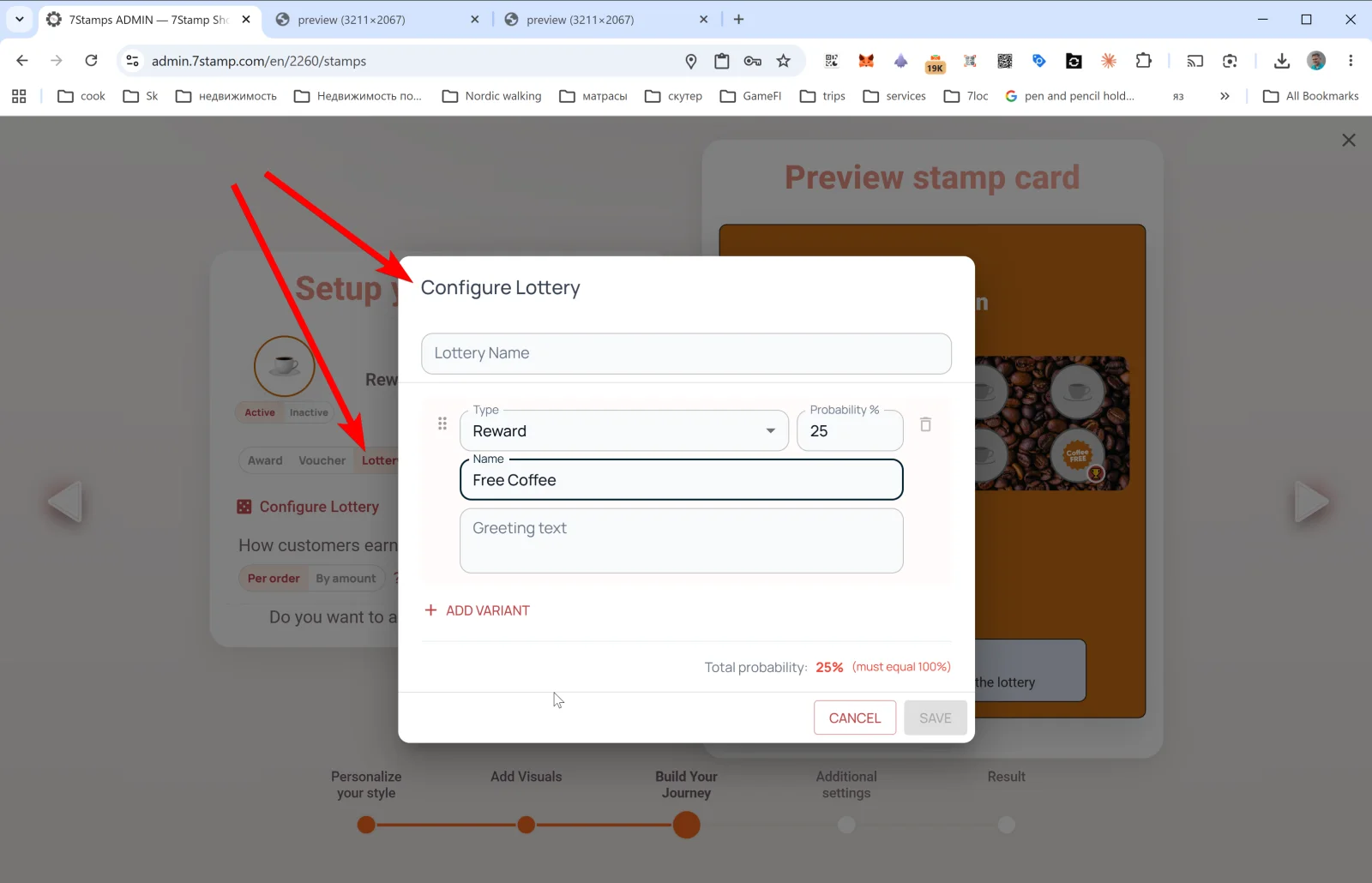
Lottery is a gamified Reward. Instead of a single gift you assemble a pool of Variants (draw options), and on reaching the goal the customer spins the lottery. The business decides how many slots of each type go into the pool — total probability across all slots must equal 100%.
Four slot types in the lottery pool
Per 7Stamp architecture, a lottery slot can be one of four types:
- Award slot — an instant text gift (same as a regular Award).
- Voucher slot — a voucher (Smart Voucher with its own lifecycle, optionally with a Redeem Code).
- “Try again” — a re-spin. The customer immediately spins the lottery again.
- “No prize” — an empty slot. Used to balance the economy and not hand out expensive vouchers to everyone who reaches the goal.
If the customer wins a “prize”, they get either an Award or a Voucher — the screen then behaves accordingly (text gift or Voucher Unlocked!).
Configure Lottery — pool setup
- Lottery Name — the lottery name.
- For each Variant:
- Type — the slot type: Award, Voucher, Try again, or No prize.
- Probability % — drop chance (e.g., 25).
- Name — slot name (e.g.,
Free Coffee,Try again,Maybe next time). - Greeting text — text the customer sees when this slot fires.
- + ADD VARIANT — add another slot.
- Total probability: NN% — indicator: the sum of all slot probabilities must equal 100%. SAVE is disabled otherwise.
Where the lottery is played
Depending on which service workflow you use:
- Staff Scanner (Manual) — the spin opens on the staff member’s phone; they show the screen to the customer and invite them to tap “Play”.
- Self-Service Kiosk — the customer spins it themselves on the tablet by the till.
- Receipt QR / Delivery QR — the customer scans the QR from the receipt or insert and spins right in the browser on their phone, no app required.
When to use Lottery
- When you want to amplify the emotional moment — a lottery adds gamification, and the customer remembers it more strongly than a regular gift.
- When you need to balance the economy: add “try again” and “no prize” slots so not every goal-reacher gets an expensive Voucher.
- For one-off marketing campaigns (e.g., a brand anniversary).
What to avoid
- Don’t make a lottery with a single 100% slot — it’s just an Award/Voucher wrapped in an extra click.
- Don’t make “no prize” dominant (>50%) — the customer will feel cheated and drop out.
- Remember that in jurisdictions regulating gambling, a lottery with real prizes may require legal review.
6.4 Milestone Rewards — multiple goals on a single card
In Card Designer Step 3, beneath the standard Reward section, there’s a link: Do you want to add milestone rewards? Yes! Tapping it adds intermediate gifts along the card path.
Example card with 9 stamps and two milestones:
- 3 stamps → Award: “10% off your next order”.
- 6 stamps → Voucher: “Free dessert” with Redeem Code
DESSERT6. - 9 stamps → Voucher (final): “Free Pizza” with Redeem Code
FREEPIZZA9.
When to use Milestone Rewards
- When the final goal is far (8+ stamps) and the customer might lose motivation on the way.
- When you want to bring the customer back sooner — a small reward at stamp 3 drives more frequent visits.
- When your economy makes sense to give a small bonus to almost everyone and a big one to the most loyal.
What the customer sees
In Wallet the customer sees a progress bar with hints about the next milestone. Each intermediate gift triggers a Wallet push notification and adds the matching Award/Voucher.
Visual walkthrough
Use the screen sets below as a visual companion to the article. Open any image to inspect it at full size.